Minecraft OptiFine – Complete Guide to Download, Install, Features, Shaders and Performance
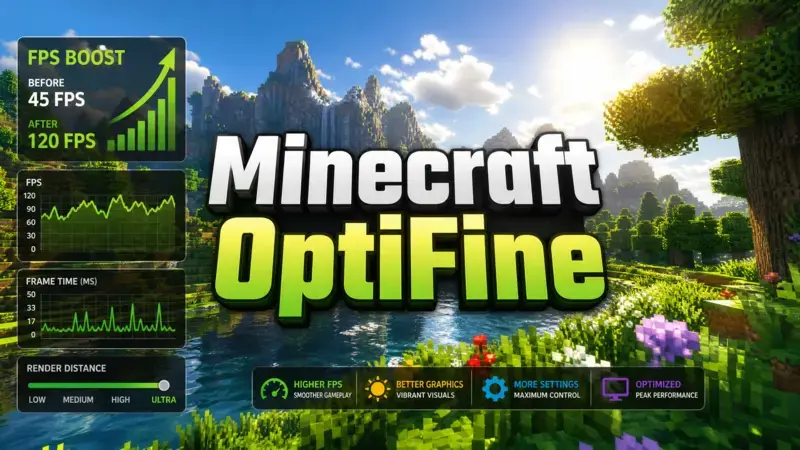
Minecraft OptiFine is a popular optimization mod for Minecraft Java Edition that enhances graphics, improves performance, and gives players greater control over the game’s visual settings. Created by sp614x, it has become one of the most trusted Minecraft mods thanks to its ability to boost FPS while supporting advanced features such as shaders, HD resource packs, dynamic lighting, connected textures, custom models, and extensive video settings, all without changing Minecraft’s core gameplay. This guide covers everything you need to know about OptiFine, including how to download it safely, install it correctly, configure the best settings, use shaders, troubleshoot common issues, and compare it with modern alternatives, with practical guidance based on official information whenever possible.
OptiFine officially supports Minecraft Java Edition, works as a client-side mod without requiring server installation, and can be installed either as a standalone version or alongside compatible mod loaders, depending on your Minecraft version. For security and compatibility, always download OptiFine from its official website.
What Is Minecraft OptiFine?
Definition
Minecraft Optifine is a free optimization mod for Minecraft Java Edition. It improves game performance and adds advanced graphics features. Players use it to increase FPS, enable shaders, and customize visual settings. It runs on the client only and does not change Minecraft’s core gameplay.
Brief History
sp614x released OptiFine to make Minecraft run faster on more computers. Over time, the mod added HD texture support, advanced video settings, shader compatibility, and many visual improvements. Each update follows new Minecraft Java Edition releases whenever possible.
Why It Became Popular
OptiFine became popular because it solves common performance problems. Many players gain smoother gameplay without upgrading their hardware. It also unlocks features that the base game does not offer. These include dynamic lighting, connected textures, zoom, and support for high-quality shader packs. The mod balances performance and visual quality in one package.
Client-Side Optimization
OptiFine works as a client-side mod. You only need to install it on your own computer. Servers do not require OptiFine to let you connect. The mod improves rendering, optimizes graphics settings, and gives you more control over resource usage. This approach helps reduce lag while keeping the original Minecraft experience.
Official Support
OptiFine officially supports Minecraft Java Edition. You should always download it from the official optifine.net website. This reduces the risk of fake downloads or modified files. New OptiFine versions usually arrive after major Minecraft updates. Release timing depends on development progress and compatibility testin
Main Features of OptiFine
OptiFine offers much more than an FPS boost. It improves graphics, adds advanced settings, and gives players greater control over Minecraft. These features help both low-end and high-end computers deliver a better experience.
FPS Improvements
Rendering Optimization
OptiFine improves how Minecraft renders the game world. It reduces unnecessary rendering and uses system resources more efficiently. This process increases FPS and creates smoother gameplay.
Chunk Loading
OptiFine optimizes chunk loading to reduce delays while exploring. The game loads nearby areas more smoothly and limits sudden frame drops.
Performance Improvements
OptiFine includes several performance settings. Features like Fast Render, Smart Animations, and optimized chunk updates reduce lag. Players can adjust these options to match their hardware.
Graphics Enhancements
HD Textures
OptiFine supports high-resolution resource packs. It allows textures well beyond Minecraft’s default resolution while maintaining stable performance on compatible systems.
Better Rendering
OptiFine improves lighting, shadows, and texture rendering. The game looks sharper without changing its original style.
Better Sky
OptiFine supports custom sky textures through compatible resource packs. Players can enjoy realistic skies, brighter stars, and improved sunrise and sunset effects.
Better Water
Water appears clearer and more detailed with Minecraft OptiFine Alternatives. Improved transparency and smoother animations create a more natural look.
Video Settings
Advanced Graphics Settings
OptiFine expands Minecraft’s video menu with dozens of new options. Players can fine-tune graphics for better performance or higher visual quality.
Render Distance
Players can increase or reduce render distance based on their computer’s power. Lower values improve FPS, while higher values expand world visibility.
Smooth FPS
Smooth FPS helps reduce sudden frame rate changes. It creates a more consistent gaming experience during long play sessions.
Smooth World
Smooth World improves game performance on single-player worlds. It helps reduce small pauses during gameplay.
Smart Animations
Smart Animations only animate textures that appear on screen. This feature lowers resource usage and increases FPS.
Dynamic Lights
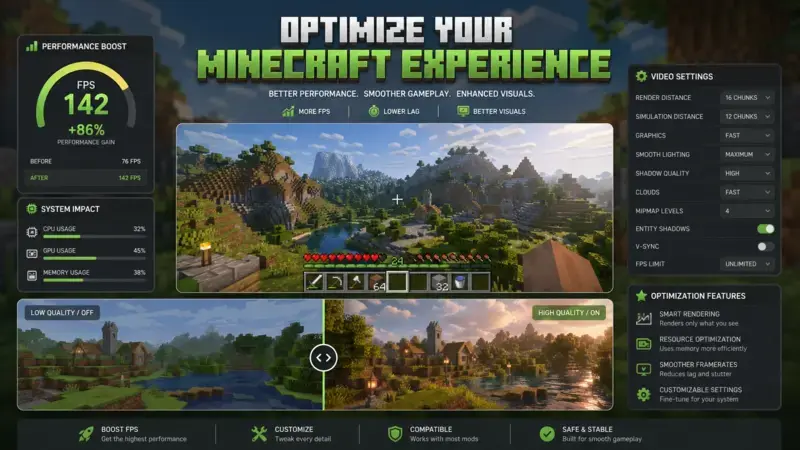
Minecraft Dynamic Lighting OptiFine allow light-emitting items to brighten nearby areas. Torches, lanterns, and other light sources work even when held in your hand. This feature removes the need to place a light block while exploring caves.
Connected Textures (CTM)
Connected Textures remove visible borders between matching blocks. Glass, bookshelves, sandstone, and many resource packs look cleaner and more realistic.
Better Grass
Better Grass extends grass textures to block sides. Landscapes appear smoother and more natural.
Better Snow
Better Snow places snow layers over many exposed blocks. Snow-covered areas look more realistic during winter builds.
Natural Textures
Natural Textures rotate selected block textures automatically. Repeating patterns become less noticeable and the world feels more natural.
Random Mobs
Random Mobs display different skins for the same creature. Compatible resource packs can give villagers, animals, and monsters unique appearances.
Custom Colors
Custom Colors let resource packs change water, grass, foliage, skies, fog, and particle colors. This feature creates a unique visual style.
Custom Fonts
OptiFine supports custom fonts through resource packs. Players can change Minecraft’s default text while keeping menus easy to read.
Better Fog
Better Fog gives players more control over fog distance and appearance. It improves visibility while preserving the game’s atmosphere.
Clear Water
Clear Water increases underwater visibility. Oceans, rivers, and lakes become easier to explore.
Entity Shadows
Players can adjust or disable entity shadows. Lower shadow settings improve FPS on slower computers.
Weather Controls
OptiFine lets players customize rain, snow, clouds, and weather effects. Lower weather settings reduce visual clutter and improve performance during storms.
OptiFine Zoom
OptiFine Zoom lets you magnify distant objects without changing your game settings. It works instantly and helps you see more details from far away. Many players use this feature during exploration, building, and survival gameplay.
How Zoom Works
How to Zoom in Minecraft OptiFine narrows your field of view while you hold the zoom key. The game enlarges distant objects without moving your character. Release the key to return to your normal view. This feature works in both single-player and multiplayer worlds.
Keybind
OptiFine assigns the C key as the default zoom shortcut. You can hold this key to zoom in at any time. If another feature uses the same key, change the shortcut in Minecraft’s Controls menu.
Customization
OptiFine lets you customize zoom behavior through Minecraft’s settings. You can assign a different key that feels more comfortable. This flexibility helps players avoid key conflicts with other mods or custom controls.
Advantages
Zoom makes it easier to spot villages, structures, and landmarks from a distance. It also helps you inspect builds without moving closer. Many players use it to locate mobs, check terrain, and explore safely. Builders benefit from a closer view when placing detailed blocks. Unlike changing your field of view, OptiFine Zoom gives temporary magnification without affecting normal gameplay.
OptiFine Shaders
Shaders transform Minecraft’s lighting and visual effects. They make the game world look more realistic without changing its core gameplay. OptiFine includes built-in shader support, making installation simple for most players.
What Are Shaders?
How to Install Shaders Minecraft OptiFine enhancements that improve how Minecraft renders light, shadows, reflections, water, and the sky. They create realistic environments with dynamic lighting and detailed visual effects. Many players use shaders to give Minecraft a modern look.
How Shaders Work
Shaders replace Minecraft’s default rendering with advanced visual effects. They use your graphics card to calculate lighting, shadows, reflections, and animations in real time. OptiFine manages these effects through its integrated shader system.
Shader Requirements
Most shader packs need a dedicated graphics card for the best experience. Entry-level shaders may run on modern integrated graphics, but performance varies. A recent Java version, updated graphics drivers, and enough system memory also improve stability. Always choose a shader pack that matches your computer’s capabilities.
Best Shader Packs
BSL Shaders
BSL Shaders offer vibrant colors, soft shadows, realistic water, and beautiful skies. They balance visual quality and performance, making them a popular choice for many players.
Complementary Shaders
Complementary Shaders build on the BSL style with extra customization. They deliver realistic lighting while keeping excellent performance across many systems.
Sildur’s Shaders
Sildur’s Shaders provide several quality presets for different hardware. Players can choose Lite, Medium, High, or Extreme versions based on their computer’s power.
Continuum Shaders
Continuum Shaders focus on cinematic visuals and advanced lighting. They deliver stunning graphics but require a powerful graphics card for smooth gameplay.
Performance Impact
Shaders increase GPU usage because they render complex lighting and visual effects. High-end shader packs can reduce FPS on slower computers. Lower shader settings often improve performance without removing every visual enhancement. Test different shader packs and settings to find the best balance between image quality and smooth gameplay.
HD Resource Pack Support
OptiFine expands Minecraft’s resource pack capabilities. It supports high-resolution textures and advanced visual features that the base game cannot fully handle. This support helps creators build detailed worlds without changing Minecraft’s gameplay.
High-Resolution Textures
OptiFine supports HD resource packs with textures far above the default 16×16 resolution. Players can use 32×32, 64×64, 128×128, and even higher resolutions. These Minecraft OptiFine Emissive Textures details to blocks, items, and entities.
Unlimited Texture Sizes
OptiFine removes many texture size limits found in older Minecraft versions. It loads very large textures more efficiently on supported hardware. This feature allows artists to create highly detailed resource packs for immersive gameplay.
Resource Pack Compatibility
OptiFine improves compatibility with advanced resource packs. It supports features like Connected Textures (CTM), Custom Item Textures (CIT), Custom Entity Models (CEM), emissive textures, random mobs, and custom colors. Many popular resource packs rely on these features to deliver their full visual experience.
Performance Considerations
High-resolution textures require more graphics memory and processing power. Larger texture packs may reduce FPS on older computers. Choose a texture resolution that matches your hardware. Lower resolutions often provide the best balance between visual quality and smooth performance.
Custom Features
OptiFine adds several custom features that improve Minecraft’s appearance without changing its core gameplay. These features allow resource pack creators to deliver richer visuals and more immersive worlds.
Custom Item Textures (CIT)
Custom Item Textures (CIT) let resource packs assign unique textures to specific items. The same item can display different designs based on its name, enchantments, or other properties. Many adventure maps and servers use CIT to create custom weapons, tools, and decorative items.
Custom Entity Models (CEM)
Custom Entity Models (CEM) replace Minecraft’s default mob models with detailed versions. Resource packs can change the shape, animations, and appearance of animals, villagers, and monsters. This feature creates a more dynamic and visually appealing world.
Custom Sky
OptiFine supports custom sky textures through compatible resource packs. Players can enjoy unique day and night skies, colorful sunsets, detailed stars, and realistic moons. These changes enhance the atmosphere without affecting gameplay.
Custom GUI
Custom GUI allows resource packs to redesign Minecraft’s menus and interfaces. Inventories, crafting tables, chests, and other screens can match a resource pack’s overall style. This feature creates a more consistent visual experience.
Emissive Textures
Emissive Textures make selected parts of a texture glow in dark areas. Eyes, crystals, ores, and magical objects can appear bright without acting as real light sources. This effect adds depth and realism while preserving Minecraft’s lighting system.
OptiFine Cape
An OptiFine Cape is a cosmetic item that appears on your Minecraft character. It does not improve gameplay or increase performance. Instead, it lets players personalize their appearance and support OptiFine’s development.
What It Is
The OptiFine Cape is an official cosmetic feature available to OptiFine supporters. Only players who purchase a cape through the official OptiFine website can use it. The cape appears only in Minecraft Java Edition when OptiFine is installed.
How Capes Work
After you activate a cape, OptiFine links it to your Minecraft Download. The cape appears automatically when you join a world or server with OptiFine installed. Other players using OptiFine can also see your cape. Players without OptiFine may not see it.
Donation System
OptiFine uses a donation system to fund ongoing development. Players receive a cape as a thank-you for supporting the project. The donation helps maintain compatibility with new Minecraft versions and supports future updates. A cape is optional, and every gameplay feature remains free.
Cape Editor
The Minecraft OptiFine Cape Editor lets you customize your cape’s design. You can choose different patterns and colors after activating your cape. The editor also allows you to transfer your cape to another eligible Minecraft account if needed. These options give supporters more control over their cosmetic appearance.
Download OptiFine
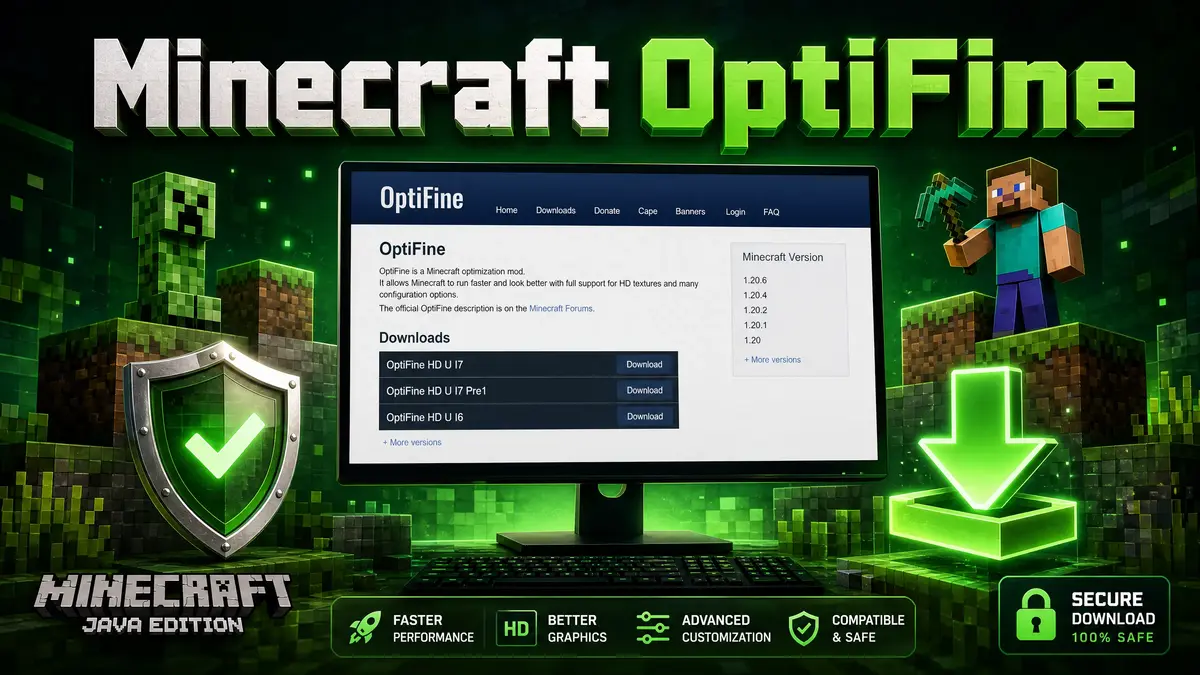
Downloading OptiFine from the right source protects your computer and Minecraft account. Always use the official website to get the latest and safest version. Avoid third-party websites that repackage or modify OptiFine files.
Official Download
Download OptiFine only from optifine.net, the project’s official website. This site provides the latest releases, preview builds, and installation files. It also includes update information and change logs for each version.
Latest Version
The latest OptiFine version supports the newest compatible release of Minecraft Java Edition. Each release includes bug fixes, performance improvements, and new features. Check the official download page before installing to ensure you choose the correct version for your game.
Preview Versions
Preview versions give players early access to upcoming OptiFine updates. These builds help test new features and Minecraft compatibility. They may contain bugs or incomplete features. Use preview versions only if you understand the risks.
Release Versions
Release versions receive more testing than preview builds. They offer better stability for everyday gameplay. Most players should install the latest stable release unless they need support for a newer Minecraft version.
Verify Downloads
Verify that you downloaded OptiFine from the official website before opening the installer. Check that the Minecraft version matches your installation. Avoid files from unknown websites, file-sharing services, or unofficial launchers. These downloads may contain outdated, modified, or unsafe software.
How to Install OptiFine
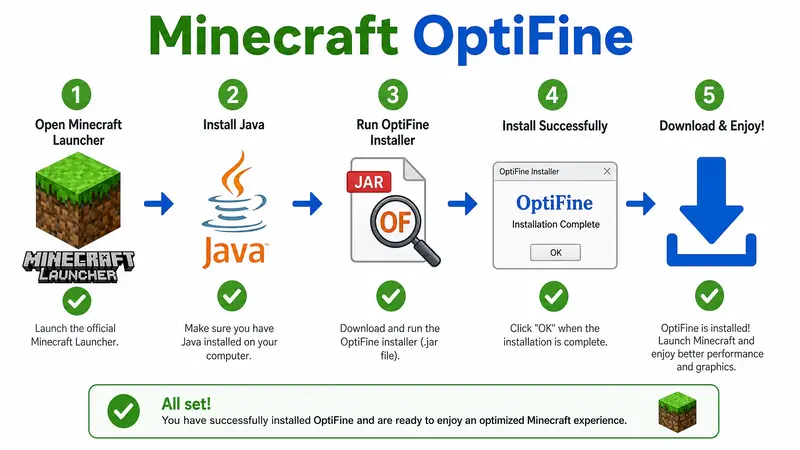
Installing OptiFine takes only a few minutes. The process depends on how you play Minecraft. Choose the method that matches your setup for the best results.
Vanilla Installation
This method works with the official Minecraft Launcher and does not require a mod loader.
- Download the correct OptiFine version for your Minecraft release.
- Close Minecraft before running the installer.
- Open the OptiFine .jar file.
- Click Install.
- Wait for the installation to finish.
- Open the Minecraft Launcher.
- Select the OptiFine profile.
- Click Play to launch the game.
If the installer does not open, install the latest version of Java and try again.
Launcher Installation
Most popular Minecraft launchers support OptiFine profiles, although the installation process can vary by launcher. First, download the OptiFine version that matches your Minecraft version, then import or install it using your launcher’s available options. Before launching the game, make sure to select the OptiFine profile. If you encounter any issues or need launcher-specific instructions, refer to your launcher’s official documentation.
Manual Installation
Manual installation is useful when the automatic installer does not work. To install OptiFine manually, copy the OptiFine .jar file into the correct Minecraft directory or mod folder, depending on your setup. Ensure that the OptiFine version matches your Minecraft version, then launch Minecraft and verify that the OptiFine profile or mod loads correctly.
Multiple Versions
You can install several OptiFine versions on the same computer. Each version creates its own profile in the Minecraft Launcher. This setup lets you switch between different Minecraft releases without reinstalling OptiFine. Always use the matching OptiFine version for each Minecraft version.
Updating OptiFine
Update OptiFine whenever a newer compatible release becomes available. Download the latest version from the official website and run the installer again. The new installation creates or updates the appropriate profile. Check your settings after updating because some options may reset between major releases.
OptiFine with Forge
Many players use OptiFine with Minecraft Forge to combine performance improvements with Forge mods. Compatibility depends on the Minecraft version and the OptiFine release. Always check that both versions support each other before installing.
Compatibility
OptiFine works with many Forge versions, but not every combination is compatible, so you should always use the OptiFine version designed for your specific Minecraft release and install the recommended Forge version that matches it. Using mismatched versions can cause crashes or prevent the game from launching. Additionally, some large modpacks replace OptiFine with other optimization mods, so it is important to review the modpack documentation before adding OptiFine to avoid compatibility issues.
Installation
Install Forge before adding OptiFine.
Follow these steps:
- Install the correct version of Minecraft Forge.
- Launch Forge once and close the game.
- Download the matching OptiFine version.
- Open your Minecraft mods folder.
- Copy the OptiFine .jar file into the folder.
- Start Minecraft using the Forge profile.
- Confirm that OptiFine appears in the Mods menu.
If OptiFine does not load, verify that your Minecraft, Forge, and OptiFine versions match.
Common Issues
Version mismatches are the most common cause of installation problems, so always check compatibility before installing OptiFine. Some mods modify Minecraft’s rendering system and may conflict with OptiFine, leading to crashes or visual glitches. If Minecraft fails to start, remove any recently added mods and test the game again, then reinstall each mod one at a time to identify the conflicting one. Keeping Java, Minecraft, Forge, and OptiFine updated with compatible releases also helps improve stability and reduce compatibility issues.
OptiFine with Fabric
Fabric is a lightweight mod loader for Minecraft Java Edition. OptiFine does not offer full native support for OptiFine for Fabric like it does for vanilla Minecraft or Forge. Many Fabric players choose alternative optimization mods because they integrate better with the Fabric ecosystem.
Current Limitations
OptiFine may not work with every Fabric version or Fabric mod, as some features require additional compatibility mods and conflicts can occur after Minecraft updates. Support also depends on the current OptiFine release and the Fabric ecosystem. If you use many Fabric mods, it is a good idea to test compatibility before starting a long-term world, as this can help prevent crashes, graphical issues, and other unexpected problems.
Alternatives
Several Fabric mods offer features similar to OptiFine while focusing on different aspects of performance. Sodium is one of the most popular optimization mods, delivering high FPS and improved rendering performance, while Lithium enhances game logic and simulation to reduce lag without changing gameplay. FerriteCore lowers memory usage and improves efficiency, making it especially useful for larger modpacks. Many Fabric players combine these mods to achieve excellent performance, stability, and a smoother Minecraft experience.
Iris Compatibility
Iris Shaders brings shader support to the Fabric ecosystem and works seamlessly with Sodium to deliver excellent performance and modern shader compatibility. Many Minecraft players prefer the Sodium + Iris combination over OptiFine on Minecraft OptiFine Fabric because it offers significant FPS improvements, broad compatibility with other Fabric mods, and support for many popular shader packs. If your main priority is the best overall Fabric experience with high performance and wide mod compatibility, using Sodium with Iris is often the recommended choice.
OptiFine with NeoForge
NeoForge is a modern mod loader for Minecraft Java Edition that many players use to run large modpacks and newer mods. However, OptiFine support on NeoForge depends on the specific Minecraft version and current mod compatibility, so it is not available for every release. Before installing OptiFine with NeoForge, always verify that both are designed for the same Minecraft version, as using incompatible versions can lead to crashes, graphical issues, missing features, or startup errors.
Compatibility
OptiFine does not provide official NeoForge support for every Minecraft version, and compatibility can change as Minecraft, NeoForge, and OptiFine receive updates, so you should always verify support before adding OptiFine to your mods folder. Additionally, some NeoForge modpacks recommend using alternative optimization mods instead of OptiFine, making it best to follow the modpack author’s recommendations whenever possible.
Installation
Install NeoForge before adding OptiFine.
Follow these steps:
- Install the correct NeoForge version.
- Launch Minecraft once with the NeoForge profile.
- Close the game.
- Download the matching OptiFine version.
- Place the OptiFine .jar file in the mods folder if your OptiFine release supports NeoForge.
- Launch Minecraft using the NeoForge profile.
- Confirm that the game starts without errors.
If OptiFine does not load, remove it and verify compatibility with your NeoForge version.
Common Issues
Most OptiFine issues are caused by version mismatches or conflicts with other mods, especially rendering mods that modify the same game systems. If Minecraft crashes during startup, remove OptiFine and launch the game to confirm it works, then reinstall your mods one at a time to identify the conflicting mod. For many NeoForge modpacks, optimization mods such as Sodium-based ports and compatible shader solutions often provide better compatibility than OptiFine, so it’s best to use the option recommended for your specific modpack and Minecraft version.
Best OptiFine Settings
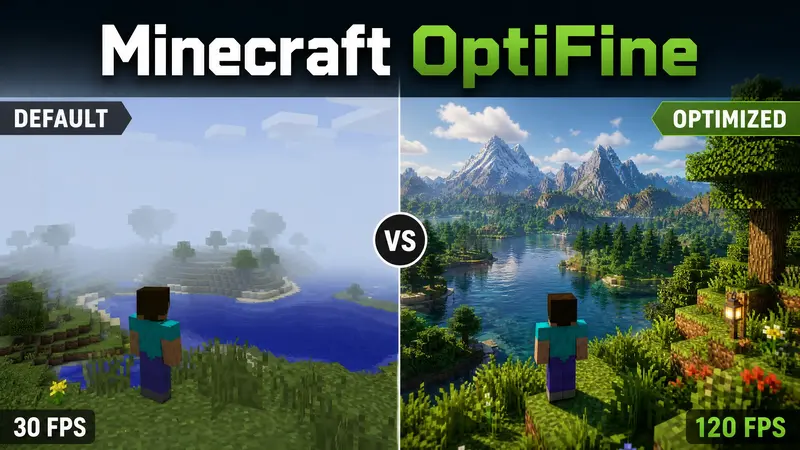
The best Minecraft OptiFine Settings depend on your computer. A low-end PC needs different settings than a gaming desktop. Start with these recommendations and adjust them based on your hardware.
Maximum FPS
Use these settings if you want the highest possible frame rate.
- Graphics: Fast
- Smooth Lighting: Off or Minimum
- Render Distance: 6–10 Chunks
- Simulation Distance: 5–8 Chunks
- Clouds: Off
- Shadows: Off
- Entity Shadows: Off
- Particles: Minimal
- Dynamic Lights: Fast or Off
- Mipmap Levels: 0–2
- Biome Blend: 0×0
- Smooth FPS: On
- Smooth World: On
- Smart Animations: On
- Fast Render: On (when shaders are disabled)
- Fast Math: On
These settings reduce GPU and CPU load. They usually deliver the highest FPS.
Balanced Settings
Choose these settings if you want smooth gameplay and better graphics.
- Graphics: Fancy
- Smooth Lighting: Maximum
- Render Distance: 10–16 Chunks
- Simulation Distance: 8–10 Chunks
- Clouds: Fast
- Dynamic Lights: Fast
- Entity Shadows: On
- Particles: Decreased
- Mipmap Levels: 4
- Biome Blend: 5×5
- Smart Animations: On
- Smooth FPS: On
This setup provides a good balance between image quality and performance.
High-End PCs
Powerful computers can handle higher graphics settings.
- Graphics: Fancy
- Render Distance: 20–32 Chunks
- Simulation Distance: 12–16 Chunks
- Smooth Lighting: Maximum
- Dynamic Lights: Fancy
- Entity Shadows: On
- Better Grass: Fancy
- Better Snow: On
- Connected Textures: Fancy
- Anisotropic Filtering: 8×–16×
- Anti-Aliasing: 2×–4×
- Enable shaders only if your graphics card supports them comfortably.
Monitor your FPS after enabling shaders. Reduce settings if performance drops.
Low-End PCs
Older computers benefit from lightweight settings.
- Graphics: Fast
- Render Distance: 6–8 Chunks
- Simulation Distance: 5 Chunks
- Smooth Lighting: Off
- Dynamic Lights: Off
- Clouds: Off
- Better Grass: Off
- Better Snow: Off
- Entity Shadows: Off
- Particles: Minimal
- Smart Animations: On
- Fast Render: On
- Fast Math: On
These settings help reduce lag and improve gameplay.
Laptops
Laptops often have limited cooling and battery life.
- Render Distance: 8–12 Chunks
- Graphics: Fast or Fancy
- Dynamic Lights: Fast
- Smooth FPS: On
- Smart Animations: On
- Clouds: Fast
- Lower screen brightness when possible.
- Play while connected to power for the best performance.
These changes help maintain stable FPS during longer gaming sessions.
Integrated Graphics
Integrated GPUs need conservative settings for smooth gameplay.
- Graphics: Fast
- Render Distance: 6–8 Chunks
- Simulation Distance: 5 Chunks
- Smooth Lighting: Off
- Dynamic Lights: Off
- Connected Textures: Fast or Off
- Better Grass: Off
- Better Snow: Off
- Mipmap Levels: 2
- Smart Animations: On
- Fast Render: On
- Fast Math: On
- Avoid high-resolution resource packs and demanding shader packs.
Start with these settings and increase them gradually. Stop when you notice frame drops or stuttering.
Performance Optimization Guide
Good performance depends on more than OptiFine settings. Your CPU, GPU, memory, Java installation, and Minecraft configuration all affect gameplay. Optimizing each area helps you achieve smoother FPS and fewer lag spikes.
CPU Optimization
Minecraft relies heavily on CPU performance. A faster processor improves chunk loading, world generation, and game logic.
Follow these tips:
- Close unnecessary background programs.
- Restart your computer before long gaming sessions.
- Select the High Performance power plan on Windows.
- Keep your operating system updated.
- Avoid running CPU-intensive applications while playing.
- Reduce render and simulation distances if your CPU struggles.
These changes help reduce stuttering and improve world loading.
GPU Optimization
Your graphics card renders Minecraft’s world. Proper GPU settings improve FPS and visual stability.
For the best results:
- Install the latest graphics driver from NVIDIA, AMD, or Intel.
- Set Minecraft to use your dedicated GPU if your computer has one.
- Disable demanding shader packs on slower hardware.
- Match your resource pack resolution to your GPU’s capability.
- Lower anti-aliasing and anisotropic filtering if FPS drops.
- Enable V-Sync only if screen tearing becomes noticeable.
Monitor your GPU usage while playing. High usage often means you should reduce graphics settings.
Memory Allocation
Minecraft needs enough memory to run smoothly. Too little memory causes lag. Too much memory can also reduce performance.
General recommendations:
- 2 GB for vanilla Minecraft with OptiFine.
- 4 GB for large resource packs or light modding.
- 6–8 GB for larger modpacks if needed.
Avoid allocating more memory than your system can spare. Leave enough RAM for Windows and background applications.
Java Settings
Minecraft Java Edition performs best with an up-to-date Java installation.
Use these best practices:
- Install the latest supported Java version.
- Use the 64-bit version of Java on a 64-bit operating system.
- Keep Java updated to receive performance and security improvements.
- Avoid unnecessary custom Java arguments unless you understand their effects.
Modern Minecraft versions usually perform well with the default Java settings.
Minecraft Settings
Minecraft’s built-in settings also affect performance.
For smoother gameplay:
- Lower the render distance.
- Reduce the simulation distance.
- Turn off unnecessary animations.
- Use Fast graphics on slower computers.
- Disable entity shadows if FPS drops.
- Keep particles at Minimal or Decreased.
- Limit high-resolution resource packs on low-end hardware.
- Enable OptiFine features such as Smart Animations, Smooth FPS, and Smooth World when appropriate.
Test one change at a time. This approach helps you identify which settings provide the biggest performance improvement for your computer.
Version Downloads
OptiFine releases match specific Minecraft Java Edition versions. Always download the OptiFine version that matches your game. Installing the wrong version can cause startup errors, crashes, or missing features.
OptiFine 1.21.x
OptiFine 1.21.x supports the latest compatible Minecraft 1.21 releases. It includes performance improvements, graphics enhancements, and bug fixes for newer game updates. Download the version that matches your exact Minecraft 1.21 release, such as 1.21, 1.21.1, or 1.21.4, when available.
OptiFine 1.20.x
OptiFine 1.20.x supports Minecraft 1.20 and its compatible updates. It provides shader support, advanced video settings, HD resource pack features, and FPS improvements. Many players still use this version because of its wide mod and server compatibility.
OptiFine 1.19.x
OptiFine 1.19.x remains popular with players who use older worlds and established modpacks. It includes Dynamic Lights, Connected Textures, Custom Item Textures, and shader support while improving overall game performance.
OptiFine 1.18.2
OptiFine 1.18.2 supports Minecraft’s expanded world generation introduced in the 1.18 update. It helps improve chunk rendering, world loading, and gameplay stability. Many long-term survival worlds continue to use this version.
OptiFine 1.16.5
OptiFine 1.16.5 is one of the most widely used legacy releases. Many Forge modpacks still support Minecraft 1.16.5 because of its mature mod ecosystem. Players often choose this version for long-term multiplayer servers and heavily modded gameplay.
OptiFine 1.12.2
OptiFine 1.12.2 remains important for classic Minecraft modpacks. Many well-known mods and older server communities still rely on this version. It provides the same core OptiFine features, including shader support, HD textures, and advanced graphics settings.
Download Tips
Before downloading any version, follow these best practices:
- Match the OptiFine version to your Minecraft version.
- Download only from the official optifine.net website.
- Choose a stable release for everyday gameplay.
- Use preview versions only for testing newer Minecraft updates.
- Read the release notes before upgrading.
- Back up important worlds before installing a new version.
Compatibility
OptiFine works with a wide range of hardware and software. For the best experience, use a compatible Minecraft version, a supported Java release, updated graphics drivers, and a modern operating system.
Operating Systems
OptiFine supports the same major operating systems as Minecraft Java Edition. Keep your operating system updated to improve stability, security, and performance.
Windows
Windows provides the broadest compatibility for OptiFine. Most players use Windows because it supports the latest graphics drivers and Minecraft updates. Update your GPU drivers regularly for the best performance.
macOS
OptiFine runs on macOS with Minecraft Java Edition. Apple Silicon and Intel-based Macs both support OptiFine when you install a compatible Java version. Some shader packs may perform differently depending on your Mac’s hardware.
Linux
OptiFine also works on Linux. Install a supported Java version before running Minecraft. Performance depends on your graphics drivers and desktop environment. Updated drivers usually provide better stability.
Java Versions
Java plays a key role in Minecraft’s performance.
For the best results:
- Use the Java version required by your Minecraft release.
- Install the 64-bit version of Java on a 64-bit system.
- Keep Java updated with the latest stable release.
- Avoid outdated Java versions unless an older Minecraft release requires them.
Using the correct Java version reduces startup errors and compatibility issues.
Graphics Cards
OptiFine supports most modern graphics hardware. Better hardware delivers higher FPS and smoother shader performance.
NVIDIA
NVIDIA graphics cards offer excellent OptiFine performance. They handle demanding shader packs, high render distances, and HD resource packs very well. Install the latest Game Ready Driver for the best results.
AMD
AMD graphics cards provide strong performance with OptiFine. Updated Radeon drivers improve stability and compatibility with modern Minecraft versions and shader packs.
Intel
Intel integrated graphics can run OptiFine successfully, especially on newer processors. Lower graphics settings, shorter render distances, and lightweight resource packs usually provide the smoothest experience. Avoid demanding shader packs unless your system can maintain stable FPS.
Common Problems
Most OptiFine issues have simple solutions. Many problems result from version mismatches, outdated software, or incorrect settings. Check each issue carefully before reinstalling the mod.
Installation Errors
Installation errors usually occur because of an incompatible Minecraft or Java version.
Try these solutions:
- Download the correct OptiFine version.
- Install the required Java version.
- Close Minecraft before running the installer.
- Run the OptiFine installer again.
- Verify that the downloaded file is complete.
Game Crashes
Minecraft may crash if OptiFine conflicts with another mod or uses the wrong game version.
To fix crashes:
- Match your Minecraft and OptiFine versions.
- Remove recently installed mods.
- Update your graphics drivers.
- Launch the game with only OptiFine installed.
- Check the crash log for error details.
Black Screen
A black screen often points to graphics or shader problems.
Try these steps:
- Disable shader packs.
- Update your graphics driver.
- Reset OptiFine video settings.
- Restart Minecraft.
- Test the game without resource packs.
Missing Shaders
Shaders may not appear if the installation is incomplete or incompatible.
Check the following:
- Place shader packs in the correct shaderpacks folder.
- Enable shaders from the Shaders menu.
- Use a shader pack that supports your OptiFine version.
- Restart Minecraft after adding new shader packs.
Java Issues
Java problems can prevent OptiFine from installing or launching.
To resolve them:
- Install the correct Java version.
- Use the 64-bit version on a 64-bit system.
- Update Java to the latest supported release.
- Remove older Java versions if they cause conflicts.
Launcher Problems
The Minecraft Launcher may not show the OptiFine profile.
If this happens:
- Run the OptiFine installer again.
- Restart the launcher.
- Confirm that Minecraft launched at least once before installation.
- Select the OptiFine profile before clicking Play.
Performance Problems
Low FPS usually comes from graphics settings that exceed your hardware’s limits.
Improve performance by:
- Lowering the render distance.
- Reducing simulation distance.
- Disabling heavy shader packs.
- Using smaller resource packs.
- Enabling Smart Animations and Smooth FPS.
- Closing background applications.
Texture Glitches
Broken or missing textures often result from incompatible resource packs.
Fix texture issues by:
- Disable resource packs one at a time.
- Update outdated resource packs.
- Use packs designed for your Minecraft version.
- Turn off Connected Textures to test for conflicts.
- Restart Minecraft after changing resource packs.
If problems continue, remove OptiFine temporarily and test Minecraft without mods. Then reinstall OptiFine and add resource packs or mods one at a time. This method helps identify the exact cause.
OptiFine vs Sodium
OptiFine and Sodium both improve Minecraft performance, but they serve different needs. OptiFine combines optimization with advanced graphics features. Sodium focuses on maximum FPS and modern rendering performance. The right choice depends on your priorities and mod setup.
| Feature | OptiFine | Sodium |
| FPS | Excellent performance with many built-in optimizations. | Outstanding FPS. Often delivers higher frame rates than OptiFine on supported systems. |
| Graphics | Includes advanced graphics options, HD textures, Dynamic Lights, Connected Textures, Better Grass, Better Snow, and many visual enhancements. | Focuses on rendering efficiency. Does not include most OptiFine visual features. |
| Shader Support | Built-in shader support. No additional shader mod is required. | Requires Iris Shaders to use shader packs. |
| Compatibility | Works well with vanilla Minecraft and many Forge setups. Some modern modpacks may experience compatibility issues. | Designed for the Fabric ecosystem. Offers excellent compatibility with many modern Fabric mods. |
| Features | Includes Zoom, CIT, CEM, CTM, custom colors, custom skies, emissive textures, HD resource pack support, and advanced video settings. | Focuses mainly on performance. Additional mods provide features that OptiFine includes by default. |
| Ease of Use | Simple installation with many features in one mod. Ideal for players who want an all-in-one solution. | Requires several companion mods for shaders and extra features. Setup takes more time but remains straightforward. |
| Resource Usage | Uses more system resources when advanced graphics or shaders are enabled. | Uses system resources efficiently and often delivers better performance on the same hardware. |
Which Should You Choose?
Choose OptiFine if you want an all-in-one mod that combines performance improvements, shader support, HD resource pack features, and advanced graphics settings. Choose Sodium if your main goal is achieving the highest possible FPS, especially when using the Fabric mod loader, and pair it with Iris Shaders if you also want shader support. Neither mod is universally better—OptiFine stands out as a complete graphics and optimization solution, while Sodium focuses on maximum performance and modern Fabric compatibility. The best choice depends on your Minecraft version, preferred mod loader, and overall gameplay style.
OptiFine Alternatives
OptiFine is one of the most popular Minecraft optimization mods, but it is not the only option. Several modern mods focus on performance, shaders, memory usage, or mod compatibility. Some players even combine multiple mods to achieve the best results.
Sodium
Sodium is a high-performance rendering mod for Minecraft Java Edition. It improves FPS by optimizing Minecraft’s rendering engine. Many Fabric players choose Sodium because it delivers excellent performance on both low-end and high-end computers.
Best for: Maximum FPS and Fabric modpacks.
Iris
Iris adds shader support to the Fabric ecosystem. It works closely with Sodium to provide smooth performance and broad shader compatibility. Many players replace OptiFine with the Sodium and Iris combination.
Best for: Running shader packs on Fabric.
Lithium
Lithium optimizes Minecraft’s game logic instead of its graphics. It improves world simulation, entity behavior, and server performance. The gameplay stays the same while the game runs more efficiently.
Best for: Better CPU performance and smoother gameplay.
FerriteCore
FerriteCore reduces Minecraft’s memory usage. It helps large worlds and modpacks load more efficiently. Players with limited RAM often notice better stability after installing it.
Best for: Lower memory usage and large modpacks.
Embeddium
Embeddium brings Sodium-style rendering improvements to the Forge and NeoForge ecosystems. It focuses on better FPS while maintaining compatibility with many Forge-based mods.
Best for: Performance improvements on Forge and NeoForge.
Oculus
Oculus adds shader support to Forge and NeoForge. It works alongside Embeddium to deliver a shader experience similar to Iris on Fabric.
Best for: Using shaders with Forge or NeoForge.
OptiKai
OptiKai is an unofficial project based on OptiFine. It aims to continue OptiFine-style features for selected Minecraft versions. Community support and compatibility may change over time because it is not an official OptiFine release.
Best for: Players looking for an OptiFine-inspired alternative when official support is unavailable.
Which Alternative Is Right for You?
Your choice depends on your goals.
- Choose Sodium if you want the highest FPS.
- Choose Iris if you need shaders on Fabric.
- Choose Lithium to improve game logic performance.
- Choose FerriteCore to reduce memory usage.
- Choose Embeddium if you use Forge or NeoForge.
- Choose Oculus for shader support on Forge or NeoForge.
- Choose OptiFine if you want an all-in-one solution with graphics features and built-in shader support.
- Consider OptiKai only if you specifically need its supported versions and understand that it is an unofficial project.
Many experienced players combine compatible optimization mods instead of relying on a single solution. Always check compatibility with your Minecraft version and mod loader before installing any mod.
OptiFine Settings Explained
OptiFine adds many settings that control graphics, performance, and visual effects. Understanding each category helps you build the best setup for your computer. Start with the default values, then adjust one setting at a time to measure its impact.
Graphics
The Graphics menu controls Minecraft’s overall visual quality.
Graphics
- Fast: Improves FPS by reducing visual effects.
- Fancy: Adds better leaves, clouds, and transparency.
Smooth Lighting
- Makes lighting transitions look softer.
- Lower values improve performance.
Render Distance
- Controls how far the world loads.
- Higher values increase CPU and GPU usage.
Simulation Distance
- Determines how far entities and redstone remain active.
- Lower values improve performance.
Quality
The Quality menu improves textures and visual details.
Mipmap Levels
- Smooths distant textures.
- Moderate values offer the best balance.
Anisotropic Filtering
- Makes angled textures appear sharper.
- Higher values improve image quality but use more GPU power.
Anti-Aliasing
- Reduces jagged edges on blocks and objects.
- Higher levels may lower FPS.
Connected Textures (CTM)
- Joins matching textures for a seamless appearance.
- Popular resource packs rely on this feature.
Custom Fonts
- Allows resource packs to replace Minecraft’s default font.
Custom Colors
- Changes grass, water, sky, fog, and particle colors through resource packs.
Emissive Textures
- Makes selected textures glow without producing light.
Details
The Details menu controls environmental effects.
Clouds
- Choose Off, Fast, or Fancy.
Trees
- Fast improves FPS.
- Fancy creates fuller tree leaves.
Sky
- Enables or disables sky rendering.
Sun and Moon
- Controls celestial objects.
Fog
- Adjusts fog quality and distance.
Rain and Snow
- Reducing weather effects improves performance.
Stars
- Turns star rendering on or off.
Held Item Tooltips
- Shows item names when switching items.
Animations
The Animations menu controls visual movement.
Players can enable or disable:
- Water animations
- Lava animations
- Fire animations
- Portal animations
- Explosion animations
- Flame animations
- Smoke animations
- Redstone animations
- Terrain animations
- Particle animations
Disabling unnecessary animations often increases FPS on slower computers.
Performance
The Performance menu contains OptiFine’s most important optimization settings.
Smart Animations
- Animates only visible textures.
- Improves performance with little visual difference.
Fast Render
- Speeds up rendering when shaders are disabled.
- Disable it if a shader pack requires it.
Fast Math
- Uses faster mathematical calculations.
- Often improves FPS with minimal visual impact.
Smooth FPS
- Reduces sudden frame rate changes.
Smooth World
- Improves single-player performance by reducing small pauses.
Chunk Updates
- Controls how many chunks update each frame.
- Lower values create steadier gameplay.
Dynamic Updates
- Updates chunks while the player stands still.
- Can improve world loading.
Other
The Other menu contains utility and accessibility options.
Autosave
- Sets how often Minecraft saves the world.
Fullscreen
- Expands the game to the full display.
Show FPS
- Displays the current frame rate.
Weather
- Enables or disables rain and snow effects.
Time
- Controls how custom resource packs display time.
Lagometer
- Shows a performance graph for troubleshooting.
These tools help monitor performance and simplify testing after changing settings.
Shader Settings
The Shaders menu appears after enabling shader support.
Important options include:
Shader Pack
- Select the shader pack you want to use.
Shadow Quality
- Lower values improve FPS.
Shadow Distance
- Reducing this setting greatly increases performance.
Lighting Quality
- Controls global lighting effects.
Water Quality
- Adjusts reflections, waves, and transparency.
Bloom
- Adds a soft glow to bright objects.
Motion Blur
- Creates smoother movement.
- Many players leave this option disabled for clearer gameplay.
Depth of Field
- Blurs distant objects for a cinematic effect.
- This setting can reduce FPS.
Recommended Approach
Change only one setting at a time. Test your FPS after each adjustment. Keep the settings that improve performance without reducing image quality more than you prefer. This method helps you find the best OptiFine configuration for your hardware.
Frequently Asked Questions
Is OptiFine safe?
Yes. OptiFine is generally safe when you download it from the official optifine.net website. Avoid unofficial websites because they may distribute modified or unsafe files.
Is OptiFine free?
Yes. You can download and use OptiFine for free. The project also accepts optional donations. Supporters can receive an OptiFine Cape as a thank-you.
Who Developed OptiFine?
sp614x created and maintains OptiFine. The project has received regular updates for many Minecraft Java Edition versions over the years.
Does OptiFine Work with Forge?
Yes. OptiFine works with many Forge versions. Compatibility depends on the Minecraft version and the Forge release. Always use matching versions to avoid crashes or loading issues.
Does OptiFine Work with Fabric?
OptiFine has limited support for Fabric. Many Fabric players choose OptiFine vs Iris Shaders Minecraft because they offer better compatibility with the Fabric ecosystem.
Can I Use Shaders?
Yes. OptiFine includes built-in shader support. You can install compatible shader packs and enable them through the Shaders menu in Minecraft.
Does It Increase FPS?
Yes. OptiFine improves FPS on many computers by optimizing rendering and adding advanced performance settings. The exact improvement depends on your hardware and game settings.
Does OptiFine Work on Servers?
Yes. OptiFine works on most multiplayer servers because it is a client-side mod. You only install it on your own computer. The server does not need OptiFine.
Is OptiFine Allowed on Multiplayer?
Yes. Most servers allow OptiFine because it does not change gameplay mechanics. However, some servers restrict features such as Zoom during competitive events. Always read the server’s rules before joining.
Does OptiFine Work on Bedrock Edition?
No. OptiFine officially supports Minecraft Java Edition only. It does not work with Minecraft Bedrock Edition. Websites claiming to offer an official Bedrock version are not affiliated with the OptiFine project.
Why Isn’t OptiFine Updated Yet?
Each Minecraft update changes parts of the game engine. The developer must test and adapt OptiFine before releasing a compatible version. Large Minecraft updates often require additional development time.
Where Is the Official Download?
Download OptiFine only from the official optifine.net website. This source provides stable releases, preview versions, update notes, and installation files. Avoid third-party download sites to reduce security risks and compatibility problems.
Final Verdict
OptiFine remains one of the best optimization mods for Minecraft Java Edition. It combines performance improvements, advanced graphics settings, HD resource pack support, and built-in shader compatibility in one package. Its simple installation and rich feature set make it a popular choice for millions of players.
Who Should Use OptiFine?
OptiFine is a great choice if you:
- Want higher FPS without changing Minecraft’s gameplay.
- Use shader packs for better graphics.
- Play with HD resource packs.
- Need advanced video settings.
- Prefer one mod instead of several optimization mods.
- Play vanilla Minecraft or use compatible Forge setups.
Pros
- Improves FPS on many computers.
- Includes built-in shader support.
- Supports HD resource packs.
- Offers advanced graphics and performance settings.
- Adds useful features like Zoom, Dynamic Lights, and Connected Textures.
- Installs easily with the Minecraft Launcher.
- Receives updates for many Minecraft Java Edition releases.
Cons
- New Minecraft updates may take time to receive OptiFine support.
- Some modern Fabric and NeoForge modpacks offer limited compatibility.
- Large shader packs still require powerful hardware.
- Certain rendering mods may conflict with OptiFine.
When to Choose OptiFine
Choose OptiFine if you want an all-in-one solution for performance and graphics. It is ideal for players who use vanilla Minecraft, enjoy shader packs, or want enhanced visuals without installing multiple separate mods. OptiFine is also an excellent choice for beginners because it is easy to set up and includes most essential performance and graphics features in a single installation.
When Alternatives May Be a Better Fit
Consider alternatives if you play heavily modded Fabric or NeoForge packs, as mods such as Sodium, Iris, Lithium, FerriteCore, Embeddium, and Oculus often provide better compatibility in those environments. If your primary goal is achieving the highest possible FPS, a modern optimization stack may outperform OptiFine on supported systems. However, if you prefer an all-in-one solution that combines performance improvements, graphics enhancements, and shader support, OptiFine remains one of the strongest and most trusted choices for Minecraft Java Edition.