
Minecraft Patch Download: Latest Updates, Versions and Installation
A Minecraft patch download gives you the files needed to update your game. Patches can fix bugs, improve performance, and add new content. The safest option is the official Minecraft Launcher or your device’s official app store. Minecraft has two main editions: Java Edition and Bedrock Edition. Each edition uses different platforms and update methods.
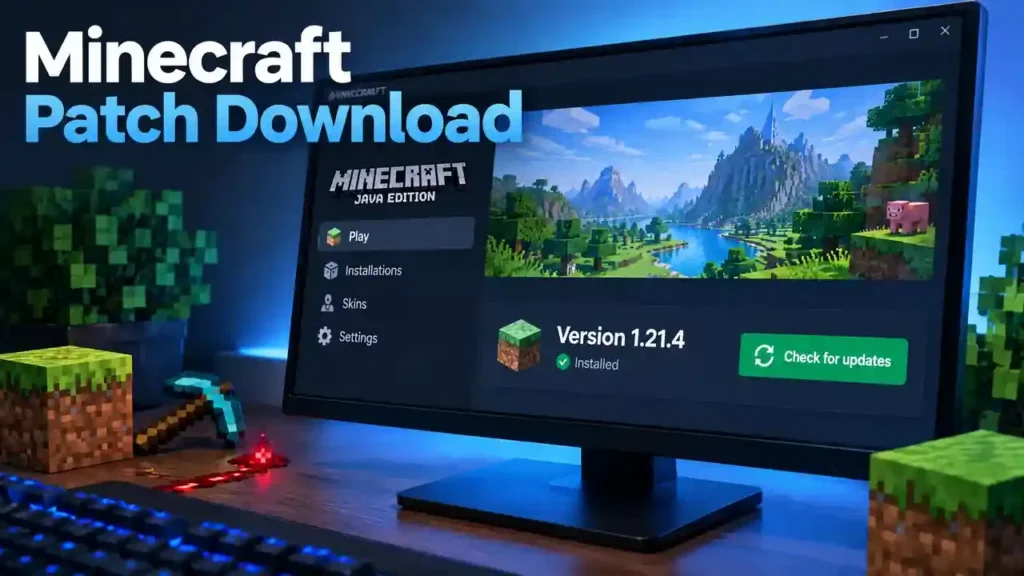
For Java Edition on PC, open the Minecraft Launcher and select Latest Release. The Launcher can then install the available update. For Android and iOS, check Minecraft through Google Play or the App Store. Other platforms use their official update systems. This guide explains Minecraft patches, versions, downloads, installation steps, and common update problems.
What Is a Minecraft Patch?
A Minecraft patch is a game update that changes or fixes parts of Minecraft. It can solve bugs, improve performance, or change gameplay. Some patches also add new features or content.
Minecraft Patch vs. Minecraft Update
These terms often overlap, but they can describe different types of releases.
A patch usually focuses on fixes, improvements, or smaller changes.
An update can include larger gameplay changes, new features, and other improvements.
A hotfix targets urgent problems that need a quick solution. Mojang uses hotfix releases when critical issues need attention.
A bug fix corrects a specific problem in the game.
A release refers to an official version made available to players.
A snapshot lets Java Edition players test work-in-progress changes. Bedrock Edition uses Beta and Preview releases for testing. Mojang warns that these versions may contain unstable features.
What Can a Minecraft Patch Change?
A patch can affect many parts of the game. It may fix bugs, improve stability, or boost performance. It can also change gameplay, features, compatibility, or technical systems. For example, Mojang’s Beta and Preview releases include fixes for crashes, performance issues, gameplay bugs, and technical systems. The exact changes depend on the Minecraft version and edition.
Minecraft Patch Download: Where Should You Get It?
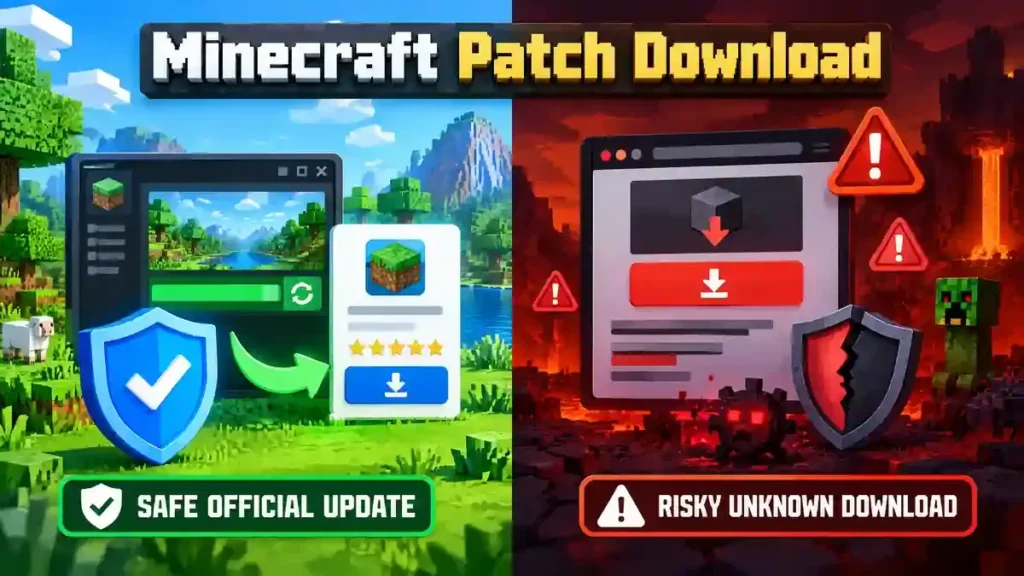
The safest place for a Minecraft patch is an official Minecraft source. Your platform also determines where you receive updates. Avoid random download sites that offer modified game files.
Official Minecraft Launcher
The Minecraft Launcher manages Minecraft versions on PC. It supports both Java Edition and Bedrock Edition on Windows. The Launcher provides access to the latest releases and Java snapshots. It also receives its own updates. For Java Edition, the Launcher can select the Latest Release. You can also access older releases through its installation options.
Official Platform Stores
Mobile players should use their device’s official store. Android users can update Minecraft through Google Play. iPhone and iPad users can use the App Store. Xbox, PlayStation, and Nintendo Switch use their own official update systems. Minecraft provides platform-specific update instructions for supported devices.
What About Third-Party Minecraft Patch Downloads?
Be careful with unofficial patch downloads. Some websites offer modified APKs, cracked launchers, or unknown EXE files. These files can create security and privacy risks. Avoid downloads that promise a paid game for free. Also avoid files that request unusual permissions. Fake update pages can also imitate official Minecraft websites. For the safest experience, use Minecraft’s official download page or your platform’s trusted store.
How to Download and Install the Latest Minecraft Patch
The update process depends on your device and Minecraft edition. Follow the steps for your platform below.
On Windows
The Minecraft Launcher handles game versions and updates on Windows.
Open the Minecraft Launcher.
- Sign in with your Microsoft account.
- Select Minecraft: Java & Bedrock Edition.
- Check the selected installation and version.
- Choose Latest Release when available.
- Let the Launcher download the required files.
- Start Minecraft after the download finishes.
- Check the version number before playing.
The Launcher also supports Java Edition snapshots for testing upcoming changes.
On Android
Android players can update Minecraft through Google Play.
- Open Google Play.
- Search for Minecraft.
- Open the official Minecraft listing.
- Check for an available Update button.
- Tap Update.
- Wait for the installation to finish.
- Open Minecraft.
- Check the displayed version.
Keep enough free storage available before starting a large update.
On iPhone and iPad
Open the App Store and search for Minecraft. Open the official listing and check for an available update. Tap Update and wait for the process to finish. Then open Minecraft and verify the installed version and Minecraft OptiFine.
On Consoles
Xbox, PlayStation, and Nintendo Switch handle Minecraft updates through their platform systems. Check the game’s update option or your console’s automatic update settings. After updating, launch Minecraft and confirm the version. If the update fails, don’t repeatedly reinstall the game. Check the available storage, internet connection, and platform status first.
Java Edition vs Bedrock Edition Patches
Java Edition and Bedrock Edition receive regular updates, but their update systems differ. Knowing your edition helps you choose the correct patch and version.
| Feature | Java Edition | Bedrock Edition |
| Main platform focus | PC | PC, mobile, and consoles |
| Update method | Minecraft Launcher | Platform or Launcher |
| Testing versions | Snapshots and Pre-Releases | Beta and Preview |
| Server software | Java server | Bedrock server |
| Version system | Java release versions | Bedrock release versions |
Java Edition
Java Edition runs on Windows, macOS, and Linux. The Minecraft Launcher manages its releases and testing versions. Players can access snapshots and pre-releases through the Launcher. Java patches can also affect mods, servers, and other community tools. Always check compatibility before updating a modified setup.
Bedrock Edition
Bedrock Edition supports PC, mobile devices, and consoles. Its updates reach several platforms through their respective update systems. Bedrock uses Beta and Preview versions to test upcoming changes. These versions can contain unfinished or unstable features.
Do Both Editions Use the Same Version Numbers?
Not always. Mojang introduced a new year-based numbering system in 2026. Both editions now use 26.x numbering for 2026 releases. However, Java and Bedrock still maintain separate release lines. Their patches can also contain different fixes or technical changes. Check your edition before downloading or installing a Minecraft patch. This simple step can prevent version and compatibility problems.
How to Check Your Minecraft Version
Checking your Minecraft version helps you know which release you are running. It also helps when fixing compatibility problems.
Java Edition
Open the Minecraft Launcher and select Minecraft: Java Edition. Your selected installation shows the game version before you launch it. You can also check the version from the game’s main screen after launching Minecraft. The version number appears near the bottom of the screen.
Bedrock Edition
Open Minecraft and look at the main menu. The version number appears near the bottom of the screen. On some platforms, you can also find version details through the game’s settings or platform information.
Why Does Your Version Matter?
Your version can affect mods, servers, add-ons, and resource packs. Multiplayer also requires compatible versions in many cases. If Minecraft behaves unexpectedly, checking the version gives you a useful starting point. Always confirm your version before troubleshooting an update or compatibility problem.
What Is Included in a Minecraft Patch?
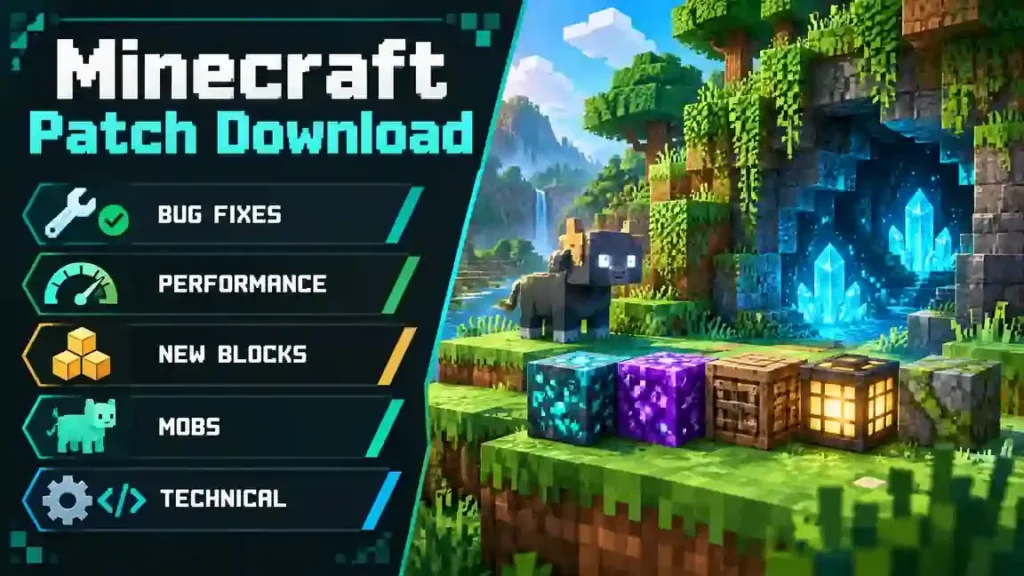
A Minecraft patch can change different parts of the game. The exact changes depend on the release. Mojang lists these changes in its official changelogs.
Bug Fixes
Patches often fix crashes and gameplay problems. They can also fix mob behavior and world issues. For example, Bedrock changelogs list fixes for crashes, mobs, world loading, and multiplayer problems.
Performance Improvements
Some patches improve stability and performance. Changes can affect loading, memory use, rendering, or frame performance. Mojang has documented rendering fixes and performance improvements in its changelogs.
Gameplay Changes
A patch can change blocks, items, mobs, or game mechanics. These changes may add new behavior or correct existing behavior. Official changelogs show these changes by category.
Technical Changes
Technical updates can affect APIs, resource packs, add-ons, and server compatibility. Mojang may change API versions, pack formats, or server behavior. Always check the official changelog before updating technical content.
Minecraft Patch Download Not Working? Try These Fixes
A Minecraft patch may fail because of connection, storage, account, or software problems. Try these fixes before reinstalling the game.
Minecraft Is Not Updating
First, check whether the Minecraft Launcher or your platform store needs an update. Then check your internet connection. A weak connection can interrupt downloads. Also check your available storage. Large updates need enough free space to install correctly. If the problem continues, make sure you are signed into the correct Microsoft account. Then close Minecraft and try the update again.
Patch Download Is Stuck
Try these simple steps:
- Check your internet connection.
- Restart the Launcher or app store.
- Check your available storage.
- Restart your device.
- Try downloading the patch again.
Avoid repeatedly starting the download while the first attempt remains active.
Minecraft Updated but Will Not Launch
Restart your device first. Then check your Minecraft version and update the Launcher if needed. If you use mods, shaders, or other third-party modifications, they may not support the new version. Try launching Minecraft without those modifications. If the game works, check each modification for an updated compatible version.
World Disappeared After Updating
Do not delete Minecraft files immediately. First, check that you use the correct Microsoft account and profile. Then check whether your world still appears in the game’s world list. Keep backups of important worlds before major updates or changes. This gives you a safer recovery option if something goes wrong.
Should You Download a Minecraft Patch APK?
A Minecraft patch APK can mean two different things. An official update comes from a trusted platform such as Google Play. A modified APK changes the original game files and usually comes from a third-party website.
Official Update vs. Modified APK
Official updates are safer and supported by Mojang. They can fix bugs, improve performance, and maintain compatibility with current Minecraft versions. Modified APKs can create several risks. Unknown files may contain malware or unwanted software. Fake download pages can also trick users into installing harmful files. A modified APK may also put your account or personal data at risk. It can cause crashes, broken worlds, or compatibility problems. Future Minecraft updates may also stop working correctly.
Avoid APKs that promise cracked Minecraft, free paid features, or unauthorized versions. They can also provide an outdated or unsupported game build. For Android users, the recommended approach is simple: use the official Minecraft listing on Google Play. This keeps your game updated through a trusted source and reduces unnecessary security and compatibility risks.
How to Read Minecraft Patch Notes
Minecraft patch notes explain what changed in a specific release. They help you understand a patch before installing it. First, find the exact version number. Then check its release date. This confirms that you are reading the correct patch notes. Next, review the new features and gameplay changes. Then check the listed bug fixes. These can explain problems that a patch solves.
Look for technical changes if you use mods, add-ons, resource packs, or servers. Also check any known limitations or remaining issues. Finally, confirm whether the notes apply to Java Edition or Bedrock Edition. Their changes and release notes can differ. Reading patch notes before a Minecraft patch download helps you understand what the update changes. It can also help you avoid compatibility problems.
Minecraft Patch Download FAQs
What is the latest Minecraft patch?
Minecraft releases patches for different editions and platforms. Always check the official Minecraft changelog for your exact edition before updating, since version numbers change frequently.
Where can I safely download Minecraft patches?
Use the official Minecraft Launcher or your platform’s official store. Avoid unknown websites offering modified game files.
Is Minecraft patch download free?
Updates are generally included when you already own Minecraft. Downloading an update does not mean you can legally obtain the paid game for free.
How do I update Minecraft?
The steps depend on your device. PC players can use the Minecraft Launcher. Mobile and console players should use their platform’s official update system.
Can I download an older Minecraft patch?
Some older versions remain available, especially in Java Edition through the Launcher. Availability differs between editions and platforms.
Why won’t my Minecraft patch install?
Check your internet connection and available storage first. Then restart the Launcher, store, or device. Account issues and version compatibility can also cause problems.
Can a Minecraft patch break mods?
Yes. A version change can make mods incompatible. Check each mod’s supported Minecraft version before updating.
Do Java and Bedrock receive the same patches?
No. Java and Bedrock are separate editions. They can receive related gameplay changes, but their releases and technical changes can differ.
Should I use a third-party Minecraft patch website?
It is better to use official sources. Third-party downloads can contain modified files, fake updates, malware, or unsupported versions.
Final Verdict
If you need a Minecraft patch, first identify your Minecraft edition and platform. Java Edition and Bedrock Edition use different update systems. For PC, use the official Minecraft Launcher. For mobile and consoles, use your platform’s official store or update system. Avoid unknown websites offering modified or patched game files. After installation, check your Minecraft version to confirm the update worked.
You can also read the official patch notes to understand new features, fixes, and technical changes.The safest approach is simple: identify your version, use an official source, update carefully, and verify the result. Before installing your next patch, check the official changelog for your exact Minecraft edition, including Minecraft Pocket Edition.