
Minecraft Java Edition: Complete Guide for PC Players
Minecraft Java Edition is the PC-focused version of Minecraft for Windows, macOS, and Linux. It gives players more freedom to customize their game with mods, skins, resource packs, and community servers. Java Edition also supports many community-run servers with unique game modes and experiences. Many PC players choose Java because of its strong modding scene and flexible multiplayer options. Minecraft also offers Bedrock Edition for players who need wider cross-platform play.
Java and Bedrock share the same Minecraft world but use different multiplayer systems. This guide explains what Minecraft Java Edition offers and who should choose it. You will learn about its platforms, system requirements, downloads, installation, mods, servers, updates, and performance. You will also see the key differences between Java and Bedrock. By the end, you can decide whether Java Edition fits your gaming needs.
What Is Minecraft Java Edition?
Minecraft Java Edition is the original PC version of Minecraft developed by Mojang Studios. It runs on the Java platform and offers a flexible sandbox experience. Players can build structures, explore different environments, gather resources, and survive dangerous creatures. The game also supports creative building and multiplayer experiences.
Minecraft Java Edition in Simple Terms
Java Edition gives PC players a large, open-ended world to shape as they want. You can play alone or join multiplayer servers with other players. Its sandbox design lets you choose your own goals. You might build a house, explore caves, fight mobs, or create complex machines. The game supports several play styles, including Survival, Creative, Adventure, and Spectator modes. Each mode changes how you interact with the Minecraft world.
What Makes Java Edition Different?
Java Edition stands out because of its strong customization and community support. Players can install thousands of community-made mods and modpacks. Custom servers also add unique game modes, maps, and multiplayer experiences. This gives Java players many ways to expand the base game. Java also offers technical features that appeal to experienced players. These include detailed game mechanics, commands, datapacks, and redstone systems.
Another major advantage is access to Java snapshots. Snapshots let players test upcoming features before major releases. The Minecraft Launcher also lets players manage different Java Edition versions. This flexibility makes Java especially popular with PC players who enjoy customization and experimentation. Minecraft highlights Java Edition’s mod support, custom servers, and PC-focused experience in its official documentation.
Minecraft Java Edition vs Bedrock Edition
Minecraft Java Edition and Bedrock Edition offer the same core Minecraft experience. However, they differ in platforms, customization, multiplayer, and some game features.
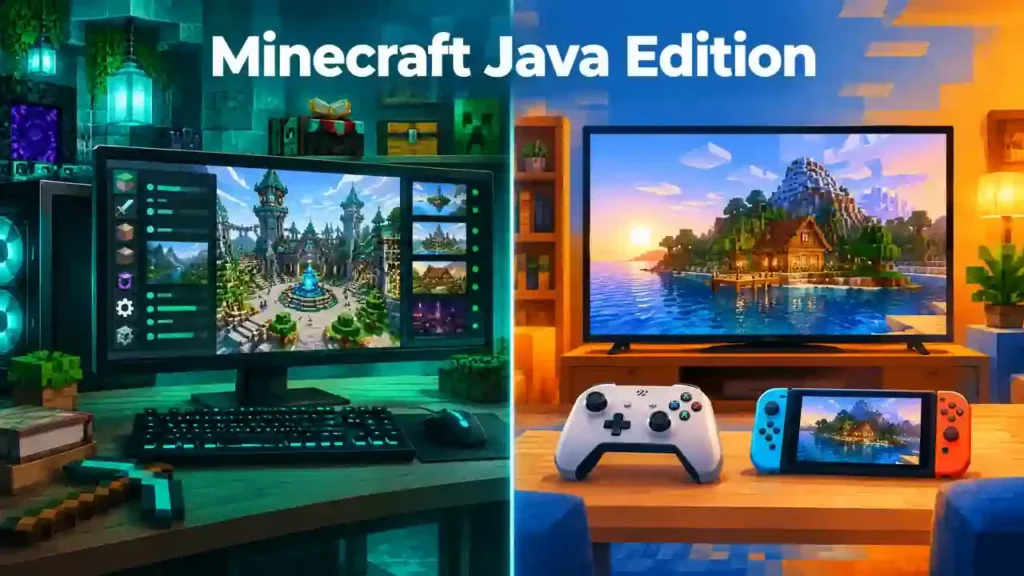
Key Differences at a Glance
| Feature | Java Edition | Bedrock Edition |
| Main platforms | Windows, macOS, Linux | Windows, consoles, mobile, and more |
| Mods | Extensive third-party mod support | Add-ons and Marketplace content |
| Servers | Large community server ecosystem | Bedrock-compatible server ecosystem |
| Cross-play | Java players play with Java players | Supports cross-platform Bedrock play |
| Testing versions | Snapshots | Preview versions |
| Controller and touch | Less native support | Stronger native support |
Java Edition works across Windows, macOS, and Linux. Bedrock reaches more device types, including consoles and mobile platforms. Java also offers a broad third-party mod ecosystem. Bedrock instead uses add-ons and content available through its own ecosystem. Multiplayer works differently between the two editions. Java players cannot normally join Bedrock servers or worlds. Bedrock players can play together across supported Bedrock devices.
Which Edition Should You Choose?
Choose Java Edition if you want extensive mods and custom PC gameplay. Java also suits players who enjoy community servers and deeper customization. Choose Bedrock Edition if cross-platform multiplayer matters most to you. Bedrock makes more sense if your friends play on consoles or mobile devices. Java remains a strong choice for PC players who value customization and community content.
Can Java and Bedrock Players Play Together?
Not directly. Java and Bedrock use separate multiplayer systems. A Java player cannot normally join a Bedrock player’s world or server. Some third-party solutions can connect the editions through special server setups. However, they do not create native Java-Bedrock cross-play. For normal gameplay, players should use the same Minecraft edition as their friends.
Minecraft Java Edition Platforms and Compatibility
Minecraft Java Edition targets PC players and supports three main operating systems: Windows, macOS, and Linux.
Windows
Java Edition runs on supported Windows PCs. Players can install and launch the game through the official Minecraft Launcher. Your computer still needs to meet the game’s current hardware and software requirements. We cover those requirements in the next section.
macOS
Java Edition also works on supported Mac computers. You can access it through the official Minecraft Launcher. Performance depends on your Mac’s processor, graphics hardware, memory, and operating system.
Linux
Linux users can also play Minecraft Java Edition on compatible systems. The official launcher provides access to the Java game. Your Linux setup must meet Minecraft’s current technical requirements for smooth gameplay.
What About Chromebook?
Chromebook support needs more explanation. Some Chromebooks can run Minecraft through supported Android or Linux methods, depending on the device. Java Edition and Bedrock Edition do not have identical Chromebook support. Hardware and ChromeOS compatibility also affect your options. If you want to play Java Edition on a Chromebook, check the specific requirements before installing it.
Internal link: Minecraft Java Edition on Chromebook
Minecraft Java Edition System Requirements
Last updated: July 2026
Minecraft Java Edition has higher requirements than before. Mojang raised the baseline to support newer graphics technology and future updates.
Minimum Requirements
The minimum target aims for 1080p at 30 FPS using the Fast graphics preset.
| Component | Minimum requirement |
| System | 64-bit |
| RAM | 8 GB with dedicated GPU or 12 GB with integrated GPU |
| CPU | 4 physical cores, such as Intel Core i3-10100 or AMD Ryzen 3 3100 |
| GPU | Vulkan 1.3 capable GPU |
| VRAM | At least 2 GB |
| Target | 1080p at 30 FPS |
| Graphics | Fast preset |
Supported systems include Windows 10 64-bit, Windows on ARM, macOS 12+, and Linux 64-bit.
Recommended Requirements
The recommended target aims for 1080p at 60 FPS with the Fancy graphics preset. You should have 16 GB of RAM for this target. Mojang also recommends a stronger modern processor and graphics card. Examples include an Intel Core i5-12400, AMD Ryzen 5 5600, or Apple M2 Pro. Recommended graphics hardware includes an RTX 2060, RX 5600 XT, or Intel Arc A580.
Can Older PCs Still Run Minecraft Java?
Yes, some older computers may still launch Java Edition. However, Mojang no longer guarantees performance below the new minimum requirements. Older hardware may cause low FPS, visual problems, or longer loading times. Future updates may increase compatibility requirements as Minecraft moves from OpenGL toward Vulkan. Mojang says older hardware may eventually stop supporting Java Edition.
Internal links: Minecraft Java system requirements, Minecraft Java FPS optimization, Minecraft Java low-end PC guide.
How to Download Minecraft Java Edition
Where to Get Minecraft Java Edition
The safest way to get Minecraft Java Edition is through the official Minecraft website. Avoid third-party download sites that offer modified or unauthorized game files. Download the official Minecraft Launcher from Minecraft Patch Download. The launcher gives you access to Java Edition and manages game updates and versions.
Do You Get Java and Bedrock Together?
Yes. Minecraft currently sells Java and Bedrock Edition together on PC. You get both editions with one PC purchase. The editions remain separate games with different features and multiplayer systems. However, you can switch between them through the unified Minecraft Launcher.
What You Need Before Downloading
Before downloading Minecraft Java Edition, make sure you have:
- A Microsoft account
- A compatible Windows, Mac, or Linux PC
- The Minecraft Launcher
- A stable internet connection for downloads and updates
- A Minecraft purchase or eligible access to the game
Java Edition requires a Microsoft account on Windows, macOS, and Linux.
Is Minecraft Java Edition Free?
Minecraft Java Edition is not normally free. You need to purchase Minecraft for PC unless you already own it through an eligible license. Minecraft also offers a limited free trial on supported platforms. Do not use unofficial websites claiming to provide a free full version. For most players, the official Minecraft website is the safest place to purchase and download the game.
How to Install Minecraft Java Edition
Installing Minecraft Java Edition is straightforward when you use the official Minecraft Launcher.
Step-by-Step Installation
- Visit the official Minecraft website.
Open Minecraft.net and access the official PC edition. - Purchase or access Minecraft for PC.
Make sure your Microsoft account has access to Java Edition. - Install Minecraft Launcher.
Download and install the official Minecraft Launcher on your compatible PC. - Sign in with your Microsoft account.
Use the same account that owns or has access to Minecraft. - Select Java Edition.
Open the launcher and choose Minecraft: Java Edition from the available games. - Install your desired version.
Select the version you want to play and start the installation. - Launch the game.
After installation finishes, click Play to start Minecraft Java Edition.
The launcher handles the required game files and updates for you. You can also manage different Java versions from the launcher when needed. For installation errors, launcher problems, or login issues, use a dedicated troubleshooting guide rather than changing settings randomly.
What Can You Do in Minecraft Java Edition?
Minecraft Java Edition gives you many ways to play, from peaceful building to challenging survival. You can play alone, with friends, or customize the game with community content.
Single-Player Gameplay
Survival challenges you to gather resources, craft items, explore, and survive hostile mobs. Creative gives you unlimited resources for building and testing ideas. Hardcore adds permanent world deletion after death, making survival much more challenging. Adventure focuses on playing custom maps and experiences with controlled gameplay. You can also explore different biomes, dimensions, caves, structures, and villages. Building remains a major part of Java Edition, whether you create simple homes or complex projects.
Multiplayer
Java Edition supports several multiplayer options. You can join community servers with unique game modes and large player communities. You can also create or join private servers for friends. LAN multiplayer lets players on the same local network play together. Realms provides a simpler way to play private online worlds.
Customize Your Game
Java Edition offers extensive customization. You can use mods, resource packs, skins, shaders, datapacks, and custom maps to change how the game looks or plays. Each option has different uses, so dedicated guides can explain setup and compatibility in more detail.
Minecraft Java Edition Mods and Customization
Minecraft Java Edition has a large third-party customization ecosystem. Players can change gameplay, visuals, worlds, and other parts of the game.
What Are Minecraft Java Mods?
Mods are community-made files that add, remove, or change game features. They can introduce new items, mobs, mechanics, biomes, performance improvements, and more. Mods can greatly expand the base Minecraft experience. However, each mod may support only certain game versions.
Popular Mod Loaders
Fabric is a lightweight mod loader used by many modern Minecraft mods. Forge is another long-running loader with a large mod ecosystem. NeoForge is a newer modding platform that supports its own growing collection of mods. Always check which loader your chosen mod requires.
Other Customization Options
Java players can also use shaders to change lighting and visual effects. Resource packs change textures and other visual elements. Datapacks can modify gameplay without traditional mods. Skins change your player appearance, while modpacks combine multiple mods into a complete experience.
Is Modding Safe?
Modding can be safe when you use trusted sources and follow installation instructions carefully. Check compatibility before installing anything. Back up important worlds before adding major changes. Avoid suspicious executable files and unknown downloads. Research third-party content before installing it. For detailed setup, see our guides on Minecraft Java mods, Forge, Fabric, shaders, and modpacks.
Minecraft Java Edition Servers and Multiplayer
Minecraft Java Edition offers several ways to play with other people. You can choose public communities, private worlds, local multiplayer, or an official hosted option.
Java Multiplayer Options
Public servers let you join large communities with different game modes and activities. Private servers provide a more controlled space for friends or small groups. LAN multiplayer allows players on the same local network to play together. Realms provides a simpler online option for playing with invited friends.
Minecraft Java Servers
Community servers are player-run or independently operated Minecraft worlds. They can offer unique game modes, custom maps, minigames, economies, and other features. Some servers support large communities, while others focus on small groups. You can join an existing server or create your own Java server. If you want more control, server hosting services can handle much of the technical setup. You can also host a server yourself if your computer and network support it.
Minecraft Realms for Java
Minecraft Realms is Mojang’s subscription-based personal server service. It lets you create an online world for yourself and invited friends. Java Realms and Bedrock Realms are separate services. Choose the Java version when playing Minecraft Java Edition. For detailed instructions, see our guides on joining a Java server, creating a Java server, server hosting, and Minecraft Java Realms.
Minecraft Java Edition Updates, Versions, and Snapshots
Minecraft Java Edition receives regular updates that add new features, gameplay changes, fixes, and other improvements. Players can keep their game updated through the Minecraft Launcher.
Regular Minecraft Updates
Major Java updates can introduce new blocks, mobs, items, world features, and gameplay systems. Smaller releases may focus on fixes, technical changes, or stability improvements.
Java Snapshots
Snapshots are early development versions of upcoming Java features. They let players test changes before they reach a major release. Snapshots can contain unfinished features, bugs, and other unexpected problems. Avoid using important worlds for testing. Back up your worlds before experimenting with snapshots.
Playing Older Java Versions
Java Edition also gives players more control over game versions. The Minecraft Launcher lets you create and select different release installations. This can help when using older worlds, mods, or content that supports a specific Minecraft version. Always check compatibility before switching versions. For a deeper explanation, see our guide to Minecraft Java snapshots.
Minecraft Java Edition Performance Tips
Minecraft Java Edition performance depends on your hardware, settings, world, and installed content. A few simple changes can help improve your experience.
Quick Performance Tips
- Lower render distance to reduce how many world chunks the game displays.
- Adjust graphics settings if your PC struggles with higher visual quality.
- Reduce simulation distance to limit how much game activity runs around you.
- Close unnecessary background apps to free system resources while playing.
- Keep graphics drivers updated to maintain compatibility with newer game versions.
- Use appropriate optimization mods when they support your Minecraft version and mod loader.
- Check RAM allocation carefully. More allocated RAM does not automatically mean better performance.
- Match shaders to your hardware. Lightweight shader packs may suit weaker GPUs better than demanding ones.
Avoid copying settings from another PC without testing them yourself. The best configuration depends on your hardware and gameplay needs. For detailed settings, optimization mods, and troubleshooting, see our Minecraft Java Edition performance optimization guide.
Is Minecraft Java Edition Worth It?
Minecraft Java Edition is a strong choice for players who mainly use a PC and want more customization.
Java Is a Strong Choice If You:
- Play primarily on Windows, macOS, or Linux.
- Want access to a large modding ecosystem.
- Enjoy custom community servers.
- Like technical gameplay and detailed game mechanics.
- Want more control over how Minecraft looks and plays.
Consider Bedrock If You:
- Need broad cross-platform multiplayer with friends.
- Mainly play on consoles or mobile devices.
- Prefer native controller or touch support.
Neither edition is universally better. Java focuses strongly on PC customization, mods, community servers, and version flexibility. Bedrock offers broader device support and cross-platform multiplayer. Your best choice depends on where you play and which features matter most. For PC players who value customization, Java Edition remains a powerful option.
Frequently Asked Questions
What Is Minecraft Java Edition?
Minecraft Java Edition is the PC-focused version of Minecraft. It runs on Windows, macOS, and Linux and offers extensive customization and community support.
Is Minecraft Java Edition Free?
No. Minecraft Java Edition normally requires a purchase or eligible access. Avoid unofficial websites offering unauthorized free copies.
Can I Play Minecraft Java Edition on Windows?
Yes. Java Edition supports compatible 64-bit Windows PCs. Your computer must meet the current system requirements.
Can I Play Minecraft Java Edition on Mac?
Yes. Java Edition supports compatible Mac computers. Performance depends on your Mac’s hardware and the game’s current requirements.
Can Java and Bedrock Players Play Together?
Not directly. Java and Bedrock use separate multiplayer systems. Players normally need to use the same edition to play together.
Is Minecraft Java Edition Better Than Bedrock?
Neither edition is always better. Java suits PC players who want mods, customization, and community servers. Bedrock suits players who prioritize cross-platform multiplayer and wider device support.
Can Minecraft Java Edition Use Mods?
Yes. Java Edition supports a large ecosystem of third-party mods. Popular mod loaders include Fabric, Forge, and NeoForge.
What Are the Minecraft Java Edition System Requirements?
Java Edition now requires a compatible 64-bit system, sufficient RAM, a supported CPU, and a Vulkan-capable GPU. Requirements vary by hardware configuration. See our detailed Minecraft Java Edition system requirements guide for the current minimum and recommended specifications.
Final Verdict
Minecraft Java Edition remains the best choice for PC players who value customization, mods, community servers, and Java-specific gameplay. It suits players who mainly use Windows, macOS, or Linux and want greater control over their Minecraft experience. Its biggest advantages include extensive mod support, flexible version selection, snapshots, and a strong community server ecosystem.
Its main limitation is narrower device support compared with Bedrock. Java also does not offer native cross-platform multiplayer with Bedrock players. Get Minecraft Java Edition through the official Minecraft website and Minecraft OptiFine use our supporting guides for downloads, installation, mods, servers, snapshots, and performance optimization.