
How to Run OptiFine in Minecraft: Step-by-Step Installation Guide for 2026
Minecraft runs slow for many players. Lag and low FPS make the game less fun. Players want smooth performance plus shaders on vanilla Minecraft Java Edition. OptiFine is a popular optimization mod. It boosts FPS and improves graphics. Users gain better performance, shader support, HD textures, and dynamic lighting. The latest version is OptiFine HD U J9 for Minecraft 1.21.11 as of May 2026.
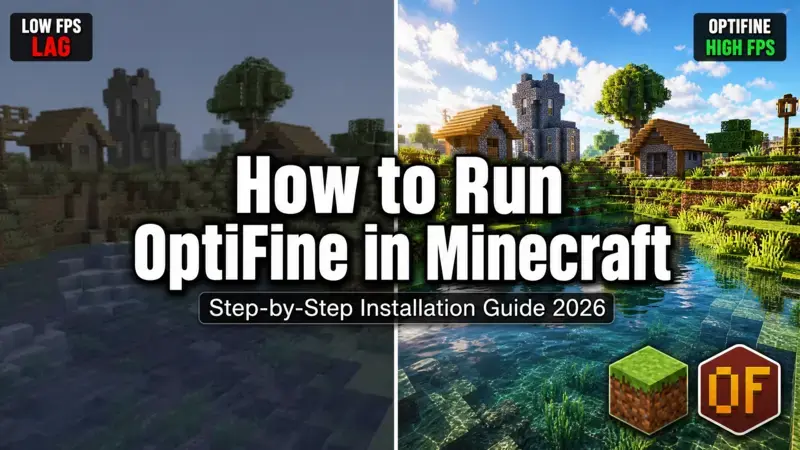
This guide shows how to run OptiFine in Minecraft. It covers clear installation steps, common fixes, and troubleshooting. Readers also learn when to choose OptiFine versus modern alternatives like Sodium and Iris. Many search for how to install OptiFine, how to use OptiFine with Forge, or OptiFine not working fixes. This article delivers exact, up-to-date instructions for beginners and experienced players. Follow the sections below to install OptiFine safely. Learn to launch it in the Minecraft launcher and optimize game settings for maximum performance boost. The process works on Windows, macOS, and Linux. Proper Java setup prevents most errors. This guide includes solutions for OptiFine jar file not opening and other frequent problems.
What Is OptiFine and Why Should You Use It?
OptiFine is a popular mod for Minecraft Java Edition. It improves game performance and graphics. Players install it to run OptiFine in Minecraft with better results.
Key Benefits of OptiFine
OptiFine delivers a strong FPS boost in most worlds. It reduces lag and stuttering during gameplay. The mod adds full shader support for beautiful visuals. Users load HD textures without heavy slowdowns. Dynamic lighting makes caves and nights look better. Connected textures create smoother block patterns. OptiFine also offers many video settings for fine control. Players tweak rendering distance, clouds, and particles easily. These features help low-end PCs run Minecraft Java Edition smoother.
OptiFine vs Vanilla Minecraft Performance
Vanilla Minecraft uses basic rendering. It often drops FPS in large builds or busy areas. OptiFine optimizes chunk loading and graphics processing. Many players notice higher and more stable frame rates. The difference shows clearly when exploring big worlds or using resource packs. Vanilla runs fine for simple play. OptiFine handles demanding scenes much better.
When OptiFine Is Still Worth Using in 2026
OptiFine remains useful for easy shader installation. It works directly with the official Minecraft launcher. Players who want simple setup choose OptiFine over complex mod loaders. It supports many older shader packs that still look great. OptiFine fits well for vanilla-plus experiences. Users add performance boost and graphics enhancement without full modpacks. Some prefer it for quick tests or when playing with friends on standard servers. In 2026, OptiFine still serves beginners who search “how to install OptiFine for beginners” or need fast lag fixes.
Prerequisites Before Installing OptiFine
Complete these steps first. They prevent most errors when you run OptiFine in Minecraft.
Minecraft Java Edition Requirements
You need the official Minecraft Java Edition. The Bedrock version does not work with OptiFine. Buy and install Minecraft Java Edition from the official launcher. Create a Microsoft account if you do not have one. Make sure you have enough storage space. OptiFine files and game worlds need extra room.
Installing or Updating Java (Java 17 or 21 Recommended)
OptiFine requires Java to run. Install Java 17 or Java 21 for best results in 2026. Download the latest Java from the official Oracle or Adoptium website. Choose the correct version for your operating system. Install Java completely. Restart your computer after installation. Check your Java version. Open Command Prompt on Windows and type java -version. The number must show 17 or 21.
Running Your Target Minecraft Version First
Launch the exact Minecraft version you want to use with OptiFine. For example, run Minecraft 1.21.11 at least once. Create a new world or load an existing one. Let the game fully load. Close Minecraft and the launcher completely before you install OptiFine. This step helps the launcher detect the correct version later.
Platform-Specific Notes (Windows 10/11, macOS, Linux)
Windows 10 / 11:
Right-click OptiFine files and choose “Open with Java”. Antivirus software may block .jar files. Add an exception if needed.
macOS:
Control-click the .jar file. Select “Open” to bypass security warnings. Make sure Java is installed correctly.
Linux:
Use the terminal to run the .jar file with Java. Set execution permissions on the file first. These steps prepare your system for a smooth OptiFine installation. Skipping them often causes “OptiFine jar file not opening” or “cannot find Minecraft version” errors.
How to Download OptiFine Safely
Download OptiFine only from trusted sources. This step helps you run OptiFine in Minecraft without problems.
Step-by-Step Download from Official Site
Open your web browser. Go to the official OptiFine downloads page. Find the version that matches your Minecraft release. Look for OptiFine HD U J9 for Minecraft 1.21.11. Click the Mirror link next to your version. Wait for the download to start. Save the .jar file to an easy-to-find folder, such as your Downloads folder. Do not rename the file. The download usually takes less than one minute. Check that the file ends with .jar.
Stable vs Preview Versions – Which to Choose?
Stable versions offer better reliability. Choose the stable OptiFine HD U J9 for normal gameplay. Preview versions come out earlier for new Minecraft updates. They may contain bugs or miss some features. Use preview versions only if you need the newest Minecraft release right away. Otherwise, pick the stable version for fewer crashes.
Safety Tips – Avoiding Fake Downloads and Malware
Never download OptiFine from video descriptions or random search results. Fake sites often hide malware. Ignore pop-up ads that appear during the download process. Click only the official Mirror button. Scan the .jar file with your antivirus after downloading. A clean scan means the file is safe. Delete the file and try again if anything looks suspicious. Safe OptiFine files come only from the official download page. These steps protect your computer while you prepare to install OptiFine.
How to Install and Run OptiFine in Minecraft Launcher
This section shows the exact steps to install OptiFine and run OptiFine in Minecraft. Follow them in order.
Running the OptiFine .jar Installer
Locate the downloaded OptiFine .jar file. Double-click it to open. If it does not open, right-click the file. Choose “Open with” and select Java. The OptiFine installer window appears. Click the Install button. Wait for the installation to finish. The process takes a few seconds. Close the installer when it says Done.
Common Issues When Opening the .jar File (and Fixes)
The .jar file does not open on some computers. This happens when Java is not set as default. Fix it by right-clicking the file and selecting Java directly. Update Java if the error continues. On Windows, make sure Java shows in the list of programs. Restart your computer and try again. “Java not recognized” error means Java needs reinstallation. Install Java 17 or 21 again.
Creating/Selecting the OptiFine Profile in the Launcher
Open the Minecraft Launcher. Go to the Installations tab. Click New Installation or find the new OptiFine profile. The launcher usually adds it automatically. Select the OptiFine version from the list. Make sure it matches your Minecraft 1.21.11. Turn on the “Modded” filter if you do not see the profile. Click Play to launch the game.
Verifying OptiFine Is Running (In-Game Check)
Load any world in Minecraft. Press Esc to open the menu. Go to Options, then Video Settings. New sliders and options appear if OptiFine runs correctly. Look for the Shaders button at the top. Its presence confirms successful installation. You can also check the bottom right corner of the main menu. It shows the OptiFine version number.
First Launch and Basic Video Settings Overview
The first launch may take longer than usual. Let the game load completely. In Video Settings, set Render Distance to 8–12 chunks for good performance. Turn on Fast Render and Smooth Lighting for better FPS. Enable VSync only if you want steady frame rates. Adjust Graphics to Fast for maximum performance boost on lower-end PCs. Test different settings in your world. Small changes often improve lag fix results significantly. These steps complete the basic setup to run OptiFine in Minecraft. You now have better graphics and performance options available.
How to Run OptiFine in Minecraft with Forge (For Modpacks)
Standalone OptiFine works alone in the official launcher. Forge installation lets you add OptiFine with other mods.
Differences Between Standalone vs Forge Installation
Standalone version uses the OptiFine installer and creates its own profile. It suits vanilla gameplay with shaders. Forge version requires no installer. You drop the OptiFine .jar file into the mods folder. This method supports full modpacks. Use standalone for simple performance boost. Choose Forge when you want OptiFine plus many other mods.
Step-by-Step Guide to Install OptiFine with Forge 1.21
First, install the correct Forge 1.21 version in the Minecraft launcher. Create a new Forge installation profile. Launch it once to generate the mods folder. Download the OptiFine .jar file for 1.21. Do not run the installer. Open your Forge mods folder. Copy the OptiFine .jar file into it. Launch the Forge profile. OptiFine loads automatically with your other mods. Check the in-game Video Settings menu. Extra OptiFine options confirm correct setup.
Compatibility Notes for 2026
Forge and OptiFine work together in 2026, but not every combination matches perfectly. Test small mod lists first. Some mods conflict with OptiFine. Remove conflicting mods if the game crashes on launch. Update both Forge and OptiFine regularly for better stability. Preview OptiFine versions may break Forge modpacks.
How to Use Shaders and Optimize Performance with OptiFine
Shaders add beautiful effects to Minecraft. OptiFine makes shader installation easy.
Installing and Enabling Shader Packs
Download a shader pack compatible with your OptiFine version. Save the shader zip file. Open Minecraft with OptiFine. Go to Options > Video Settings > Shaders. Click Open Shader Pack Folder. Copy the shader zip file into this folder. Return to the Shaders menu. Select your shader pack and click Done. The game reloads with new graphics. Lower render distance if FPS drops too much.
Recommended Video Settings for Maximum FPS + Visuals
Set Graphics to Fast for the best performance boost. Keep Render Distance at 8 to 12 chunks on most computers. Turn on Fast Render and Chunk Loading. Disable Clouds and Particles for higher FPS. Enable Smooth Lighting at minimum or maximum depending on your preference. Use VSync off unless screen tearing bothers you. These settings deliver a strong lag fix while keeping good visuals.
Advanced Tips (Dynamic Lighting, Connected Textures, RAM Allocation)
Turn on Dynamic Lights so torches and mobs light up the area naturally. Enable Connected Textures for seamless block edges. This improves HD textures appearance. Allocate more RAM in the launcher for large worlds or heavy shaders. Start with 4GB to 6GB extra. Test one change at a time. Check your FPS with the F3 debug screen to measure improvements. These options help you get the most from OptiFine for better graphics enhancement and game optimization.
Troubleshooting Common OptiFine Problems
Many players face issues when they try to run OptiFine in Minecraft. These fixes solve the most common errors.
OptiFine Jar Not Opening / Java Errors
The .jar file fails to open when Java is not set correctly. Right-click the OptiFine .jar file. Select “Open with” and choose Java. If Java does not appear, reinstall Java 17 or 21. Restart your computer after installation. Make sure you use the correct Java version. Run java -version in Command Prompt on Windows to check.
“Cannot Find Minecraft Version” Fix
This error appears when the launcher cannot detect the base game. Launch the exact Minecraft 1.21.11 version first without OptiFine. Create a new world or load an existing one. Close the game and launcher completely afterward. Reinstall OptiFine after this step. The launcher then finds the correct version.
Crashing at Mojang Screen or Exit Code -1
Crashes at the Mojang screen usually come from version mismatch. Confirm your OptiFine version exactly matches your Minecraft version. Reduce allocated RAM to 4GB in the launcher settings. Remove any extra mods that may conflict. Update your graphics drivers. Launch the game again after these changes.
OptiFine Not Appearing in Launcher
The new profile sometimes does not show up. Go to the Installations tab and check the “Modded” filter. Refresh the launcher by closing and reopening it. Create a new installation manually and select the OptiFine version. Run the OptiFine installer again if the profile is still missing.
Windows 11 / macOS Specific Fixes
On Windows 11, run the launcher as administrator. Disable any controlled folder access in Windows Security. On macOS, control-click the .jar file and select Open. Approve the security warning if it appears. Make sure your system has the latest updates installed for both operating systems.
Antivirus Blocking the Installer
Antivirus software often blocks .jar files by mistake. Add the OptiFine .jar file to your antivirus exception list. Temporarily disable the antivirus during installation. Enable it again after the process finishes. These solutions fix most OptiFine not working issues. Test the game after each fix to see what resolves the problem.
OptiFine vs Modern Alternatives – Which Should You Choose in 2026?
Players now have multiple ways to improve Minecraft performance. Here is a clear comparison to help you decide.
Comparison Table
| Setup | Best For | FPS Boost | Shader Quality | Ease of Use | Mod Compatibility |
| Pure OptiFine | Beginners, legacy shaders | Good | Excellent | Very Easy | Low |
| Fabric + Sodium + Iris | Maximum performance | Excellent | Very Good | Medium | High |
| Forge + OptiFine | Heavy modpacks | Good | Excellent | Medium | Very High |
Pure OptiFine
Pure OptiFine is the easiest choice for most beginners. You install it directly in the Minecraft launcher. It offers excellent shader support and HD textures. Many players use it for simple performance boost and graphics enhancement. Choose this option when you want quick setup and legacy shaders.
Fabric + Sodium + Iris
Fabric with Sodium and Iris delivers the highest FPS in 2026. It uses modern optimization techniques. This combination works best for raw performance on mid to high-end PCs. Modern shaders run very well with Iris. Switch to Sodium + Iris if you need the best lag fix and do not use many Forge mods.
Forge + OptiFine
Forge plus OptiFine works well for large modpacks. You can combine hundreds of mods with shader support. This setup requires more steps but gives strong mod compatibility. Use it when you play heavy modded Minecraft.
When to Stick with OptiFine and When to Switch
Stick with OptiFine if you want simplicity and easy shader installation. It remains a solid choice for vanilla-plus gameplay. Switch to Fabric + Sodium + Iris when you prioritize maximum FPS and modern features. Many players make this change for better results. Use Forge + OptiFine only when your modpack requires Forge.
Honest Pros and Cons
OptiFine Pros: Simple installation, great shaders, works well for beginners.
OptiFine Cons: Lower FPS than Sodium, some mod conflicts.
Sodium + Iris Pros: Best performance, lightweight.
Sodium + Iris Cons: Slightly harder setup, fewer legacy shaders.
Forge + OptiFine Pros: Excellent mod support.
Forge + OptiFine Cons: More chance of crashes.
Recommendation Guide
- Choose Pure OptiFine for easy setup and shaders.
- Choose Fabric + Sodium + Iris for best FPS and performance boost.
- Choose Forge + OptiFine for heavy modpacks with many mods.
Test OptiFine first if you are unsure. You can always switch later based on your goals for game optimization and mod compatibility.
Best Practices and Post-Installation Tips
Follow these practices after you run OptiFine in Minecraft. They keep your game stable and improve performance.
Backing up worlds
Always back up your worlds before installing OptiFine. Copy the saves folder to a safe location. This step protects your progress if anything goes wrong during updates or mod changes.
Updating OptiFine
Check for new OptiFine versions regularly. New updates often fix bugs and improve FPS boost. Download the latest stable version for your Minecraft 1.21.11. Install it the same way as before. Replace the old OptiFine profile with the updated one in the launcher.
Combining with resource packs
OptiFine works well with HD resource packs. Place your resource packs in the resourcepacks folder. Load them in the game menu after launching with OptiFine. This combination gives better graphics enhancement. Test one resource pack at a time to maintain good performance.
Third-party launchers (Prism Launcher) advantages
Third-party launchers like Prism Launcher make mod management easier. They allow multiple profiles and faster switching. These launchers handle Java versions better and reduce common OptiFine installation problems. They also support easy RAM allocation and separate mod folders for different setups. Use these tips to keep your Minecraft Java Edition running smoothly with OptiFine. Regular backups and updates prevent most issues.
FAQ
How do I run OptiFine in Minecraft step by step?
- Install Java 17 or 21.
- Run your target Minecraft version first.
- Download OptiFine HD U J9 for Minecraft 1.21.11.
- Open the .jar file with Java and click Install.
- Select the OptiFine profile in the Minecraft launcher.
- Launch the game and check Video Settings for new options.
Why is my OptiFine .jar file not opening with Java?
Java may not be installed correctly. Right-click the .jar file and choose Open with Java. Reinstall Java 17 or 21 if the option is missing. Restart your computer and try again.
Do I need Forge to run OptiFine in Minecraft?
No, you do not need Forge. Standalone OptiFine works directly in the official Minecraft launcher. Use Forge only when you want to add other mods.
How to fix “Cannot find Minecraft version” when installing OptiFine?
Launch the exact Minecraft 1.21.11 version first and create a world. Close the game and launcher completely. Then run the OptiFine installer again.
Is OptiFine safe to download and use in 2026?
Yes, OptiFine is safe when downloaded from the official site. Always use the Mirror link and scan the .jar file with antivirus software.
How do I install shaders after running OptiFine?
Launch Minecraft with OptiFine. Go to Options > Video Settings > Shaders. Click Open Shader Pack Folder and copy your shader zip file inside. Select the shader in the menu.
Why is OptiFine not appearing in my Minecraft launcher?
Make sure you ran the vanilla version first. Check the Installations tab and enable the Modded filter. Refresh the launcher or create the installation manually.
Is OptiFine better than Sodium and Iris for performance and shaders?
OptiFine is easier for beginners and offers great legacy shaders. Sodium and Iris usually give higher FPS and better modern performance. Choose OptiFine for simplicity or Sodium + Iris for maximum FPS boost.
Conclusion
You now know how to run OptiFine in Minecraft. The process starts with installing the correct Java version. Next, you run your target Minecraft version, download the OptiFine .jar file, and complete the installation. After setup, select the OptiFine profile in the launcher and launch the game. Check Video Settings to confirm it works. You can also install it with Forge for modpacks when needed.
Test your FPS and graphics after installation. Many players notice a clear performance boost and smoother gameplay with reduced lag. Try the steps in this guide with OptiFine HD U J9 for Minecraft 1.21.11. Experiment with shader packs and video settings to find the best results for your computer.