
Minecraft OptiFine 1.7.10 FPS Boost Guide
Minecraft OptiFine 1.7.10 remains one of the most downloaded optimization mods for Minecraft Java Edition. Many players still enjoy this version because it supports classic gameplay and popular modpacks like Pixelmon, Orespawn, and Crazy Craft. It also works well with many older Forge mods that players continue to use today. OptiFine 1.7.10 improves both performance and graphics without changing the core gameplay. It helps increase frame rates, reduce lag, and shorten loading times. It also unlocks advanced visual features like Dynamic Lights, Connected Textures, HD resource packs, Custom Sky, Better Grass, Better Snow, and shader support. These improvements make the game look better while running more smoothly on many computers.
Many players search for Minecraft 1.7.10 OptiFine because they want a stable way to boost FPS or use high-quality shaders. Others need it to improve performance in large modpacks or on older hardware. The latest HD U builds also offer more video settings, giving players greater control over graphics quality and performance. Choosing the correct OptiFine for Minecraft 1.7.10 also helps avoid common issues with launcher profiles, Java compatibility, and Forge integration. Installing the right version from the official source ensures a safer and more reliable experience.
This guide explains everything you need to know about Minecraft OptiFine 1.7.10. You will learn how to download the correct version, install it with or without Forge, and enable shader packs. We also cover the best FPS settings, graphics options, resource pack support, common errors, and practical fixes. By the end, you will know how to get the best performance and visual quality from Minecraft 1.7.10 while keeping your game stable and compatible with your favorite mods.
What is Minecraft OptiFine 1.7.10?
Minecraft OptiFine 1.7.10 is a performance and graphics optimization mod for Minecraft Java Edition. It improves how the game renders graphics and manages system resources. Players install it to increase FPS, reduce lag, and unlock advanced visual settings without changing the game’s core mechanics. Unlike many gameplay mods, OptiFine 1.7.10 focuses on performance and customization. It gives players more control over video settings, rendering, animations, lighting, and texture quality. These options help users balance visual quality with smooth gameplay.
OptiFine also adds features that are unavailable in the default game. These include Dynamic Lights, Connected Textures, HD resource pack support, Custom Sky, Better Grass, Better Snow, zoom, and shader compatibility. Together, these features improve the Minecraft experience while keeping the original gameplay intact. The mod works with the official Minecraft Launcher and supports many Forge-based modpacks when installed correctly. It remains one of the most trusted tools for Minecraft optimization because it combines performance improvements with graphical enhancements in a single package.
Why Minecraft 1.7.10 Is Still Popular
Although newer Minecraft versions offer additional features, version 1.7.10 continues to have a large and active community. Many iconic mods were built for this release, making it a favorite among long-time players. Popular modpacks such as Pixelmon, Orespawn, Dragon Block C, and Crazy Craft rely on Minecraft 1.7.10. Many private servers also continue to support this version because of its stability and extensive mod compatibility.
The mature Forge ecosystem is another reason players stay with Minecraft 1.7.10. Thousands of mods were developed during its peak, giving players countless ways to customize their worlds. Many creators still maintain guides and community resources for this version. Because older computers often run Minecraft 1.7.10 more efficiently than newer releases, players also choose it for better performance. When paired with OptiFine, the game delivers smoother gameplay while supporting complex modded worlds.
Main Purpose of OptiFine
The main purpose of OptiFine 1.7.10 is to improve performance while giving players greater control over graphics. It helps Minecraft use hardware more efficiently, leading to higher frame rates and a more responsive experience. OptiFine allows players to fine-tune render distance, lighting, animations, texture quality, and other visual settings. These controls help optimize the game for both low-end and high-end systems.
Beyond performance, OptiFine enables features that many players consider essential. It supports HD resource packs, advanced shader packs, Dynamic Lights, Connected Textures, and customizable visual effects. These additions create a richer and more immersive world without requiring multiple separate mods. For players who want smoother gameplay, better graphics, or improved compatibility with popular modpacks, Minecraft OptiFine 1.7.10 remains one of the most valuable tools available. Its balance of performance, flexibility, and stability has made it a standard choice for the Minecraft Java Edition community for many years.
Features of OptiFine 1.7.10
OptiFine 1.7.10 offers much more than a simple FPS boost. It combines performance improvements with advanced graphics features that make Minecraft smoother and more immersive. Whether you play vanilla Minecraft or large modpacks, these tools help you customize the game to match your hardware and play style.
FPS Boost
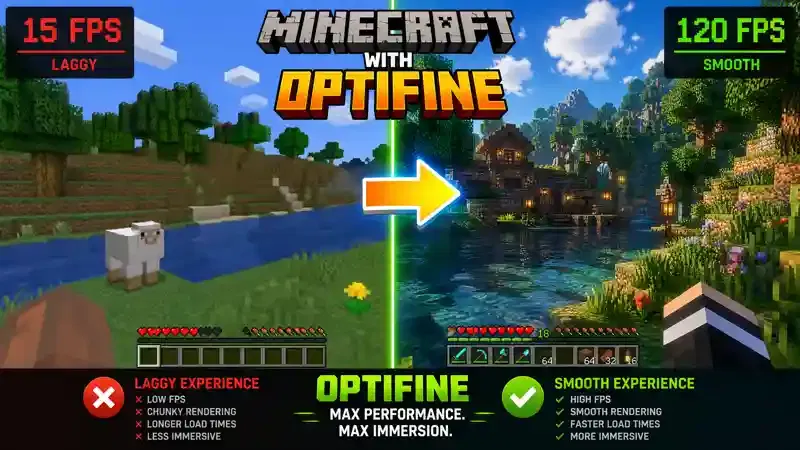
One of the biggest reasons players install OptiFine is to improve game performance. The mod optimizes rendering and reduces unnecessary resource usage. As a result, many systems achieve higher frame rates and smoother gameplay. Players can adjust render distance, graphics quality, and animation effects to balance visuals with performance. These options make Minecraft optimization easier for both older and modern computers and How to Uninstall OptiFine in Minecraft.
Dynamic Lights
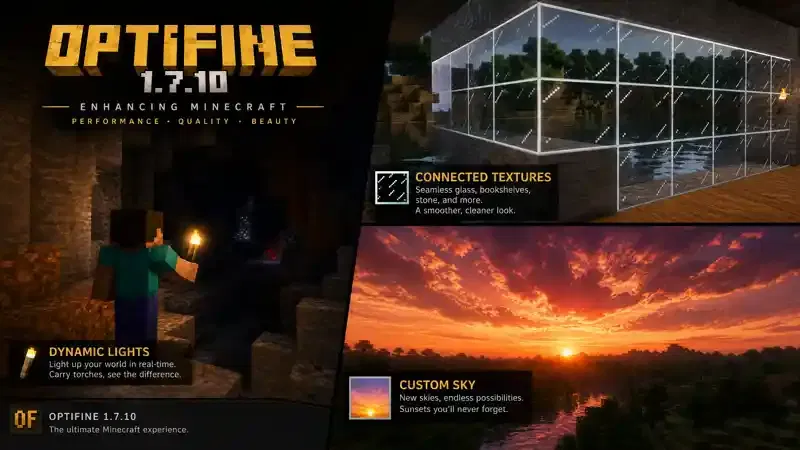
Dynamic Lights let light-emitting items brighten the world without placing them on the ground. Torches, glowstone, lanterns, and some other light sources illuminate nearby areas while you hold them. This feature improves cave exploration and nighttime travel. It also creates a more realistic lighting experience during gameplay.
Connected Textures
Connected Textures remove visible borders between matching blocks. Glass panes, bookshelves, sandstone, and many decorative blocks appear cleaner and more natural. Many HD resource packs rely on connected textures to create seamless buildings and detailed environments.
Better Grass
Better Grass extends grass textures to the sides of grass blocks. This change creates smoother landscapes and reduces harsh texture transitions. Natural areas look more polished without affecting gameplay or world generation.
Better Snow
Better Snow covers suitable blocks with snow during snowy conditions. Fences, plants, and other objects blend better into winter landscapes. This feature improves visual consistency while preserving Minecraft’s original style.
Custom Sky
Custom Sky allows compatible resource packs to replace the default sky with detailed day and night textures. Players can enjoy unique sunrises, sunsets, moons, stars, and weather effects. This feature adds atmosphere without requiring extra mods.
Custom Colors
Custom Colors let resource packs modify many in-game colors. Water, grass, foliage, fog, particles, and lighting can all receive customized color palettes. These custom colors create richer environments and help resource packs achieve unique visual styles.
HD Texture Support
OptiFine supports high-resolution resource packs that exceed Minecraft’s default texture size. Players can use HD textures without installing additional software. High-quality textures improve block details, items, mobs, and user interface elements. Strong hardware provides the best experience with higher resolutions.
Zoom Feature
The built-in zoom feature lets players inspect distant objects with a single key. This function helps identify mobs, structures, villages, and landmarks without changing render distance. Many players consider this one of OptiFine’s most convenient features.
Mipmaps
Mipmaps smooth textures when viewed from a distance. They reduce flickering and improve image quality during movement. Players can adjust mipmaps to find the right balance between visual clarity and system performance.
Fog Control
OptiFine gives players more control over fog rendering. You can adjust fog distance and appearance to improve visibility or create a preferred visual style. Lower fog effects may also improve performance on some systems.
Animation Settings
The Animation Settings menu lets players enable or disable individual visual effects. You can control water animation, lava animation, fire, portals, particles, rain, smoke, and many other effects. Disabling unnecessary animations often increases FPS on low-end hardware.
Quality Settings
The Quality Settings menu controls advanced graphical features. Players can configure connected textures, custom fonts, better grass, better snow, natural textures, clear water, emissive textures, and more. These quality settings help players achieve better visuals without installing separate mods.
Performance Settings
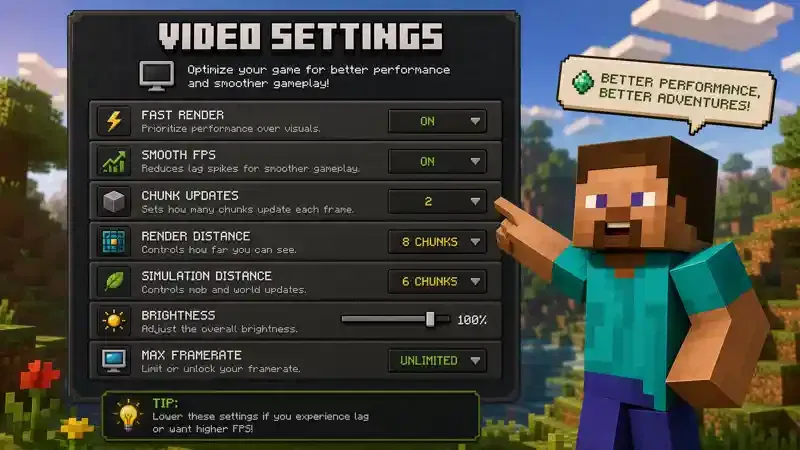
The Performance Settings menu focuses on smoother gameplay. Options such as Fast Render, Smooth FPS, Smooth World, Lazy Chunk Loading, and Chunk Updates help improve stability. These performance settings reduce lag, improve chunk loading, and create a more responsive experience during exploration and combat. Combined with the other OptiFine features, they make Minecraft 1.7.10 faster, more stable, and easier to customize for almost any computer.
OptiFine 1.7.10 Versions Explained
Several OptiFine builds are available for Minecraft 1.7.10. Each release includes bug fixes, compatibility improvements, and performance updates. Choosing the correct version helps you avoid crashes and ensures better compatibility with your Minecraft setup.
HD U E7
OptiFine HD U E7 is the newest and most recommended build for Minecraft 1.7.10. Most players should choose this version because it includes the latest fixes and improvements for the 1.7.10 release. The build offers stable performance, full shader support, HD resource pack compatibility, Dynamic Lights, Connected Textures, and advanced graphics settings. It also works well with many Forge-based modpacks when installed correctly. If you are installing OptiFine 1.7.10 HD U for the first time, HD U E7 is usually the best starting point. Unless a specific modpack requires an older release, this version delivers the most reliable experience.
HD U D6
OptiFine HD U D6 is an earlier development build. Some older modpacks and custom launcher configurations may recommend this version because they were tested with it during development. HD U D6 includes most of the core OptiFine features, including FPS improvements, shader support, HD textures, and performance settings. However, it lacks several fixes and optimizations introduced in later releases. If a modpack creator specifically recommends OptiFine HD U D6, follow that recommendation. Otherwise, HD U E7 remains the better choice for most players.
Older Builds
Older OptiFine 1.7.10 builds remain available through the official archive. These versions helped improve performance during different stages of development but may contain known bugs or compatibility issues. Some legacy servers and older modpacks still require a specific build. Always check the installation guide or modpack documentation before choosing an older release. In general, use the latest compatible version unless you have a clear reason to install an earlier build. This approach reduces installation problems and provides the best combination of stability, performance, and graphics features.
Version Comparison
| Version | Best For | Advantages |
|---|---|---|
| HD U E7 | Most players | Latest fixes, better stability, improved compatibility, recommended for new installations |
| HD U D6 | Older modpacks | Good compatibility with some legacy Forge packs and launcher setups |
| Older Builds | Legacy environments | Useful only when a server or modpack requires a specific archived version |
System Requirements
Before installing OptiFine, make sure your computer meets the basic requirements. Although OptiFine improves performance, your hardware and software still affect the overall experience.
Windows
OptiFine 1.7.10 works on Windows systems that support Minecraft Java Edition. Most players use Windows 10 or Windows 11, but older Windows versions that can run Minecraft Java Edition may also work. Keep your graphics drivers updated for better performance and fewer graphical issues.
Java
Minecraft 1.7.10 depends on Java to run correctly. Install a compatible Java version before launching the OptiFine installer. Many Minecraft 1.7.10 players use Java 8 because it provides excellent compatibility with older Forge mods and launcher configurations. If the installer does not open, verify that Java is installed correctly and associated with .jar files.
Minecraft Launcher
Launch Minecraft 1.7.10 at least once before installing OptiFine. This step downloads the required game files and creates the necessary version profile. OptiFine installs as a separate profile in the Minecraft Launcher. After installation, select the OptiFine profile before starting the game. If you use Forge, install the correct Forge version first. Then follow the recommended installation method for your modpack.
Memory Requirements
OptiFine itself uses very little additional memory. However, Minecraft performance depends on your hardware, installed mods, and resource packs.
For the best experience:
- Allocate 2 GB RAM for vanilla Minecraft with OptiFine.
- Allocate 4 GB RAM or more for large modpacks.
- Use additional memory only when necessary. Excessive RAM allocation can reduce Java performance.
- Close unnecessary background applications before launching Minecraft.
- Lower graphics settings if your system has limited memory or an older graphics card.
Meeting these requirements helps OptiFine deliver smoother gameplay, faster chunk loading, and a more stable Minecraft 1.7.10 experience.
Download Minecraft OptiFine 1.7.10
Downloading the correct OptiFine version is the first step toward better performance and improved graphics. Always use the official OptiFine website to avoid outdated files, malware, or modified installers.
Official Download
For a safe Minecraft OptiFine 1.7.10 download, visit the official OptiFine Downloads page or the official Downloads Archive. The archive contains older Minecraft versions, including 1.7.10 builds. If you need the latest release for Minecraft 1.7.10, choose OptiFine HD U E7 unless your modpack recommends another version. Avoid downloading OptiFine from unknown websites. Many unofficial sources package modified files or display misleading download buttons.
File Types
OptiFine downloads as a .jar file. This file acts as both the installer and the mod. The installer creates a dedicated OptiFine profile for the Minecraft Launcher. If you use Forge, you can also place the OptiFine JAR file inside the mods folder when your Forge version supports it. When searching for an OptiFine 1.7.10 JAR download, make sure the filename matches the version you plan to install.
Version Selection
Choose the version that matches your Minecraft installation.
- HD U E7 – Recommended for most players.
- HD U D6 – Suitable for some older modpacks.
- Older builds – Install only when a server or modpack requires them.
Using the wrong version can cause launcher errors, crashes, or compatibility problems with Forge and other mods.
Security Tips
Follow these best practices before installing OptiFine:
- Download only from the official OptiFine website.
- Verify that the downloaded file has the correct version name.
- Do not install extra software offered by third-party websites.
- Keep Java updated for better security and compatibility.
- Scan downloaded files if your antivirus recommends it.
You can safely get an OptiFine 1.7.10 free download from the official project without purchasing a license.
How to Install OptiFine 1.7.10
Installing OptiFine takes only a few minutes. Follow these steps carefully to avoid installation problems.
Step 1: Download OptiFine
Download the correct OptiFine version for Minecraft 1.7.10 from the official website. Save the JAR file in an easy-to-find folder, such as Downloads or Desktop.
Step 2: Install Java
OptiFine requires Java to run the installer. If Java is not installed, download a compatible Java version and complete the installation. Then verify that JAR files open with Java. If the installer does not launch, reinstall Java or update your file association for JAR files.
Step 3: Run the Installer
Double-click the OptiFine JAR file. The installer opens automatically. Click Install and wait for the confirmation message. The installer creates a new OptiFine version inside your Minecraft directory.
Step 4: Create or Select the Launcher Profile
Open the Minecraft Launcher. Choose the newly created OptiFine profile from the version list. If the profile does not appear, restart the launcher and check the Installed Versions section.
Step 5: Launch Minecraft
Click Play to start Minecraft with OptiFine enabled. After the main menu loads, open Options > Video Settings. If you see additional graphics and performance options, the installation completed successfully. This OptiFine installation guide works for most standard Minecraft Launcher installations.
Install OptiFine with Forge
Many players combine Forge and OptiFine to enjoy both performance improvements and mod support. Before installing both together, confirm that your Forge build supports the selected OptiFine version.
Compatibility
OptiFine 1.7.10 Forge compatibility depends on the Forge build and your installed mods. Most Minecraft 1.7.10 modpacks include installation instructions for a specific OptiFine release. Follow those recommendations to reduce compatibility issues. If a modpack developer suggests HD U D6 instead of HD U E7, use the recommended version.
Installation Steps
- Install Minecraft 1.7.10.
- Install the correct Forge version.
- Launch Forge once to create the required folders.
- Locate the mods folder inside your Minecraft directory.
- Copy the OptiFine JAR file into the mods folder if your Forge setup supports this method.
- Launch Minecraft using the Forge profile.
- Verify that both Forge and OptiFine load without errors.
Some older Forge builds may require a different installation method. Always follow your modpack’s documentation when available.
Common Mistakes
Many installation problems result from simple mistakes.
Avoid these common issues:
- Installing the wrong OptiFine version.
- Using an incompatible Forge build.
- Forgetting to install Java.
- Running a different Minecraft version.
- Placing the JAR file in the wrong folder.
- Mixing incompatible performance mods.
- Ignoring the modpack’s installation instructions.
If Minecraft crashes after you install OptiFine with Forge, remove recently added mods and test OptiFine by itself. Then add mods back one at a time until you identify the conflict. This approach helps maintain compatibility between OptiFine and Forge while keeping your game stable.
Install Shader Packs
Shader packs transform Minecraft’s lighting, shadows, water, and sky. OptiFine adds built-in shader support, so you do not need another shader mod. Once installed, you can load compatible shader packs directly from the game’s video settings.
Requirements
Before installing shaders, make sure you have:
- Minecraft Java Edition 1.7.10
- OptiFine HD U E7 or another compatible build
- A compatible Java installation
- A graphics card that supports OpenGL
- Enough available RAM for smoother gameplay
Shaders demand more system resources than the default game. Older computers may need lower graphics settings for stable performance.
Folder Setup
Follow these steps to install a shader pack:
- Download a compatible shader pack.
- Open Minecraft with OptiFine installed.
- Go to Options > Video Settings > Shaders.
- Click Shaders Folder.
- Copy the downloaded shader ZIP file into this folder.
- Do not extract the ZIP file unless the shader creator instructs you to do so.
Keeping shader packs inside the correct folder allows OptiFine to detect them automatically.
Enable Shaders
After adding the shader pack:
- Open the Shaders menu.
- Select your preferred shader pack.
- Wait for Minecraft to load the new graphics.
- Return to your world and check the visual changes.
Many players choose well-known shaders for Minecraft 1.7.10, including:
- SEUS Shaders for realistic lighting and shadows.
- Sildur’s Shaders for balanced visuals and performance.
- Chocapic Shaders for smooth gameplay on a wide range of hardware.
Each OptiFine shader pack offers a different visual style. Try several options to find the one that matches your system and preferences.
Performance Tips
Shaders can reduce FPS, especially on older hardware. These tips help improve performance without removing visual quality.
- Lower the render distance.
- Enable Fast Render when compatible with your shader.
- Turn off unnecessary animations.
- Reduce shadow quality if the shader supports it.
- Close background applications before launching Minecraft.
- Allocate enough RAM for large worlds or modpacks.
- Use a lightweight shader if your FPS remains low.
Finding the right balance between graphics and performance creates a smoother gaming experience.
Best OptiFine Settings for Maximum FPS
The default OptiFine settings work well for many players, but small adjustments can significantly improve performance. The following settings provide an excellent balance between image quality and smooth gameplay.
| Setting | Recommended | Why |
|---|---|---|
| Graphics | Fast | Better FPS |
| Render Distance | 8–10 Chunks | Good balance between performance and visibility |
| Smooth FPS | ON | Creates more stable frame rates |
| Fast Render | ON | Improves rendering performance on many systems |
| Dynamic Lights | Fast | Maintains lighting while reducing resource usage |
| Animations | Minimal | Reduces unnecessary rendering and increases FPS |
Additional Performance Recommendations
These settings can further improve your experience with OptiFine 1.7.10:
- Set Smooth World to ON for single-player worlds.
- Reduce Cloud Quality or disable clouds completely.
- Lower Particles to Minimal.
- Disable unnecessary weather effects if performance drops.
- Turn off Entity Shadows on low-end systems.
- Use VBOs if your graphics hardware supports them.
- Lower Mipmap Levels if you experience reduced FPS.
- Keep your graphics drivers updated.
Why These Settings Work
Every OptiFine setting affects how Minecraft renders the game world. Higher settings create better visuals but require more processing power. Lower settings reduce the workload on your CPU and GPU, allowing Minecraft to render frames more efficiently. Players with entry-level hardware often notice the biggest improvements by lowering render distance, minimizing animations, and enabling Fast Render. Mid-range and high-end systems can increase visual quality while maintaining stable performance. If your goal is the best FPS settings for OptiFine 1.7.10, start with the recommendations above and adjust one setting at a time. Testing each change helps you find the ideal balance between image quality and performance while keeping gameplay smooth and reducing lag.
Graphics Settings Explained
OptiFine gives you much more control than the default Minecraft video settings. Each option affects performance and visual quality in different ways. Understanding these settings helps you build the best configuration for your computer.
Graphics
The Graphics setting controls the overall rendering quality.
- Fast removes several visual effects and increases FPS.
- Fancy adds better leaves, transparent textures, and improved visuals.
Choose Fast if performance is your priority. Choose Fancy if your computer has enough processing power.
Render Distance
Render Distance determines how many chunks Minecraft loads around your player.
A higher value lets you see farther but uses more CPU, GPU, and RAM. Most players achieve the best balance between performance and visibility with 8–10 chunks.
Smooth Lighting
Smooth Lighting softens shadows between blocks.
Higher levels improve visual quality but require more graphics processing. Set it to Minimum or OFF if you want maximum FPS.
VBO
Vertex Buffer Objects (VBOs) help the graphics card render blocks more efficiently.
Modern graphics cards usually perform better with VBO enabled. If you experience rendering issues, test both ON and OFF to find the most stable setting.
Clouds
Cloud rendering affects both appearance and performance.
OptiFine lets you select:
- Default
- Fast
- Fancy
- OFF
Turning clouds off provides a small FPS improvement on lower-end systems.
Fog
Fog changes how distant terrain appears. You can customize fog type, distance, and rendering behavior. Reducing fog improves visibility. It may also improve performance in some situations.
Shadows
Shadow-related settings control the appearance of entity shadows and shader effects. Lower shadow quality reduces GPU workload and increases frame rates. Players using shaders should adjust shadow quality inside the shader options for the best results.
Details
The Details menu contains many visual customization options.
These include:
- Trees
- Rain
- Sky
- Sun and Moon
- Stars
- Held Item Tooltips
- Swamp Colors
- Vignette
- Translucent Blocks
You can disable effects you do not need to gain extra performance.
Quality
The Quality menu controls advanced graphical enhancements.
These options include:
- Connected Textures
- Better Grass
- Better Snow
- Clear Water
- Custom Fonts
- Random Mobs
- Natural Textures
- Emissive Textures
Adjust these settings based on your hardware. Lower-end systems benefit from disabling unnecessary effects.
Animations
Minecraft animates many objects by default.
OptiFine allows you to control animations for:
- Water
- Lava
- Fire
- Smoke
- Portal
- Redstone
- Explosion
- Rain
- Particles
Turning off unused animations reduces GPU usage and improves overall performance.
Resource Packs and HD Textures
OptiFine greatly expands Minecraft’s support for custom visuals. It allows players to use high-resolution textures and advanced graphical features that the standard game cannot fully support.
HD Packs
Minecraft normally works best with lower-resolution textures. OptiFine removes many of these limitations by supporting high-resolution resource packs. Players can use 64x, 128x, 256x, or even higher-resolution packs, depending on their hardware. Higher resolutions produce sharper blocks, items, mobs, and interface elements. However, they also require more graphics memory.
Connected Textures
One of OptiFine’s most popular features is Connected Textures. This feature joins matching block textures into one continuous surface. Glass, bookshelves, sandstone, and many decorative blocks appear cleaner and more realistic. Many premium texture packs rely on Connected Textures to achieve their intended visual style.
Better Compatibility
OptiFine improves compatibility with modern resource packs by supporting advanced texture features and custom rendering options.
Many packs include:
- Custom Colors
- Random Mobs
- Better Grass
- Better Snow
- Emissive Textures
- Custom Sky
- Clear Water
These enhancements work together to create a richer Minecraft experience without installing multiple graphics mods. For the best results, choose HD textures that match your computer’s capabilities. High-resolution packs look impressive, but they perform best on systems with dedicated graphics hardware and sufficient memory.
Compatible Mods and Modpacks
Minecraft 1.7.10 remains one of the most active versions for modded gameplay. Thousands of mods were built for this release, and many players still choose it because of its stable modding ecosystem. OptiFine improves performance in many of these environments, but compatibility depends on the specific modpack and OptiFine build. Always check the modpack documentation before installing additional mods.
Forge
Minecraft Forge is the foundation for most Minecraft 1.7.10 mods. Many players use OptiFine alongside Forge to combine performance improvements with extensive mod support. Install the Forge version recommended by your modpack to avoid compatibility issues.
Pixelmon
Pixelmon transforms Minecraft into a Pokémon-inspired adventure. The mod adds hundreds of Pokémon, battles, biomes, and custom mechanics. OptiFine helps improve FPS while exploring large worlds and detailed environments. Always use the OptiFine version recommended by your Pixelmon release.
Crazy Craft
Crazy Craft combines dozens of large mods into one challenging experience. Because this modpack adds many entities, dimensions, and structures, it places heavy demands on your system. OptiFine helps reduce lag and improve frame rates, especially when paired with optimized video settings.
Dragon Block C
Dragon Block C introduces Dragon Ball-inspired gameplay, powerful abilities, and large-scale combat. The mod includes detailed animations and visual effects that can reduce performance on lower-end computers. OptiFine provides additional graphics controls that help maintain smoother gameplay.
Orespawn
Orespawn adds new dimensions, powerful bosses, unique creatures, and hundreds of items. The large worlds and complex structures benefit from OptiFine’s rendering optimizations and configurable performance settings. Players should follow the recommended OptiFine build for their Orespawn installation.
Tekkit
Tekkit focuses on technology, automation, and industrial gameplay. Large factories, machines, and automated systems can increase resource usage over time. OptiFine helps improve chunk rendering and overall game responsiveness during extended play sessions.
FTB (Feed The Beast)
Feed The Beast (FTB) offers many popular modpacks with different themes and gameplay styles. Some FTB packs officially support OptiFine, while others recommend against it because of specific mod conflicts. Always review the documentation for your chosen FTB pack before adding OptiFine. Following the recommended setup helps maintain stability while delivering better performance and smoother gameplay.
Common Problems & Solutions
Even a correct installation can produce errors if your software versions do not match. Most issues have simple solutions. The sections below cover the most common OptiFine installation failed and OptiFine launch issues reported by Minecraft 1.7.10 players.
Not Installing
If OptiFine does not install, check your Minecraft version first. Make sure you downloaded the correct OptiFine build for Minecraft 1.7.10. Launch Minecraft 1.7.10 at least once before running the installer. Also verify that Java is installed and that JAR files open with Java instead of another application and Minecraft OptiFine 1.8.9.
Black Screen
A black screen usually points to graphics settings or incompatible mods.
Try these solutions:
- Remove recently installed mods.
- Disable shaders.
- Update your graphics driver.
- Reset OptiFine video settings.
- Test the game without resource packs.
If the problem disappears, enable your mods one at a time to identify the conflict.
Launcher Crash
Launcher crashes often occur because of incompatible Minecraft or OptiFine versions.
Check that:
- Minecraft version matches the OptiFine build.
- Forge version is compatible.
- Java installation works correctly.
- No duplicate OptiFine files exist.
A clean installation usually resolves most launcher crashes.
Java Error
Java errors often prevent the installer or Minecraft from starting. Install a compatible Java version and restart your computer. If JAR files still fail to open, restore the file association with Java or reinstall Java completely.
Forge Crash
Forge crashes usually result from version conflicts.
Confirm that:
- Forge supports your OptiFine version.
- Your modpack allows OptiFine.
- No duplicate optimization mods are installed.
Some performance mods conflict with OptiFine and should not run together.
Missing Profile
Sometimes the OptiFine profile does not appear in the Minecraft Launcher. Restart the launcher after installation. If the profile still does not appear, reinstall OptiFine and confirm that the installer targets the correct Minecraft folder.
Low FPS
OptiFine improves performance, but incorrect settings can still reduce FPS.
Try these changes:
- Set Graphics to Fast.
- Reduce Render Distance.
- Enable Fast Render.
- Enable Smooth FPS.
- Disable unnecessary animations.
- Close background applications.
These adjustments often provide noticeable performance improvements.
Shader Problems
Shaders require more graphics power than standard Minecraft.
If shaders do not load correctly:
- Verify shader compatibility with Minecraft 1.7.10.
- Update your graphics driver.
- Try another shader pack.
- Lower shader quality.
- Remove incompatible resource packs.
Many shader issues disappear after selecting a lighter shader preset.
Game Doesn’t Launch
If Minecraft never reaches the main menu, check your installation. Remove recently added mods and test OptiFine alone. If the game launches normally, another mod likely causes the conflict. Also verify that your Minecraft profile uses the correct version.
Installer Won’t Open
The installer requires Java.
If double-clicking the JAR file does nothing:
- Install or reinstall Java.
- Open the file using Java manually.
- Download the installer again if the file appears corrupted.
- Confirm that your antivirus has not blocked the file.
These steps solve most installation problems. If you continue experiencing OptiFine crashing Minecraft, perform a clean installation with only Minecraft and OptiFine installed. After confirming everything works, reinstall your remaining mods one at a time.
Is OptiFine 1.7.10 Safe?
Yes. OptiFine 1.7.10 is generally considered safe when you download it from the official OptiFine website. Millions of Minecraft Java Edition players have used OptiFine for many years to improve performance and graphics.
Official Source
Always download OptiFine from the official OptiFine website. The official site provides the latest releases, archived versions, and authentic installation files.Using the official download also ensures you receive the correct version for Minecraft 1.7.10.
Fake Download Sites
Many websites copy OptiFine files or package them with unwanted software. These sites often display multiple fake download buttons or ask you to install additional programs. Avoid downloading OptiFine from file-sharing websites, unofficial mirrors, or unknown forums.
Virus Myths
Some players believe OptiFine contains viruses because antivirus software occasionally flags the installer. These warnings usually result from advertising links or installer behavior rather than malicious code. Downloading directly from the official project greatly reduces this risk. If you have concerns, scan the downloaded file with your preferred antivirus before opening it.
Security Tips
Protect your computer by following these best practices:
- Download only from the official OptiFine website.
- Keep Java updated.
- Update your graphics drivers regularly.
- Avoid modified installers.
- Do not install bundled software from third-party websites.
- Scan downloaded files before opening them if needed.
These simple precautions help ensure a safe installation.
Performance Comparison
The following comparison shows how OptiFine can improve the Minecraft experience. Actual results depend on your hardware, installed mods, resource packs, and graphics settings.
| Feature | Without OptiFine | With OptiFine |
|---|---|---|
| FPS | Lower and less stable | Higher and more consistent |
| Render Distance | Limited optimization | Better control and improved performance |
| Shader Support | Not available by default | Built-in shader support |
| Texture Support | Standard resource packs | Full support for HD resource packs and advanced texture features |
| RAM Usage | Less efficient in many situations | More efficient rendering and memory management |
| Loading Time | Can be slower with large worlds | Often faster through rendering optimizations |
OptiFine does not guarantee the same performance increase on every computer. Results vary based on your processor, graphics card, memory, Java configuration, and installed mods. However, most players notice smoother gameplay, better graphics control, and improved stability after configuring OptiFine correctly.
Pros and Cons
Every optimization tool has strengths and limitations. Understanding both helps you decide whether OptiFine is the right choice for your Minecraft 1.7.10 setup.
Advantages
- Improves FPS and overall game performance.
- Reduces lag during gameplay.
- Supports HD resource packs and HD textures.
- Includes built-in shader support.
- Adds Dynamic Lights and Connected Textures.
- Offers detailed graphics and performance settings.
- Works with many Minecraft 1.7.10 modpacks.
- Supports custom sky, better grass, and better snow.
- Provides a built-in zoom feature.
- Receives strong community support.
- Easy to install with the official Minecraft Launcher.
- Helps older computers run Minecraft more smoothly.
Disadvantages
- Some Forge mods may conflict with OptiFine.
- High-end shader packs require powerful hardware.
- Incorrect version selection can cause crashes.
- Some modpacks recommend a specific OptiFine build.
- Advanced settings may confuse new players.
- Performance improvements vary by computer.
Who Should Use It
OptiFine 1.7.10 is an excellent choice for:
- Players who want higher FPS.
- Users with low-end or mid-range computers.
- Players using HD resource packs.
- Anyone who wants shader support.
- Players running popular 1.7.10 modpacks.
- Users looking for better graphics without changing gameplay.
If you play Minecraft 1.7.10 regularly, OptiFine remains one of the most valuable performance and graphics upgrades available.
Alternatives
Several optimization mods exist for modern Minecraft versions. However, they do not replace OptiFine for Minecraft 1.7.10.
Sodium
Sodium focuses on rendering optimization and delivers excellent FPS improvements. However, Sodium was developed for newer Minecraft versions using the Fabric mod loader. It does not support Minecraft 1.7.10. Players using legacy Forge modpacks cannot use Sodium as a direct replacement for OptiFine.
Rubidium
Rubidium brings many Sodium performance improvements to Forge. It targets newer Forge versions rather than Minecraft 1.7.10. Rubidium also lacks several OptiFine features, including built-in Connected Textures, Dynamic Lights, and integrated shader support.
Embeddium
Embeddium continues the development of Rubidium for modern Forge versions. It improves rendering performance on recent Minecraft releases but does not support Minecraft 1.7.10. Players using classic modpacks such as Pixelmon, Crazy Craft, Dragon Block C, or Orespawn cannot use Embeddium as a replacement.
Why OptiFine Remains the Best Choice
For Minecraft 1.7.10, OptiFine remains the most complete solution.
It combines:
- Performance optimization.
- Shader support.
- HD resource pack compatibility.
- Advanced graphics settings.
- Broad compatibility with legacy Forge modpacks.
Modern alternatives excel on recent Minecraft versions, but they were never designed for the 1.7.10 ecosystem.
Frequently Asked Questions
What is OptiFine 1.7.10?
OptiFine 1.7.10 is a performance and graphics optimization mod for Minecraft Java Edition. It improves FPS, adds advanced video settings, and supports shaders and HD resource packs.
Is OptiFine free?
Yes. OptiFine is free to download and use. Optional donations help support ongoing development.
Does OptiFine work with Forge?
Yes. OptiFine works with many Forge installations. Always use the OptiFine version recommended by your modpack or Forge setup.
Can OptiFine run shaders?
Yes. OptiFine includes built-in shader support. You can install compatible shader packs directly through the Shaders menu.
Why is OptiFine crashing?
Crashes usually result from incompatible Forge versions, conflicting mods, incorrect OptiFine builds, outdated Java, or unsupported shader packs.
Which version should I install?
Most players should install OptiFine HD U E7 because it is the latest recommended build for Minecraft 1.7.10. Use an older version only if your modpack specifically requires it.
How much FPS can I gain?
Performance improvements depend on your hardware and settings. Many players notice smoother gameplay and higher frame rates after optimizing video settings.
Does OptiFine support HD textures?
Yes. OptiFine fully supports HD resource packs and high-resolution textures. It also supports Connected Textures and many advanced resource pack features.
Can I uninstall OptiFine?
Yes. Remove the OptiFine profile or delete the OptiFine file from the mods folder if you installed it with Forge. Your original Minecraft installation remains unchanged.
Does it work on Windows 11?
Yes. OptiFine works on Windows 11 if your system supports Minecraft Java Edition and has a compatible Java installation.
Does it support Java 8?
Yes. Java 8 remains one of the most commonly used Java versions for Minecraft 1.7.10 and many legacy Forge modpacks.
Is OptiFine safe to download?
Yes. Download OptiFine only from the official OptiFine website. Avoid unofficial download sites and modified installers.
Can I use it with Pixelmon?
Yes. Many Pixelmon players use OptiFine for better performance. Check the Pixelmon documentation for the recommended OptiFine version.
Does it work with Crazy Craft?
Yes. OptiFine works with many Crazy Craft releases. Follow the version recommendations provided by the modpack creator.
Can I use multiple mods together?
Yes. OptiFine works alongside many Forge mods. However, some optimization mods may conflict with it. Always test compatibility before adding multiple performance-related mods.
Conclusion
Minecraft OptiFine 1.7.10 remains the best optimization mod for players who enjoy the classic Minecraft experience. It improves performance, unlocks advanced graphics features, and supports many of the most popular legacy modpacks. If you want higher FPS, smoother gameplay, shader support, or HD resource packs, OptiFine is an excellent choice. It serves both beginners and experienced players without changing Minecraft’s core gameplay. For most users, OptiFine HD U E7 is the recommended version. It includes the latest improvements, better stability, and broader compatibility than older builds. Install earlier versions only when a modpack or server specifically requires them.
Download OptiFine from the official website, install the version that matches your Minecraft and Forge setup, and launch the game through the Minecraft OptiFine profile. After installation, adjust the graphics and performance settings to match your hardware. While no optimization tool can guarantee identical results on every computer, OptiFine consistently delivers smoother gameplay, better graphics, and greater control over Minecraft’s visual settings. That combination has made it the preferred choice for Minecraft 1.7.10 players for many years.