
Does OptiFine Make Minecraft Run Better? Performance, FPS, Lag and Real-World Results
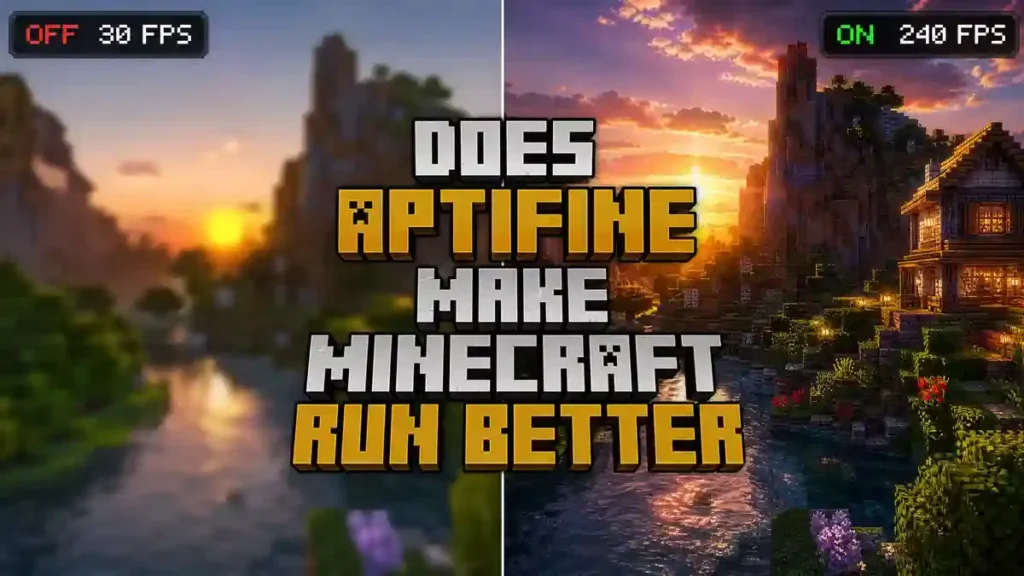
Yes, OptiFine can make Minecraft run better for many players. It improves rendering, boosts FPS, and reduces stuttering through client-side optimizations. Results depend on your PC hardware, Minecraft version, and graphics settings. In this guide, you’ll learn how OptiFine affects performance, when it helps the most, and why no FPS increase is guaranteed for every system.
Quick Answer
Yes, OptiFine improves Minecraft performance for many players. It can increase FPS, reduce rendering lag, and make gameplay feel smoother through client-side optimizations. The biggest improvements usually appear on low-end and mid-range PCs, though high-end systems can also benefit from better frame stability and more graphics controls. If you play Minecraft Java Edition and want better performance without changing the game’s core mechanics, OptiFine is still worth installing. Your results will depend on your hardware, Minecraft Optifine , versionand graphics settings.
Table of Contents
- What Is OptiFine?
- Does OptiFine Make Minecraft Run Better?
- How Much FPS Can OptiFine Increase?
- Does OptiFine Reduce Minecraft Lag?
- What Features Help Minecraft Run Better?
- Best OptiFine Settings for Maximum Performance
- OptiFine vs Vanilla Minecraft
- OptiFine vs Sodium
- Does OptiFine Work Better on Low-End PCs?
- Why OptiFine May Not Increase FPS
- Common Myths About OptiFine Performance
- Is OptiFine Still Worth Using?
- Frequently Asked Questions
- Final Verdict
What Is OptiFine?
What Is OptiFine Minecraft? Optifine is a free optimization mod for Minecraft Java Edition. It improves game performance and adds advanced graphics settings. You can also use it to enable HD textures, shaders, Dynamic Lights, and Connected Textures. Many players install OptiFine to enjoy smoother gameplay without changing Minecraft’s core experience. The official OptiFine website describes it as a mod that boosts FPS, supports HD textures, and adds shader compatibility. It also notes that performance gains vary by system and settings.
How OptiFine Works
OptiFine improves how Minecraft renders the game world. It reduces unnecessary rendering and manages graphics more efficiently. This lowers the workload on your CPU and GPU during gameplay. The mod also gives you extra video settings that vanilla Minecraft does not include. You can adjust animations, render distance, particles, lighting, and other options to balance image quality and performance.
Why Players Install OptiFine
Players install OptiFine for different reasons. Many want higher FPS and smoother gameplay. Others want better graphics without sacrificing too much performance.
Common reasons include:
- Increase FPS in Minecraft Java Edition.
- Reduce stuttering and frame drops.
- Improve chunk loading.
- Use shader packs.
- Enable HD resource packs.
- Customize graphics settings.
- Add Dynamic Lights and Connected Textures.
These features make OptiFine popular with both casual players and experienced Minecraft users.
Client-Side Optimization Explained
OptiFine is a client-side mod. It only changes how your game runs on your computer. It does not modify Minecraft servers or affect other players. This means OptiFine can improve your own FPS and rendering performance. However, it cannot fix server lag, slow internet connections, or problems caused by overloaded multiplayer servers. Understanding this difference helps you set realistic expectations before measuring any performance improvements.
Does OptiFine Make Minecraft Run Better?
Yes, OptiFine makes Minecraft run better for many players. It improves how the game renders the world and manages graphics. These changes often increase FPS, reduce stuttering, and create smoother gameplay. The biggest improvements usually appear on low-end and mid-range PCs. However, your results depend on your hardware, Minecraft version, and graphics settings.
Short Answer
If you play Minecraft Java Edition, OptiFine can improve performance without changing the game’s core mechanics. It adds optimization features that help your computer render the game more efficiently. While many players notice higher FPS, no mod can guarantee the same results on every system.
How OptiFine Improves Performance
OptiFine speeds up Minecraft by reducing unnecessary work during rendering. Instead of drawing everything the same way, it uses smarter methods to display the game world.
Rendering Optimizations
Minecraft constantly renders blocks, entities, particles, and lighting. OptiFine streamlines this process to reduce graphics overhead. Your GPU spends more time rendering visible content instead of wasting resources.
Chunk Rendering
Chunks make up the Minecraft world. OptiFine improves how these chunks load and render. Faster chunk rendering helps the game feel smoother, especially when you explore new areas.
Smart Rendering
Many blocks stay hidden behind walls or underground. OptiFine skips rendering many of these unseen surfaces. This reduces the number of objects your graphics card must process.
Memory Optimizations
OptiFine manages textures and game assets more efficiently. Better memory use helps reduce sudden frame drops and improves overall stability during long play sessions.
Graphics Optimization
OptiFine adds advanced video settings that vanilla Minecraft does not provide. You can lower visual effects, adjust render distance, and disable costly animations. These options help you balance image quality with performance.
Why Performance Improves
OptiFine improves performance because it uses your computer’s resources more efficiently. Instead of forcing your hardware to process every visual detail, it focuses on the content you actually see.
Reduced GPU Workload
Your graphics card renders fewer unnecessary objects each frame. This frees GPU resources and often leads to higher FPS and smoother frame delivery.
Better CPU Efficiency
The CPU handles many game tasks, including chunk updates and world processing. OptiFine reduces extra processing where possible, allowing the CPU to spend more time on gameplay instead of rendering overhead.
Fewer Unnecessary Rendering Operations
Every rendered block, particle, and animation requires processing power. OptiFine removes many unnecessary rendering tasks before they reach your hardware. This improves frame consistency and helps reduce stuttering during gameplay. These optimizations work together to improve Minecraft’s performance. The exact FPS increase depends on your system, but efficient rendering remains the main reason many players notice smoother gameplay.
How Much FPS Can OptiFine Increase?
There is no fixed FPS increase for every player. OptiFine improves performance based on your hardware and game settings. Some players see small gains, while others notice much larger improvements. The official OptiFine website states that doubling FPS is common on many systems, but individual results vary.
FPS Improvements on Low-End PCs
Low-end PCs often gain the most from OptiFine. These systems usually have limited processing power and integrated graphics. OptiFine reduces the rendering workload and helps the game run more smoothly. Many players report noticeable FPS improvements after lowering settings like render distance, particles, and shadows. Gameplay also feels smoother because frame drops occur less often.
FPS Improvements on Mid-Range PCs
Mid-range systems usually deliver stable performance in vanilla Minecraft. OptiFine helps these computers maintain higher FPS during exploration, combat, and large builds. Many players also notice smoother chunk loading and fewer stutters. These improvements become more noticeable when using moderate render distances or resource packs.
FPS Improvements on High-End PCs
High-end gaming PCs already produce high frame rates in most situations. OptiFine may not double FPS on these systems, but it can improve frame consistency and reduce sudden drops. Many players also use OptiFine for shader support, HD textures, and advanced graphics settings. These features let you enjoy better visuals while keeping performance under control.
Why FPS Results Differ
Every Minecraft system is different. Your FPS depends on several hardware and software factors, not just OptiFine.
CPU
Minecraft relies heavily on your processor. A faster CPU can process world updates, chunk generation, and game logic more efficiently. Older processors may limit FPS even with OptiFine installed.
GPU
Your graphics card renders blocks, lighting, textures, and visual effects. A dedicated GPU usually delivers higher FPS than integrated graphics, especially with shaders or high-resolution resource packs.
RAM
Minecraft needs enough memory to load worlds and game assets. Too little RAM can cause stuttering, while excessive memory allocation may also reduce performance. A balanced RAM allocation usually works best.
Java Version
Minecraft Java Edition runs on Java. Using a supported and updated Java version can improve stability, compatibility, and performance. Older Java releases may reduce efficiency or create unexpected issues.
Render Distance
Higher render distances force Minecraft to load and display more chunks at once. This increases the workload on both the CPU and GPU. Lowering render distance often provides one of the biggest FPS improvements.
Minecraft Version
Performance changes between Minecraft releases. Newer versions often include additional game features that increase hardware demands. As a result, the same OptiFine settings may produce different FPS gains across versions. No single component determines your final FPS. OptiFine works best when your hardware, Minecraft version, Java installation, and graphics settings work together.
Does OptiFine Reduce Minecraft Lag?
Yes, OptiFine can reduce some types of Minecraft lag. It improves client-side performance by optimizing rendering and graphics processing. However, it cannot fix every lag issue. The cause of the lag determines whether OptiFine can help.
FPS vs Lag
Many players use FPS and lag as if they mean the same thing. They are different. FPS (Frames Per Second) measures how smoothly your game displays images. Higher FPS usually creates smoother gameplay. Lag describes delays or interruptions while playing. Lag can come from your computer, your internet connection, or the game server. A game can have high FPS and still lag because of network problems. Likewise, low FPS can make the game feel laggy even when your internet works perfectly.
Types of Lag OptiFine Can Reduce
OptiFine improves how Minecraft uses your computer’s resources. These optimizations help reduce several client-side performance issues.
Rendering Lag
Rendering lag happens when your computer struggles to draw the game world. OptiFine reduces unnecessary rendering work and improves graphics efficiency. This often makes gameplay feel smoother.
Chunk Loading Lag
Minecraft loads new chunks as you explore. Slow chunk loading can cause pauses or delayed world generation. OptiFine improves chunk rendering, which helps many systems load new areas more smoothly.
Stuttering
Stuttering occurs when frame delivery becomes inconsistent. The game may freeze briefly before continuing. OptiFine helps reduce these interruptions by optimizing rendering and memory usage.
Frame Spikes
Frame spikes happen when FPS suddenly drops for a short time. These drops often appear while loading new terrain or processing complex scenes. OptiFine reduces many unnecessary rendering tasks, which can improve frame consistency.
Problems OptiFine Cannot Fix
OptiFine only improves client-side performance. It cannot solve problems that occur outside your computer or exceed your hardware’s limits.
Server Lag
A busy or overloaded server can delay player movement, block updates, and mob behavior. OptiFine does not change server performance because it runs only on your computer.
Slow Internet
A weak or unstable internet connection can increase latency and packet loss. This causes delays during multiplayer sessions. OptiFine cannot improve your network connection.
Weak Hardware
Very old processors or graphics hardware may struggle with modern Minecraft versions. OptiFine reduces the workload, but it cannot overcome major hardware limitations.
Insufficient RAM
Minecraft needs enough memory to load worlds, textures, and game assets. Too little RAM can cause freezing and frequent stuttering. OptiFine cannot replace missing system memory, although its optimizations may reduce unnecessary resource usage. Before changing OptiFine settings, identify the real source of the problem. Client-side lag, server lag, and network lag require different solutions.
What Features Help Minecraft Run Better?
OptiFine includes several features that improve Minecraft’s performance. Some reduce the rendering workload, while others give you more control over graphics settings. Choosing the right combination can improve FPS and create smoother gameplay.
Fast Render
What it does
Fast Render changes how Minecraft processes graphics. It reduces the amount of work needed to render each frame.
Performance impact
Many players see higher FPS and smoother gameplay, especially on low-end and mid-range PCs.
Best use case
Enable Fast Render if you play without shaders and want better performance.
Possible trade-offs
Fast Render is not compatible with many shader packs. Disable it before using shaders.
Smooth FPS
What it does
Smooth FPS helps stabilize frame rates by reducing small performance fluctuations.
Performance impact
Average FPS may stay similar, but gameplay often feels smoother because frame times become more consistent.
Best use case
Enable Smooth FPS if you notice frequent micro-stutters during normal gameplay.
Possible trade-offs
Some systems show little or no improvement because hardware and drivers affect frame stability.
Render Regions
What it does
Render Regions groups nearby chunks into larger rendering batches. This reduces the number of draw calls sent to the graphics card.
Performance impact
Many modern GPUs render large worlds more efficiently with this option enabled.
Best use case
Use Render Regions when exploring large areas or playing with higher render distances.
Possible trade-offs
Older graphics hardware may show little benefit.
Smart Animations
What it does
Smart Animations only animates textures that appear on your screen.
Performance impact
The GPU processes fewer animated textures, which can improve FPS.
Best use case
Enable this setting if you use animated resource packs or explore areas with many animated blocks.
Possible trade-offs
Some animations start only when they become visible.
Dynamic Updates
What it does
Dynamic Updates controls how chunks refresh while you move through the world.
Performance impact
It helps reduce pauses during exploration and creates smoother chunk updates.
Best use case
Useful for players who travel quickly with Elytra or explore new terrain.
Possible trade-offs
The improvement depends on your hardware and world complexity.
Chunk Loading Optimizations
What it does
OptiFine improves how Minecraft loads and renders new chunks.
Performance impact
World generation feels smoother and large areas load more consistently.
Best use case
Ideal for survival exploration, multiplayer servers, and long-distance travel.
Possible trade-offs
Very high render distances can still overload slower systems.
Connected Textures
What it does
Connected Textures removes visible seams between matching blocks. This creates a cleaner appearance.
Performance impact
The FPS impact stays small on most systems.
Best use case
Enable it when using compatible resource packs for better visual quality.
Possible trade-offs
Some high-resolution resource packs may require additional graphics processing.
Dynamic Lights
What it does
Dynamic Lights allows items and mobs to emit light while moving. For example, a torch lights nearby blocks even when you hold it.
Performance impact
The feature improves visibility but increases GPU workload.
Best use case
Use it for caves, nighttime exploration, or adventure maps.
Possible trade-offs
You may lose some FPS, especially on low-end hardware.
HD Texture Optimization
What it does
OptiFine adds support for high-definition resource packs and manages them more efficiently than vanilla Minecraft.
Performance impact
It helps reduce unnecessary overhead when using HD textures. Performance still depends on your GPU and the texture resolution.
Best use case
Enable this feature if you enjoy detailed resource packs and have suitable hardware.
Possible trade-offs
Very high-resolution textures, such as 256×256 or 512×512 packs, can still reduce FPS because they require more video memory. These features work best when you adjust them to match your hardware. Test one setting at a time and measure your FPS before making additional changes. This approach helps you find the best balance between visual quality and performance.
Best OptiFine Settings for Maximum Performance
The best OptiFine settings depend on your hardware. Start with the recommendations below, then test your FPS after each change. Small adjustments often make a bigger difference than changing every setting at once.
Best Settings for Low-End PCs
Low-end PCs benefit the most from aggressive performance settings.
Recommended settings:
- Graphics: Fast
- Render Distance: 6–8 chunks
- Simulation Distance: 5–6 chunks
- Smooth Lighting: Off or Minimum
- Fast Render: On
- Smooth FPS: On
- Render Regions: On
- Smart Animations: On
- Dynamic Updates: On
- Dynamic Lights: Fast or Off
- Particles: Minimal
- Clouds: Off
- Entity Shadows: Off
- Mipmap Levels: 0–2
These settings reduce the workload on both the CPU and GPU. They also help minimize frame drops during exploration.
Best Settings for Mid-Range PCs
Mid-range systems can balance visual quality with performance.
Recommended settings:
- Graphics: Fast or Fancy
- Render Distance: 10–12 chunks
- Simulation Distance: 8 chunks
- Smooth Lighting: Minimum
- Fast Render: On (disable if using shaders)
- Smooth FPS: On
- Render Regions: On
- Smart Animations: On
- Dynamic Updates: On
- Dynamic Lights: Fast
- Particles: Decreased
- Clouds: Fast
- Entity Shadows: Off or On, based on preference
These settings provide smoother gameplay while keeping Minecraft visually appealing.
Best Settings for High-End PCs
High-end hardware can handle higher graphics settings without major FPS loss.
Recommended settings:
- Graphics: Fancy
- Render Distance: 16–24 chunks
- Simulation Distance: 10–12 chunks
- Smooth Lighting: Maximum
- Render Regions: On
- Smart Animations: On
- Dynamic Updates: On
- Dynamic Lights: Fancy
- Particles: All
- Clouds: Fancy (optional)
- HD Resource Packs: Use only if your GPU has enough VRAM
High-end systems should focus on maintaining stable frame times instead of chasing the highest FPS number.
Settings That Usually Reduce FPS
Some settings increase visual quality but demand more processing power. Lowering or disabling them often improves performance.
Shaders
Shaders add realistic lighting, shadows, reflections, and water effects. They place a heavy load on your GPU.
Tip: Choose lightweight shader packs if you want better visuals without a large FPS drop.
High Render Distance
A higher render distance forces Minecraft to load and display more chunks.
Tip: Lowering render distance often delivers one of the biggest FPS improvements.
Heavy Resource Packs
High-resolution resource packs require more graphics memory and processing power.
Tip: Use 16×16 or 32×32 textures on low-end systems for smoother gameplay.
Fancy Graphics
Fancy graphics improve leaves, clouds, water, and transparency effects. These features increase GPU usage.
Tip: Switch to Fast Graphics if you want the highest possible FPS.
There is no universal “best” configuration. Test one setting at a time and monitor your FPS. This approach helps you find the right balance between performance and visual quality for your system.
OptiFine vs Vanilla Minecraft
Vanilla Minecraft offers the original gameplay experience without extra optimization features. OptiFine builds on that experience by adding performance improvements and advanced graphics controls. Both versions play the same game, but they differ in how much control you have over performance and visuals.
| Feature | OptiFine | Vanilla Minecraft |
| FPS | Often delivers higher FPS through rendering optimizations. Results vary by hardware. | Performance depends on the game’s default optimization and your PC. |
| Graphics Settings | Includes advanced options like Fast Render, Smart Animations, Render Regions, and Dynamic Lights. | Offers basic graphics settings with fewer customization options. |
| Render Distance | Gives more flexibility to balance view distance and performance. | Uses standard render distance controls with fewer optimization features. |
| Visual Quality | Supports HD textures, shaders, Connected Textures, and advanced lighting effects. | Supports standard textures and graphics without built-in shader support. |
| Customization | Provides dozens of video settings for performance and visual tuning. | Includes fewer settings for adjusting graphics behavior. |
| Ease of Use | Requires downloading and installing the mod. Once installed, all settings appear in the Video Settings menu. | Ready to play immediately after installing Minecraft. No additional setup is required. |
Which One Should You Choose?
Choose vanilla Minecraft if you want the original game without installing mods. Choose OptiFine if you want more control over graphics, smoother gameplay, and extra visual features. Many players also use it to improve FPS, enable shader packs, and fine-tune performance for their hardware. If your goal is better performance without changing Minecraft’s core gameplay, OptiFine offers more optimization tools than vanilla Minecraft. However, the size of the improvement depends on your PC specifications and game settings.
OptiFine vs Sodium
OptiFine and Sodium both improve Minecraft Java Edition, but they have different goals. OptiFine combines performance optimization with visual enhancements. Sodium focuses on maximizing rendering performance. The better choice depends on what matters most to you.
| Feature | OptiFine | Sodium |
| Main Focus | Performance and graphics features | Maximum rendering performance |
| FPS | Improves FPS on many systems | Often delivers higher FPS in modern Minecraft versions |
| Shaders | Built-in support through OptiFine-compatible shaders | Requires the Iris Shaders mod |
| Graphics Features | Dynamic Lights, Connected Textures, HD textures, zoom, and more | Focuses on optimization with fewer built-in visual features |
| Mod Loader | Standalone or compatible with Minecraft Forge | Fabric and NeoForge (through compatible ports) |
| Best For | Players who want an all-in-one solution | Players who want the highest possible FPS |
Which Gives Higher FPS?
Sodium often produces higher FPS than OptiFine on modern Minecraft versions. It uses a redesigned rendering engine that reduces CPU and GPU overhead. However, the difference varies by hardware and game settings. Some players notice large improvements, while others see only small gains. If your main goal is maximum frame rates, Sodium often has the advantage.
Which Has Better Features?
OptiFine includes more built-in features than Sodium.
These include:
- Shader support
- Dynamic Lights
- Connected Textures
- HD texture support
- Advanced video settings
- Optical zoom
Sodium focuses on rendering performance. Many visual features require additional Fabric mods. If you want performance and graphics improvements in one package, OptiFine offers a more complete feature set.
Which Is Better for Shaders?
OptiFine supports compatible shader packs without installing another shader mod. Sodium does not include native shader support. Most players pair it with Iris Shaders, which adds shader compatibility while keeping Sodium’s rendering optimizations. Both setups can deliver excellent visuals. Your FPS depends on the shader pack, render distance, and hardware.
Which Should You Choose?
Choose OptiFine if you:
- Want an all-in-one optimization mod.
- Use HD resource packs.
- Prefer built-in shader support.
- Enjoy advanced graphics customization.
- Play with Minecraft Forge or use OptiFine’s standalone installer.
Choose Sodium if you:
- Want the highest possible FPS.
- Play on the Fabric ecosystem.
- Prefer a lightweight optimization mod.
- Don’t mind installing extra mods for features like shaders.
Neither mod is the best choice for everyone. OptiFine offers a richer feature set, while Sodium often leads in raw rendering performance. Select the one that matches your hardware, preferred mod loader, and gameplay style.
Does OptiFine Work Better on Low-End PCs?
Yes, OptiFine usually delivers the biggest performance improvements on low-end PCs. These systems have limited processing power, so reducing the rendering workload makes a noticeable difference. Mid-range and high-end computers also benefit, but the improvements often focus on smoother gameplay instead of dramatic FPS gains.
Older Laptops
Older laptops often struggle with modern Minecraft updates. They usually have slower processors, less memory, and weaker graphics hardware. OptiFine helps by reducing unnecessary rendering and adding performance settings that vanilla Minecraft does not include. Lowering render distance, particles, and lighting effects can improve both FPS and game stability. If you play on an older laptop, start with Fast Graphics, Fast Render, and a 6–8 chunk render distance.
Integrated Graphics
Many budget laptops and office computers use integrated graphics instead of a dedicated graphics card. These systems share memory with the CPU, so graphics performance is more limited. OptiFine reduces graphics overhead through features like Smart Animations and Render Regions. These optimizations help integrated GPUs focus on visible game elements instead of unnecessary rendering. For the best results, avoid high-resolution resource packs and demanding shader packs.
Entry-Level Gaming PCs
Entry-level gaming PCs usually include a dedicated graphics card and a modern processor. They can already run Minecraft well, but performance may drop during heavy exploration or large builds. OptiFine helps maintain smoother frame rates by improving chunk rendering and reducing frame spikes. It also gives you more control over graphics settings, making it easier to balance image quality with performance. Many players can increase render distance while keeping stable gameplay.
Modern Gaming Systems
Modern gaming PCs often achieve high FPS in vanilla Minecraft. As a result, OptiFine may provide smaller FPS gains than it does on older hardware. However, it still offers valuable features. You can fine-tune graphics settings, improve frame consistency, use HD resource packs, and enable shader support. These features help you maintain a smooth experience while enjoying better visuals. If your system already delivers very high FPS, focus on stable frame times and consistent gameplay instead of chasing a higher FPS number. No matter which computer you use, the best OptiFine settings depend on your hardware, Minecraft version, and preferred graphics quality. Testing different settings is the most reliable way to find the right balance between performance and visuals.
Why OptiFine May Not Increase FPS
OptiFine improves Minecraft performance for many players, but it does not guarantee higher FPS. If your frame rate stays the same or drops, another issue may limit your system. Finding the real cause helps you choose the right fix.
Incorrect Settings
Some OptiFine settings work better than others. Using the wrong combination can reduce performance instead of improving it. For example, a very high render distance forces Minecraft to load more chunks. Fancy graphics and high particle settings also increase the workload.
What you can do:
- Lower your render distance.
- Enable Render Regions.
- Turn on Smart Animations.
- Use Fast Graphics if FPS remains low.
- Test one setting at a time.
Heavy Shader Packs
Shader packs add realistic lighting, shadows, reflections, and water effects. These features require much more GPU power than standard Minecraft graphics.
Even a powerful computer can lose FPS with demanding shaders.
What you can do:
- Try a lightweight shader pack.
- Lower shader quality.
- Disable shaders when maximum FPS matters.
- Match the shader pack to your GPU’s performance.
Too Many Mods
Every installed mod uses system resources. Large modpacks increase CPU, GPU, and memory usage. OptiFine cannot fully offset the performance cost of dozens of active mods.
What you can do:
- Remove unused mods.
- Test OptiFine without other mods.
- Add mods back one at a time to find performance problems.
Driver Issues
Outdated graphics drivers can reduce performance and create visual glitches. Both NVIDIA, AMD, and Intel regularly release driver updates that improve game compatibility and fix bugs.
What you can do:
- Install the latest graphics driver from your GPU manufacturer’s official website.
- Restart your computer after updating.
- Test Minecraft again before changing other settings.
Minecraft Version Compatibility
Each Minecraft version uses different rendering code and game features. Older OptiFine releases may not work well with newer game versions. Running an incompatible version can reduce performance or cause unexpected issues.
What you can do:
- Download the OptiFine version that matches your Minecraft version.
- Update both Minecraft and OptiFine when stable releases become available.
Java Problems
Minecraft Java Edition depends on Java to run correctly. An outdated or unsupported Java version can affect stability and performance. Incorrect Java settings may also create unnecessary memory problems.
What you can do:
- Use a supported Java version for your Minecraft release.
- Avoid allocating excessive RAM.
- Close unnecessary background programs before launching Minecraft.
If OptiFine does not increase your FPS, avoid changing everything at once. Check one possible cause, test your FPS, and then move to the next. This
Common Myths About OptiFine Performance
Many players expect OptiFine to solve every performance problem. Some of these beliefs are based on old information or personal experience. Understanding the facts helps you set realistic expectations and get better results.
Myth: OptiFine Doubles FPS for Everyone
Reality: No. The official OptiFine website says that doubling FPS is common, but it does not promise this for every computer. Your results depend on your CPU, GPU, RAM, Minecraft version, and graphics settings. Some players gain 20% more FPS. Others may see much larger improvements. High-end systems often experience smoother frame times instead of dramatic FPS increases.
Myth: OptiFine Fixes Server Lag
Reality: No. OptiFine is a client-side optimization mod. It improves how your computer renders Minecraft.
It cannot fix:
- Slow multiplayer servers
- High network latency
- Packet loss
- Server-side TPS issues
If a server struggles to keep up, OptiFine cannot improve its performance.
Myth: OptiFine Only Helps Old PCs
Reality: No. Older computers often see the biggest FPS improvements because they have fewer hardware resources. Modern gaming PCs also benefit from OptiFine. Many players use it to improve frame consistency, customize graphics settings, enable shaders, and support HD resource packs. The type of benefit changes with the hardware.
Myth: OptiFine Only Exists for Shaders
Reality: No.
Shader support is only one part of OptiFine.
The mod also includes:
- Rendering optimizations
- Fast Render
- Render Regions
- Smart Animations
- Dynamic Lights
- Connected Textures
- Advanced graphics controls
- HD texture support
- Performance-focused video settings
Many players install OptiFine for higher FPS even if they never use shaders.
Myth: OptiFine Always Outperforms Every Optimization Mod
Reality: No. OptiFine and other optimization mods have different goals. For example, Sodium often delivers higher FPS on modern Minecraft versions because it uses a different rendering approach. OptiFine focuses on balancing performance with graphics features and compatibility. Neither mod is the best choice for every player. Your hardware, preferred mod loader, and gameplay style should guide your decision. The best way to evaluate OptiFine is to test it on your own system. Performance depends on your complete setup, not on a single benchmark
Is OptiFine Still Worth Using?
Yes, OptiFine is still worth using for many Minecraft Java Edition players. It combines performance improvements with advanced graphics features in one mod. While newer optimization mods may deliver higher FPS on some systems, OptiFine remains a strong choice because of its balance between speed, visuals, and ease of use.
Current Strengths
OptiFine offers much more than an FPS boost.
Its biggest strengths include:
- Improves performance on many PCs.
- Adds advanced graphics settings.
- Supports HD resource packs.
- Works with compatible shader packs.
- Includes Dynamic Lights and Connected Textures.
- Installs as a standalone mod or with Minecraft Forge.
- Receives updates for supported Minecraft versions.
These features make OptiFine an all-in-one solution for many players.
Limitations
OptiFine is not perfect.
Keep these limitations in mind:
- FPS improvements vary by hardware.
- Some settings require testing to find the best performance.
- Heavy shaders can still reduce FPS.
- New Minecraft updates may take time to receive a compatible OptiFine release.
- Some modern Fabric modpacks focus on alternative optimization mods.
Understanding these limits helps you choose the right tool for your setup.
Best Use Cases
OptiFine works best if you want both performance and visual improvements.
It is a good choice if you:
- Play Minecraft Java Edition.
- Want higher FPS with simple installation.
- Use HD resource packs.
- Enjoy shader packs.
- Like fine control over graphics settings.
- Prefer an all-in-one optimization mod.
Many players choose OptiFine because they can improve performance without installing several separate mods.
When Another Optimization Mod May Be Preferable
Another optimization mod may suit you better in certain situations. For example, Sodium is often a better option if your main goal is the highest possible FPS on the Fabric mod loader. Many players combine Sodium with Iris Shaders for shader support and additional Fabric performance mods for a customized setup. If you prefer a lightweight, modular approach, the Fabulously Optimized modpack also offers excellent performance with several carefully selected optimization mods.
There is no single winner for every player. If you want one mod that improves performance and graphics together, OptiFine remains an excellent choice. If you want to maximize FPS on modern Fabric installations, Sodium-based solutions may better match your needs. Choose the option that fits your hardware, Minecraft version, preferred mod loader, and the way you enjoy playing the game.
Frequently Asked Questions
Does OptiFine Help FPS?
Yes. OptiFine helps increase FPS for many Minecraft Java Edition players. It improves rendering efficiency and adds performance settings that vanilla Minecraft does not offer. Your FPS gain depends on your hardware, Minecraft version, and graphics configuration.
Does OptiFine Reduce Lag?
Yes, but only certain types of lag. OptiFine reduces rendering lag, chunk loading lag, frame spikes, and stuttering. It cannot fix server lag or slow internet connections.
Does OptiFine Improve Chunk Loading?
Yes. OptiFine optimizes chunk rendering and updates. Many players notice smoother exploration because new terrain loads more efficiently. The improvement varies with your CPU, storage drive, and render distance.
Can OptiFine Run on Low-End PCs?
Yes. OptiFine works well on many low-end PCs and older laptops. Features like Fast Render, Smart Animations, and Render Regions help reduce the workload on limited hardware. Lower graphics settings usually deliver the best results.
Does OptiFine Work with Shaders?
Yes. OptiFine supports many compatible shader packs. Keep in mind that shaders increase GPU usage and can lower FPS. Lightweight shaders often provide a better balance between visuals and performance.
Is OptiFine Better Than Vanilla Minecraft?
It depends on your goals. Vanilla Minecraft offers the original experience with no extra setup. OptiFine adds performance improvements, advanced graphics settings, shader support, and HD texture support. Many players choose OptiFine because it provides greater control over performance and visuals.
Does OptiFine Increase FPS Automatically?
Often, yes. Many players notice better performance immediately after installation because OptiFine includes built-in rendering optimizations. You can usually achieve even better results by adjusting the video settings to match your hardware.
Why Is OptiFine Not Improving My FPS?
Several factors can limit performance. Common causes include incorrect settings,
Conclusion
OptiFine remains one of the best ways to improve Minecraft Java Edition for many players. It combines performance optimization with advanced graphics features in a single mod. While the FPS increase varies by system, many players enjoy smoother gameplay, better graphics controls, and greater customization.
Who Should Install OptiFine?
OptiFine is a great choice if you:
- Play Minecraft Java Edition.
- Want higher FPS and smoother gameplay.
- Use an older laptop or a low-end PC.
- Enjoy shader packs and HD resource packs.
- Prefer one mod instead of several separate optimization mods.
- Want more control over graphics settings.
Who May Prefer Alternatives?
Another optimization mod may suit you better if you:
- Want the highest possible FPS on the Fabric mod loader.
- Prefer a lightweight, modular setup.
- Already use Fabric performance mods.
- Do not need OptiFine’s extra graphics features.
In these cases, Sodium or the Fabulously Optimized modpack may provide better performance.
Key Performance Takeaways
Before you install OptiFine, remember these points:
- OptiFine improves performance for many players.
- FPS gains depend on your CPU, GPU, RAM, and Minecraft version.
- Lower graphics settings usually produce the biggest improvements.
- OptiFine reduces client-side rendering lag, not server lag.
- Heavy shaders and high render distances can still lower FPS.
- Testing your settings helps you achieve the best results.
Balanced Recommendation Based on Hardware and Needs
If you want an easy way to improve Minecraft without changing its core gameplay, OptiFine is still an excellent option. It works especially well on low-end and mid-range PCs, where rendering optimizations often make the biggest difference. If you play on a modern Fabric setup and your only goal is maximum FPS, Sodium may be the stronger.