
OptiFine for Minecraft Windows 10 Edition: Does It Work? Complete FPS, Shaders and Performance Guide
OptiFine is one of the most popular performance mods for Minecraft Java Edition. It can improve FPS, add advanced graphics settings, support shaders, and enhance HD resource packs. Because of these features, many players search for OptiFine for Minecraft Windows 10 Edition. However, there is an important compatibility issue. OptiFine does not work with Minecraft Windows 10 Edition. The Windows 10 version is now known as Minecraft Bedrock Edition, while OptiFine is designed only for Minecraft Java Edition.
The official OptiFine project does not provide a Bedrock version. Bedrock Edition also uses a different modding system, so you cannot install the Java version of OptiFine on Minecraft for Windows. This also creates a security risk for players searching online. Some websites and videos advertise fake or modified OptiFine downloads for Bedrock Edition. These files may not work and could potentially contain unwanted software. Always verify compatibility before downloading any Minecraft mod.
Fortunately, Minecraft Bedrock players have other ways to improve performance and graphics. You can adjust the game’s built-in video settings, use optimized resource packs, and take advantage of RTX features if your hardware supports them. Trusted Bedrock add-ons and graphics tools can also provide useful improvements. In this guide, you will learn why OptiFine is incompatible with Minecraft Windows 10 Edition. You will also understand the key differences between Java and Bedrock Edition. Plus, we will cover safe alternatives, FPS optimization tips, graphics settings, shader options, and common performance problems.
Whether you are new to Minecraft or an experienced player, this guide will help you choose the right optimization method. The recommendations focus on official compatibility information and trusted sources, helping you avoid unsupported OptiFine downloads and misleading websites.
What Is Minecraft Windows 10 Edition?
Minecraft Windows 10 Edition is the original name for the Bedrock version of Minecraft designed for Windows computers. Microsoft released this edition in 2015 as a separate version from Minecraft Java Edition. It later became part of the unified Minecraft Bedrock Edition family and now appears as Minecraft for Windows in the Microsoft Store. The Bedrock platform uses a different game engine from Java Edition. It allows Minecraft to run smoothly across multiple devices while supporting shared features and cross-platform play. The Bedrock Edition includes versions for Windows, Xbox, PlayStation, Nintendo Switch, Android, and iOS devices.
Players who purchase Minecraft for Windows through the Microsoft Store get access to the Bedrock experience. This version connects with a Microsoft account and provides features like cloud saves, achievements, and online multiplayer through Minecraft services. One major advantage of Minecraft Bedrock Edition is crossplay. Players on different supported devices can join the same world. For example, a Windows player can play with friends using Xbox, mobile devices, or consoles. This feature makes Bedrock popular among players who want easy multiplayer access.
Minecraft Bedrock Edition also includes the Minecraft Marketplace. The Marketplace offers officially supported content, including skins, texture packs, worlds, maps, and add-ons. Players can purchase or download content directly through the game using a secure system. However, Minecraft Windows 10 Edition works differently from Java Edition. Java Edition offers deeper customization through mods, custom launchers, and community-developed tools. Many popular Java mods, including OptiFine, depend on Java’s game structure and do not work with Bedrock.
The main differences include mod support, file structure, multiplayer systems, and graphics customization. Java Edition provides more freedom for advanced users, while Bedrock Edition focuses on performance, accessibility, and cross-platform compatibility. Understanding this difference is important when searching for OptiFine for Minecraft Windows 10 Edition. OptiFine was built for Java Edition and does not support the Bedrock version available through the Microsoft Store.
What Is OptiFine?
OptiFine is a popular optimization mod created for Minecraft Java Edition. It improves Minecraft performance, expands video settings, and enhances visual quality without changing the core gameplay experience. The main purpose of OptiFine is to help players achieve better performance and smoother gameplay. Many Minecraft players use it to increase FPS, reduce lag, and improve game stability, especially on computers with limited hardware resources.
OptiFine adds advanced graphics controls that are not available in the default Minecraft settings. Players can adjust options like render distance, animations, lighting effects, and performance features. These settings help users customize Minecraft based on their computer specifications. One of OptiFine’s most popular features is FPS optimization. It can improve frame rates by managing graphics effects, reducing unnecessary animations, and offering advanced performance controls. This makes gameplay smoother during exploration, building, and multiplayer sessions.
OptiFine also improves Minecraft’s visual experience. It supports shader packs, which add realistic lighting, shadows, reflections, and environmental effects. Players can create a more realistic Minecraft world while keeping control over performance settings. Another important feature is HD texture support. OptiFine allows Minecraft Java Edition players to use high-resolution resource packs. These packs improve block textures, item details, and overall visual quality.
OptiFine includes several unique graphics features:
- Dynamic Lights: Allows handheld light sources, such as torches, to illuminate nearby areas without placing them.
- Connected Textures: Improves the appearance of glass, bookshelves, and other blocks by creating smoother connections.
- Zoom: Adds a camera zoom function that helps players view distant objects.
- Smart Animations: Improves performance by loading only necessary animated textures.
These features made OptiFine a popular choice among Minecraft Java players for many years. It combines performance improvements with advanced customization options. However, OptiFine has an important limitation. OptiFine only supports Minecraft Java Edition. It does not work with Minecraft Windows 10 Edition, also known as Minecraft Bedrock Edition.
The Java and Bedrock versions use different technologies. Because of these differences, OptiFine cannot run on the Microsoft Store version of Minecraft. Players looking for OptiFine for Minecraft Windows 10 Edition need to understand this compatibility issue before downloading any files.
Does OptiFine Work on Minecraft Windows 10 Edition?
The answer is no, OptiFine does not work on Minecraft Windows 10 Edition. The Windows 10 version uses Minecraft Bedrock Edition, while OptiFine was designed only for Minecraft Java Edition.
Many players search for OptiFine for Minecraft Windows 10 Edition because they want better FPS, shaders, and improved graphics. This confusion happens because both versions share the same Minecraft name and gameplay style. However, they use different systems behind the scenes. Minecraft Java Edition runs on the Java programming language. OptiFine modifies Java Edition files and works with its rendering system. It connects with Minecraft Java’s structure to add optimization features, shader support, and advanced graphics controls.
Minecraft Bedrock Edition uses a different engine called the Bedrock engine. It was built for performance across multiple platforms, including Windows, Xbox, PlayStation, Nintendo Switch, Android, and iOS. Its file structure, codebase, and rendering system differ from Java Edition. The biggest difference appears in graphics processing. OptiFine changes how Java Edition handles rendering, textures, lighting, and animations. Bedrock Edition uses a separate rendering system called RenderDragon, which does not support OptiFine.
Because of these technical differences, there is no official OptiFine version for Minecraft Bedrock Edition. The OptiFine development team has never released a Windows 10 Edition version. Players should also avoid websites claiming to offer “OptiFine for Minecraft Bedrock” or “OptiFine Windows 10 Edition APK.” These downloads often contain fake installers, unwanted programs, or harmful files. They may use the OptiFine name to attract users searching for performance improvements. Always download software from trusted sources. The official OptiFine website provides Java Edition downloads only.
Java Edition vs Bedrock Edition: OptiFine Compatibility Comparison
| Feature | Minecraft Java Edition | Minecraft Windows 10 Edition (Bedrock) |
|---|---|---|
| Game version | Java Edition | Bedrock Edition |
| OptiFine support | Yes | No |
| Mod support | Extensive community mods | Add-ons and Marketplace content |
| Performance | Depends on hardware and settings | Optimized across many devices |
| Shader support | OptiFine shaders available | RTX and Bedrock-compatible options |
| Resource packs | Java resource packs | Bedrock resource packs |
| Marketplace | Not available | Available through Microsoft Store |
| Crossplay | Limited | Supports multiple platforms |
OptiFine and Minecraft Windows 10 Edition: What Players Should Know
OptiFine remains one of the best optimization tools for Minecraft Java Edition. However, Minecraft Windows 10 Edition does not need OptiFine because it already uses a different optimization system. Bedrock players can improve performance through built-in settings, updated graphics drivers, optimized resource packs, and supported features like Minecraft RTX on compatible hardware.
Understanding the difference between Minecraft Java Edition and Minecraft Bedrock Edition helps players avoid incorrect downloads and choose the right optimization method. If you want OptiFine features like shaders, advanced graphics controls, and deep customization, Minecraft Java Edition is the correct version. If you prefer crossplay and smooth performance across devices, Minecraft Bedrock Edition offers those advantages.
Why OptiFine Cannot Be Ported to Bedrock
Many players wonder why developers cannot simply create an OptiFine version for Minecraft Bedrock Edition. The reason involves major technical differences between Minecraft Java Edition and Minecraft Windows 10 Edition (Bedrock). OptiFine was built specifically for the Java version of Minecraft. It works by modifying Java-based game files and connecting with Minecraft Java’s internal systems. The mod changes how the game handles graphics, rendering, animations, textures, and performance settings.
Minecraft Java Edition uses Java code, while Minecraft Bedrock Edition uses C++ code. These programming languages create different game structures. A Java-based modification cannot directly run inside a C++ environment. Developers would need to rebuild OptiFine almost completely for Bedrock. The rendering systems also work differently. OptiFine improves Minecraft Java’s rendering pipeline by changing how the game processes graphics. Bedrock Edition uses its own rendering engine called RenderDragon. This engine powers Minecraft across Windows, consoles, and mobile devices. OptiFine’s features cannot simply transfer because the graphics systems handle lighting, shaders, and performance in different ways.
Game files create another major difference. Java Edition allows deeper file modifications through community tools and mods. Bedrock Edition uses a more controlled structure designed for stability across many devices. Mod APIs also affect compatibility. Java Edition has a large modding ecosystem with tools like Forge and Fabric. These platforms allow developers to create complex modifications. Bedrock Edition mainly uses add-ons, behavior packs, and resource packs. These systems do not provide the same level of access as Java mods. The Minecraft Marketplace creates additional restrictions. Bedrock content follows Microsoft’s approval system to maintain security and compatibility. This approach limits how deeply third-party tools can modify the game.
Because of these differences, creating OptiFine for Bedrock Edition would require a completely new project. It would not be a simple conversion or update. The developers would need to redesign every feature for the Bedrock engine. For this reason, players searching for OptiFine for Minecraft Windows 10 Edition should understand that no official Bedrock version exists. Instead, Bedrock players should use supported optimization methods, graphics settings, and compatible tools designed for the Bedrock platform.
Best Alternatives to OptiFine for Minecraft Windows 10 Edition
Since OptiFine does not support Minecraft Windows 10 Edition, Bedrock players need different tools and settings to improve performance and graphics. Minecraft Bedrock Edition already includes optimization features, but additional tools can enhance visuals, customization, and gameplay.
The best approach depends on your goal. Some players want higher FPS, while others want shaders, realistic lighting, or better textures. Below are the safest OptiFine alternatives for Minecraft Bedrock Edition.
1. BetterRenderDragon
BetterRenderDragon is one of the most popular Bedrock alternatives for players who want more control over Minecraft’s rendering system. It focuses on modifying and expanding the RenderDragon engine, which powers modern Minecraft Bedrock graphics. It aims to bring advanced visual customization that resembles some OptiFine features.
Features
- Advanced rendering customization
- Improved shader support
- Additional graphics options
- Better control over visual effects
- Support for custom rendering modifications
Pros
- Brings more graphics flexibility to Bedrock Edition
- Helps players customize visuals
- Provides features unavailable in standard settings
- Useful for advanced users
Cons
- Requires technical knowledge
- Compatibility can change after Minecraft updates
- Not an official Minecraft tool
- May not work on every device
Compatibility
BetterRenderDragon mainly targets Minecraft Bedrock Edition on Windows. Compatibility depends on the Minecraft version and current RenderDragon updates.
Installation
Installation usually requires downloading the tool from its official project source and following the setup instructions. Always check compatibility before installing because Bedrock updates can affect third-party tools.
2. RenderDragon Tweaks
Minecraft Bedrock introduced the RenderDragon engine to improve graphics performance across different platforms. RenderDragon Tweaks focuses on adjusting this system to provide more customization options.
Features
- Graphics engine modifications
- Visual improvements
- Additional rendering controls
- Enhanced effects support
Pros
- Designed specifically for Bedrock
- Can improve visual customization
- Provides features closer to Java graphics mods
Cons
- Not supported by Microsoft
- Requires careful installation
- Updates may break compatibility
Compatibility
RenderDragon Tweaks works with selected Bedrock versions. Players should verify support before installing.
Installation
Installation methods vary depending on the project. Most tools require downloading files and applying them to the Minecraft Bedrock installation folder. Always create backups before modifying game files.
3. Minecraft RTX
For players with supported hardware, Minecraft RTX provides one of the closest experiences to advanced Java shaders. Minecraft RTX uses ray tracing technology to create realistic lighting, shadows, reflections, and atmospheric effects.
Features
- Realistic lighting
- Ray-traced shadows
- Reflections
- Improved water effects
- Physically based textures
Pros
- Officially supported by Minecraft
- Excellent visual quality
- Works directly with Bedrock Edition
- Provides realistic graphics
Cons
- Requires NVIDIA RTX-compatible graphics cards
- Can reduce FPS on demanding settings
- Not available on every device
Compatibility
Minecraft RTX requires:
- Minecraft Bedrock Edition for Windows
- Compatible NVIDIA RTX graphics card
- Updated graphics drivers
Installation
Players can enable RTX by downloading compatible RTX resource packs from the Minecraft Marketplace or supported sources. After installation, enable ray tracing settings inside Minecraft Optifine.
4. Built-In Performance Settings
Minecraft Windows 10 Edition already includes many optimization options. These settings often provide the safest FPS improvements without installing extra tools.
Features
Important settings include:
- Render Distance adjustment
- Simulation Distance control
- Graphics mode changes
- Particle reduction
- Cloud settings
- Smooth lighting adjustments
- Frame rate controls
Pros
- Official Minecraft features
- Safe and stable
- Works on every Bedrock device
- No downloads required
Cons
- Limited customization
- Does not add advanced shader features
- Cannot replicate full OptiFine functionality
Compatibility
Works with all Minecraft Bedrock platforms.
Installation
No installation required. Open Minecraft settings and adjust video options based on your hardware.
5. Resource Packs
Resource packs are one of the easiest ways to improve Minecraft Bedrock visuals. They change textures, colors, models, sounds, and other visual elements without modifying the game engine.
Features
- Higher-resolution textures
- Improved block designs
- Better user interfaces
- Realistic environments
- Custom visual styles
Pros
- Easy to install
- Safe customization method
- Supports many Minecraft versions
- Available through Marketplace and community creators
Cons
- Heavy packs can reduce performance
- Cannot add Java-only OptiFine features
- Some packs require powerful hardware
Compatibility
Works with Minecraft Bedrock Edition through .mcpack files or Marketplace downloads.
Installation
Players can open supported resource pack files directly. Minecraft automatically imports compatible packs.
6. Marketplace Graphics Packs
The Minecraft Marketplace provides official Bedrock-compatible content. These packs offer a secure way to improve visuals without using unofficial modifications.
Features
- Officially supported textures
- Custom worlds
- Enhanced visual designs
- Bedrock compatibility
Pros
- Safe downloads
- Microsoft-approved content
- Easy installation
- Works across supported devices
Cons
- Some content requires payment
- Limited compared to Java mods
- Less customization freedom
Compatibility
Works with Minecraft Bedrock Edition.
Installation
Open Minecraft Marketplace, select a compatible pack, and download it using your Microsoft account.
7. Bedrock Tweaks
Bedrock Tweaks provides small improvements that customize gameplay and visuals. It works similarly to quality-of-life packs rather than a complete graphics mod.
Features
- Interface improvements
- Visual changes
- Utility features
- Gameplay adjustments
Pros
- Lightweight
- Easy customization
- Improves user experience
Cons
- Does not increase FPS dramatically
- Does not replace OptiFine features
- Some packs need version updates
Compatibility
Designed for Minecraft Bedrock Edition.
Installation
Download compatible packs and import them into Minecraft. Enable them through the resource pack settings.
8. Add-ons
Minecraft Bedrock add-ons provide another way to customize the game. They modify gameplay elements using behavior packs and resource packs.
Features
- New gameplay mechanics
- Custom items
- New creatures
- Visual changes
- Custom experiences
Pros
- Officially supported system
- Easy to use
- Large creator community
Cons
- Less powerful than Java mods
- Limited access to engine features
- Not designed for FPS optimization
Compatibility
Works with Minecraft Bedrock Edition.
Installation
Download compatible add-ons and open the files. Minecraft imports them automatically.
Choosing the Best OptiFine Alternative for Minecraft Windows 10 Edition
The best alternative depends on your goal:
- For better FPS: Use Minecraft’s built-in performance settings.
- For realistic graphics: Use Minecraft RTX if your hardware supports it.
- For textures: Choose optimized resource packs.
- For customization: Use Bedrock Tweaks and add-ons.
- For advanced rendering: Explore RenderDragon-based tools carefully.
While these alternatives cannot completely replace OptiFine, they provide safe ways to improve Minecraft Windows 10 Edition performance and graphics. Bedrock Edition follows a different system, so the best experience comes from using tools designed specifically for the platform.
How to Improve FPS on Minecraft Windows 10 Edition
Improving FPS in Minecraft Windows 10 Edition does not require OptiFine. The Bedrock version already includes many performance options that help players achieve smoother gameplay. By adjusting graphics settings and optimizing your Windows system, you can reduce lag and increase frame rates. FPS depends on several factors, including your processor, graphics card, RAM, storage speed, and Minecraft settings. Lower-end computers benefit the most from optimization.
Adjust Minecraft Graphics Settings
Minecraft Bedrock Edition includes built-in video settings that directly affect performance. Lowering demanding options can significantly improve FPS.
Reduce Render Distance
Render Distance controls how many chunks Minecraft loads around the player. A higher distance creates a larger view but requires more processing power.
For better FPS:
- Low-end PCs: 6–8 chunks
- Mid-range PCs: 10–16 chunks
- High-end PCs: 16+ chunks
Reducing render distance is one of the fastest ways to improve Minecraft performance.
Lower Simulation Distance
Simulation Distance controls how far Minecraft processes activities like mobs, farms, and redstone systems. A high simulation distance increases CPU usage. Lower it if you experience frame drops or slow world loading.
Recommended settings:
- Low-end PC: 4–6 chunks
- Mid-range PC: 6–10 chunks
- Gaming PC: 10+ chunks
Disable Fancy Graphics
Fancy Graphics improves visual effects such as leaves, lighting, and transparency. However, it requires additional GPU power. Turning off Fancy Graphics can improve FPS on weaker computers.
Disable Clouds
Clouds add extra visual effects that require additional rendering. Disabling clouds reduces GPU workload and can provide smoother gameplay.
Reduce Particles
Particles appear during explosions, weather effects, potion effects, and block interactions. Lower particle settings can reduce unnecessary graphics processing and improve FPS during busy moments.
Adjust Smooth Lighting
Smooth Lighting creates realistic shadows and softer lighting transitions. Although it improves appearance, it can affect performance. Players with older hardware should reduce or disable Smooth Lighting.
Disable VSync
VSync synchronizes FPS with your monitor refresh rate. It can reduce screen tearing but may introduce input delay. If you want maximum FPS, disable VSync. Keep VSync enabled if you prefer smoother visuals without screen tearing.
Use Fullscreen Mode
Fullscreen mode can improve performance by giving Minecraft better access to system resources. It also reduces distractions from background applications.
Optimize Windows Settings
Minecraft performance also depends on your Windows configuration. Small system changes can improve stability.
Update GPU Drivers
Graphics drivers directly affect Minecraft performance. Outdated drivers may cause lag, crashes, or poor FPS.
Update drivers through official sources:
- NVIDIA drivers
- AMD Software
- Intel Graphics drivers
Updated drivers often include performance improvements for modern games.
Enable Windows Game Mode
Windows Game Mode prioritizes gaming processes and reduces background activity.
To enable it:
- Open Windows Settings.
- Select Gaming.
- Enable Game Mode.
This setting helps Minecraft receive more system resources.
Choose a Better Power Plan
Windows may limit performance to save battery power. For desktop computers and gaming laptops, select a high-performance power plan.
Recommended:
- Balanced mode for normal use
- High Performance mode for gaming
Install Minecraft on Faster Storage
Storage speed affects world loading and chunk generation. A solid-state drive (SSD) provides faster loading compared to a traditional hard drive.
Benefits of SSD storage:
- Faster world loading
- Reduced stuttering
- Quicker chunk generation
Close Background Applications
Background programs consume RAM and CPU resources.
Before launching Minecraft, close unnecessary applications such as:
- Web browsers
- Video editors
- Download managers
- Unused launchers
Free system resources help Minecraft maintain stable FPS.
Best Graphics Settings for Low-End PCs
Low-end computers can still run Minecraft Windows 10 Edition smoothly with optimized settings. The goal is to reduce graphics workload while keeping gameplay enjoyable.
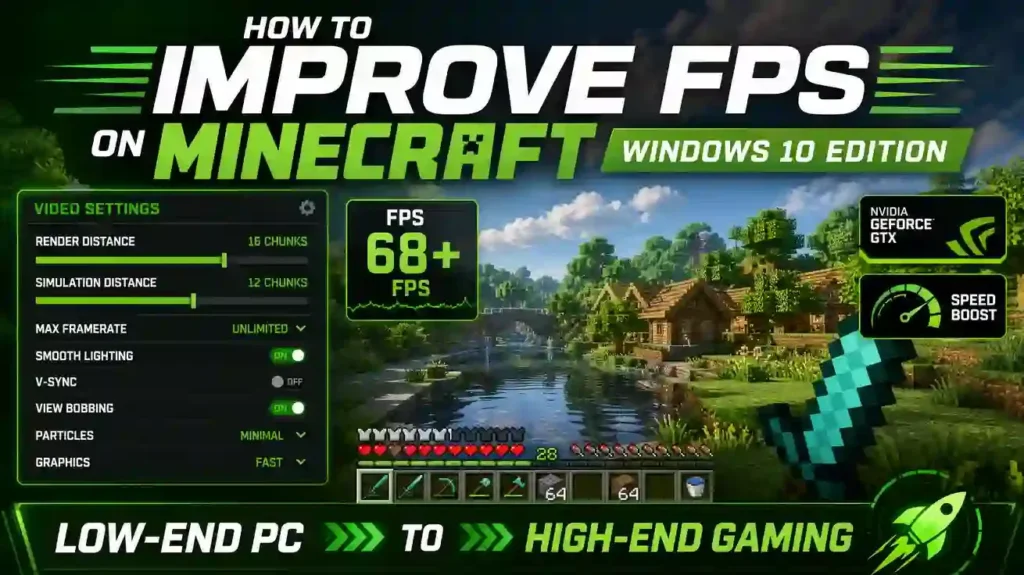
The best settings depend on your hardware. A computer with integrated graphics needs different settings compared to a dedicated gaming GPU.
| PC Type | Recommended Settings | Expected FPS |
|---|---|---|
| Low RAM (4GB RAM) | Render Distance: 6 chunks, Simulation Distance: 4 chunks, Fancy Graphics: Off, Clouds: Off, Particles: Low, Smooth Lighting: Off, VSync: Off | 30–60 FPS |
| Integrated GPU (Intel UHD, AMD integrated graphics) | Render Distance: 8 chunks, Simulation Distance: 4–6 chunks, Graphics: Fast, Clouds: Off, Reduced Particles, VSync: Off | 40–80 FPS |
| Mid-range PC (8–16GB RAM, dedicated GPU) | Render Distance: 12–16 chunks, Simulation Distance: 6–10 chunks, Fancy Graphics: On, Smooth Lighting: Medium | 60–120 FPS |
| Gaming PC (16GB+ RAM, modern GPU) | Render Distance: 16–32 chunks, Simulation Distance: 10+, Fancy Graphics: On, High Graphics, Smooth Lighting: Maximum | 120+ FPS |
These FPS estimates vary depending on your hardware and Minecraft world size. Large farms, many mobs, and complex redstone builds can reduce performance. For most players, the best balance comes from reducing render distance, disabling unnecessary effects, and keeping Windows optimized. With the right settings, Minecraft Windows 10 Edition can run smoothly even without OptiFine. The Bedrock engine already provides strong performance optimization when configured correctly.
Can You Use Shaders on Minecraft Windows 10 Edition?
Many Minecraft players search for shaders for Minecraft Windows 10 Edition because Java Edition offers stunning shader packs through OptiFine and other tools. However, Bedrock Edition works differently. Traditional Java shaders do not work the same way on Minecraft Windows 10 Edition, also known as Minecraft Bedrock Edition. In the past, Minecraft Bedrock supported several shader solutions. Players could use community-made shaders that changed lighting, shadows, water effects, and colors. These shaders worked by modifying the game’s older graphics system.
However, Minecraft Bedrock changed its graphics technology with the introduction of the RenderDragon engine. Microsoft developed RenderDragon to improve performance and provide a consistent experience across Windows, consoles, and mobile devices. This update changed how graphics modifications work. Many older shader packs stopped working after the RenderDragon transition. Traditional shader methods designed for Java Edition or older Bedrock versions no longer function correctly on modern Minecraft versions.
Current Shader Limitations in Minecraft Bedrock
Modern Minecraft Windows 10 Edition has fewer shader options compared to Java Edition. You cannot install popular Java shader packs like:
- BSL Shaders
- SEUS
- Complementary Shaders
- Sildur’s Vibrant Shaders
These require Minecraft Java Edition and tools like OptiFine or Iris. Bedrock Edition uses different graphics systems. It focuses more on official features, performance, and cross-platform compatibility. However, Bedrock players still have several options to improve visuals.
Minecraft RTX: The Official Shader-Like Experience
Minecraft RTX is the closest official alternative to traditional shaders on Windows 10 Edition.
It uses ray tracing technology to create realistic lighting effects, including:
- Realistic shadows
- Reflections
- Improved water appearance
- Natural lighting
- Better material effects
Minecraft RTX requires compatible NVIDIA RTX graphics hardware. Players also need supported RTX resource packs to enable these effects. RTX provides impressive visuals, but it requires powerful hardware. Lower-end computers usually cannot run ray tracing smoothly.
Deferred Rendering in Minecraft Bedrock
Microsoft is also improving Bedrock graphics through Deferred Rendering. This technology improves how Minecraft handles lighting and visual effects. Deferred Rendering aims to provide better graphics features without relying on traditional shader modifications.
It can improve:
- Lighting quality
- Shadows
- Reflections
- Visual depth
Availability depends on Minecraft updates, hardware support, and platform compatibility.
Marketplace Shaders and Graphics Packs
Minecraft Bedrock players can use official Marketplace graphics packs to improve visuals. These packs provide a safer alternative to unofficial shader downloads.
Marketplace content includes:
- Enhanced textures
- Realistic environments
- Improved colors
- Custom visual effects
These packs work directly with Minecraft Bedrock and receive better compatibility than unofficial modifications.
Texture Packs as Shader Alternatives
Resource packs cannot fully replace shaders, but they can improve Minecraft’s appearance.
High-quality texture packs can enhance:
- Block details
- Water textures
- Sky designs
- Lighting appearance
- Environmental atmosphere
Optimized resource packs also provide visual improvements without heavily reducing FPS.
Best Shader Alternatives for Minecraft Windows 10 Edition
If you play Minecraft Windows 10 Edition, the best visual improvement options are:
1. Minecraft RTX
Best choice for realistic lighting and advanced graphics.
2. Deferred Rendering Features
A future-focused solution for improved Bedrock visuals.
3. Marketplace Graphics Packs
Safe and simple improvements for most players.
4. High-Quality Resource Packs
Better textures with lower hardware requirements.
5. Optimized Video Settings
The easiest way to improve both visuals and performance.
While Minecraft Windows 10 Edition does not support OptiFine shaders, it still offers powerful graphics options. The best results come from using Bedrock-compatible tools instead of searching for unsupported Java shader packs.
Resource Packs vs OptiFine Features
Resource packs are one of the easiest ways to customize Minecraft Windows 10 Edition. They change the appearance of the game without modifying its core engine. Players can improve textures, colors, sounds, and visual designs through Bedrock-compatible resource packs.
Resource packs can change:
- Block textures
- Item designs
- Mob appearances
- User interface elements
- Sounds
- Fonts
- Visual themes
For example, a high-resolution resource pack can make stone, wood, water, and tools look more detailed. Some packs also create realistic environments with improved colors and textures. However, resource packs cannot replace all OptiFine features. OptiFine changes how Minecraft Java Edition renders graphics and manages performance. Resource packs only modify available game assets. Features like advanced FPS optimization, shader integration, and graphics engine improvements require deeper game access.
Connected Textures
OptiFine offers Connected Textures, which makes certain blocks connect visually. For example, glass blocks can appear as one continuous surface instead of separate squares. Some resource packs can create similar effects in Bedrock Edition, but they depend on Minecraft’s supported resource pack features.
Random Mobs
OptiFine supports Random Mobs, which allows different appearances for the same creature. For example, multiple cows or villagers can have unique textures. Bedrock resource packs can also modify mob textures, but they do not always provide the same advanced randomization system.
Custom Skies
OptiFine allows custom sky textures with features like:
- Different day skies
- Night sky designs
- Weather effects
Some Bedrock resource packs can improve sky visuals, but they have fewer customization options.
Emissive Textures
OptiFine supports Emissive Textures, which make certain blocks and items glow in dark areas.
Examples include:
- Glowing ores
- Bright minerals
- Special decorative blocks
Some Bedrock packs support similar glowing effects through available resource pack features.
HD Fonts
OptiFine supports high-resolution fonts that improve Minecraft’s text appearance. Bedrock resource packs can replace fonts, but they follow Bedrock’s resource system and may not provide the same level of customization.
CIT (Custom Item Textures)
OptiFine supports Custom Item Textures (CIT). This feature allows items to change appearance based on names or conditions. For example, a renamed sword can receive a unique texture. Bedrock Edition does not support CIT in the same way because it uses a different customization system. Resource packs remain a great way to improve Minecraft Windows 10 Edition visuals. However, they cannot fully replace OptiFine because OptiFine modifies deeper Java Edition graphics systems.
Safe Download Guide for OptiFine and Minecraft Windows 10 Edition
Searching for OptiFine for Minecraft Windows 10 Edition requires caution. Many websites claim to offer a Bedrock version of OptiFine, but no official release exists. The safest approach is to use trusted sources only.
Download Minecraft Through Official Sources
Minecraft Windows 10 Edition is now called Minecraft for Windows. Players should download it through the official Microsoft Store or the official Minecraft website.
Official sources provide:
- Verified game files
- Secure updates
- Microsoft account integration
- Safe installation
Download OptiFine Only From Its Official Source
OptiFine works with Minecraft Java Edition only. The official OptiFine website provides Java Edition downloads and does not offer a Windows 10 Bedrock version.
Avoid Fake OptiFine Downloads
Many unofficial websites use keywords like:
- OptiFine Windows 10 Edition
- OptiFine Bedrock APK
- OptiFine PE Download
- OptiFine for Minecraft Microsoft Store
These files often do not provide real OptiFine features.
They may contain:
- Modified installers
- Viruses
- Malware
- Adware
- Unwanted programs
Fake installers can damage your system or steal personal information.
How to Stay Safe
Follow these safety steps:
- Download Minecraft from official sources.
- Download OptiFine only from the official OptiFine website.
- Avoid suspicious “one-click installers.”
- Do not disable antivirus protection.
- Check file sources before installation.
If a website claims it offers OptiFine for Minecraft Windows 10 Edition, treat it carefully. The official compatibility information confirms that OptiFine supports Java Edition, not Bedrock Edition.
Common Problems and Solutions in Minecraft Windows 10 Edition
Minecraft Windows 10 Edition usually delivers smooth performance because Bedrock Edition focuses on optimization. However, players can still experience FPS drops, crashes, graphics issues, and loading problems. Most issues come from hardware limitations, incorrect settings, outdated drivers, or damaged game files.
Low FPS
Low FPS is one of the most common Minecraft performance problems. It usually happens because graphics settings demand more power than your computer can provide.
Solutions:
- Lower Render Distance.
- Reduce Simulation Distance.
- Disable Fancy Graphics.
- Turn off clouds.
- Reduce particles.
- Close background applications.
- Update GPU drivers.
Players with older hardware should prioritize performance settings over visual effects.
Lag Spikes and Stuttering
Lag spikes create sudden FPS drops or short freezes during gameplay. They often occur when Minecraft loads new areas, processes entities, or runs with limited system resources.
Solutions:
- Install Minecraft on an SSD.
- Allocate enough RAM.
- Reduce simulation distance.
- Close unnecessary programs.
- Keep Windows updated.
- Avoid extremely large worlds with heavy builds.
A stable FPS matters more than a high maximum FPS. Consistent performance creates smoother gameplay.
Slow Chunk Loading
Chunks may load slowly when Minecraft generates new terrain. This problem depends on your CPU, storage speed, and render distance Minecraft OptiFine 1.21.8.
Solutions:
- Reduce render distance.
- Use an SSD.
- Update graphics drivers.
- Avoid exploring quickly with high settings.
- Restart Minecraft regularly.
Minecraft Crashes
Crashes can happen because of outdated files, incompatible resource packs, or system issues.
Solutions:
- Update Minecraft through the Microsoft Store.
- Remove recently added resource packs.
- Restart your device.
- Check available storage space.
- Reinstall Minecraft if problems continue.
Always back up important worlds before reinstalling the game.
RTX Not Working
Minecraft RTX requires specific hardware and settings. Many players experience problems because their device does not meet requirements.
Check:
- Compatible NVIDIA RTX graphics card.
- Updated GPU drivers.
- Supported RTX resource pack.
- Ray tracing enabled in settings.
RTX does not work on every Windows computer because it requires dedicated ray tracing hardware.
Texture Glitches
Texture problems can appear after installing resource packs or updating Minecraft.
Common signs include:
- Missing textures.
- Broken blocks.
- Incorrect colors.
- Invisible items.
Solutions:
- Disable incompatible resource packs.
- Update the pack version.
- Clear Minecraft cache.
- Restart the game.
Marketplace Issues
Minecraft Marketplace problems may include failed downloads, missing purchases, or loading errors.
Solutions:
- Check your Microsoft account.
- Restart Minecraft.
- Verify your internet connection.
- Sign out and sign back in.
- Update the game.
Corrupted Cache
A damaged cache can cause slow loading, missing content, and crashes.
Solutions:
- Clear Minecraft cache files.
- Restart the device.
- Reinstall affected content.
- Keep regular world backups.
Update Issues
Minecraft updates can sometimes create compatibility problems with older resource packs and add-ons.
Solutions:
- Update resource packs.
- Remove outdated add-ons.
- Wait for creators to update third-party content.
- Install the latest Minecraft version.
Keeping Minecraft updated improves security, performance, and compatibility.
OptiFine vs Bedrock Performance: Complete Comparison
Many players compare OptiFine Java Edition with Minecraft Windows 10 Edition because both aim to improve the Minecraft experience. However, they use completely different systems.
| Category | OptiFine (Java Edition) | Minecraft Windows 10 Edition (Bedrock) |
|---|---|---|
| FPS | Can improve FPS through advanced settings | Optimized for multiple devices by default |
| Graphics | Advanced Java graphics controls | Built-in Bedrock graphics settings |
| Shaders | Supports many shader packs | Uses RTX and Bedrock-compatible solutions |
| Installation | Requires Java Edition setup and mod installation | Available through Microsoft Store |
| Ease of Use | Requires more technical knowledge | Simple installation and updates |
| Customization | Extensive mod-based customization | Limited but stable customization |
| Mods | Large Java mod ecosystem | Uses add-ons and Marketplace content |
| Resource Packs | Supports advanced Java packs | Supports Bedrock resource packs |
| Security | Safe when downloaded from official sources | Protected through Microsoft ecosystem |
FPS Performance
OptiFine helps Java Edition players optimize performance through detailed settings. It gives users more control over graphics features. Minecraft Bedrock Edition often provides better performance on lower-end devices because Microsoft designed it for many platforms.
Graphics and Shaders
OptiFine provides advanced shader support for Java players. Bedrock Edition uses different solutions, including Minecraft RTX and compatible graphics packs.
Installation and Ease of Use
OptiFine requires Java Edition and additional installation steps. Minecraft Windows 10 Edition provides a simpler experience through the Microsoft Store.
Customization and Mods
Java Edition offers deeper customization because of its powerful modding ecosystem. Bedrock focuses on stability through add-ons, resource packs, and Marketplace content.
Security
Both options are safe when downloaded from official sources. Players should avoid unofficial OptiFine downloads, especially those claiming to support Windows 10 Edition. The best choice depends on your needs. Choose Java Edition with OptiFine for advanced customization. Choose Minecraft Windows 10 Edition for easy installation, crossplay, and reliable performance.
Frequently Asked Questions About OptiFine for Minecraft Windows 10 Edition
Can I install OptiFine on Minecraft Windows 10 Edition?
No, you cannot install OptiFine on Minecraft Windows 10 Edition. The Windows 10 version uses Minecraft Bedrock Edition, while OptiFine works only with Minecraft Java Edition.
Is Minecraft Windows 10 Edition Java?
No, Minecraft Windows 10 Edition is not Java Edition. It is part of Minecraft Bedrock Edition. Java and Bedrock use different systems, features, and mod support.
Is Bedrock better than Java?
Both versions have different advantages. Bedrock Edition offers better crossplay and smoother performance on many devices. Java Edition provides more mods, customization, and OptiFine support.
Does OptiFine support Bedrock Edition?
No, OptiFine does not support Bedrock Edition. Any website offering OptiFine for Windows 10 Edition is not official.
Why do some videos show OptiFine for Windows 10 Edition?
Some videos use confusing titles to attract viewers. Many tutorials actually show Java Edition or unofficial modifications instead of real Bedrock support.
Is OptiFine safe?
Yes, OptiFine is safe when downloaded from the official website. Avoid unknown websites because fake downloads may contain viruses, malware, or unwanted programs.
Can I use Java shaders on Minecraft Windows 10 Edition?
No, Java shaders do not work on Minecraft Windows 10 Edition. Bedrock players can use alternatives like Minecraft RTX, graphics packs, and resource packs.
What is the best FPS booster for Minecraft Windows 10 Edition?
The best FPS booster is proper game optimization. Lower graphics settings, reduce render distance, update drivers, and close unnecessary background apps.
Does Bedrock need OptiFine?
No, Bedrock Edition does not need OptiFine. Minecraft Bedrock already includes performance improvements and optimization features.
How can I increase FPS in Minecraft Windows 10 Edition?
You can improve FPS by lowering render distance, reducing particles, disabling Fancy Graphics, updating GPU drivers, enabling Game Mode, and closing unused applications.
Which graphics settings are best for Minecraft Windows 10 Edition?
For low-end PCs, use lower render distance, fewer particles, and reduced graphics effects. Powerful PCs can use higher settings and RTX features if supported.
Can RTX replace OptiFine?
RTX improves lighting, shadows, and reflections, but it does not replace all OptiFine features. OptiFine also provides advanced Java graphics settings and customization options.
What is RenderDragon?
RenderDragon is the graphics engine used by Minecraft Bedrock Edition. It helps Minecraft run consistently across Windows, consoles, and mobile devices.
Are resource packs safe?
Yes, resource packs are safe when downloaded from trusted sources. Use official Marketplace packs or reliable creators to avoid harmful files.
Does Microsoft support OptiFine?
No, Microsoft does not officially support OptiFine. OptiFine is a third-party Java Edition modification.
Can I use Java mods on Minecraft Windows 10 Edition?
No, Java mods cannot work on Minecraft Windows 10 Edition. Bedrock uses add-ons, behavior packs, and resource packs instead.
Is Minecraft for Windows the same as Bedrock Edition?
Yes, Minecraft for Windows is the current name for Minecraft Bedrock Edition on Windows computers.
Which version performs better, Java or Bedrock?
Bedrock Edition usually performs better on lower-end devices. Java Edition offers more customization but may need optimization mods for better performance.
Can I get OptiFine features on Minecraft Windows 10 Edition?
You cannot get all OptiFine features on Bedrock. However, you can use resource packs, RTX, add-ons, and built-in settings for improvements.
Why do websites offer OptiFine Windows 10 downloads?
Many websites use popular keywords to attract visitors. Some offer fake OptiFine files that may contain unsafe software. Always check official sources before downloading.
Final Verdict: OptiFine for Minecraft Windows 10 Edition
OptiFine does not support Minecraft Windows 10 Edition. The Microsoft Store version uses Minecraft Bedrock Edition, while OptiFine is designed exclusively for Minecraft Java Edition.If you are searching for OptiFine for Minecraft Windows 10 Edition, avoid unofficial downloads that claim to offer a working Bedrock version. These files may contain fake installers, unwanted programs, or potential security threats.
Bedrock players can still improve Minecraft performance without OptiFine. Try lowering demanding video settings, updating your graphics drivers, enabling Windows Game Mode, and using optimized resource packs. Supported devices can also use official features such as Minecraft RTX. If you want OptiFine features like advanced shader support, connected textures, and detailed graphics settings, Minecraft Java Edition is the better choice. However, if you value cross-platform play, easy installation, and consistent performance across supported devices, Minecraft Bedrock Edition remains a solid option.