
OptiFine: Minecraft FPS, Shaders, Settings and Features
Minecraft can feel frustrating when low FPS, lag spikes, and slow rendering interrupt your gameplay. Players also want better graphics without losing smooth performance. OptiFine is a Minecraft Java Edition optimization mod that improves graphics settings and adds performance controls. It also supports HD textures, shaders, and visual features such as connected textures. OptiFine gives players more control over how Minecraft looks and performs. You can adjust render distance, smooth lighting, mipmaps, animations, and many other graphics options. It can also help reduce lag spikes and stabilize gameplay. However, results vary between computers and Minecraft Optifine versions.
Your hardware, settings, resource packs, shaders, and other mods can affect performance. OptiFine remains useful for players who want performance controls and visual customization in one mod. Its official downloads page also lists builds across many Minecraft versions. In this guide, you will learn how OptiFine works, what features it provides, and how to use it effectively.
What Is OptiFine?
OptiFine is a Minecraft Java Edition optimization mod that improves performance and expands graphics controls. It lets players adjust rendering, textures, lighting, and other visual settings. The official project also supports HD textures and many customization options. Players use OptiFine for several reasons. It can help improve FPS and reduce lag spikes on supported setups. It also gives players more control over render distance, smooth lighting, mipmaps, animations, and other graphics settings.
OptiFine also became popular because it combines performance tools with visual features. These include shader support, dynamic lights, connected textures, custom textures, and other resource-pack features. OptiFine targets Minecraft Java Edition and uses version-specific builds. The official download page lists separate releases for different Minecraft versions. Current examples include 1.21.11 and newer 26.1.2 preview builds.
OptiFine HD and OptiFine Ultra
You may see names such as OptiFine HD, OptiFine HD U, and OptiFine Ultra. These names describe OptiFine’s release and edition naming rather than separate modern mods. HD U commonly appears in official release names, such as OptiFine HD U J9. The letter and number identify a particular release series. Each build targets a specific Minecraft version. The official FAQ also lists Ultra, Standard, and Light editions. Ultra provides the most optimizations and features. Standard focuses more on compatibility, while Light targets lower-powered systems.
Who Created OptiFine?
sp614x is the developer behind OptiFine. The official copyright page identifies sp614x as the author of the OptiFine mod.
What Does OptiFine Do in Minecraft?
OptiFine gives Minecraft Java Edition more control over performance and visual quality. It combines optimization settings with several graphics and resource-pack features. The official project highlights FPS improvements, reduced lag spikes, HD textures, and extensive graphics controls.
Performance Optimization
OptiFine provides settings that can change how Minecraft renders the game world. Players can adjust render distance, animations, particles, lighting, and other performance options. Its Smooth FPS setting can help improve frame-time consistency on some systems. Chunk-loading options also give players more control over how the game handles world rendering. OptiFine can improve FPS on some computers, but results vary. Your hardware, Minecraft version, resolution, settings, resource packs, and shaders all affect performance. There is no universal FPS increase that applies to every player. Testing different settings remains the best way to find a suitable configuration.
HD Texture Support
OptiFine adds support for many advanced resource-pack features. These features let Minecraft use higher-resolution textures and more detailed visual assets.
Compatible packs can provide:
- HD terrain textures
- Custom item textures
- HD fonts
- Animated textures
- Detailed block textures
These features can make Minecraft worlds look more detailed without changing the core game.
Graphics Improvements
OptiFine also expands Minecraft’s visual customization options. Players can adjust several effects that affect the game’s appearance. Options include Better Grass, Better Snow, Clear Water, Natural Textures, fog controls, clouds, trees, and grass. These settings give players more control over small environmental details. You can prioritize visual quality or reduce effects for better performance.
Connected Textures
Connected Textures links compatible block textures together. This feature can remove visible borders between certain blocks. For example, a compatible glass resource pack can make multiple glass blocks appear connected. OptiFine handles this through its connected-texture system. This feature matters most when you use resource packs designed for OptiFine.
Random Entities and Mobs
OptiFine can support Random Entities and Random Mobs with compatible resource packs. Instead of showing identical appearances, Minecraft can display different textures for supported entities. This adds variety to mobs and other game elements. The effect can make animals and other entities feel less repetitive.
Custom Entity Models
Custom Entity Models (CEM) lets compatible resource packs change supported entity models. These packs can create more detailed shapes and visual designs. CEM works alongside custom textures to create stronger visual changes. Resource-pack creators can use these features to make supported Minecraft entities look very different from their default appearance. Together, these features explain why OptiFine became more than a simple FPS optimization mod. It gives players both performance controls and extensive visual customization.
OptiFine Features Explained
OptiFine includes a wide range of settings for Minecraft Java Edition. These features affect performance, rendering, textures, lighting, and visual customization. The mod combines many controls that would otherwise require several separate tools or resource-pack features. Its official feature list includes performance settings, mipmaps, anisotropic filtering, antialiasing, Connected Textures, and Random Mobs.
FPS and Performance Controls
OptiFine provides detailed controls for Minecraft’s rendering performance. Players can adjust settings that affect graphics quality and frame rates. You can change render distance, animations, particles, lighting, and other visual effects. These options help you balance image quality against available hardware performance.
Dynamic Lights
Dynamic Lights adds lighting behavior to supported light-emitting items and entities. For example, carrying a torch can provide a visible light effect while exploring dark areas. This creates a more immersive experience without requiring permanent light sources everywhere.
Connected Textures
Connected Textures joins compatible textures across neighboring blocks. This can remove visible seams between certain blocks. Glass resource packs often use this feature to create smoother connected surfaces.
Custom Item Textures
Custom Item Textures (CIT) allows compatible resource packs to change item appearances. Resource-pack creators can use item names and other properties to display different textures. This enables more detailed customization than standard item textures.
Custom Entity Models
Custom Entity Models (CEM) lets compatible resource packs modify supported entity models. Creators can use CEM to give supported mobs more detailed shapes and appearances. The final result depends on the resource pack and its supported entities.
Random Entities
Random Entities adds visual variety to supported entities. Compatible resource packs can assign different textures to the same mob type. This prevents every animal or creature from looking identical.
Mipmaps and Anisotropic Filtering
Mipmaps improve the appearance of distant textures by using progressively smaller texture versions. Anisotropic Filtering improves texture detail when surfaces appear at sharp viewing angles. Both settings can improve visual clarity during normal gameplay.
Anti-Aliasing and Smooth Lighting
Anti-Aliasing reduces jagged edges around certain objects and shapes. Smooth Lighting creates softer lighting transitions between blocks. These options can make Minecraft look more polished without changing its basic visual style.
Render Distance
Render Distance controls how far players can see into the Minecraft world. Higher values show more terrain but can increase rendering demands. Lower values can reduce the workload on your system.
Shader Support
OptiFine supports compatible shader packs, allowing players to add advanced lighting and visual effects. Shaders can introduce shadows, reflections, improved water, and other effects. They also require additional GPU resources, so performance can vary significantly.
OptiFine Capes
OptiFine Capes provide a cosmetic cape system associated with OptiFine. Capes do not improve FPS or graphics performance. They serve as a visual customization feature for eligible users. Overall, OptiFine offers more than performance controls. Its feature set connects optimization, rendering, resource packs, shaders, and visual customization in one Minecraft-focused mod.
How Does OptiFine Improve Minecraft FPS?
OptiFine can improve Minecraft performance by giving players more control over rendering and graphics settings. Its official feature list includes FPS optimization and options designed to reduce lag spikes.
Rendering Optimization
OptiFine adjusts how Minecraft handles several rendering tasks. These optimizations can reduce unnecessary work during gameplay. The result can include smoother frame rates and fewer noticeable performance drops. However, the actual improvement depends on the player’s system and game setup.
Graphics Configuration
OptiFine provides detailed graphics controls that let players reduce demanding visual effects.
You can adjust settings for:
- Smooth lighting
- Animations
- Particles
- Clouds
- Dynamic lights
- Mipmaps
- Other visual effects
Lowering demanding settings can reduce the workload on your hardware.
Chunk-Loading Controls
Minecraft constantly loads and renders chunks as you explore. OptiFine provides controls that can influence chunk-loading behavior. These settings can help manage rendering demands, especially when players explore large areas quickly.
Adjustable Render Distance
Render distance determines how far Minecraft displays the world around you. A higher distance shows more terrain but requires more rendering work. Lowering it can reduce GPU and CPU demands. Finding a balanced render distance often provides a better experience than simply choosing the highest setting.
Reduced Graphical Workload
OptiFine lets players disable or reduce effects that consume system resources. For example, lowering particles, clouds, animations, and lighting effects can reduce graphical workload. This approach can help older or less powerful computers maintain smoother gameplay.
Performance-Specific Settings
OptiFine includes dedicated performance options that help players tune Minecraft for their hardware. You can experiment with different settings and compare the results during normal gameplay. This approach works better than using one preset for every computer.
FPS Improvements Vary by Computer
OptiFine does not guarantee the same FPS improvement on every computer.
Your results can depend on your:
- CPU
- GPU
- RAM
- Minecraft version
- Resource packs
- Shader packs
- Render distance
- Resolution
- Other mods
For this reason, avoid claims such as “OptiFine always doubles FPS.” A realistic performance result depends on the complete Minecraft setup.
OptiFine Settings for Better Performance
OptiFine gives players detailed controls for balancing Minecraft’s visuals and performance. The best settings depend on your hardware and preferred graphics quality. Start with the settings below, then adjust them during normal gameplay.
Recommended Performance Settings
Render Distance: Start with 8–12 chunks on modest hardware. Higher values increase the amount of terrain Minecraft renders.
Simulation Distance: Keep this lower than render distance when possible. It controls how far game activity continues around the player.
Graphics: Choose Fast when performance matters most. Use Fancy when your system handles extra visual effects comfortably.
Smooth Lighting: Lower or disable it if you need additional performance.
Clouds: Disable clouds when you want to reduce unnecessary rendering.
Particles: Use Decreased or Minimal to reduce visual effects during busy scenes.
Entity Distance: Lower this setting when many mobs or entities cause performance drops.
Mipmap Settings: Lower mipmap levels if texture processing creates extra GPU load. Higher levels can improve distant texture quality.
Dynamic Lights: Use Fast or disable the feature when you need more performance.
Entity Shadows: Disable them when your GPU struggles with extra rendering effects.
Animations: Disable unnecessary animations to reduce visual workload.
Best OptiFine Settings for Low-End PCs
Low-end systems should prioritize rendering efficiency over visual detail.
Start with:
- Render Distance: 6–8 chunks
- Graphics: Fast
- Smooth Lighting: Off or minimum
- Clouds: Off
- Particles: Minimal
- Entity Distance: Lower
- Dynamic Lights: Off
- Entity Shadows: Off
- Animations: Reduced or off
These changes reduce the amount of visual work your system performs.
Best OptiFine Settings for High-End PCs
Powerful computers can use higher visual settings without sacrificing as much performance.
Try:
- Render Distance: 16+ chunks
- Graphics: Fancy
- Smooth Lighting: Maximum
- Clouds: Fancy
- Particles: All
- Entity Distance: Higher
- Dynamic Lights: Fancy
- Entity Shadows: On
- Animations: All
Shader packs and HD resource packs can still increase GPU usage.
OptiFine Settings for Balanced Performance
A balanced setup keeps useful visual features while limiting demanding effects. Try 10–12 chunks for render distance, Fancy graphics, reduced particles, and moderate entity distance. Keep smooth lighting enabled if your system handles it well. There is no universally perfect OptiFine preset. Your Minecraft version, hardware, resolution, resource packs, shaders, and other mods affect performance. Change one setting at a time and test the result. This makes it easier to identify which option affects your FPS.
OptiFine Shaders
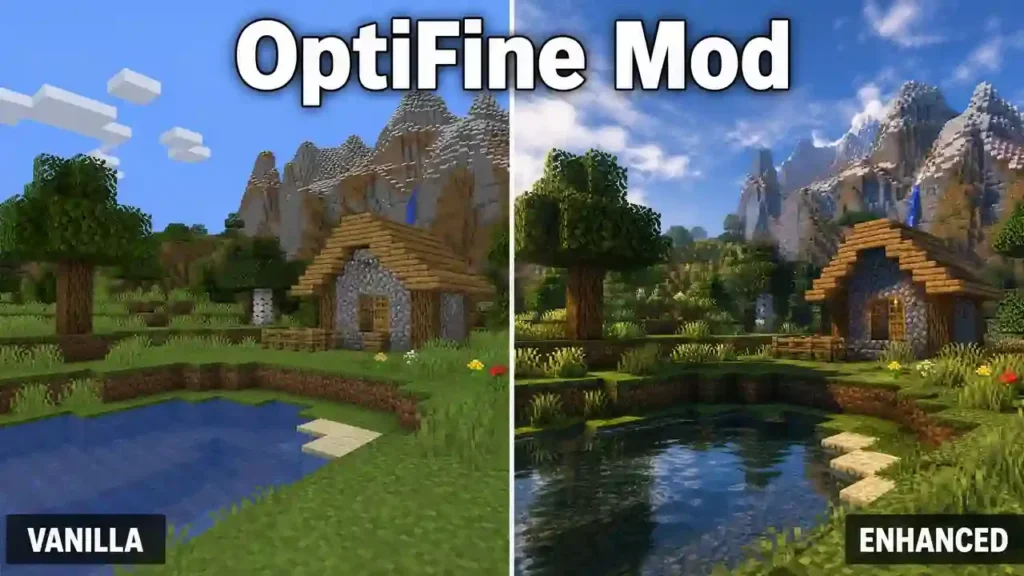
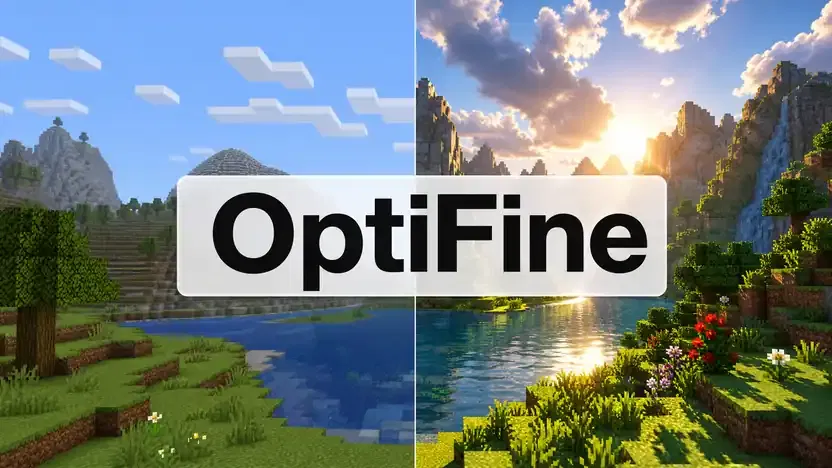
OptiFine shaders change how Minecraft renders lighting, shadows, water, and other visual effects. They can make the game look more realistic while keeping its familiar block-based style. OptiFine includes shader support through its video settings. Compatible shader packs use GLSL-based shader programs to replace or enhance Minecraft’s standard rendering effects. Shader packs can add effects such as dynamic shadows, improved lighting, reflections, atmospheric fog, and realistic water. Each pack uses different techniques and quality settings, so visual results can vary significantly.
Shaders also require more rendering power than standard Minecraft. A shader that runs smoothly on one computer may cause major FPS drops on another. Your GPU, resolution, render distance, shader settings, Minecraft version, and resource packs all affect performance. For this reason, you should test shader packs with your normal gameplay settings.
How to Install OptiFine Shaders
Installing a shader pack differs from installing the OptiFine .jar file.
Follow these steps:
- Install a compatible OptiFine version for your Minecraft version.
- Launch Minecraft using the appropriate OptiFine profile or installation.
- Open Options and select Video Settings.
- Open the Shaders section.
- Select a compatible shader pack from the available list.
- Adjust shader quality if your FPS drops.
You normally place compatible shader-pack files in Minecraft’s shaderpacks folder. You do not need to install the shader pack like a Minecraft mod. Always match your shader pack with your Minecraft and OptiFine setup.
Why Shaders Reduce FPS
Shaders increase the amount of work your GPU performs during each frame. Lighting calculations create more advanced illumination and shading effects. Shadows require additional rendering passes for objects and terrain. Reflections can add further rendering work, especially around water and reflective surfaces. Volumetric effects simulate atmospheric lighting, fog, and other environmental effects. Water effects can add reflections, transparency, waves, and detailed surface lighting.
Post-processing applies additional visual effects after Minecraft renders the scene. These effects can include bloom, depth of field, motion blur, and color adjustments. Higher shader quality usually increases the workload further. If performance drops, reduce shader settings before lowering every Minecraft graphics option. This approach helps preserve visual quality while keeping gameplay smoother.
How to Download OptiFine Safely
The safest way to download OptiFine is to use its official website. The official download page organizes releases by Minecraft version and shows the corresponding OptiFine build. Before downloading, check your Minecraft version first. Then choose the OptiFine release listed for that exact version. Do not install a build made for another Minecraft release. The official page also provides a Changelog for individual builds. Check it when you want to understand release changes or fixes. Avoid random download sites and suspicious mirrors. They can provide modified files or misleading download buttons. Use the official OptiFine domain whenever possible.
Release vs Preview Versions
OptiFine lists some builds as Preview versions. These builds target newer Minecraft releases before a regular release becomes available. For example, the official page currently lists OptiFine HD U K1 pre2 for Minecraft 26.1.2 as a preview build. A preview can provide earlier support for a new Minecraft version. However, it may have unresolved compatibility issues. Choose a stable release when one exists for your Minecraft version. Choose a preview only when you need support for a version without a suitable stable build. Always match Minecraft version + OptiFine version before installation. This simple check prevents many compatibility problems.
How to Install OptiFine
Installing OptiFine usually takes only a few minutes. The key is matching the OptiFine build with your Minecraft Java Edition version.
Before Installation
Check these details before opening the installer:
- Confirm that you use Minecraft Java Edition.
- Check your installed Minecraft version.
- Download the OptiFine build made for that version.
- Close Minecraft Launcher before starting the installation.
Using a matching version helps prevent compatibility problems.
Installation Steps
Follow these steps to install OptiFine:
- Download the correct OptiFine installer from the official OptiFine website.
- Open the downloaded OptiFine .jar file.
- Select the correct Minecraft installation or game directory.
- Click Install and wait for the installation to finish.
- Open the Minecraft Launcher.
- Select the OptiFine profile or installed OptiFine version.
- Click Play to launch Minecraft.
After launching, open Minecraft’s video settings to confirm that OptiFine features appear. The exact launcher options can vary between Minecraft versions and installations. Always use the OptiFine build that matches your Minecraft version.
If the OptiFine Installer Does Not Open
Several issues can prevent the installer from opening.
Java installation: The .jar installer needs a compatible Java environment. Check your Java installation if nothing happens after opening the file.
Wrong Minecraft version: Make sure the OptiFine build matches your installed Minecraft version.
Corrupt download: Download the installer again from the official OptiFine website if the file appears damaged.
Incorrect file association: Your operating system may not associate .jar files with Java. Rechecking Java installation can help.
Unsupported build: A preview or older OptiFine build may not support your Minecraft installation.
If installation still fails, check the exact error message before trying another version. This makes troubleshooting much easier.
OptiFine and Minecraft Mod Loaders
OptiFine can work with different Minecraft modding setups, but compatibility depends on the exact versions involved. Always match OptiFine with your Minecraft version and chosen mod loader.
OptiFine + Forge
Minecraft Forge has supported OptiFine integration across many Minecraft versions. The correct combination requires compatible versions of Minecraft, Forge, and OptiFine. An OptiFine build made for one Minecraft version may not work with a different Forge setup. Check the compatibility information for your specific versions before combining them.
OptiFine + Fabric
Fabric uses a different modding system from Forge. Players have historically used OptiFabric to help run OptiFine with Fabric. However, this approach depends heavily on the Minecraft version, OptiFine release, Fabric Loader version, and other installed mods. Compatibility can also change as Minecraft and Fabric develop. Do not assume an older OptiFabric setup will work with a newer Minecraft release. For modern Fabric setups, players should also consider whether a native Fabric performance stack better suits their modpack.
OptiFine + NeoForge
NeoForge provides another modern Minecraft modding platform. OptiFine compatibility with NeoForge can vary by Minecraft version and available integration methods. Do not assume that an OptiFine build supports every NeoForge release. Check the exact Minecraft, OptiFine, and NeoForge versions before installation.
What Does Client-Side Mod Mean?
OptiFine primarily changes how Minecraft runs on the player’s computer. This makes it a client-side mod for its core features. Client-side modifications can change rendering, graphics, performance, and visual presentation without requiring the same modification on a multiplayer server. However, client-side does not mean universal compatibility. Other mods can still conflict with OptiFine’s rendering changes. For the most reliable setup, verify Minecraft version → mod loader → OptiFine version → other mods before combining them. This simple compatibility check can prevent many crashes and loading errors.
OptiFine vs Sodium
OptiFine and Sodium both improve Minecraft Java Edition performance, but they take different approaches. OptiFine combines optimization with many graphics and resource-pack features. Sodium focuses mainly on replacing Minecraft’s rendering system for better performance and smoother frame times. Its official Modrinth page describes it as a high-performance rendering engine replacement.
| Area | OptiFine | Sodium |
| Main purpose | Optimization and graphics features | Rendering performance |
| Shader ecosystem | Built-in shader support | Commonly paired with Iris |
| Resource-pack features | Broad OptiFine feature support | Often needs additional mods |
| Configuration | Extensive graphics controls | Focused and modular |
| Mod ecosystem | Traditional OptiFine ecosystem | Modern Fabric-focused ecosystem |
| Best use | All-in-one features | Performance-focused setups |
Performance and Mod Compatibility
Sodium focuses specifically on rendering performance. Its developers also describe it as a client-side optimization mod with broad mod compatibility. OptiFine takes a broader approach. It combines performance controls with features such as shaders, connected textures, custom textures, and visual settings. Sodium also works with multiple modern mod loaders, including Fabric, NeoForge, and Quilt. For shaders, players commonly combine Sodium with Iris. Iris supports compatible OptiFine shader packs and includes Sodium for performance.
Which Should You Choose?
Choose OptiFine if you want an integrated feature set with extensive graphics and resource-pack controls. Choose Sodium if your priority is modern rendering performance and a modular mod setup. Neither option wins for every player. Your Minecraft version, hardware, resource packs, shaders, and other mods should guide your choice. Performance results can also vary between systems, so avoid treating benchmark numbers as universal results.
OptiFine vs Iris Shaders
OptiFine and Iris both support shader packs, but they follow different approaches. OptiFine combines shader support with many built-in graphics and resource-pack features. Iris focuses specifically on shaders and aims to support existing OptiFine shader packs. It commonly works with Sodium, which handles rendering optimization.
Shader and Resource-Pack Support
OptiFine provides shader support alongside features such as Connected Textures, Custom Item Textures, and other resource-pack options. Iris supports most OptiFine-style shader packs, but it does not reproduce every OptiFine feature itself. Its documentation points users toward separate mods for features such as Connected Textures and Dynamic Lights.
Mod Compatibility and Performance
Iris uses a more modular approach with Sodium. This setup can suit players who want a modern performance-focused mod environment. Sodium currently supports Fabric, NeoForge, and Quilt. Performance still depends on the shader pack, Minecraft version, hardware, resolution, and other mods. Iris also documents compatibility limitations with certain mods and shader packs.
Which Should You Choose?
Choose OptiFine if you want shaders plus a broad collection of built-in visual features. Choose Iris + Sodium if you prefer a modular setup focused on modern rendering performance and shader support. Neither option works best for every player. Your Minecraft version, modpack, resource packs, and desired features should guide the decision.
OptiFine Alternatives
Modern Minecraft optimization has moved toward modular performance setups. Instead of replacing every OptiFine feature with one mod, players can combine specialized tools. Sodium focuses on rendering performance and can improve frame rates and reduce micro-stutter. It currently supports Fabric, NeoForge, and Quilt on supported Minecraft versions. Iris Shaders adds shader support to modern setups. Players commonly pair Iris with Sodium for performance-focused shader use. Lithium targets Minecraft’s game logic rather than graphics rendering. FerriteCore focuses on memory usage and can complement other optimization mods.
Starlight was known for its alternative lighting engine. Its usefulness depends on the Minecraft version and current game implementation, so check version support before installing it. For Forge and NeoForge users, Embeddium provides a rendering-focused alternative. Oculus can add shader support to compatible Forge and NeoForge setups. You can also choose complete modpacks instead of building a setup manually. Fabulously Optimized provides a curated collection of optimization and visual mods designed around the modern Minecraft ecosystem. Additive takes another approach by combining multiple performance and visual improvements into a larger modpack-style setup.
When Should You Consider an Alternative?
Consider an Minecraft OptiFine Alternatives when your priorities differ from an all-in-one setup. A Fabric-focused setup can benefit from Sodium, Iris, Lithium, and FerriteCore. This approach lets you add only the features your setup needs. Choose a performance-first setup when FPS and smooth rendering matter most. Choose a shader-first setup when you want modern shader support with a dedicated shader loader. A modular setup can also help with modern modpack compatibility. You can replace individual OptiFine features without changing your entire setup.
No single alternative replaces every OptiFine feature. Your Minecraft version, mod loader, resource packs, shaders, and other mods should guide your choice. For a deeper feature-by-feature comparison, your dedicated Minecraft OptiFine Alternatives guide can cover replacement mods, compatibility, and migration steps in greater detail.
OptiFine Compatibility by Minecraft Version
OptiFine uses version-specific builds, so you should always match the OptiFine release with your Minecraft version. Features, compatibility, and installation methods can also differ between releases. The official OptiFine downloads page lists builds by Minecraft version. Check that page before installing an OptiFine release.
OptiFine 1.21.x
The 1.21.x series includes multiple Minecraft releases and OptiFine builds. Do not treat every 1.21 release as identical. Check the exact Minecraft version before downloading. Your dedicated OptiFine 1.21.x page can provide version-specific installation and compatibility details.
OptiFine 1.20.x
OptiFine supports selected releases within the 1.20.x series. Each build targets a specific Minecraft release. Check the matching version before combining OptiFine with Forge, Fabric tools, shaders, or other mods.
OptiFine 1.19.x
The 1.19.x series has its own OptiFine builds and compatibility requirements. Older resource-pack features and mod integrations may differ from newer releases. Use your dedicated OptiFine 1.19.x guide for exact version details.
OptiFine 1.18.x
OptiFine also has builds for selected 1.18.x releases. Always verify the exact Minecraft version before installation.
Older Minecraft Versions
Older versions remain popular among certain Minecraft communities.
These include:
- OptiFine 1.16.5
- OptiFine 1.12.2
- OptiFine 1.8.9
- OptiFine 1.7.10
These historical releases do not share identical features or compatibility. Their supported settings, resource-pack features, and mod-loader integrations can differ. For every version, follow the same basic rule: match Minecraft version → OptiFine build → mod loader → other mods. This prevents many compatibility problems.
OptiFine System Requirements
The OptiFine mod runs with Minecraft: Java Edition on a compatible Minecraft version. Always match the OptiFine release with your installed game version.
Minecraft and Java Requirements
OptiFine depends on the Minecraft version you use. Newer Minecraft OptiFine releases may also require newer Java versions through the official launcher. Your launcher normally manages the required Java runtime. Check the OptiFine release notes before installing older or newer builds. Version mismatches can cause crashes or installation problems.
CPU and GPU Requirements
OptiFine does not require a high-end computer for basic use. A modern integrated GPU can handle many OptiFine settings. A stronger GPU helps with higher render distances and demanding graphics options. Your CPU also affects chunk loading and overall Minecraft performance.
RAM Requirements
Minecraft’s RAM needs depend on your setup. Basic OptiFine gameplay usually needs less memory than heavily modded Minecraft. Large resource packs and modpacks can increase memory usage. Avoid assigning excessive RAM because more memory does not always improve FPS.
Shader Hardware Requirements
Shaders create much heavier GPU workloads than normal OptiFine gameplay. High-end shader packs can require a dedicated graphics card with strong rendering performance. Shader requirements also vary between packs. Always check the shader creator’s recommended hardware before choosing demanding visual settings.
Common OptiFine Problems and Fixes
OptiFine problems often come from version mismatches, installation issues, conflicting mods, or unsupported features. Start by checking your Minecraft and OptiFine versions.
OptiFine Not Showing in Minecraft
The launcher may not detect OptiFine after installation. This can happen when the installer targets the wrong Minecraft directory. Check your game directory and confirm that the OptiFine version matches your Minecraft version. Then restart the launcher and check the available installations.
OptiFine Installer Not Opening
A .jar installer needs a compatible Java environment. Your system may also have an incorrect file association. Check your Java installation and try opening the installer again. If the file looks damaged, download a fresh copy from the official OptiFine website.
Shaders Not Showing
The shader pack may not support your OptiFine or Minecraft version. A damaged shader file can also cause problems. Confirm compatibility, place the shader pack in the correct shaderpacks folder, then check Video Settings → Shaders.
Minecraft Crashes After Installing OptiFine
Crashes often indicate a version conflict or another mod conflict. Remove recently added mods and test OptiFine alone. Then add other mods individually to identify the conflict.
OptiFine Causes Low FPS
Heavy shaders, HD resource packs, high render distance, and demanding graphics settings can reduce FPS. Lower shader quality, render distance, particles, and other demanding effects. Test each change separately.
OptiFine and Forge Compatibility Problems
Forge and OptiFine must support the same Minecraft version. Other Forge mods can also conflict with OptiFine’s rendering changes. Check the exact versions before combining them.
Resource Pack Features Not Working
Some advanced features require resource packs designed specifically for OptiFine. Check whether the pack supports features such as CIT, CEM, Connected Textures, or Random Entities. Also verify the resource pack’s Minecraft version. When troubleshooting, change one variable at a time. This makes the actual cause easier to identify.
Is OptiFine Still Worth Using?
Yes, OptiFine can still be worth using for many Minecraft Java Edition players. Its value depends on your Minecraft version, hardware, mods, resource packs, and preferred features. OptiFine remains useful when you want an all-in-one optimization mod. It combines performance controls with graphics features, shader support, and advanced resource-pack options. It can also make sense if you use resource packs that depend on OptiFine-specific features.
These include Connected Textures, Custom Item Textures, Custom Entity Models, and Random Entities. Players who want built-in shader support may also prefer OptiFine. It provides shader controls without requiring a separate shader loader. Your Minecraft version also matters. Some older versions have mature OptiFine support and remain popular within specific Minecraft communities. Always check the exact release before installing.
When Should You Consider an Alternative?
Consider an alternative if you want a modern modular performance stack. A Fabric-based setup can combine Sodium, Iris, Lithium, and other specialized optimization mods. This approach lets you choose individual tools for different tasks. You may also prefer alternatives when your modpack relies heavily on newer performance mods.
Compatibility can become more important than having every OptiFine feature in one package. Sodium + Iris can suit players who prioritize modern rendering performance and shader support. Sodium focuses on rendering optimization, while Iris provides shader support. There is no universal winner. OptiFine remains a strong choice when its features match your setup. A modern alternative stack may work better when performance and modular compatibility matter most.
Frequently Asked Questions About OptiFine
What is OptiFine?
OptiFine is a Minecraft Java Edition optimization mod. It adds performance controls, graphics settings, shader support, HD texture features, and other visual options. It can help players tune Minecraft for different hardware and visual preferences. Its official feature list includes FPS optimization, HD textures, shaders, connected textures, and several graphics controls.
Is OptiFine free?
Yes, OptiFine is available as a free Minecraft mod. Players can download supported versions through the official OptiFine website. The project also offers optional features such as OptiFine capes. Always use the official website when downloading files to reduce the risk of modified or misleading downloads.
Does OptiFine increase FPS?
OptiFine can increase FPS on some systems, but results vary. The official FAQ says OptiFine includes optimizations that can increase FPS without manual configuration. Your CPU, GPU, Minecraft version, settings, resource packs, shaders, and other mods can change the result.
Does OptiFine work with shaders?
Yes, OptiFine supports compatible shader packs. You can access shader settings through Minecraft’s video settings after installing a suitable OptiFine build. Shader packs can add advanced lighting, shadows, reflections, water effects, and other visuals. They can also reduce FPS because they increase rendering workload.
Is OptiFine safe?
OptiFine itself comes from the official OptiFine project. Downloading from the official website helps you avoid unofficial modified files and deceptive download pages. Always verify the Minecraft version and OptiFine build before installation. Avoid unknown websites that package OptiFine with extra software.
Is OptiFine still updated?
Yes. The official downloads page currently lists OptiFine builds for recent Minecraft versions. It includes stable releases and preview builds. For example, the page lists OptiFine HD U J9 for Minecraft 1.21.11 and K1 preview builds for Minecraft 26.1.2.
Does OptiFine work with Forge?
OptiFine supports Forge integration for many Minecraft versions. However, compatibility depends on the exact Minecraft, OptiFine, and Forge versions. The official downloads page lists Forge compatibility information for supported builds. Always check the specific release before combining OptiFine with Forge mods.
Does OptiFine work with Fabric?
OptiFine can work with Fabric through compatibility tools such as OptiFabric on supported versions. However, compatibility depends heavily on the Minecraft version and current Fabric ecosystem. Modern Fabric users may prefer native alternatives such as Sodium and Iris for broader modular compatibility.
Is OptiFine better than Sodium?
Neither mod is universally better. OptiFine combines optimization with many graphics and resource-pack features. Sodium focuses mainly on rendering performance and works within a modern modular ecosystem. Your Minecraft version, mods, shaders, and desired features should determine which option fits your setup.
Is OptiFine better than Iris?
OptiFine and Iris serve different purposes. OptiFine combines shader support with many built-in graphics features. Iris focuses specifically on shader support and commonly works with Sodium. Choose OptiFine for its integrated feature set or Iris for a modular shader-focused setup.
What Minecraft versions support OptiFine?
OptiFine supports many Minecraft versions, but each build targets a specific release. The official downloads page currently lists versions from newer releases such as 26.1.2 and 1.21.11 to older releases such as 1.16.5, 1.12.2, 1.8.9, and 1.7.10.
Does OptiFine work on low-end PCs?
OptiFine can help some low-end PCs by providing settings that reduce rendering workload. You can lower render distance, particles, lighting, animations, and other demanding effects. The official FAQ also lists an OptiFine Light edition for underpowered laptops and notebooks.
Can OptiFine improve render distance?
OptiFine provides render-distance controls that let you adjust how far Minecraft displays the world. A higher render distance shows more terrain but increases rendering demands. Lower values can reduce workload and improve performance on weaker systems. Your ideal setting depends on your hardware and desired view distance.
Can I use OptiFine with resource packs?
Yes. OptiFine supports many advanced resource-pack features. These include HD textures, Custom Item Textures, Connected Textures, Custom Entity Models, and other visual options. The resource pack must support the relevant OptiFine feature. Compatibility can also vary between Minecraft versions and OptiFine releases.
How do I uninstall OptiFine?
The method depends on how you installed OptiFine. If you use a separate OptiFine installation, remove or switch away from that installation in Minecraft Launcher. Then launch a normal Minecraft version. If you use OptiFine with a mod loader, remove the OptiFine file from the relevant mods setup. Keep a backup before changing mod files.
Final Verdict
OptiFine remains a powerful all-in-one optimization mod for Minecraft Java Edition. It combines performance controls with extensive graphics customization. The official project highlights FPS optimization, HD textures, shaders, dynamic lights, render-distance controls, and other visual features. Its biggest strength is convenience. You can manage many performance and graphics options from one mod. It also supports advanced resource-pack features and compatible shader packs. Performance results still depend on your hardware and Minecraft setup.
OptiFine can improve FPS on some systems, but no single configuration works for everyone. The official FAQ recommends adjusting video settings to find the right balance between quality and performance. Compatibility also matters. Always match your OptiFine build with your Minecraft version and other mods. Modern alternatives can suit different players. Sodium focuses on rendering performance, while Iris provides a modern shader-loader approach. Ultimately, OptiFine is still worth using when its features match your needs. Choose an alternative when a modern modular setup better fits your mods, shaders, or performance goals.