
OptiFine Download for Minecraft: Latest Versions and Installation
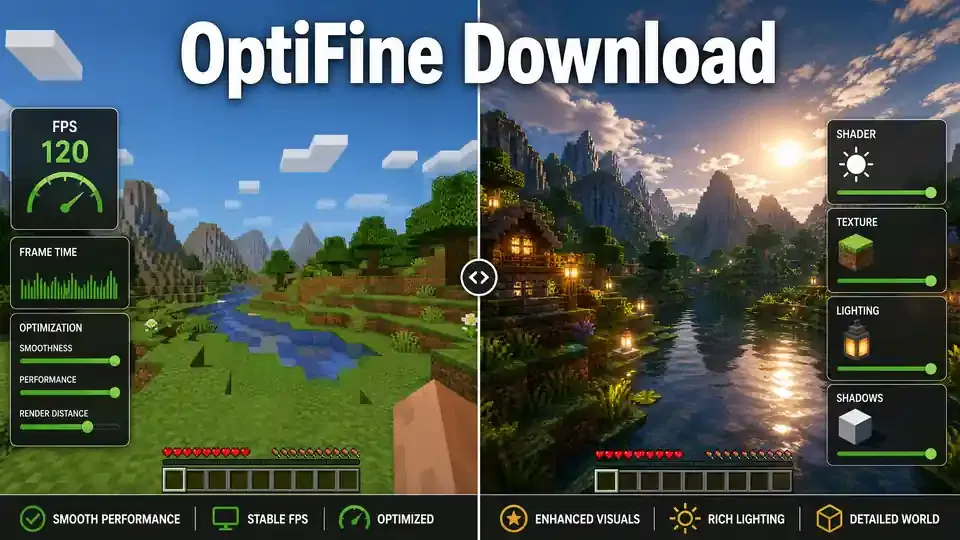
OptiFine is a popular optimization mod for Minecraft Java Edition. It helps Minecraft run faster and gives players more graphics options. The mod supports features like FPS boosts, shaders, HD textures, and detailed video settings. Players often choose an OptiFine Download to improve performance or enhance Minecraft’s visuals. It can also provide better control over render distance, lighting, textures, and other graphics settings. Choosing the right Minecraft version remains important. OptiFine builds match specific Minecraft versions. The official download page lists each supported version separately.
You may also see OptiFine HD U releases and preview builds. Preview builds target testing and newer Minecraft versions. For example, the official page currently lists preview builds for Minecraft 26.1.2. Before downloading, always check the official OptiFine release list. Match the build with your Minecraft version. This simple step helps prevent compatibility problems and installation errors.
Where to Download OptiFine
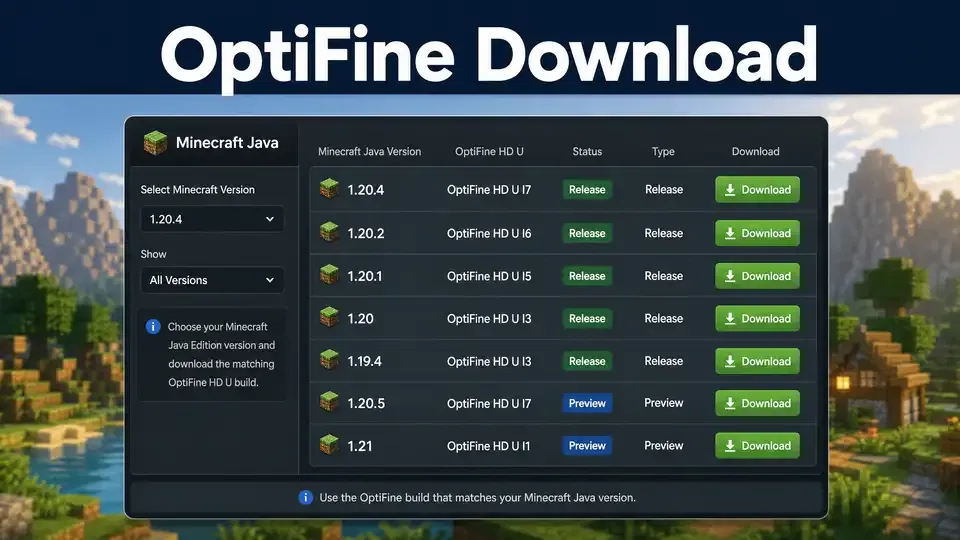
You can download OptiFine from the official OptiFine website. Its downloads page lists builds by Minecraft version. Choose the Minecraft version that matches your current game installation. Then check the available OptiFine HD U build. The page identifies regular releases and preview builds separately. For a stable setup, choose a regular release when one exists. Preview builds target newer versions or testing. They may have compatibility issues.
OptiFine Download Steps
- Open the official OptiFine downloads page.
- Find your Minecraft version.
- Choose the matching OptiFine HD U build.
- Select Download or Mirror.
- Save the .jar installer.
- Open the installer with Java.
Avoid random third-party executable files. They may not provide the genuine OptiFine installer. Always verify your download against the official release list. For version-specific options, check the OptiFine version table below.
Latest OptiFine Download
The latest OptiFine Download depends on your Minecraft Java Edition version. A newer OptiFine build does not always suit your current game version. The official OptiFine downloads page currently lists Minecraft 26.1.2 preview builds. These include OptiFine HD U K1 pre2 and OptiFine HD U K1 pre1. Both builds carry a preview label. Preview builds target newer Minecraft versions or ongoing development. They can introduce newer features and compatibility updates. However, they may also contain bugs or unfinished changes. Regular releases offer a better choice when you want a more established setup. Always match the OptiFine build with your installed Minecraft version.
For example, an OptiFine build for Minecraft 26.1.2 will not automatically work with every older release. Check the version listed beside each OptiFine HD U Download before installing. If you need the latest OptiFine for Minecraft Java, start with your Minecraft version. Then choose the matching release or preview build. This approach also helps you find the correct OptiFine preview download without guessing. Always verify the build on the official OptiFine downloads page before installing.
OptiFine Versions for Minecraft
OptiFine supports many Minecraft Java Edition versions. The official downloads page groups each build under its matching Minecraft version.
| Minecraft Version | OptiFine Build | Type | Forge Support |
| 26.1.2 | HD U K1 pre2 | Preview | N/A |
| 1.21.11 | HD U J9 | Release | 61.0.8 |
| 1.21.10 | HD U J7 pre11 | Preview | 60.1.0 |
| 1.21.8 | HD U J6 pre16 | Preview | 58.1.0 |
| 1.21.7 | HD U J6 pre7 | Preview | N/A |
| 1.21.6 | HD U J6 pre3 | Preview | N/A |
| 1.21.4 | HD U J3 | Release | 54.0.34 |
| 1.21.3 | HD U J2 | Release | 53.0.25 |
| 1.21.1 | HD U J1 | Release | 52.0.16 |
| 1.20.6 | HD U J1 pre18 | Preview | 50.1.19 |
| 1.20.4 | HD U I7 | Release | 49.0.31 |
| 1.20.1 | HD U I6 | Release | 47.2.18 |
| 1.19.4 | HD U I4 | Release | 45.1.0 |
| 1.18.2 | HD U H9 | Release | 40.2.9 |
| 1.16.5 | HD U G8 | Release | 36.1.0 |
| 1.12.2 | HD U G5 | Release | #2847 |
The official list also includes older Minecraft versions and additional OptiFine builds. Choose a build that matches your Minecraft version. Do not assume the newest OptiFine build works with older versions. The table should receive regular updates as OptiFine adds or changes builds. Keep the official download page as the source of truth. For older versions, dedicated pages can provide more useful installation and compatibility details. This keeps the main OptiFine Download page focused and easier to navigate.
What Is OptiFine for Minecraft?
OptiFine is a Minecraft optimization mod for Minecraft Java Edition. It focuses on rendering performance and graphics customization. The mod gives players more control over how Minecraft renders the game world. It adds many video settings that can help players adjust performance for their hardware. OptiFine can help improve FPS on supported systems. It also aims to reduce lag spikes during gameplay. However, results depend on your hardware, Minecraft version, and chosen settings. OptiFine also expands Minecraft’s visual options. It supports HD textures, custom textures, animated textures, and other visual features. These options let players customize the game’s appearance beyond its default settings.
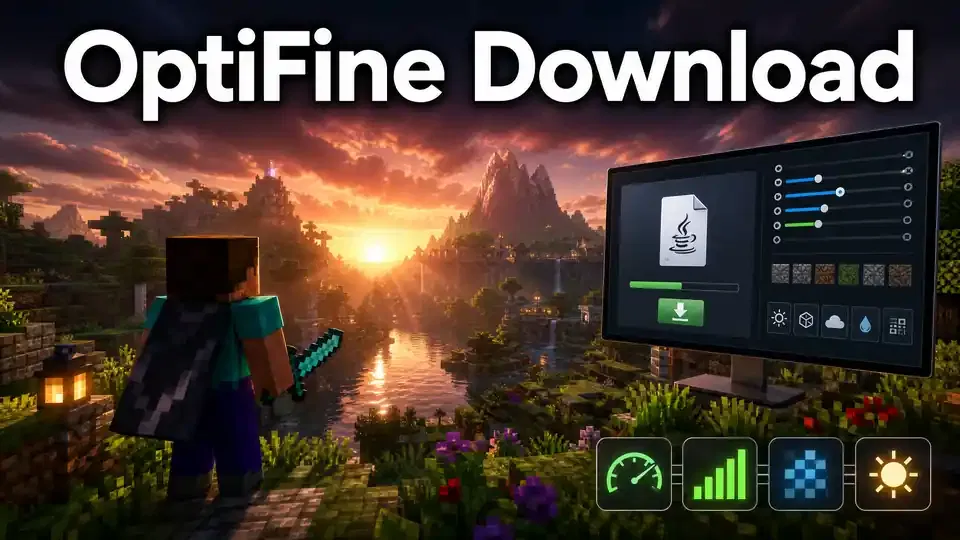
Another major feature involves shader packs. Compatible shaders can add effects such as improved lighting, shadows, reflections, and atmospheric visuals. Shader performance depends heavily on your graphics hardware. The mod also includes settings for render distance, smooth lighting, mipmaps, dynamic lights, and other graphics controls. For many players, OptiFine combines performance optimization with visual customization. That combination makes it useful for players who want more control over their Minecraft experience.
Why Should You Download OptiFine?
Players download OptiFine for better performance, deeper graphics control, and expanded visual features. Its benefits depend on your hardware and Minecraft setup.
FPS and Performance
OptiFine provides several settings that can help improve Minecraft performance. You can adjust rendering options to match your computer’s capabilities. It also offers performance controls designed to reduce lag spikes. The official site highlights FPS improvements and smoother gameplay as key benefits.
Visual Improvements
OptiFine expands Minecraft’s texture and graphics options. It supports HD textures, custom textures, and animated textures. These features let players create a more detailed Minecraft experience. Resource packs can also take advantage of supported OptiFine features.
Shader Support
OptiFine has played an important role in Minecraft shader support. Compatible shader packs can add advanced lighting, shadows, and other visual effects. However, shader compatibility varies between packs, Minecraft versions, and OptiFine builds. Always check the shader’s compatibility before installing it.
Graphics Settings
OptiFine adds many controls for Minecraft’s graphics. Players can adjust render distance, mipmaps, smooth lighting, anisotropic filtering, and dynamic lights. These options provide more control than Minecraft’s standard video settings. You can balance visual quality and performance based on your system.
OptiFine Features
OptiFine adds many graphics and performance features to Minecraft Java Edition. These features give players more control over rendering, textures, lighting, and visual effects.
| Feature | What It Does |
| FPS Boost | Provides performance settings that can improve FPS on supported systems. |
| Shaders | Supports compatible shader packs for advanced visual effects. |
| HD Textures | Supports high-resolution texture packs and custom textures. |
| Dynamic Lights | Lets held or dropped light sources create dynamic lighting effects. |
| Connected Textures | Connects compatible textures for a smoother appearance. |
| Custom Entity Models | Supports custom models for compatible entities and resource packs. |
| Custom Item Textures | Allows compatible resource packs to change item appearances. |
| Emissive Textures | Supports textures with glowing visual elements. |
| Zoom | Adds a configurable zoom function for closer views. |
| Custom Sky | Supports custom sky textures through compatible resource packs. |
| Animated Textures | Supports animated textures in compatible resource packs. |
| Capes | Supports the OptiFine cape system for eligible users. |
These features cover more than basic FPS optimization. OptiFine also gives resource packs and shader packs additional visual options. Feature support can vary between Minecraft versions and OptiFine builds. Resource packs may also require specific OptiFine features. That makes version compatibility important when using advanced features. Always check the supported Minecraft version before installing a resource pack or shader.
How to Download OptiFine
Downloading OptiFine takes only a few steps. Start with the official OptiFine downloads page to find the correct build.
Step 1: Open the Official Download Page
Visit the official OptiFine downloads page. It lists builds by Minecraft version.
Step 2: Find Your Minecraft Version
Check the Minecraft version you currently use. Choose the matching version from the OptiFine list.
Step 3: Check the OptiFine HD U Build
Review the available OptiFine HD U build for your version. Make sure the version matches exactly.
Step 4: Check the Build Type
Look for the release or preview label. Choose a regular release when you want a more established build.
Step 5: Select Download
Click the Download option for your chosen build. The official page may also provide a Mirror option.
Step 6: Save the JAR File
Save the OptiFine .jar file to an easy-to-find folder. You will use this file during installation.
Step 7: Verify the Download
Check the file and confirm its Minecraft version before opening it.
Important: Never download a random .exe claiming to be OptiFine. The official download system provides Java .jar installers. Following these steps helps you get the correct OptiFine build without unnecessary compatibility problems.
How to Install OptiFine
Installing OptiFine requires Minecraft Java Edition, the correct OptiFine build, Java, and the Minecraft Launcher. Always match OptiFine with your installed Minecraft version.
Requirements
Before starting, prepare these items:
- Minecraft Java Edition
- Correct OptiFine .jar file
- Compatible Java runtime
- Minecraft Launcher
OptiFine Installation Steps
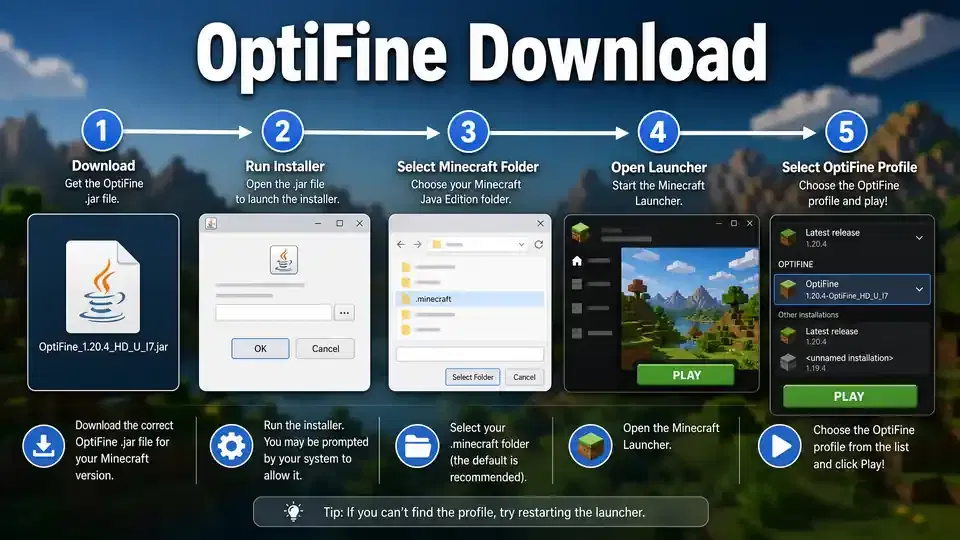
1. Download the OptiFine JAR
Get the build that matches your Minecraft version. Keep the .jar file in an easy-to-find location.
2. Close Minecraft
Exit Minecraft and the Minecraft Launcher before starting the installation.
3. Open the OptiFine Installer
Double-click the downloaded .jar file. Java should open the OptiFine installer.
4. Check the Minecraft Directory
The installer normally detects your Minecraft folder automatically. Confirm that it points to the correct directory.
5. Select Install
Click Install and wait for the installer to finish.
6. Open Minecraft Launcher
Launch the official Minecraft Launcher after installation completes.
7. Select the OptiFine Profile
Choose the new OptiFine profile from the available Minecraft installations.
8. Start Minecraft
Launch the game with the OptiFine profile.
9. Confirm the Installation
Open Minecraft’s video settings. Look for OptiFine-specific options to confirm the installation worked.
If the Installer Does Not Open
First, check whether Java can open .jar files. Then confirm the downloaded file ends with .jar. Next, verify your Minecraft version. An incorrect OptiFine build can cause installation problems. If the issue continues, download the matching build again from the official OptiFine source.
Does OptiFine Need Java?
Yes, the OptiFine installer uses a .jar file, which Java can open and run. The installer does not work like a standard Windows .exe program. Minecraft also runs on Java, but its bundled Java environment can differ from the Java installed on your computer. Therefore, Minecraft may run normally while the OptiFine installer still fails to open. A missing or incompatible Java runtime can cause this problem. You may need a Java Runtime Environment (JRE) to open the installer. Adoptium provides Java distributions under the Temurin name. These distributions can provide a suitable Java environment for supported Minecraft setups.
However, avoid choosing a Java version based only on general recommendations. Minecraft versions can require different Java environments. Before installing Java, check the requirements for your specific Minecraft version. Then use a compatible JRE to open the OptiFine .jar installer. If double-clicking the file does nothing, check your Java installation and .jar file association first.
Can You Use OptiFine With Forge?
Yes, OptiFine can work with Minecraft Forge on supported Minecraft versions. However, compatibility depends on the exact Minecraft and OptiFine builds. The official OptiFine downloads page shows Forge compatibility for many builds. It can also list the Forge version that matches a specific OptiFine release. Some builds show no Forge support. Always check this information before combining the two mods.
OptiFine + Forge
This setup can suit players who use Forge mods alongside OptiFine. First, confirm that your OptiFine build supports your Minecraft and Forge versions.
OptiFine Standalone
A standalone installation keeps the setup simpler. It works well when you only need OptiFine’s performance and graphics features.
Modern Performance Mod Stacks
Modern Minecraft modpacks often use different optimization tools. Sodium, Iris, and other mods can replace some OptiFine features. Your choice should depend on your Minecraft version and mod loader. Avoid mixing incompatible versions just to use OptiFine with Forge. For an OptiFine with Forge download, check the Forge information beside your chosen OptiFine build. This approach reduces compatibility issues during installation.
Can You Use OptiFine With Fabric?
OptiFine and Fabric use different mod ecosystems. Fabric players may need additional compatibility tools to run OptiFine. OptiFabric has historically provided a bridge between OptiFine and Fabric. However, it does not guarantee compatibility across every Minecraft version. Support can change as Minecraft, Fabric, and OptiFine develop. Always check compatibility before installing OptiFine through a Fabric setup. Avoid assuming that an OptiFabric release works with your Minecraft version. Many modern Fabric players choose Sodium for rendering performance. Iris can add shader support alongside Sodium. This combination offers a different approach to the features OptiFine provides.
Your best choice depends on your Minecraft version, existing mods, and required features. If your setup already uses Fabric mods, check the available Fabric-native alternatives first. For older setups, OptiFabric may still provide useful compatibility. For newer versions, verify support before relying on it.
OptiFine Shaders
OptiFine shaders can transform Minecraft’s lighting and visual effects. Shader packs can add shadows, reflections, ambient lighting, water effects, and atmospheric details. OptiFine provides shader support through compatible shader packs. However, not every shader pack works with every Minecraft version or OptiFine build. Always check the shader developer’s compatibility notes before installing one.
How to Install OptiFine Shaders
First, download a shader pack that supports your Minecraft version. Keep the downloaded shader file in its original format unless the developer gives different instructions. Then open Minecraft with OptiFine and access Video Settings → Shaders. Select Shaders Folder to open Minecraft’s shader directory. Move the compatible shader pack into that folder. Return to Minecraft and select the shader from the available list.
Popular shader projects include BSL, SEUS, and Continuum. Each project offers different visual styles and hardware requirements. Shader performance depends heavily on your GPU and selected settings. Higher-quality effects can reduce FPS significantly. Lower shader settings can help maintain smoother gameplay. Before an OptiFine shaders download, confirm both the shader and OptiFine versions. This simple check can prevent many compatibility problems.
Does OptiFine Increase FPS?
Yes, OptiFine can increase FPS on some Minecraft systems. However, results vary by hardware, Minecraft version, and graphics settings. OptiFine provides many performance controls that help players adjust Minecraft’s rendering behavior. The official website highlights FPS improvements and reduced lag spikes as key benefits. It also states that doubling FPS can occur in some cases. Your results may differ from another player’s experience. A powerful GPU, CPU, or high-resolution resource pack can change performance significantly. Render distance also affects FPS. Higher distances require Minecraft to render more of the game world. Lowering this setting can reduce the workload on your system.
Shaders create another performance trade-off. Advanced shader effects can consume substantial GPU resources. Even with OptiFine, demanding shaders may lower your FPS. Resource packs can also increase GPU and memory usage. High-resolution textures require more resources than standard Minecraft textures. For the best results, adjust OptiFine settings to match your hardware. Start with moderate settings and test your FPS. OptiFine can provide useful optimization controls, but it cannot guarantee the same FPS improvement on every computer. Your hardware and chosen settings remain major factors.
Best OptiFine Settings for Higher FPS
The best OptiFine settings depend on your hardware. Start with moderate values, then adjust them after testing your FPS.
| Setting | Low-End PC | Mid-Range PC | High-End PC |
| Render Distance | 6–8 chunks | 10–14 chunks | 16+ chunks |
| Simulation Distance | 5–6 chunks | 8–10 chunks | 10+ chunks |
| Graphics | Fast | Fast or Fancy | Fancy |
| Smooth Lighting | Off | Minimum | Maximum |
| Dynamic Lights | Off | Fast | Fancy |
| Entity Shadows | Off | On | On |
| Particles | Minimal | Decreased | All |
| Mipmap Levels | 0–2 | 2–4 | 4 |
| Anisotropic Filtering | Off | Off | Test based on GPU |
| Fast Math | On | On | On |
| Chunk Updates | 1 | 1–2 | 1–3 |
Low-End PC
Lower render distance and simulation distance first. Turn off dynamic lights, entity shadows, and unnecessary particles. These changes can reduce rendering workload.
Mid-Range PC
Use moderate distances and keep essential visual effects enabled. Test smooth lighting and dynamic lights before increasing other settings.
High-End PC
You can increase render distance and visual quality. Keep an eye on GPU usage when using high-resolution textures or shaders. OptiFine also includes additional performance settings. Test each change rather than applying every option blindly. Your Minecraft version and hardware can affect the results.
Is OptiFine Safe to Download?
OptiFine can be downloaded safely when you use the official OptiFine website and verify the file before installation. The official downloads page lists builds by Minecraft version and identifies release types. Always check that you are using the correct optifine.net domain. Avoid websites that imitate the official name or use misleading download buttons. Official OptiFine installers use the .jar format. Be cautious when a website offers a suspicious .exe file as an OptiFine installer. Before opening the file, confirm its Minecraft version and OptiFine build. The build should match your Minecraft installation.
Official vs Third-Party Downloads
Official OptiFine download:
The official website provides version-specific OptiFine builds and download options.
Third-party mirror:
A mirror can provide access to the same download through another location. However, verify the file and source carefully.
Unverified download site:
These sites may host altered files or misleading installers. Avoid them when you cannot verify their authenticity. Use reputable security software to scan downloaded files when appropriate. Keep your browser and operating system updated as well. The safest approach remains simple: use the official source, select the correct Minecraft version, verify the .jar file, and avoid suspicious installers.
How to Identify the Official OptiFine Download
Finding the genuine OptiFine download starts with the source. The official OptiFine website provides version-specific builds and download options.
Use this quick checklist before downloading:
- Check the domain: Confirm that the website uses optifine.net.
- Match Minecraft versions: Select the exact Minecraft version you use.
- Check the OptiFine build: Confirm the listed OptiFine HD U build.
- Check the file type: The installer should use the .jar format.
- Check the release label: Review whether the build is a release or preview.
- Use official options: Choose the site’s Download or Mirror option.
- Avoid bundled software: Do not install suspicious programs offered with the download.
The official download page also shows build details and compatibility information. These details help you choose the correct file for your setup. Do not trust a download simply because a website uses the OptiFine name. Check the source, version, build, and file type first. This quick verification step helps reduce compatibility problems and lowers the risk of downloading an altered installer.
OptiFine for Windows, macOS, and Linux
OptiFine targets Minecraft Java Edition, not a separate Windows, macOS, or Linux edition. Your operating system mainly affects how you install and run the Java .jar file.
Windows
Windows users can open the OptiFine installer with a compatible Java runtime. The Minecraft Launcher then provides access to the installed OptiFine profile.
macOS
macOS users can also run the OptiFine .jar installer with Java. macOS security settings may ask for permission when you open an application or downloaded file.
Linux
Linux users can launch the OptiFine installer through a compatible Java environment. The exact command can vary between Linux distributions. The key compatibility factor remains your Minecraft Java Edition version. Your Java runtime also needs to support that Minecraft setup. Before an OptiFine Download, check the Minecraft version first. Then choose the matching OptiFine build. Avoid assuming that one OptiFine file works across every Minecraft release. You do not need a separate OptiFine package for Windows, macOS, or Linux. The same Java-based installer can work across supported systems when the required Java environment and Minecraft version match.
OptiFine vs Sodium vs Iris
OptiFine, Sodium, and Iris take different approaches to Minecraft performance and graphics. Your choice depends on your version, mod loader, and required features.
| Feature | OptiFine | Sodium | Iris |
| FPS optimization | Yes | Yes | Uses Sodium |
| Shader support | Yes | No by itself | Yes |
| Fabric ecosystem | Limited | Yes | Yes |
| Graphics features | Extensive | Rendering-focused | Shader-focused |
| OptiFine feature compatibility | Native | Replacement mods needed | Replacement ecosystem |
OptiFine combines performance settings with many graphics features. It also supports compatible shader packs, HD textures, dynamic lighting, and other visual options. Sodium focuses heavily on rendering performance. It belongs to the Fabric ecosystem and can provide substantial performance improvements on supported systems. Iris adds shader support to the Sodium-based setup. It targets players who want modern rendering performance with compatible shader packs.
Sodium and Iris do not provide every OptiFine feature automatically. Players may need additional mods for features such as connected textures, dynamic lights, or custom entity features. There is no universal winner. Choose OptiFine when you need its specific feature set. Consider Sodium or Iris when you prefer the modern Fabric ecosystem. For a deeper comparison, see our dedicated OptiFine vs Sodium and OptiFine vs Iris guides. This keeps each guide focused on its own search intent.
Common OptiFine Download and Installation Problems
OptiFine problems often come from version mismatches or Java settings. Use the checks below before reinstalling everything.
“OptiFine Won’t Download”
Check that you opened the official download page. A browser problem can also interrupt the download. Temporary server issues may cause failures too. Try again later if the official page works incorrectly.
“OptiFine Won’t Open”
A missing Java runtime can prevent the .jar installer from opening. Your system may also lack the correct file association. First, confirm that the file ends with .jar. Then check your Java installation. A damaged download can also cause this problem. Download the matching build again from the official source.
“OptiFine Doesn’t Appear in Minecraft”
Check your Minecraft version first. Then verify the Minecraft installation directory. Also confirm that the Minecraft Launcher selected the correct OptiFine profile.
“Shaders Don’t Work”
Check whether your shader pack supports your OptiFine build. An incompatible shader can cause errors or fail to load. Graphics drivers and demanding shader settings can also create problems. Lower shader settings and test again.
“OptiFine Crashes Minecraft”
Mod conflicts can cause crashes, especially with Forge setups. Version mismatches can create similar issues. Temporarily remove conflicting mods or resource packs. Then test OptiFine alone. If it works, add your mods back one at a time.
Frequently Asked Questions About OptiFine Download
What is the official OptiFine download site?
The official OptiFine download site is optifine.net. Use its downloads page to find builds for supported Minecraft versions.
Is OptiFine free to download?
Yes. OptiFine provides free downloads through its official website. Some optional OptiFine features, such as capes, involve separate donations.
What is the latest OptiFine version?
The latest build depends on the Minecraft version you use. The official page currently lists OptiFine HD U K1 pre2 for Minecraft 26.1.2 as a preview build.
Does OptiFine work with Minecraft 1.21?
OptiFine provides builds for several Minecraft 1.21 releases. Always select the build that matches your exact version.
Does OptiFine work with Minecraft 1.21.1?
Yes. The official downloads page lists an OptiFine build for Minecraft 1.21.1.
Is OptiFine available for Minecraft 1.21.11?
Yes. The official list includes an OptiFine build for Minecraft 1.21.11. Check its current release status before downloading.
Is OptiFine available for Minecraft 1.20.1?
Yes. OptiFine provides builds for Minecraft 1.20.1. Select the matching build from the official downloads page.
Can I download old OptiFine versions?
Yes. The official downloads page includes many older Minecraft versions. Choose the build that matches your game version.
Is OptiFine safe?
OptiFine is safest when you download it from the official website. Avoid suspicious installers and unverified download sources.
Does OptiFine increase FPS?
OptiFine can improve FPS on supported systems. Results depend on hardware, Minecraft settings, resource packs, and other mods.
Does OptiFine support shaders?
Yes. OptiFine supports compatible shader packs. Compatibility depends on the shader, Minecraft version, and OptiFine build.
Can I use OptiFine with Forge?
Yes, some OptiFine builds support Forge. Check the Forge information listed beside your chosen build.
Can I use OptiFine with Fabric?
Compatibility varies by Minecraft version. OptiFabric has provided compatibility for some setups, but it does not support every version.
Why won’t my OptiFine JAR open?
Check your Java installation and .jar file association. Also verify that you downloaded the correct OptiFine build.
What Java version does OptiFine need?
The required Java environment depends on your Minecraft version. Check that version’s Java requirements before choosing a runtime.
Is OptiFine better than Sodium?
Neither mod wins for every player. OptiFine offers many built-in graphics features, while Sodium focuses heavily on rendering performance. Your mod loader and required features should guide your choice.
Conclusion: Download OptiFine for Minecraft
Choosing the right OptiFine Download starts with your Minecraft version. Always select a build that matches your exact Minecraft Java Edition release. Use the official OptiFine website when downloading the installer. Check whether the available build carries a release or preview label. Save the correct .jar file and install it with a compatible Java runtime. Then adjust OptiFine settings based on your hardware and performance needs. Shaders and high-resolution resource packs can improve visuals. However, they can also increase system demands. Test them gradually to maintain smooth gameplay.
If OptiFine does not fit your current mod setup, consider modern alternatives such as Sodium or Iris. Your Minecraft version, mod loader, and required features should guide that decision. For the safest setup, verify every download and compatibility detail before installing.