
OptiFine 1.21.11: Download, Install, Shaders and FPS Guide
OptiFine 1.21.11 is a Minecraft Java Edition mod for better performance and graphics. It adds many advanced video options and visual features. The official OptiFine site lists OptiFine HD U J9 as the latest 1.21.11 build. It was released on February 5, 2026. J9 also lists Forge 61.0.8 as its compatible Forge version. OptiFine can help players tune Minecraft for smoother gameplay. It also supports shaders, HD textures, connected textures, and other visual features. These options make it useful for players who want more control over Minecraft’s graphics.
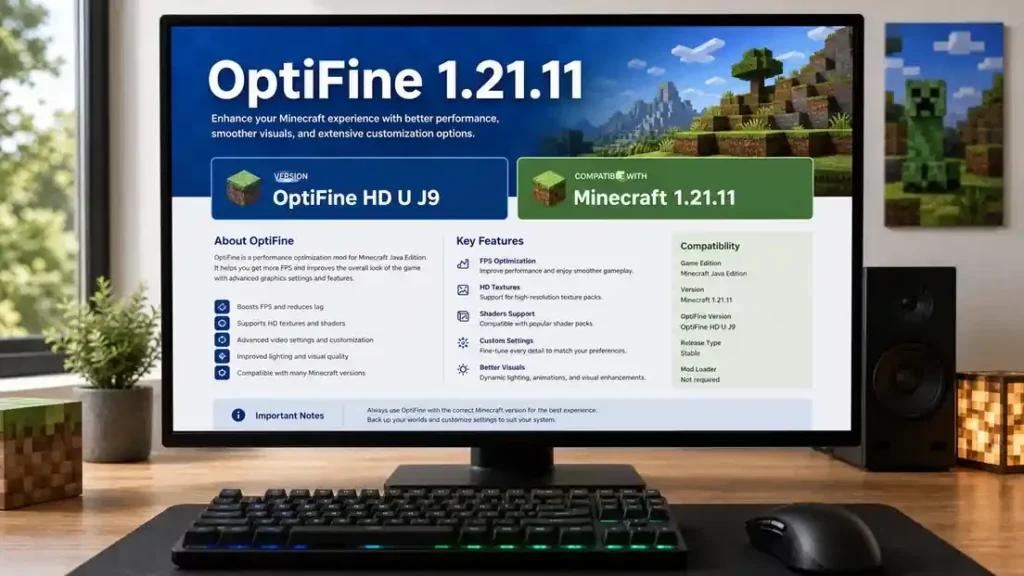
This guide covers the OptiFine 1.21.11 download, installation, Forge setup, shaders, settings, features, and common fixes. It also explains J9 changes and compatibility details. For the safest download path, always check the official OptiFine website first. The official downloads page clearly separates Minecraft 1.21.11 builds from other Minecraft versions. If you use Forge, match your setup with the version listed for your OptiFine build. Forge officially lists 61.0.8 for Minecraft 1.21.11.
What Is OptiFine 1.21.11?
OptiFine 1.21.11 is a Minecraft Java Edition optimization and graphics mod for Minecraft 1.21.11. It gives players more control over performance and visual quality. The official OptiFine website lists OptiFine HD U J9 for Minecraft 1.21.11. J9 supports Forge 61.0.8, according to its official version details. OptiFine adds many advanced graphics settings to Minecraft. These settings can help players adjust performance for different hardware. The mod also supports shaders, HD textures, connected textures, dynamic lighting, and other visual features.
Minecraft OptiFine 1.21.11 suits players who want more graphics control. It also helps players customize resource packs and visual effects. J9 includes several fixes for shaders, custom models, custom textures, and connected textures. It also improves support for newer Minecraft 1.21.11 content. These updates make J9 the key build for this version. For the correct setup, always match OptiFine with your Minecraft version and supported Forge release.
OptiFine 1.21.11 Version Details
The OptiFine 1.21.11 release targets Minecraft Java Edition 1.21.11. The official site lists HD U J9 as the latest build for this version. It also lists Forge 61.0.8 compatibility.
| Detail | Information |
| Minecraft version | 1.21.11 |
| OptiFine build | HD U J9 |
| Release date | February 5, 2026 |
| Forge compatibility | 61.0.8 |
| Edition | Minecraft Java Edition |
| Previous build | HD U J8 |
| Previous Forge | 61.0.7 |
OptiFine first released the J8 build for Minecraft 1.21.11. J8 also supported Forge 61.0.7. The later J9 build brought additional fixes and improvements. J9 updated several areas, including shaders, custom models, custom textures, and connected textures. It also addressed issues affecting newer Minecraft content. For this guide, HD U J9 remains the main OptiFine 1.21.11 build. Players should check the official download page before installing any file. Always match the OptiFine build with the correct Minecraft version and supported Forge release.
OptiFine 1.21.11 Download
Finding the correct OptiFine 1.21.11 download helps prevent version and compatibility problems. Always start with the official OptiFine downloads page. It lists releases by Minecraft version and shows the supported Forge version.
Where to Download OptiFine 1.21.11
Follow these steps to find the correct OptiFine 1.21.11 download:
- Open the official OptiFine downloads page.
- Find the Minecraft 1.21.11 section.
- Locate OptiFine HD U J9.
- Check that it lists Forge 61.0.8.
- Select the download option for the J9 installer.
- Save the .jar file to your computer.
OptiFine’s documentation also recommends choosing the latest build for your Minecraft version. This helps you avoid installing an older release when a newer build exists.
Why Use the Official Download?
The official site gives you direct version information and release details. It also helps you confirm the correct Minecraft and Forge versions. Avoid downloading modified installers from unknown mirrors. Third-party pages may provide outdated or altered files. Before opening the OptiFine installer 1.21.11, check its filename and source. Make sure it matches the build you intended to download. For this Minecraft version, HD U J9 should remain your main download choice. Always verify the current listing before installation.
Is OptiFine 1.21.11 Safe?
OptiFine 1.21.11 is safest to OptiFine Download from the official OptiFine website. The official site provides version details, downloads, and changelogs for each release. Avoid treating every third-party OptiFine file as safe. Unofficial sites can host outdated or modified installers. Using the official source reduces the risk of downloading a fake or altered file.
Before opening an OptiFine 1.21.11 installer, check these details:
- Confirm the Minecraft version says 1.21.11.
- Confirm the build says OptiFine HD U J9.
- Check that the file uses the .jar extension.
- Verify that you downloaded it from optifine.net.
- Check the listed Forge compatibility before using Forge.
The official changelog provides another useful trust signal. It shows the fixes and changes included in each OptiFine build. Clear version information also helps prevent installation mistakes. Always match the OptiFine build with your Minecraft version. For the safest OptiFine 1.21.11 download, verify the source and file details before installation.
OptiFine HD U J9 Changelog
OptiFine HD U J9 brings several fixes to Minecraft 1.21.11 support. The update focuses on custom models, shaders, textures, and rendering behavior.
Custom Entity Model Improvements
J9 expands Custom Entity Model support for newer Minecraft content. The fixes cover copper golem statues, nautilus, zombie nautilus, happy ghast, and parched. It also improves several horse-related models and warm and cold animal variants. These changes help resource packs display custom entity designs more reliably.
Shader Fixes
J9 fixes several shader-related problems. The update addresses the terrain texture matrix during the shadow pass. It also fixes normal and specular initialization. These changes can improve shader behavior in specific rendering situations.
CIT and CTM Fixes
The release also improves Custom Item Textures (CIT). It fixes CIT initialization and custom CIT models. J9 also fixes issues with emissive CTM. This helps compatible resource packs handle connected and glowing textures more reliably.
Other Fixes
J9 fixes random entity property parsing and addresses cloud stuttering. It also fixes the new version-check message. The official changelog provides the complete list of J9 changes. Checking it helps confirm details before troubleshooting or comparing builds.
How to Install OptiFine 1.21.11
Installing OptiFine 1.21.11 takes only a few steps. First, make sure you use Minecraft Java Edition 1.21.11 and the correct OptiFine build. The official OptiFine documentation recommends using the installer for a standard setup.
Before Installing
Prepare these items:
- Minecraft Java Edition 1.21.11
- OptiFine HD U J9
- A Java environment that supports your Minecraft installation
- Minecraft Launcher
Close Minecraft before starting the installation. Also, keep your game updated to the target version.
Install OptiFine 1.21.11
Follow these steps:
- Download OptiFine HD U J9 from the official OptiFine website.
- Close Minecraft and the Minecraft Launcher.
- Find the downloaded OptiFine .jar file.
- Open the installer with Java.
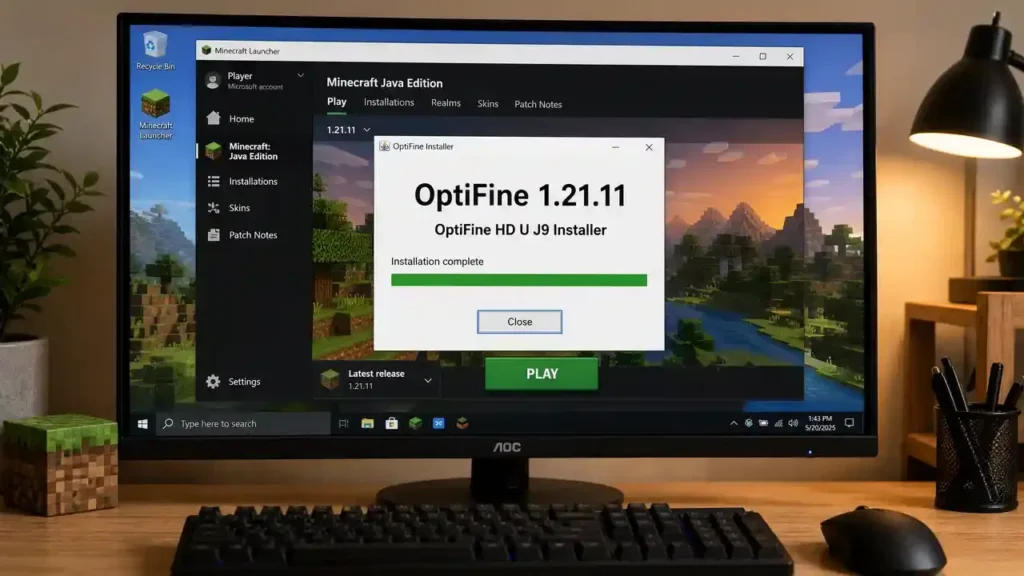
- Select Install in the OptiFine installer.
- Wait for the installation to finish.
- Open the Minecraft Launcher.
- Find the newly created OptiFine profile.
- Select the OptiFine profile.
- Start Minecraft.
If your computer does not open the .jar file, check your Java installation first. Do not download random executable files to replace the installer.
How to Confirm OptiFine Installed
Launch Minecraft through the OptiFine profile. Then open Video Settings. Look for OptiFine-specific graphics and performance options. You should also find the Shaders menu when the installation supports it. Check the displayed OptiFine version to confirm the installation. It should identify the installed build. If these options do not appear, stop before adding shaders or other modifications. First confirm that Minecraft launched with the correct OptiFine profile. For installation problems, compare your setup with the official OptiFine documentation and verify your Minecraft version again.
How to Install OptiFine 1.21.11 With Forge
You can use OptiFine 1.21.11 with Forge when both versions match correctly. OptiFine HD U J9 lists Forge 61.0.8 as its compatible Forge version.
Install OptiFine With Forge
Follow these steps:
- Install Minecraft Java Edition 1.21.11.
- Install Forge 61.0.8 for Minecraft 1.21.11.
- Download OptiFine HD U J9 from the official site.
- Open your Minecraft .minecraft directory.
- Find the mods folder.
- Create the folder if it does not exist.
- Move the OptiFine .jar file into mods.
- Open the Minecraft Launcher.
- Select the Forge 61.0.8 profile.
- Start Minecraft and test the installation.
OptiFine’s installation documentation also describes placing the OptiFine .jar inside the Forge mods folder.
Match the Forge Version Carefully
Do not assume every Forge 61.x release works with OptiFine 1.21.11. Each OptiFine build can specify its own compatible Forge version. For HD U J9, use the Forge version listed by OptiFine. That version is 61.0.8. If Minecraft crashes after installation, remove other mods first. Then test OptiFine with Forge alone. This makes compatibility problems easier to identify.
OptiFine 1.21.11 Features
OptiFine 1.21.11 adds many options for tuning Minecraft’s performance and graphics. These features let players balance visual quality with smoother gameplay.
FPS Optimization
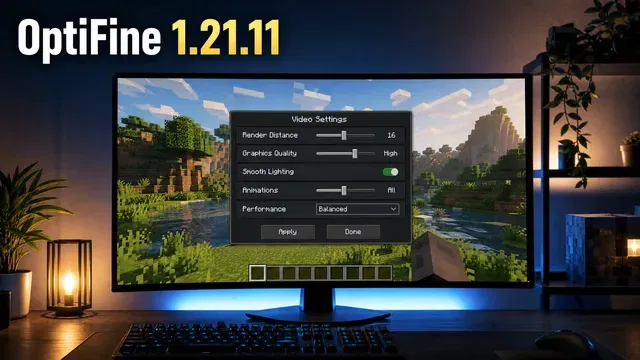
OptiFine provides several settings that can change Minecraft’s performance. You can adjust render distance, graphics quality, smooth lighting, and entity distance. Animation controls can also reduce visual effects. Performance settings give you more control over how Minecraft uses your hardware. Results vary between computers. Your processor, graphics card, resolution, and other settings all affect FPS.
Shaders
OptiFine supports shader packs through its Shaders menu. You can select compatible shaders and adjust their settings inside Minecraft. Shaders can improve lighting, shadows, reflections, and other visual effects. However, they also increase graphics workload.
Dynamic Lighting
Dynamic lighting makes handheld light sources appear to illuminate nearby areas. This creates a more natural lighting effect during gameplay. The visual effect can increase graphics workload, especially alongside demanding shaders.
Connected Textures
Connected Textures (CTM) can join textures across matching blocks. Glass is a common example. Compatible resource packs can use CTM to create smoother block patterns. This feature adds more detail without changing the underlying block mechanics.
Custom Entity Models
Custom Entity Models (CEM) lets compatible resource packs change entity models. J9 expands CEM support for Minecraft 1.21.11 content. The J9 changelog includes fixes for several newer entities and model variants.
Custom Item Textures
Custom Item Textures (CIT) lets resource packs give items different appearances. Packs can use specific properties to change item textures.
Random Entities
Random Entities can give similar mobs different appearances. Compatible resource packs can use this feature to create more visual variety.
HD Textures and Mipmaps
OptiFine supports HD textures and advanced mipmap settings. Mipmaps help textures appear smoother at different distances. These options can improve texture quality while giving players more control over visual performance.
Better Grass and Better Snow
Better Grass changes certain terrain edges for a more natural appearance. Better Snow adds extra visual detail to snow-covered blocks.
Emissive Textures
Emissive textures create glowing effects on supported textures. Resource packs can use them for items, blocks, and other visual elements.
Anisotropic Filtering
Anisotropic filtering improves texture clarity at longer viewing distances. It can make surfaces look sharper when viewed from an angle. Together, these features make Minecraft OptiFine 1.21.11 useful for players who want deeper control over graphics and performance.
OptiFine 1.21.11 Shaders
OptiFine 1.21.11 supports shaders through its built-in Shaders menu. Shader packs can change Minecraft’s lighting, shadows, water, skies, and other visual effects.
Does OptiFine 1.21.11 Support Shaders?
Yes. OptiFine shaders 1.21.11 work through compatible shader packs. OptiFine provides the settings needed to select and configure these packs. However, shader compatibility can vary. Always check the shader pack’s supported Minecraft and OptiFine versions before installing it.
How to Install Shaders
Follow these steps to install Minecraft shaders with OptiFine:
- Install OptiFine HD U J9.
- Launch Minecraft with the OptiFine profile.
- Open Options and select Video Settings.
- Open the Shaders menu.
- Select Shaders Folder.
- Place your shader ZIP file inside that folder.
- Return to the Shaders menu.
- Select your preferred shader pack.
- Apply the settings and test your world.
Keep the shader file in ZIP format unless its creator gives different instructions.
Popular Shader Packs
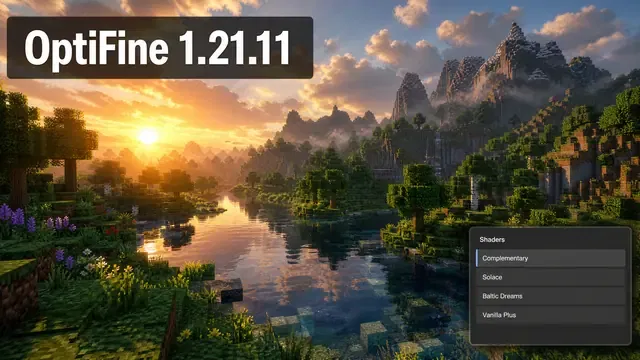
Several shader packs have strong communities among Minecraft players. Popular choices include BSL Shaders, Complementary Shaders, and SEUS. Each pack uses different visual effects and performance settings. Some packs may require more graphics power than others. For Minecraft 1.21.11 shaders, check the pack’s documentation before installation. Compatibility can change between Minecraft versions and shader releases. If a shader causes crashes or severe performance problems, disable it first. Then test Minecraft without the shader to identify the source.
Best OptiFine Settings for 1.21.11
The best OptiFine settings 1.21.11 depend on your hardware. There is no single setup that works best for every Minecraft player.
Low-End PC
Focus on settings that reduce graphics workload.
- Lower your render distance.
- Choose Fast Graphics.
- Lower simulation distance when available.
- Reduce particles.
- Lower entity distance.
- Disable demanding visual effects you do not need.
These changes can reduce the work your hardware handles during gameplay.
Mid-Range PC
A mid-range system can balance performance and visual quality. Try a moderate render distance first. Keep Smooth Lighting enabled if performance remains stable. Reduce it when you need more headroom. You can also keep some animations enabled. Adjust texture quality based on your available graphics memory. Test your settings after each major change. This makes performance differences easier to notice.
High-End PC
A powerful system can prioritize visual quality. Try a higher render distance and stronger texture settings. You can also increase visual effects when performance allows. If you use shaders, adjust their quality separately. High shader settings can create a much larger graphics workload.
Find Your Best Balance
Start with moderate settings instead of changing everything at once. Then adjust individual options while testing the same world. Your Minecraft 1.21.11 performance depends on several factors. Hardware, resolution, world activity, shaders, and other mods can all affect FPS. Avoid claims that specific settings will double your FPS. Real results vary between systems. The best approach is simple: start with stable settings, test them, and increase quality gradually.
OptiFine 1.21.11 Performance and FPS
OptiFine 1.21.11 includes several settings designed to improve Minecraft performance. These options let players adjust graphics quality and reduce unnecessary visual workload.
How OptiFine Can Improve Performance
OptiFine provides controls for render distance, graphics quality, animations, particles, lighting, and other effects. Lowering demanding settings can help some systems maintain steadier gameplay. However, an OptiFine FPS boost is not guaranteed. Results depend on your hardware, Minecraft world, resolution, settings, and installed mods.
Vanilla vs OptiFine vs Shaders
You can compare performance across three basic setups:
| Setup | Main Focus |
| Vanilla Minecraft | Default graphics and performance |
| OptiFine without shaders | Optimization and graphics controls |
| OptiFine with shaders | Enhanced visuals and shader effects |
OptiFine without shaders usually creates a lighter graphics workload than a shader-enabled setup. Shaders can add advanced lighting and shadows, which may reduce FPS. Avoid relying on fixed FPS claims from generic guides. Different computers can produce very different results. For accurate Minecraft FPS OptiFine testing, use the same world, resolution, render distance, and graphics settings. Keep the test conditions consistent. A future benchmark can provide stronger evidence when it records hardware, Minecraft version, OptiFine build, settings, and test conditions. That approach supports transparent and trustworthy performance claims.
OptiFine 1.21.11 Resource Pack Support
OptiFine 1.21.11 adds several features that extend what compatible resource packs can display. These features can create richer textures, models, and visual effects.
HD Textures and Connected Textures
OptiFine supports HD textures for compatible resource packs. Players can also use Connected Textures (CTM) to join textures across matching blocks. Glass and similar blocks can look smoother with compatible packs.
Custom Items and Entities
Custom Item Textures (CIT) lets resource packs change item appearances based on specific properties. Custom Entity Models (CEM) can also replace supported entity models. OptiFine’s J9 release includes several CEM fixes for Minecraft 1.21.11 content.
Random and Emissive Textures
Random entities can give similar mobs different appearances. This adds visual variety without changing their behavior. Emissive textures can create glowing effects on compatible textures. Resource packs can use them for specific visual details.
Other Visual Features
OptiFine also supports custom colors, custom skies, and custom animations. These features let resource packs change more than basic block textures. Together, these options give resource-pack creators greater control over Minecraft’s visual style. Always check a pack’s requirements before using its OptiFine-specific features.
OptiFine 1.21.11 Compatibility
Compatibility matters when you combine OptiFine 1.21.11 with loaders or other mods. Always match every component with the correct Minecraft version.
Minecraft Compatibility
OptiFine HD U J9 targets Minecraft Java Edition 1.21.11. Check your launcher profile before installing it. Using a different Minecraft version can cause installation or launch problems. The OptiFine download page identifies builds by their supported Minecraft version.
Forge Compatibility
J9 lists Forge 61.0.8 as its compatible Forge version. The official Forge site also lists Forge 61.0.8 for Minecraft 1.21.11. Use the listed Forge version instead of assuming every 61.x release works.
Mod Compatibility
OptiFine changes parts of Minecraft’s rendering system. Other mods can also modify the same systems. Because of this, some rendering, graphics, or optimization mods may conflict with OptiFine. Results can also vary across mod combinations. If Minecraft crashes, test OptiFine without additional mods first. Then add other mods individually to identify conflicts.
Fabric Compatibility
OptiFine does not provide native Fabric support. OptiFabric exists as a separate compatibility project for using OptiFine with Fabric. However, OptiFabric support can vary by Minecraft and OptiFine version. Do not treat it as native OptiFine compatibility. For the most predictable setup, use the loader and versions listed for your specific OptiFine build.
OptiFine 1.21.11 vs Sodium
OptiFine 1.21.11 and Sodium take different approaches to Minecraft performance. OptiFine combines optimization with many graphics and resource-pack features. Sodium focuses mainly on improving Minecraft’s rendering performance.
| Area | OptiFine 1.21.11 | Sodium |
| Performance | Broad optimization settings | Rendering-focused optimization |
| Shaders | Built-in shader support | Commonly paired with Iris |
| Graphics features | Extensive built-in options | More focused feature set |
| Resource packs | Strong OptiFine feature support | Often uses separate mods |
| Loader ecosystem | Forge support for J9 | Primarily Fabric-based |
| Mod compatibility | Can conflict with some rendering mods | Compatibility varies by mod setup |
OptiFine suits players who want performance controls and many built-in visual features. It also works with OptiFine-specific resource-pack features. Sodium suits players who mainly want a modern rendering optimization mod. Players often combine it with other mods to replace specific OptiFine features. For Minecraft 1.21.11, your choice depends on your priorities. Choose OptiFine when its built-in features match your needs. Consider Sodium when rendering performance and a modular mod setup matter more. Neither option guarantees better FPS on every computer. Test the setup that matches your hardware and mod requirements.
OptiFine 1.21.11 vs Iris
OptiFine 1.21.11 and Iris both support Minecraft shader experiences, but they follow different approaches. OptiFine combines shaders with many built-in graphics features. Iris focuses mainly on shader support within a modern mod ecosystem.
| Area | OptiFine 1.21.11 | Iris |
| Shader support | Built-in Shaders menu | Dedicated shader loader |
| Performance approach | Graphics and optimization controls | Commonly paired with Sodium |
| Feature philosophy | Broad all-in-one feature set | Modular mod ecosystem |
| Resource packs | Strong OptiFine-specific support | Often uses separate mods |
| Mod ecosystem | Forge support for J9 | Primarily Fabric-based |
OptiFine shaders 1.21.11 work directly through OptiFine’s Shaders menu. This makes shader setup straightforward for players already using OptiFine. Iris takes a more modular approach. Players commonly pair Iris with Sodium for rendering performance. Other mods can provide additional features that OptiFine includes directly. Choose OptiFine 1.21.11 when you want shaders alongside its wider graphics and resource-pack features. Consider Iris when you prefer a Fabric-based setup with separate performance and visual mods. Your choice should depend on your preferred mod loader, features, and existing mod setup. Neither option guarantees identical performance across different computers.
OptiFine 1.21.11 Not Working: Common Fixes
When OptiFine 1.21.11 does not work, start with the basics. Version mismatches often cause installation and launch problems. Test one change at a time.
OptiFine Does Not Appear
First, confirm your Minecraft version. It should show 1.21.11. Then check your OptiFine profile in the Minecraft Launcher. Make sure you installed the correct .jar file for that version. If you installed OptiFine manually, verify that Minecraft launched with the intended profile.
Game Crashes
Check your Forge version if you use Forge. OptiFine HD U J9 lists Forge 61.0.8 as its compatible version. Next, test Minecraft without additional mods. Remove shaders and custom resource packs temporarily. You should also check your Java setup. Use a Java environment that matches your Minecraft installation. If Minecraft works without extra components, add them back one at a time. This helps identify the conflicting component.
Shaders Do Not Work
Start by checking the shader pack’s supported versions. Not every shader pack works with every Minecraft release. Then open OptiFine’s Video Settings → Shaders menu. Confirm that the shader pack appears there. Temporarily disable custom resource packs and test again. Also check your graphics drivers if rendering problems continue.
Forge and OptiFine Conflict
For J9, verify this combination:
OptiFine HD U J9 + Minecraft 1.21.11 + Forge 61.0.8
Do not assume another Forge 61.x release will work.
Low FPS After Installing Shaders
Shaders can increase GPU workload significantly. A shader may therefore reduce FPS even when OptiFine works correctly. Lower shader quality first. You can also reduce render distance and other demanding settings. If performance remains poor, disable the shader and compare the result. This helps separate shader workload from other performance issues.
OptiFine 1.21.11 J8 vs J9
Both J8 and J9 target Minecraft 1.21.11. J9 follows J8 with additional fixes and compatibility updates. The official OptiFine downloads page lists J9 as the later build.
| Feature | J8 | J9 |
| Minecraft | 1.21.11 | 1.21.11 |
| Forge | 61.0.7 | 61.0.8 |
| CEM | Improved | Further improved |
| CIT | Fixes | Additional fixes |
| CTM | Fixes | Additional fixes |
| Shader fixes | Yes | Yes |
| Latest stable 1.21.11 build | No | Yes |
J8 established OptiFine support for Minecraft 1.21.11. It included fixes for rendering, resource packs, shaders, CEM, CIT, and CTM. J9 followed with more targeted fixes. Its changelog includes additional CEM improvements, CIT fixes, CTM fixes, and shader corrections. It also addresses random entity parsing and cloud stuttering. J9 also lists Forge 61.0.8, while J8 lists Forge 61.0.7. For this guide, J9 remains the primary OptiFine 1.21.11 build. It represents the later release and includes additional fixes over J8. Always check the official release information before choosing an OptiFine build.
Frequently Asked Questions
What is OptiFine 1.21.11?
OptiFine 1.21.11 is a Minecraft Java Edition optimization and graphics mod. It adds performance controls, advanced video settings, shader support, and resource-pack features. The release targets Minecraft 1.21.11 and gives players more control over graphics quality and gameplay performance.
What is the latest OptiFine version for 1.21.11?
The official OptiFine downloads page lists OptiFine HD U J9 for Minecraft 1.21.11. J9 released after J8 and includes additional fixes for shaders, models, textures, and rendering. Always check the official downloads page for the current version information.
Is OptiFine 1.21.11 J9 stable?
J9 is the later stable OptiFine build listed for Minecraft 1.21.11. It includes several fixes over J8. These fixes cover CEM, CIT, CTM, shaders, random entities, and other rendering areas. You should still test OptiFine with your specific mods and resource packs.
What Forge version works with OptiFine 1.21.11?
OptiFine HD U J9 lists Forge 61.0.8 as its compatible Forge version. Match your Forge installation with the version shown for your OptiFine build. Do not assume every Forge 61.x release provides the same compatibility.
Can I use OptiFine 1.21.11 with shaders?
Yes. OptiFine 1.21.11 provides a built-in Shaders menu for compatible shader packs. You can place a shader ZIP inside the shader-pack folder and select it from Minecraft. Shader compatibility varies, so check each shader pack’s supported versions before installing it.
How do I install OptiFine 1.21.11?
Download HD U J9 from the official OptiFine website. Open the .jar installer with Java and select the installation option. Then open Minecraft Launcher and select the OptiFine profile. Launch Minecraft and check Video Settings for OptiFine-specific options.
Can OptiFine 1.21.11 improve FPS?
OptiFine provides many performance settings that can reduce graphics workload. These include render distance, graphics quality, animations, particles, and lighting controls. However, FPS results vary between computers. Hardware, resolution, world activity, shaders, and other mods can all affect performance.
Is OptiFine 1.21.11 safe?
The safest approach involves downloading OptiFine from optifine.net. Check the Minecraft version, build number, file extension, and download source before opening the installer. Avoid modified files from unknown websites. The official site also provides release information and changelogs for verification. Version mismatches can cause crashes. Check Minecraft, OptiFine, and Forge versions first. Then test the game without other mods, shaders, and resource packs. Add those components back individually. This method can help identify conflicts. Also verify that your Java environment supports your Minecraft installation.
Can I use OptiFine with Forge 61.0.8?
Yes. OptiFine HD U J9 lists Forge 61.0.8 as its compatible Forge version. Install Minecraft 1.21.11, Forge 61.0.8, and the J9 build. Then place the OptiFine .jar inside the Forge mods folder.
Does OptiFine 1.21.11 support resource packs?
Yes. OptiFine supports several resource-pack features beyond standard textures. These include HD textures, connected textures, custom item textures, custom entity models, random entities, emissive textures, custom colors, custom skies, and custom animations. Individual packs may require specific OptiFine features.
Is OptiFine better than Sodium?
Neither mod wins for every player. OptiFine combines optimization with many built-in graphics and resource-pack features. Sodium focuses more heavily on rendering performance within a modular mod ecosystem. Choose OptiFine if its built-in features match your needs. Consider Sodium if you prefer a modular performance setup.
Is OptiFine better than Iris?
The answer depends on your priorities. OptiFine combines shaders with many graphics features in one mod. Iris focuses on shader support and commonly works alongside Sodium. Choose OptiFine 1.21.11 if you want its broader built-in feature set. Choose Iris if you prefer its Fabric-based ecosystem.
Conclusion
OptiFine 1.21.11 gives Minecraft Java Edition players more control over performance and graphics. The official release for this version is OptiFine HD U J9, which lists Forge 61.0.8 compatibility. Its performance settings let players adjust render distance, graphics, animations, lighting, and other options. OptiFine also supports shaders for more advanced lighting and visual effects. Resource-pack support adds features such as HD textures, connected textures, custom item textures, custom entity models, and emissive textures.
Compatibility still matters when using Forge, shaders, resource packs, or other mods. Always match your Minecraft version with the correct OptiFine and Forge builds. For most players targeting Minecraft 1.21.11, HD U J9 is the practical starting point. Download it from the official source and test additional mods or shaders separately.