
OptiFine 1.21: Download, Installation, Shaders and FPS
OptiFine 1.21 is a Minecraft Java optimization mod for better performance and graphics. It gives players more control over visual quality and game settings. You can adjust performance options, use shaders, and improve resource pack support. It also adds features like dynamic lighting, zoom, and advanced video controls. Many Minecraft players search for OptiFine 1.21 when they want smoother gameplay. Others want better visuals without changing the core Minecraft experience. However, version compatibility remains important when choosing an OptiFine build. Minecraft 1.21 and Minecraft 1.21.1 are separate game versions. Therefore, you should match OptiFine with your exact Minecraft version.
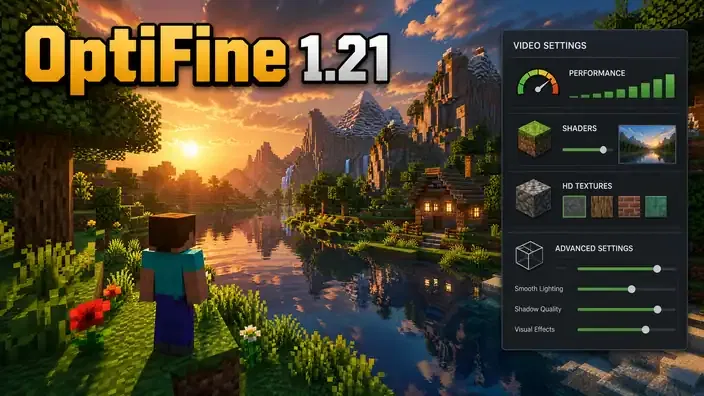
The official OptiFine website lists supported builds and their release status. For Minecraft 1.21, official listings include J1 preview builds. Minecraft 1.21.1 has the stable OptiFine HD U J1 release. This guide explains downloads, installation, settings, shaders, compatibility, and common problems. It also helps you choose the right OptiFine version for your setup.
Quick Answer: What Is OptiFine 1.21?
OptiFine 1.21 is a Minecraft Java Edition mod for graphics and performance optimization. It adds advanced video settings, shader support, HD textures, and visual customization. It also gives players more control over rendering and resource pack features. The J1 label identifies an OptiFine release build within its version series. Preview builds can appear before a stable release becomes available. You should always match the OptiFine build with your exact Minecraft version. Minecraft 1.21 and 1.21.1 require separate compatibility checks. A build made for one version may not work correctly with another.
| Minecraft Version | Relevant OptiFine Build |
| 1.21 | J1 preview builds |
| 1.21.1 | J1 |
| 1.21.3 | J2 |
| 1.21.4 | J3/J4 |
| 1.21.8 | J6 |
| 1.21.11 | J9 |
Before downloading, check your Minecraft version and the OptiFine release status. Use the official OptiFine downloads page for current version and build information.
What Is OptiFine?
OptiFine is a Minecraft Java Edition mod focused on performance and graphics customization. It has played a major role in Minecraft’s visual modding community for years. The developer sp614x maintains the OptiFine project and its releases. OptiFine HD is the project’s familiar naming format for its Minecraft builds. Each build targets specific Minecraft versions and can have different compatibility levels. That makes version matching essential when installing OptiFine. OptiFine runs on the client side of Minecraft Java Edition. Players install it separately because vanilla Minecraft does not include its features. After installation, OptiFine adds extra controls to Minecraft’s video settings.
Performance options help players adjust rendering and improve gameplay smoothness. Graphics options provide finer control over Minecraft’s visual appearance. Shader support can add advanced lighting, shadows, reflections, and atmospheric effects. Resource pack features support higher-resolution textures and additional visual customization. OptiFine also includes tools such as dynamic lighting and built-in zoom. These features can change how players experience exploration and combat. However, OptiFine does not guarantee a specific FPS increase. Performance depends on hardware, Minecraft versions, settings, shaders, and other installed mods. For accurate results, compare performance using identical settings and conditions. Always check the official OptiFine release information before choosing a build.
Which OptiFine Version Works With Minecraft 1.21?
OptiFine compatibility depends on your exact Minecraft version. The label “1.21” does not cover every 1.21.x release. Each Minecraft update can require a different OptiFine build.
OptiFine 1.21
The official downloads page lists J1 preview builds for Minecraft 1.21. These include J1 pre6, J1 pre8, and J1 pre9. These builds carry preview status rather than stable-release status. Therefore, check the exact OptiFine build before installing it. Do not assume every J1 build supports every 1.21.x version.
OptiFine 1.21.1
Minecraft 1.21.1 has the OptiFine HD U J1 release. The official listing identifies this build separately from the Minecraft 1.21 previews. The listing also provides Forge compatibility information for this release. This makes 1.21.1 different from the original 1.21 release.
Later 1.21.x Versions
OptiFine also provides builds for several later 1.21.x versions. The official list includes J2 for 1.21.3 and J3/J4 for 1.21.4. It also lists J6 for 1.21.8 and J9 for 1.21.11. Always follow this compatibility chain:
Minecraft version → OptiFine version → mod loader → installed mods
Using the wrong combination can cause crashes or prevent OptiFine from loading. Check the official OptiFine downloads page before choosing your installer.
OptiFine 1.21 Features
OptiFine 1.21 adds many tools for improving Minecraft’s performance and visual quality. Its features cover rendering, shaders, resource packs, lighting, and video controls. However, available features can vary between OptiFine builds and Minecraft versions.
FPS and Performance Optimization
OptiFine provides several settings that can help optimize Minecraft rendering. Players can adjust render distance to reduce the amount of world Minecraft draws. Smooth FPS can help maintain more consistent frame delivery on supported systems. Fast Render can improve rendering performance where the selected build supports it. Other performance settings let players balance visual quality against system workload. OptiFine cannot guarantee a specific FPS increase. Your results depend on hardware, settings, Minecraft version, and other installed mods.
Shader Support
OptiFine supports compatible shader packs for enhanced lighting and visual effects. Players can select installed shaders through the shader settings menu. Shader options can control shadows, lighting, reflections, and other effects. However, shaders can significantly increase GPU workload and reduce FPS.
HD Resource Packs
OptiFine expands support for high-resolution resource packs. It also supports visual features such as Connected Textures and custom textures. These features can create smoother surfaces and more detailed Minecraft environments.
Dynamic Lighting
Dynamic lighting can illuminate nearby areas from certain light-emitting items. Players can see light from held objects without placing them first. Supported dropped items can also produce dynamic lighting effects.
Zoom
OptiFine includes a built-in zoom feature for closer views. Players can use it to inspect distant objects or terrain details.
Custom Entity Models
Custom Entity Models, or CEM, allows supported resource packs to change mob models. This feature can create more detailed or unique entity appearances.
Custom Item Textures
Custom Item Textures, or CIT, lets compatible resource packs change item appearances. Resource packs can use these features to create varied item designs.
Advanced Video Settings
OptiFine adds detailed controls beyond standard Minecraft video options. These include Mipmaps, Anisotropic Filtering, Anti-aliasing, and Render Regions. Players can also adjust fog, Smooth Lighting, Custom Colors, and Custom Animations. Custom Lightmaps provide additional control over Minecraft’s lighting appearance. Together, these settings give players deeper control over Minecraft’s visual experience.
What Do You Need?
OptiFine 1.21 runs with Minecraft Java Edition on a compatible computer. You also need a working Minecraft installation and the official Minecraft Launcher. Your OptiFine build must match the Minecraft version you plan to play. Java also plays an important role during installation and gameplay. The required Java setup can depend on your Minecraft version and launcher environment. Keep your Java installation compatible with your Minecraft release. Your computer also needs suitable graphics hardware for your chosen settings. Basic OptiFine features can run without demanding shader effects. Shaders create a much heavier workload for your graphics processor.
Basic Requirements
For standard OptiFine use, you need:
- Minecraft Java Edition
- A compatible Minecraft version
- Minecraft Launcher
- Compatible Java environment
- Supported graphics hardware
- Enough system memory for Minecraft
- The correct OptiFine build
Shader Requirements
Shaders require stronger graphics hardware than standard OptiFine features. Higher shader quality can increase GPU usage and reduce FPS. High-resolution resource packs can also increase memory and graphics requirements. There is no single official hardware specification for every OptiFine setup. Your ideal requirements depend on Minecraft version, settings, resource packs, and shaders. Therefore, avoid treating generic hardware numbers as official OptiFine requirements. Always match your OptiFine build with your Minecraft version before installation.
How to Download OptiFine 1.21 Safely
Download OptiFine 1.21 from the official OptiFine website whenever possible. The official downloads page organizes builds by Minecraft version and release status.
Use the Official OptiFine Website
Avoid random websites that offer modified OptiFine Mod installers. Third-party pages can package installers with unwanted software or misleading downloads. The official site provides the original OptiFine releases and their changelogs.
Choose the Correct Minecraft Version
Follow these steps before downloading:
- Check your installed Minecraft Java Edition version.
- Find that exact version on the OptiFine downloads page.
- Check whether the build is stable or a preview.
- Open the changelog and review the release details.
- Download the matching OptiFine installer.
For Minecraft 1.21, the official page lists J1 preview builds. These include J1 pre6, J1 pre8, and J1 pre9. For Minecraft 1.21.1, the page lists OptiFine HD U J1 as a stable release.
Stay Safe During Download
Be careful with fake “latest OptiFine” claims and unofficial installers. Avoid suspicious executable files that include unrelated software. Never assume a download is safe because another website calls it official. Always verify the Minecraft version, OptiFine build, and release status first. This simple check can prevent many compatibility and security problems.
How to Install OptiFine 1.21
Installing OptiFine 1.21 requires the correct Minecraft version and installer. Check compatibility before starting the installation process.
Before Installation
First, install Minecraft Java Edition through the official Minecraft Launcher. Launch your target Minecraft version at least once. This step creates the required game files and version profile. Close Minecraft and the launcher before running the OptiFine installer. Then download the OptiFine build that matches your Minecraft version.
Installation Steps
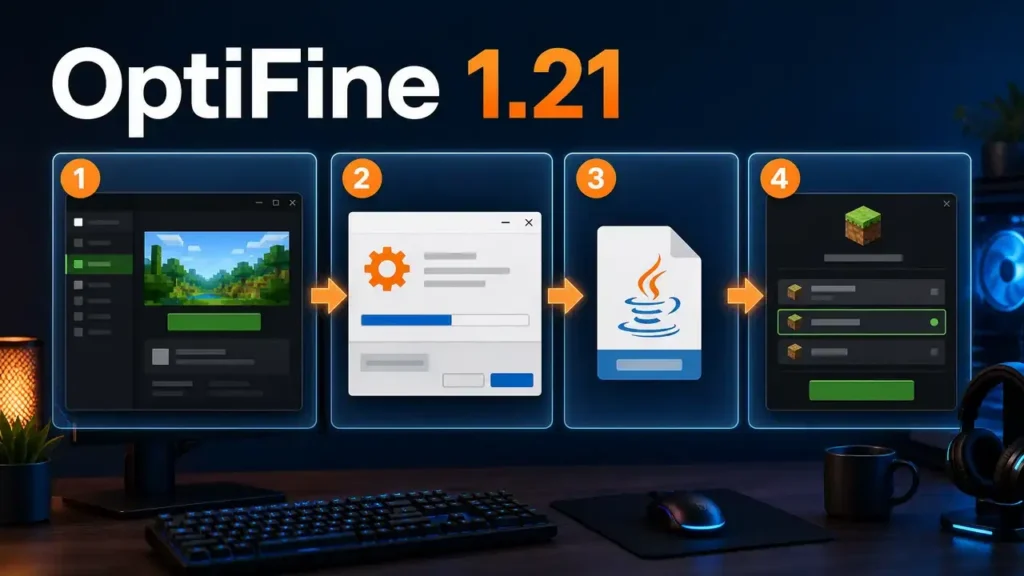
Follow these steps to install OptiFine 1.21:
- Locate the downloaded OptiFine .jar file.
- Double-click the file to open the installer.
- Confirm the displayed Minecraft directory.
- Select Install.
- Wait until the installer completes the process.
- Open the Minecraft Launcher again.
- Find the newly created OptiFine profile.
- Select the profile and start Minecraft.
If the installer does not open, check your Java setup. The installer requires a compatible Java environment to launch correctly.
Verify Installation
After Minecraft starts, open Options and enter Video Settings. OptiFine adds additional settings that vanilla Minecraft does not normally provide. You can also check the Minecraft title screen for version information. The displayed OptiFine version should match the build you installed. If OptiFine does not appear, stop and check your version compatibility. Using an OptiFine build for another Minecraft version can prevent proper installation. Always match the installer with your exact Minecraft release.
Can You Use OptiFine 1.21 With Forge?
Yes, some OptiFine builds support Forge for compatible Minecraft versions. However, compatibility depends on the exact OptiFine, Minecraft, and Forge versions. The official OptiFine downloads page identifies Forge compatibility for supported releases. This does not mean every OptiFine 1.21 preview works with every Forge release.
Match Your Versions Carefully
Check these three versions before installing:
- Your Minecraft version
- Your OptiFine build
- Your Forge version
For example, an OptiFine build for Minecraft 1.21.1 may not support another 1.21.x release. Forge also needs to target the same Minecraft version as OptiFine.
Add OptiFine With Forge
When a compatible setup supports Forge integration, follow the installation method for that release. Some setups use the Minecraft mods folder for the OptiFine .jar file. Always follow the instructions provided for your specific OptiFine build. Do not copy an OptiFine file into the mods folder blindly. The required method can differ between releases and configurations.
Why Compatibility Matters
Version mismatches can cause crashes, missing features, or failed loading. Other Forge mods can also conflict with OptiFine. If Minecraft crashes, remove recent mods and test the versions separately. Then add compatible mods back one at a time. Always verify Forge compatibility on the official OptiFine release page first.
Does OptiFine 1.21 Work With Fabric?
OptiFine and Fabric use different modding approaches within Minecraft Java Edition. Forge and Fabric are separate mod loaders with different mod ecosystems. OptiFine has historically focused on its own optimization and graphics feature set. Fabric players often choose modular alternatives instead of OptiFine. These alternatives divide performance and visual features across separate mods.
Sodium focuses mainly on rendering performance and FPS optimization.
Iris adds shader support within the Fabric ecosystem.
Lithium improves several game systems and can reduce unnecessary processing.
Entity Culling reduces rendering for entities that players cannot see.
These mods can work together when their versions match the Minecraft release. However, their compatibility depends on the exact versions and supporting libraries. Do not assume an OptiFine 1.21 build works directly with Fabric. Check the specific OptiFine release and mod documentation before combining them. If you prefer Fabric, a modular performance setup may suit your needs better.
Best OptiFine 1.21 Settings for Higher FPS
OptiFine 1.21 gives you many controls for balancing Minecraft visuals and performance. The best settings depend on your hardware and preferred image quality. Start with moderate changes, then test your FPS after each adjustment.
Performance Settings
Use performance-focused options when you want smoother gameplay. Fast performance options can reduce rendering workload on supported systems. Enable Smooth FPS if it improves frame consistency on your computer. Render Regions can improve chunk rendering efficiency in supported configurations. Entity-related settings can also reduce unnecessary rendering work. Avoid changing every setting at once. Testing individual changes helps you identify which options improve your performance.
Graphics Settings
Start by lowering Graphics quality if your FPS remains low.
Reduce Render Distance to limit how much terrain Minecraft renders.
Lower Simulation Distance to reduce the amount of active world processing.
Disable or reduce Smooth Lighting when maximum FPS matters.
Turn off Clouds if you do not need them.
Reducing Particles can help during busy scenes.
Disable Entity Shadows when you need additional performance.
Low-End PC
Focus on performance rather than visual detail.
- Use lower graphics quality.
- Reduce render distance.
- Lower simulation distance.
- Disable clouds.
- Reduce particles.
- Disable entity shadows.
- Avoid demanding shaders.
Mid-Range PC
Balance visual quality with consistent performance.
- Keep moderate render distance.
- Use smooth lighting at a lower level.
- Keep selected visual effects enabled.
- Adjust particles based on FPS.
- Use lightweight shaders when performance allows.
High-End PC
Prioritize visual quality while monitoring GPU usage.
- Increase render distance.
- Keep smooth lighting enabled.
- Use higher-quality graphics settings.
- Increase particles when desired.
- Enable visual effects that your hardware handles comfortably.
There is no universal FPS preset for every computer. Test these profiles and adjust individual settings for your system.
Best OptiFine 1.21 Shader Settings
OptiFine 1.21 shaders can transform Minecraft’s lighting, shadows, and atmosphere. However, shader effects place additional demands on your graphics processor. More advanced effects usually require stronger hardware and reduce available FPS.
How Shaders Affect Performance
Shader packs can add shadows, reflections, ambient lighting, and other effects. These effects increase GPU workload during gameplay. Your render distance also affects performance because Minecraft Optifine renders more terrain. Start with a moderate render distance before enabling demanding shader effects. Then increase visual settings gradually while monitoring FPS.
How to Activate Shaders
Download a shader pack that supports your Minecraft setup. Open Minecraft and select Options → Video Settings → Shaders.
Choose the installed shader pack from the available list. Apply the selection and return to your world.
Adjust Shader Settings
Use the shader’s own settings menu to control visual effects. Reduce shadow quality when performance drops. Lower reflections, volumetric effects, and other demanding features when necessary.
Low-End Systems
Choose lightweight shader packs with modest visual effects. Keep render distance lower and disable demanding shader features.
Mid-Range Systems
Use balanced shader presets with moderate shadows and lighting. Increase individual effects only when your FPS remains stable.
High-End Systems
Use advanced shader effects when your GPU can handle them. Higher shadow quality, reflections, and volumetric effects can improve visual detail. There is no universally best shader for every Minecraft player. The right choice depends on your hardware, resolution, settings, and desired visual style.
OptiFine 1.21 Resource Pack Support
OptiFine 1.21 supports resource packs that can change Minecraft’s textures and visual style. You can install a pack through Minecraft’s Resource Packs menu. Open Options → Resource Packs, then select your preferred pack.
OptiFine also supports features designed for enhanced resource packs.
HD textures can provide sharper and more detailed Minecraft visuals.
Connected Textures can create smoother connections between certain blocks.
Custom Item Textures can give supported items unique appearances.
Custom Entity Models can change supported mob models through compatible packs.
Resource packs can require specific OptiFine features or Minecraft versions. A pack may also conflict with shaders or another visual modification. Some packs may not support every OptiFine feature equally. When troubleshooting, test one resource pack at a time. This approach makes conflicts easier to identify. Start with a compatible pack before adding additional visual changes. Always check the resource pack’s compatibility notes before installing it. This helps prevent missing textures, broken models, and unexpected visual effects.
OptiFine 1.21 Video Settings Explained
OptiFine 1.21 expands Minecraft’s video controls with several detailed rendering options. Each setting affects visual quality, performance, or both.
Render Distance
Render Distance controls how far Minecraft displays terrain around you. Lower values can reduce rendering workload and improve FPS.
Simulation Distance
Simulation Distance controls how far game activity continues around the player. Lower values can reduce CPU workload during demanding scenes.
Mipmaps
Mipmaps improve the appearance of distant textures. Higher levels can make surfaces look smoother from farther away.
Anisotropic Filtering
Anisotropic Filtering improves texture clarity at angled viewing distances. Higher values can increase graphics processing demands.
Anti-Aliasing
Anti-Aliasing smooths jagged edges around blocks and objects. Higher-quality anti-aliasing can reduce performance on some systems.
Smooth Lighting
Smooth Lighting creates softer transitions between light and shadow. Lower settings can improve performance on weaker hardware.
Dynamic Lights
Dynamic Lights lets supported light sources illuminate nearby surroundings. It can improve visibility without requiring players to place every light source.
VSync
VSync synchronizes rendered frames with your display’s refresh rate. It can reduce screen tearing but may limit maximum FPS.
Entity Distance
Entity Distance controls how far Minecraft renders certain entities. Lower values can reduce rendering work in busy areas.
Fog
Fog controls atmospheric distance effects around the Minecraft world. Adjusting fog can change visibility and visual style. Test these settings gradually rather than changing everything simultaneously. Your ideal configuration depends on hardware, resolution, and preferred visual quality.
Common OptiFine 1.21 Problems
OptiFine 1.21 can fail when versions, Java settings, or other mods conflict. Most problems become easier to solve after checking the installation setup.
OptiFine 1.21 Does Not Install
First, confirm that your OptiFine build matches Minecraft. Then check whether your Java environment can open .jar files. A wrong Java setup can prevent the installer from launching. Also verify the Minecraft game directory. A broken file association can stop the installer from opening correctly.
OptiFine 1.21 Does Not Appear in the Launcher
Check whether the installer completed successfully. Then reopen the Minecraft Launcher and review the available installations. Make sure you selected the correct Minecraft directory during installation. A different game directory can prevent the expected profile from appearing.
Minecraft Crashes After Installing OptiFine
Version mismatches often cause loading failures. Check your Minecraft, OptiFine, and Forge versions first. Other mods can also conflict with OptiFine. Temporarily remove recently added mods and test Minecraft again. Resource packs and shaders can also trigger crashes. Disable them before testing your base OptiFine installation.
Shaders Are Not Working
Check whether the shader supports your Minecraft and OptiFine setup. Confirm that you placed the shader correctly through the shader menu. Your graphics hardware may also struggle with demanding shader effects. Lower shader quality and disable advanced effects to test performance.
FPS Did Not Increase
OptiFine does not guarantee a specific FPS increase. Your CPU, GPU, memory, settings, and Minecraft version all affect performance. Shaders can reduce FPS because they increase GPU workload. Higher render distance also requires Minecraft to render more terrain.
OptiFine Causes Visual Bugs
Disable shaders and resource packs first. Then test Minecraft with default visual settings. If the problem disappears, enable each modification separately. This method helps identify conflicting mods, packs, or settings. Always test changes one at a time. That makes the underlying problem much easier to identify.
OptiFine 1.21 vs Sodium
OptiFine 1.21 and Sodium both target Minecraft performance, but they follow different approaches. OptiFine combines performance tools with extensive graphics customization. Sodium focuses heavily on modern rendering performance within the Fabric ecosystem.
| Feature | OptiFine 1.21 | Sodium |
| FPS optimization | Yes | Yes |
| Shader ecosystem | Built-in shader support | Usually paired with Iris |
| HD textures | Strong support | Depends on supporting mods |
| Zoom | Built in | Usually separate mod |
| Video settings | Extensive | Different approach |
| Resource-pack features | Extensive | Depends on ecosystem |
| Mod ecosystem | Forge-focused history | Fabric ecosystem |
Choose OptiFine When
OptiFine suits players who want many features in one mod. It combines performance controls, shader support, resource-pack features, and visual settings. Its built-in zoom also removes the need for a separate zoom mod.
Choose Sodium When
Sodium suits players who prioritize modern rendering performance. It works within a modular Fabric-based setup. Players can combine it with Iris for shader support. Sodium does not replace every OptiFine feature by itself. You may need additional Fabric mods for specific visual or customization features. Neither option is universally better for every player. Your choice depends on your Minecraft version, mod loader, hardware, and preferred features. Check compatibility before switching between mod ecosystems. A clean test installation can also help you compare both setups fairly.
Best OptiFine 1.21 Alternatives
Several Minecraft mods can replace specific OptiFine features. Most alternatives follow a modular approach instead of combining everything into one mod.
Sodium focuses on rendering performance and efficient FPS optimization.
Iris adds shader support for compatible Fabric-based setups.
Lithium targets game logic and can improve server-side and client-side processing efficiency.
Entity Culling reduces rendering for entities hidden from the player’s view.
More Culling adds additional culling techniques for supported Minecraft setups.
Zoomify provides zoom functionality when you use a modular Fabric setup.
Continuity focuses on connected textures and related resource-pack features.
These mods can work together, but compatibility depends on Minecraft and mod versions. You may also need supporting libraries for certain combinations. The main difference is how these solutions divide OptiFine’s feature set. One mod may handle rendering while another manages shaders or visual features. This approach gives players more control over their modpack. However, it can require more setup and compatibility checks. Choose alternatives based on the specific OptiFine features you actually need. A smaller mod collection can also make troubleshooting easier.
Is OptiFine 1.21 Right for You?
OptiFine 1.21 works well for players who want broad control over Minecraft’s visuals. It also suits users who prefer several features inside one mod.
Good for:
- Players who want extensive video settings.
- Players who regularly use compatible shader packs.
- Players who enjoy HD resource packs.
- Players who want built-in zoom and visual customization.
- Players already familiar with OptiFine settings.
- Players who prefer an all-in-one graphics solution.
OptiFine can simplify setup when you want several visual features together. You can manage many options from Minecraft’s existing video settings.
Consider Alternatives If:
- You prefer the Fabric mod ecosystem.
- Modern rendering performance is your main priority.
- You prefer modular optimization.
- A required mod supports another ecosystem better.
- You want separate mods for specific features.
Your hardware and Minecraft version should also influence your decision. Compatibility matters more than choosing a mod based on popularity. If OptiFine provides the features you need, it remains a practical choice. If not, a modular alternative setup may suit your playstyle better.
OptiFine 1.21 Pros and Cons
OptiFine 1.21 offers a broad feature set for Minecraft Java Edition players. However, it also has some limitations worth considering before installation.
Pros
- Extensive graphics and video settings.
- Built-in shader support.
- Support for HD resource packs.
- Dynamic lighting features.
- Built-in zoom functionality.
- Many visual customization options.
- Performance settings for different hardware levels.
Cons
- Version compatibility can confuse new users.
- Preview builds may behave differently from stable releases.
- Compatibility with other mods can vary.
- Performance improvements differ between computers.
- Shaders can increase GPU workload.
- Some players may prefer newer modular alternatives.
Overall, OptiFine suits players who value extensive customization. Its version and mod compatibility require careful checking before installation.
OptiFine 1.21 FAQs
Is OptiFine available for Minecraft 1.21?
Yes, official OptiFine listings include J1 preview builds for Minecraft 1.21. These include J1 pre6, J1 pre8, and J1 pre9.
What is the best OptiFine version for Minecraft 1.21?
Choose the build that matches your exact Minecraft version. Minecraft 1.21 and 1.21.1 use different OptiFine releases.
Is OptiFine 1.21.1 stable?
Yes. OptiFine HD U J1 supports Minecraft 1.21.1 as a stable release.
Can I download OptiFine 1.21 for free?
Yes, OptiFine downloads are available through the official OptiFine website. Always use the official download page instead of unofficial mirrors.
How do I install OptiFine 1.21?
Download the matching installer and open its .jar file. Then select Install and launch the created OptiFine profile.
Can OptiFine 1.21 work with Forge?
Some builds support Forge, but compatibility depends on exact versions. Match Minecraft, OptiFine, and Forge before installation.
Does OptiFine 1.21 support shaders?
Yes, compatible shader packs can work through OptiFine’s shader system. Shader performance depends heavily on your graphics hardware and settings.
Does OptiFine increase FPS?
It can improve performance on some systems and configurations. However, OptiFine does not guarantee a specific FPS increase. Hardware, settings, shaders, and other mods can change the results.
Why is OptiFine 1.21 not working?
Check your Minecraft and OptiFine versions first. Then check Java, Forge, mods, shaders, and resource packs for conflicts.
Is OptiFine better than Sodium?
Neither option is universally better. OptiFine suits players wanting extensive graphics features in one mod. Sodium suits players focused on modern rendering performance and modular Fabric setups.
Can I use OptiFine with Minecraft Java Edition?
Yes. OptiFine targets Minecraft Java Edition. You should still match the OptiFine build with your Minecraft version.
Is OptiFine safe?
Download OptiFine from its official website whenever possible. Avoid unofficial installers, suspicious mirrors, and fake “latest version” downloads. Verify the Minecraft version and OptiFine build before installing.
Conclusion
OptiFine 1.21 remains useful for players who want deeper control over Minecraft Java Edition. It combines performance options, shader support, resource-pack features, and visual customization. Players who enjoy shaders and HD textures can benefit from its broad feature set. Its built-in zoom and advanced video settings also add practical customization. Version compatibility remains the most important consideration. Minecraft 1.21, 1.21.1, and later 1.21.x versions use different OptiFine builds. Always match your OptiFine release with your exact Minecraft version.
OptiFine can improve performance on some systems, but results vary by setup. Your hardware, render settings, shaders, and other mods all affect FPS. Players who prefer Fabric can explore alternatives such as Sodium and Iris. Those options provide a more modular approach to performance and shaders. Overall, OptiFine 1.21 suits players who value features, customization, and control. Choose it when its features match your Minecraft setup and playstyle.