
Minecraft Download: How to Download and Install Minecraft
Minecraft is a sandbox game where you can build, explore, craft, and survive in your own worlds. For a safe Minecraft download, use the official Minecraft website or your device’s official app store. Avoid unknown websites that offer modified or unofficial game files. PC players can get Minecraft: Java and Bedrock Edition together. Java Edition works on Windows, macOS, and Linux. Bedrock Edition also supports Windows, consoles, mobile devices, and Chromebook.
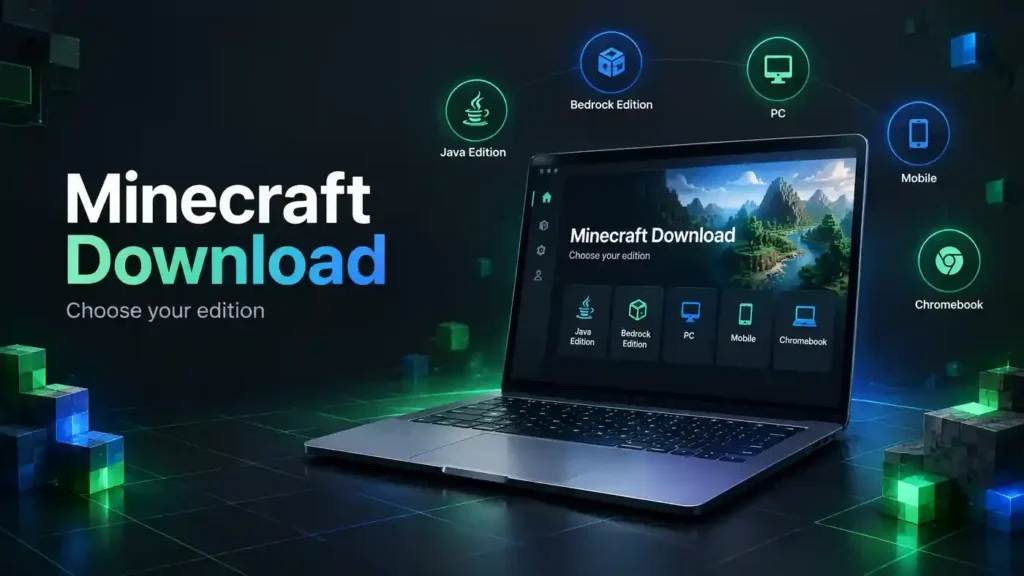
Choose Java if you want mods, custom servers, and PC-focused gameplay. Choose Bedrock if you want broader cross-platform play and mobile or console support. Your download and installation steps depend on your device. The sections below explain the correct method for PC, mobile, and other supported platforms.
Minecraft Download at a Glance
The right Minecraft download depends on your device and the edition you want to play.
- PC: Download the Minecraft Launcher from the official Minecraft website.
- Windows: Minecraft: Java & Bedrock Edition gives PC players access to both editions.
- macOS: Download Minecraft Java Edition through the official Launcher.
- Linux: Download Minecraft Java Edition for supported Linux distributions.
- Android: Get Minecraft through Google Play.
- iPhone/iPad: Get Minecraft through the App Store.
- Chromebook: Minecraft supports Chromebook through its supported Bedrock route. Check your device before installing.
- Minecraft Education: Use the separate Minecraft Education download for Windows, Mac, ChromeOS, iOS, or Android.
For the safest download, use official Minecraft or platform stores. Avoid modified installers and unknown download sites and OptiFine for Fabric.
How to Download Minecraft Safely
Use the Official Minecraft Website
Always download Minecraft from an official source. The official Minecraft website provides the correct Launcher and platform-specific downloads. Avoid websites that offer modified launchers, cracked versions, or unknown game files. These files may contain unwanted software or outdated versions. The official download page also provides links to Minecraft support and troubleshooting guides.
Choose Your Device
Your download method depends on the device you use. Windows PC users can access both Java and Bedrock Edition. Mac and Linux users can download Java Edition through the official Launcher. Mobile users should use their device’s official app store. Android users can use Google Play, while iPhone and iPad users can use the App Store.
Sign In With Your Microsoft Account
Minecraft uses Microsoft accounts across its major editions and platforms. Your account also connects your purchases and Minecraft content. If you already own Minecraft, use the same Microsoft account that you used to buy it. Your game should then appear in your library.
Download the Correct Launcher or App
On PC, download the official Minecraft Launcher. On mobile, install the official Minecraft app from your platform’s store. Do not download random .exe, APK, or modified installer files. Stick to official sources to reduce security risks and avoid outdated game files.
Minecraft Java vs Bedrock — Which One Should You Download?
Minecraft comes in two main editions: Java Edition and Bedrock Edition. Your device and play style should guide your choice.
Minecraft Java Edition
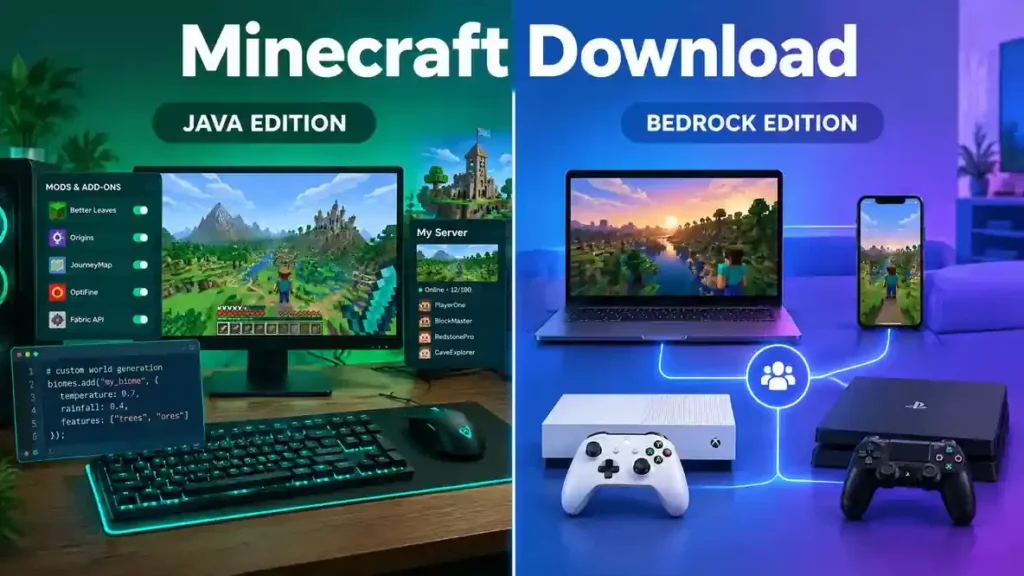
Java Edition is designed for PC players. It runs on Windows, macOS, and Linux. Java stands out for its strong mod support. Players can also join many community-run servers and customize their gameplay. It also gives players more control over game versions. Advanced players can test snapshots and use different releases through the Launcher. Choose Java if you mainly play on a computer and want mods or custom servers.
Minecraft Bedrock Edition
Bedrock Edition supports Windows, consoles, mobile devices, and Chromebook. Its biggest advantage is broad cross-platform play. Bedrock players can play together across supported devices. Bedrock also supports touch controls and compatible controllers. It includes the Minecraft Marketplace for maps, skins, add-ons, and other creator content. Choose Bedrock if you want to play with friends on different devices.
Java vs Bedrock Comparison
| Feature | Java Edition | Bedrock Edition |
| Windows | Yes | Yes |
| macOS | Yes | No |
| Linux | Yes | No |
| Mobile | No | Yes |
| Consoles | No | Yes |
| Chromebook | No | Yes |
| Mods | Strong support | Add-ons and Marketplace content |
| Cross-platform play | Windows, Mac, Linux | Windows, consoles, mobile, Chromebook |
| Controller/touch | No native support | Yes |
| Marketplace | No | Yes |
Quick choice: Pick Java for PC-focused modding and custom servers. Pick Bedrock for cross-platform play and controller or touch support.
How to Download Minecraft on PC
PC players can download Minecraft through the official Minecraft Launcher. The Launcher brings your Minecraft games into one place. It also handles game updates and different releases.
Download Minecraft Launcher
Follow these steps to install Minecraft on your PC:
- Open the official Minecraft Download page.
- Select the Download Launcher option.
- Install the Minecraft Launcher on your computer.
- Open the Launcher after installation.
- Sign in with the Microsoft account linked to your Minecraft purchase.
- Select Minecraft from your available games.
- Choose the edition and select Play or Install.
If you already own Minecraft for PC, you do not need to buy it again on another PC. Sign in with the same Microsoft account that owns the game.
Minecraft Download for Windows 10/11
Windows users can access both Java Edition and Bedrock Edition through the PC package. The Launcher lets you switch between the two editions. Choose Java Edition for PC-focused gameplay, mods, and custom servers. Choose Bedrock Edition for cross-platform play and controller support.
Minecraft Download for Mac
Mac users can download Minecraft Java Edition through the official Minecraft Launcher. Java Edition supports macOS alongside Windows and Linux.
Minecraft Download for Linux
Linux users can download Java Edition from the official Minecraft download page. Minecraft provides packages for Debian-based and Arch-based Linux systems, plus other distributions. Always choose the download that matches your operating system. This reduces installation problems and keeps your Minecraft files from unofficial sources.
How to Download Minecraft on Android
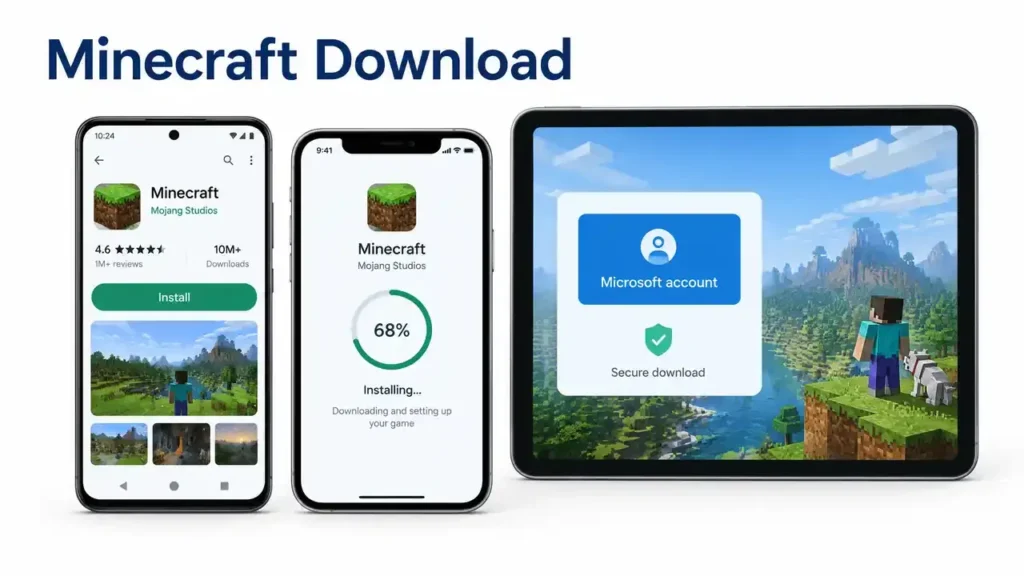
Android users can download Minecraft through Google Play. This gives you the official game and its updates from a trusted source.
Android Requirements
Minecraft runs on supported Android devices. Your device also needs a Google account for the Android version. A Microsoft account is required for several Minecraft features. Check your device before buying the game. Older or unsupported devices may not provide the expected experience.
Find Minecraft in Google Play
Open the Google Play Store on your Android device. Search for Minecraft and check that you select the official game. Avoid websites that offer Minecraft APK files. They may provide modified, unsafe, or outdated files.
Purchase and Install
Open the official Minecraft listing in Google Play. Complete the purchase if you do not already own the game. Then tap Install and wait for the download to finish. Open Minecraft after the installation completes. If you already purchased Minecraft, use the same account connected to your purchase.
Sign In
Open Minecraft and sign in with your Microsoft account. This account supports features such as cross-platform play and other Minecraft services.
Update Minecraft
Open Google Play and search for Minecraft. Tap Update when a newer version appears. Minecraft’s official instructions recommend Google Play for Android updates.
How to Download Minecraft on iPhone and iPad
Open the App Store
Open the App Store on your iPhone or iPad. Make sure your device uses the correct Apple account.
Search for Minecraft
Search for Minecraft in the App Store. Select the official Minecraft app before downloading.
Purchase and Download
If you do not own Minecraft, complete the purchase through the App Store. Then tap Get or the download button to install it. If you already purchased Minecraft, use the same Apple account when possible.
Sign In
Open Minecraft after installation. Tap Sign In and use your Microsoft account. Apple devices require a Microsoft account and Apple ID for Minecraft.
Update the Game
To update Minecraft, open the App Store and check for an available update. Minecraft recommends using the App Store for iOS updates.
Minecraft Download for Chromebook
Chromebook users can download Minecraft: Bedrock Edition through the Google Play Store. Official Minecraft support lists Chromebook under Bedrock availability.
Which Edition Works on Chromebook?
Chromebook supports the Bedrock Edition. It offers cross-platform play, Marketplace content, and Realms on compatible devices.
Where to Get Minecraft
Open the Google Play Store on your Chromebook. Search for Minecraft and install the official app. Only compatible Chromebooks can run the game.
Account Requirements
You need a Google account to use Google Play. You also need a Microsoft account for Minecraft features and services.
Avoid Unofficial Downloads
Do not download random APKs or modified Minecraft files from unknown websites. These files may be unsafe or outdated. The Google Play Store provides the official Chromebook download route.
Minecraft System Requirements
Minecraft can run on many PCs, but Java Edition needs stronger hardware than Bedrock. The official PC requirements also separate minimum and recommended specifications.
Java Edition Requirements
- Operating system: Windows 10 64-bit, macOS 12+, or Linux 64-bit minimum.
- RAM: 8 GB with a dedicated GPU, or 12 GB with integrated graphics. 16 GB is recommended.
- CPU: Intel Core i3-10100, Ryzen 3 3100, Apple M1, or similar minimum.
- GPU: Vulkan 1.3-capable GPU with at least 2 GB VRAM.
- Storage: 2 GB minimum, with 4 GB recommended.
- Bedrock Requirements
- Operating system: Windows 10 version 19041.0 or higher.
- RAM: 4 GB minimum, 8 GB recommended.
- CPU: Intel Celeron J4105 or AMD FX-4100 minimum.
- GPU: Intel HD Graphics 4000 or AMD Radeon R5 minimum.
- Storage: 4 GB minimum, with 8 GB recommended.
Can Minecraft Run on a Low-End PC?
Yes, Bedrock is usually the better choice for weaker PCs. The official page says Bedrock does not require powerful hardware and often runs more smoothly than Java. For Java, meeting the minimum requirements does not guarantee high FPS. Lower render distance and graphics settings can help older hardware.
How to Install Minecraft After Downloading
After downloading Minecraft, you need to finish the setup through the official Launcher. The Launcher manages your Minecraft games and available versions.
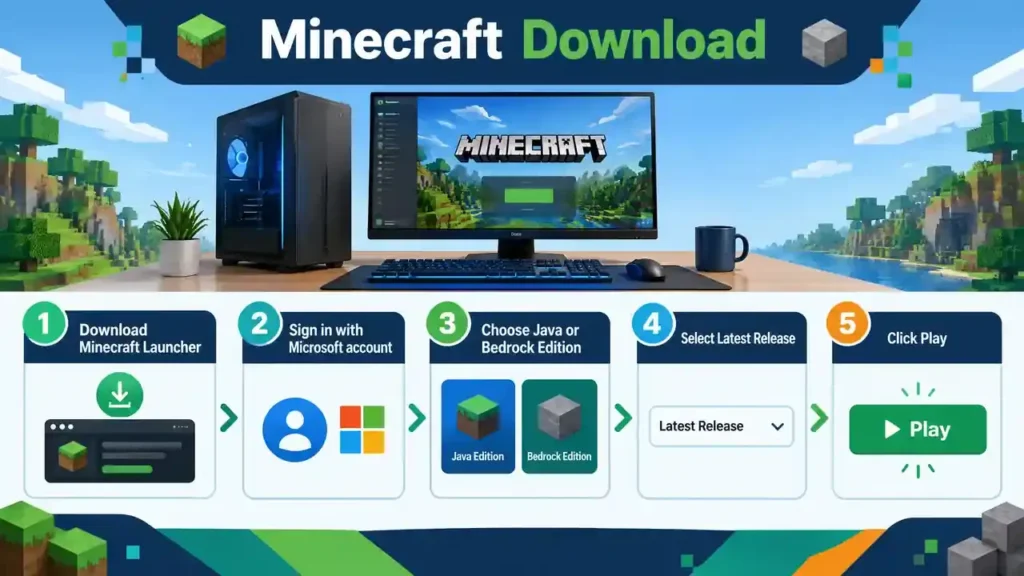
Install the Minecraft Launcher
Open the downloaded Launcher installer and follow the setup instructions. After installation, open the Minecraft Launcher.
Sign In
Sign in with the Microsoft account that owns Minecraft. This account lets the Launcher access your purchased game.
Select the Edition
Choose Minecraft: Java Edition or Minecraft for Windows (Bedrock Edition). Your available editions depend on your purchase and device.
Select the Latest Release
For Java Edition, the Launcher normally shows the latest release automatically. If needed, open the version selector and choose Latest Release.
Click Play
Click Play to start the installation. The Launcher may download required game files before Minecraft opens. Let the download finish without closing the Launcher. Afterward, Minecraft should start normally.
How to Update Minecraft
Keeping Minecraft updated gives you access to the latest features, fixes, and improvements. The update method depends on your platform.
PC/Launcher
For Java Edition, open the Minecraft Launcher. It normally shows the latest release automatically. If needed, select Latest Release beside the Play button. For Minecraft for Windows, open the Microsoft Store. Go to Library and select Get Updates.
Android
Open Google Play, search for Minecraft, and tap Update when available.
iPhone and iPad
Open the App Store and check Minecraft for an available update.
Xbox
Go to My Apps & Games → Minecraft → Manage game & add-ons → Updates.
PlayStation
Minecraft can update automatically. If needed, select the game and choose Check for Update. Keeping the game updated helps you receive current Minecraft content and avoid problems caused by outdated versions.
Minecraft Download Problems and Fixes
Minecraft download problems can come from your internet, launcher, account, or device. Try these fixes before reinstalling the game. The official Minecraft download page also provides troubleshooting resources for installation, connection, sign-in, and crashes.
Minecraft Launcher Won’t Download
First, check your internet connection. Then update the Minecraft Launcher through the Microsoft Store. If installation fails, Windows troubleshooting can help identify Store-related problems.
Minecraft Launcher Won’t Open
Check whether the Launcher needs an update. Restart your PC and try opening it again. If the problem continues, use Minecraft’s official Launcher troubleshooting resources.
Minecraft Download Is Stuck
Check your internet connection and restart the Launcher. Also make sure your device has enough free storage. A temporary connection or Store problem can interrupt downloads.
Minecraft Installation Failed
Update Windows and the Microsoft Store first. Then retry the installation. If you see an error code, search the official Minecraft Help Center for that exact code.
Minecraft Says I Don’t Own the Game
Make sure you signed in with the Microsoft account that purchased Minecraft. You can confirm the purchase through your Microsoft account order history.
Minecraft Won’t Update
On Java Edition, open the Launcher and select Latest Release. For Windows, update Minecraft through the Microsoft Store.
Minecraft Downloaded but Won’t Start
Check your system requirements and update the game. Java players with limited RAM may also experience crashes from incorrect memory allocation. If these steps do not solve the problem, use the official Minecraft Download page and its linked troubleshooting guides.
Can You Download Minecraft for Free?
The full version of Minecraft is generally a paid game. However, Mojang offers an official Minecraft free trial for supported platforms.
Is There a Free Minecraft Trial?
Yes. The official trial lets you play the core Survival experience. You can craft, explore, and fight while testing the game before buying it. The trial supports Java Edition on Windows, Mac, and Linux. Bedrock trials are available on selected platforms, including Windows, PlayStation, and Android. The trial provides about 100 minutes of gameplay, or roughly five in-game days. Online multiplayer servers are disabled, although LAN multiplayer is supported.
Avoid Minecraft Cracked Downloads
Websites offering a full Minecraft free download through cracked launchers are not legitimate alternatives. Avoid modified APKs, pirated launchers, and unknown game files. For a safe trial, use the official Minecraft free trial and sign in with a Microsoft account.
Frequently Asked Questions
Where can I download Minecraft safely?
Use the official Minecraft website or your device’s official app store. Avoid unknown websites and modified game files.
Is Minecraft free to download?
The full game is generally paid. However, Minecraft offers official free trials for selected platforms.
Can I download Minecraft without the Launcher?
Yes. Minecraft says you can launch the games without the Launcher. However, the Launcher keeps your PC games and versions together.
Should I download Java or Bedrock?
Choose Java for PC modding and custom servers. Choose Bedrock for cross-platform play across supported devices.
Can I download Minecraft on Windows 11?
Yes. Windows 11 supports Minecraft: Java & Bedrock Edition. The official Launcher provides access to both editions.
Can I download Minecraft on Mac?
Yes. Mac supports Minecraft Java Edition through the official Minecraft Launcher.
Can I download Minecraft on Android?
Yes. Android users can download Minecraft through Google Play. You should use the official app instead of unofficial APK files.
Can I reinstall Minecraft if I already purchased it?
Yes. Download the Launcher again and sign in with the Microsoft account used for your purchase. Your purchased game should appear in your library.
Do I need a Microsoft account?
Yes. Minecraft uses Microsoft accounts for signing in across supported platforms. You can create one through the Launcher or Microsoft’s account system.
How do I update Minecraft after downloading it?
Open the Launcher for Java Edition and select Latest Release if needed. Mobile users can update through the App Store or Google Play.
Final Answer
For PC, start with the official Minecraft Launcher. Sign in with your Microsoft account, choose Minecraft, and install your edition. The official Launcher keeps Minecraft games and updates in one place. Choose Java Edition if you want PC-focused gameplay, mods, and custom servers. Choose Bedrock Edition if you want cross-platform play across supported PC, console, and mobile devices. Always use official download sources. Keep Minecraft updated to get the latest features, fixes, and improvements and Minecraft OptiFine.