
Minecraft OptiFine 1.15: Complete Guide to FPS Boost, Shaders, Installation and Optimization
Minecraft has always been a game of limitless creativity, but as the world builds up, the hardware beneath it often struggles to keep pace. For players experiencing lag, low frame rates, and stuttering gameplay, the wait for a solution is a painful one. Enter OptiFine 1.15, the undisputed champion of Minecraft performance optimization.
The Buzzy Bees update (Minecraft 1.15) brought a host of new features, including the highly anticipated bees, beehives, and honey blocks. However, alongside these additions came significant performance improvements to the base game. Despite these updates, many players still find themselves needing an extra edge to run shaders, high-resolution texture packs, and simply enjoy a smooth, buttery framerate. This is where OptiFine 1.15 steps in, transforming the vanilla Minecraft experience into a visually stunning and highly optimized masterpiece.
In this comprehensive guide, we will delve deep into everything you need to know about Minecraft OptiFine 1.15. From installation steps and performance boosts to shader integration and configuration settings, this article serves as your ultimate roadmap to maximizing your Minecraft 1.15 experience. Whether you are a beginner looking to improve your frame rates or an advanced player seeking the perfect shader setup, this guide has everything you need.
What is minecraft optifine 1.15?
Definition and Overview
OptiFine is a third-party optimization mod for the Java edition of Minecraft. It has been a staple in the Minecraft Optifine community for over a decade, serving as the bridge between low-end hardware struggles and high-end visual desires. The core philosophy behind OptiFine is to increase the game’s rendering efficiency, thereby boosting frames per second (FPS) and reducing lag spikes .
The 1.15 version of OptiFine is specifically designed for Minecraft Java Edition 1.15.2, the final and most stable release of the Buzzy Bees update. The most widely used version is OptiFine 1.15.2 HD U G6, which offers the best balance of performance, stability, and shader compatibility for that specific update.
Why OptiFine 1.15 Matters
The 1.15 version of OptiFine is particularly notable because it successfully navigated the transition period of Minecraft’s rendering engine, providing stability where other optimization methods sometimes faltered. It remains one of the most downloaded versions of the mod, proving its enduring value even years after its initial release.
| Detail | Information |
| Official Version | OptiFine HD U G6 |
| Compatible Minecraft | 1.15.2 (Java Edition) |
| Released | 2020 |
| Developer | sp614x |
| Official Website | optifine.net |
| License | Proprietary |
What OptiFine Does
OptiFine fundamentally rewrites how Minecraft handles rendering, allowing for much more efficient use of the computer’s graphics processing unit (GPU). It does this by optimizing draw calls, reducing texture memory usage, and providing granular control over visual features that are either absent or locked in the vanilla client. The result is a game that runs faster while simultaneously offering advanced graphics configurations that vanilla Minecraft simply does not provide.
Key Features of OptiFine 1.15
OptiFine is not just about making the game run faster; it is about giving the player complete control over the visual and performance aspects of the game. The 1.15 version encompasses a vast array of features designed to cater to both competitive PvP players and aesthetic-focused builders.
Performance Optimization and FPS Boost
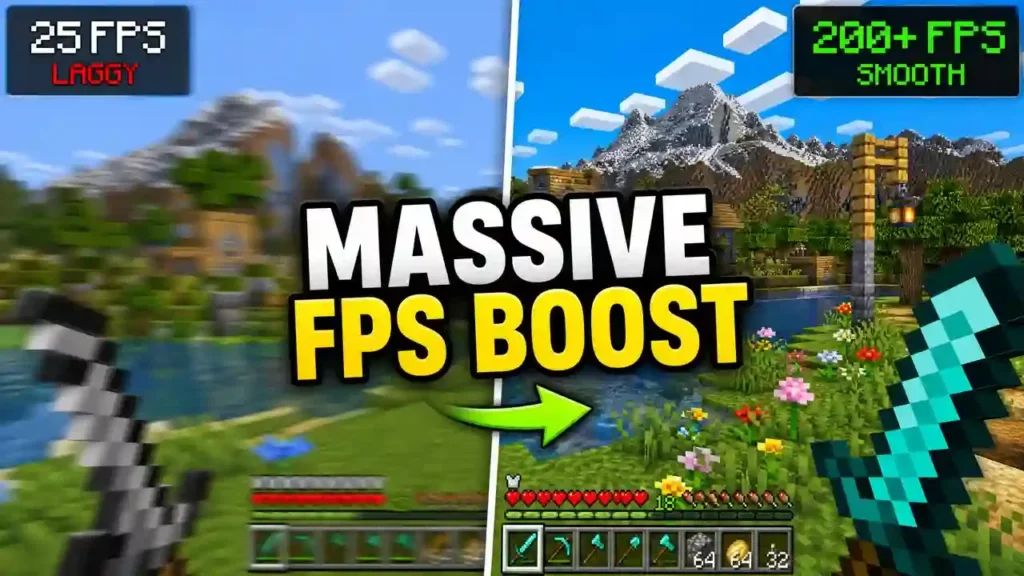
The primary draw for the majority of OptiFine users is the significant increase in performance. Community benchmarks and user reports consistently show that OptiFine 1.15 provides an average performance increase of 86% more FPS compared to the standard vanilla client .
| Performance Feature | Description |
| FPS Doubling | Frame rates commonly double upon installing OptiFine |
| Lag Spike Reduction | Smooths chunk loading and optimizes graphical data |
| Smooth Gameplay | Stabilizes frame rates for less stuttering |
| Smooth Input | Fixes stuck keys, slow input, and sound lag |
| Smart Advanced OpenGL | More efficient rendering with fewer artifacts |
Advanced Graphics Settings
Beyond raw performance, OptiFine 1.15 unlocks a treasure trove of graphical settings that Mojang does not provide in the base game. These settings allow players to fine-tune the game’s appearance to perfectly match their hardware capabilities.
| Graphics Setting | Options Available | Performance Impact |
| Render Distance | Tiny to Extreme (2x Far) | High |
| Smooth Lighting | 1% to 100% | Medium |
| Fog Control | Fancy, Fast, OFF | Low |
| Mipmaps | OFF, 1, 2, 3, Max | Medium |
| Anisotropic Filtering | OFF, 2, 4, 8, 16 | High |
| Antialiasing | OFF, 2, 4, 6, 8, 12, 16 | Very High |
Visual Enhancements
OptiFine introduces several visual tweaks that improve the aesthetic quality of the game without requiring heavy resource packs.
| Visual Enhancement | What It Does |
| Better Grass | Fixes grass block sides to match surrounding terrain |
| Better Snow | Fixes transparent blocks to match surrounding snow |
| Clear Water | Makes water transparent for better underwater visibility |
| Connected Textures | Connects glass, sandstone, bookshelf textures |
| Natural Textures | Removes grid-like repeating patterns |
| Random Mobs | Uses random mob textures from texture packs |
| Dynamic Lights | Handheld items illuminate surrounding area |
Mod and Shader Support
One of the most critical features of OptiFine 1.15 is its support for external modifications. It acts as the engine behind many of the most popular visual mods and shader packs.
•HD Textures: OptiFine allows the use of high-definition texture packs (16x, 32x, 64x, 128x, and higher resolutions) and custom fonts, completely transforming the game’s visual identity.
•Shader Compatibility: OptiFine is the foundational mod required to run almost all Minecraft shader packs. Shaders add realistic lighting, dynamic shadows, water reflections, and volumetric clouds, turning Minecraft into a visually breathtaking experience.
•Custom Colors: Allows texture packs to define custom colors for blocks and items.
•Fast Texturepack Switching: Switch texture packs without leaving the world.
Chunk Loading and World Management
OptiFine provides sophisticated tools for managing how the game loads and renders the world around you.
| Chunk Setting | Function |
| Load Far | Loads world chunks at distance Far |
| Preloaded Chunks | Defines an area where no new chunks load |
| Chunk Updates per Frame | Controls speed of world loading |
| Dynamic Updates | Loads more chunks when player stands still |
Configurable Animations
Minecraft is filled with animated textures that require the GPU to constantly redraw them. OptiFine 1.15 allows players to selectively enable or disable specific animations.
| Animation | Default State | Toggle Options |
| Water Animated | ON | OFF, Dynamic, ON |
| Lava Animated | ON | OFF, Dynamic, ON |
| Fire Animated | ON | OFF, ON |
| Portal Animated | ON | OFF, ON |
| Explosion Animated | ON | OFF, ON |
| Rain Splash | ON | OFF, ON |
| Terrain Animated | ON | OFF, ON |
How to Download and Install minecraft optifine 1.15
Installing OptiFine can seem daunting to new players, but the process is straightforward. The most common version targeted for the 1.15 update cycle is OptiFine 1.15.2 HD U G6 .
Prerequisites
Before beginning the installation, ensure you have the following requirements met:
| Requirement | Details |
| Java Version | Java 8 (required for Minecraft 1.15) |
| Minecraft Launcher | Official Minecraft Launcher installed and logged in |
| Minecraft Version | 1.15.2 installation created in launcher |
| Disk Space | Approximately 50 MB for OptiFine |
| Operating System | Windows, macOS, or Linux |
Step-by-Step Installation Guide
Follow these steps carefully to install OptiFine safely and correctly.
Step 1: Download the OptiFine File
Navigate to the official OptiFine download page at optifine.net/downloads. Locate the section for Minecraft 1.15.2 and look for the release labeled HD U G6 . Click the “Download” link next to it. You may need to wait a few seconds for a “Skip” button to appear at the top right of the ad page before the actual download begins. The file will be downloaded as a .jar file.
Step 2: Install the JAR File
Once the .jar file has finished downloading, simply double-click it. If Java is installed correctly, a graphical interface will appear with an “Install” button. If nothing happens, you may need to right-click the file, select “Open with,” and choose “Java(TM) Platform SE binary.”
Step 3: Complete the Installation
In the graphical interface that appears, click the “Install” button. OptiFine will automatically locate your Minecraft directory and install the necessary files. You should see a success message indicating that OptiFine has been successfully patched into your Minecraft installation.
Step 4: Launch Minecraft
Open the Minecraft Launcher and click on the “Installations” tab. Create a new installation, select “release 1.15.2” from the version dropdown menu, give it a name (e.g., “OptiFine 1.15.2”), and click “Create.” Alternatively, OptiFine often creates its own profile in the launcher automatically. Look for an installation named something like “OptiFine 1.15.2 HD U G6.” Select this new installation and click “Play.” The game will load, and you will know OptiFine is active if you see the OptiFine logo on the bottom left of the main menu screen.
Installation with Forge (For Modpack Users)
If you want to use OptiFine alongside other mods, you will need to install Minecraft Forge first. Download the Forge installer for Minecraft 1.15.2 from the official Forge website, run the installer, and select “Install Client.” After Forge is installed, place the OptiFine .jar file in the .minecraft/mods folder. Launch the game using the Forge profile, and OptiFine should load alongside your other mods.
Optimizing OptiFine Settings for Maximum FPS
Having OptiFine installed is only half the battle. To truly maximize your performance, you must configure the settings correctly. The default settings are often set to “Fancy” or “Default,” which may not be optimal for a low-end PC.
Essential Performance Settings
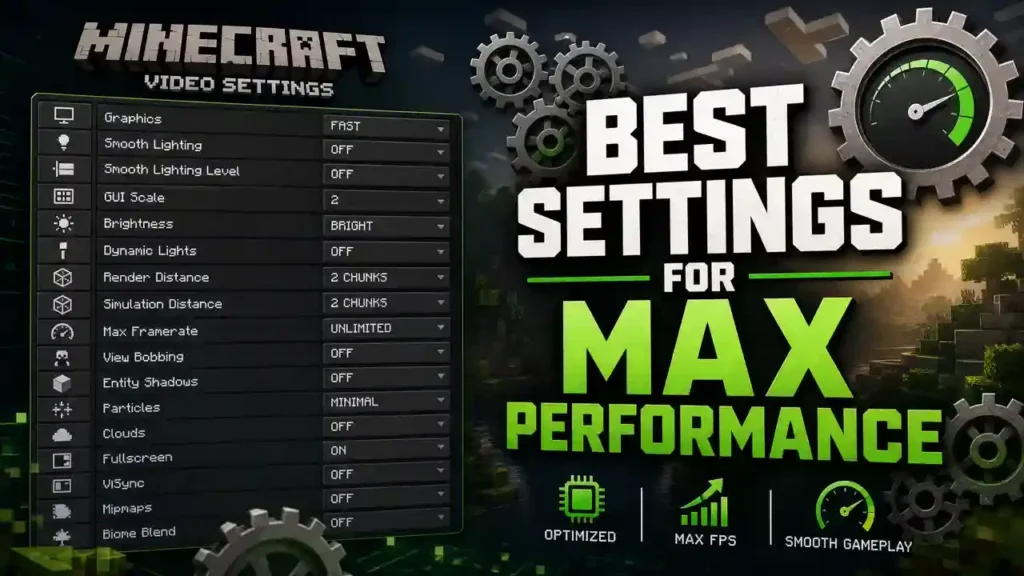
To achieve the highest possible FPS, navigate to Options > Video Settings in the main menu. Adjust the following settings based on your hardware capabilities.
| Setting | Low-End PC | Mid-Range PC | High-End PC |
| Render Distance | 6-8 Chunks | 12-16 Chunks | 24+ Chunks |
| Simulation Distance | 5 Chunks | 10 Chunks | 16 Chunks |
| Max Framerate | Unlimited | Unlimited | Unlimited |
| Graphics | Fast | Fast or Fancy | Fancy |
| Smooth Lighting | OFF or Minimum | Maximum | Maximum |
| Clouds | OFF | ON | Fancy |
| Particles | Minimal | Normal | All |
| Entity Shadows | OFF | ON | ON |
| View Bobbing | OFF | OFF | ON |
Advanced OpenGL Settings
OptiFine includes a specific menu for Advanced OpenGL settings, which can provide a significant boost on compatible hardware.
| OpenGL Setting | Recommendation | Reason |
| Anisotropic Filtering | OFF (low-end) / 4-8 (high-end) | Sharper distant textures but high cost |
| Antialiasing | OFF | Extremely performance-intensive |
| Mipmaps | 1-2 (balanced) | Smooths distant textures |
Smooth FPS and Chunk Loading
OptiFine includes specific tools designed to stabilize the game’s performance. The Smooth FPS feature stabilizes the frame rate by flushing the graphics driver buffers, resulting in less stuttering when moving through the world. The “Load Far” chunk loading option should be turned OFF as it can cause massive lag spikes during world exploration. For Fast Render, turn it ON if you are using shaders, but OFF for vanilla gameplay as it can sometimes cause visual glitches.
Quality Settings Fine-Tuning
The Quality submenu provides additional controls that can impact both visuals and performance.
| Quality Setting | Effect | Recommendation |
| Custom Colors | Allows custom block/item colors | OFF if not using HD packs |
| Custom Fonts | Custom font rendering | OFF for standard packs |
| Mipmaps | Pre-calculated lower-res textures | Level 1-2 for balance |
| Anisotropic Filtering | Restores texture detail at angles | OFF for low-end |
| Antialiasing | Smooths jagged edges | OFF for performance |
Integrating Shaders with minecraft optifine 1.15
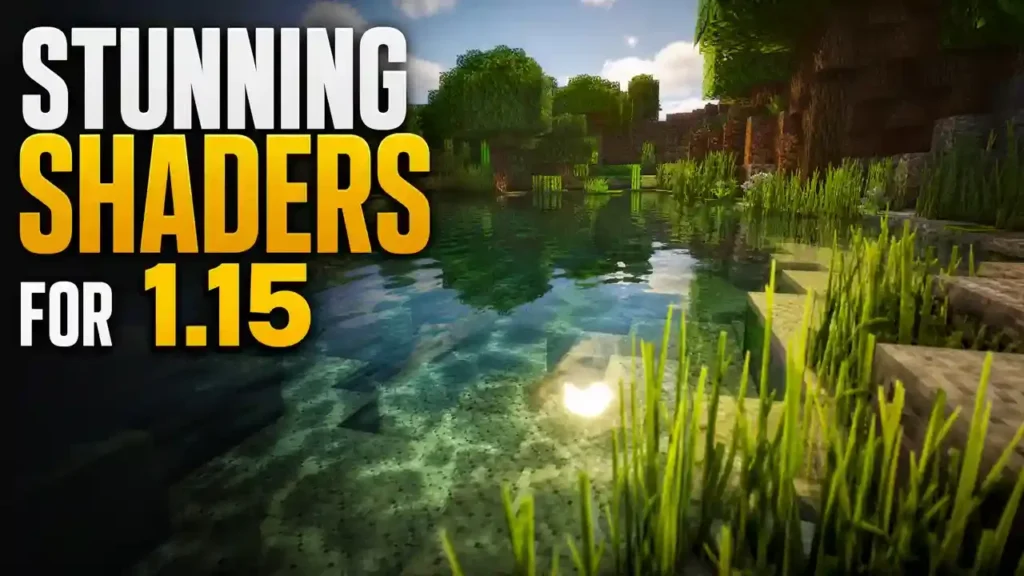
Shaders are the crown jewels of Minecraft’s visual community. They add realistic lighting, volumetric clouds, and dynamic shadows. However, they are incredibly demanding on hardware. OptiFine 1.15 is the engine that makes shaders possible.
Best Shaders for OptiFine 1.15
Not all shader packs are created equal. Depending on your hardware, you must choose a pack that balances visual fidelity with performance.
| Shader Pack | Performance Tier | Best For | Visual Style |
| BSL Shaders | Medium | Mid-range systems | Soft, cinematic |
| Complementary Shaders | Low-Medium | All systems | Vanilla-friendly |
| Sildur’s Vibrant (Lite) | Low | Low-end PCs | Colorful, bright |
| Sildur’s Vibrant (Extreme) | Very High | High-end GPUs | Photorealistic |
| Kuda Shaders | High | High-end GPUs | Volumetric clouds |
| Chocapic13 Shaders | Medium | Mid-range systems | Balanced |
Installing Shaders Step-by-Step
Installing shaders is a simple process once OptiFine is active. First, download your chosen shader pack, which will typically be a .zip file. Do not extract the zip file. Open Minecraft and navigate to Options > Video Settings > Shaders. Click the “Shaders Folder” button to open a directory on your computer. Drag and drop the downloaded .zip file into this folder. Return to the Minecraft shaders menu, and your newly added pack should appear in the list. Click on it to activate it.
Optimizing Shaders for Performance
If your FPS drops to unplayable levels when shaders are enabled, you need to adjust the settings within the shader pack itself. Most shader packs have their own configuration menus accessible by pressing the K key or navigating through the Video Settings.
| Shader Setting | Performance Impact | Recommendation |
| Shadow Resolution | Very High | Lower from 2048 to 1024 or 512 |
| Render Distance | High | Keep at 6-8 chunks with shaders |
| Volumetric Clouds | High | Turn OFF if struggling |
| Water Reflections | Medium-High | Disable for FPS boost |
| Motion Blur | Low | Personal preference |
| Lens Flare | Low | Personal preference |
Resource Packs and HD Textures
OptiFine 1.15’s support for HD textures allows players to completely revamp the look of Minecraft. While vanilla Minecraft uses 16×16 pixel textures, OptiFine supports packs that use 32x, 64x, 128x, and even 512x textures.
Choosing the Right Texture Pack
When selecting a high-definition resource pack, consider your system’s capabilities. Higher resolution textures require more VRAM (Video RAM) on your graphics card.
| Texture Pack | Resolution | Style | Performance Cost |
| Faithful | 32×32 | Vanilla style | Low |
| John Smith Legacy | 128×128 | Medieval | Medium-High |
| Mizuno’s 16 Craft | 16×16 (HD style) | Realistic | Low |
| Ovadorak | 256×256 | Photorealistic | Very High |
| Conquest | 64×64 | Medieval/Fantasy | Medium |
Fixing Texture Pack Glitches
Sometimes, high-resolution texture packs can cause graphical glitches or crashes if not configured correctly in OptiFine. Ensure that you have the correct version of the texture pack designed for 1.15. If textures are missing or appear as pink/black checkered patterns, it may be due to a memory allocation issue. Ensure your Minecraft Launcher is allocated enough RAM (usually 2-4 GB is sufficient for most texture packs). Use the “Fast Texturepack Switching” feature in OptiFine to load new packs without having to restart the game.
Buzzy Bees Update and OptiFine’s Role
What Was the Buzzy Bees Update?
The Minecraft 1.15 update, officially titled “Buzzy Bees,” was released on December 10, 2019 . This update was a monumental shift for the Java Edition, bringing a host of new mechanics, mobs, and blocks that fundamentally changed how players interacted with the environment. While the primary focus was on the introduction of bees, bee nests, and the honey-producing mechanics, the update also placed a heavy emphasis on bug fixing and internal code optimization.
| Feature Added | Description |
| Bees | New flying neutral mob that pollinates crops |
| Bee Nests | Natural spawning location for bees |
| Beehives | Crafted artificial home for bees |
| Honey Bottles | Restores hunger, removes poison |
| Honeycombs | Crafted using shears on beehives |
| Honey Blocks | Sticky redstone block that slows movement |
| Honeycomb Blocks | Decorative building block |
The Impact of New Entities on Performance
In Minecraft, entities are the most demanding objects on the CPU. They include mobs, players, dropped items, and projectiles. The Buzzy Bees update introduced a new flying entity—the bee—that not only had to be rendered but also required constant pathfinding logic to navigate between flowers, hives, and the player.
When a player enters a biome populated by bees, such as a Plains, Sunflower Plains, or Flower Forest, the game must suddenly begin calculating the trajectories for multiple flying mobs. Without optimization, this sudden spike in CPU usage often translates directly into a drop in FPS and increased frame times. OptiFine 1.15 mitigates this issue through its entity rendering optimizations.
It limits how many entities are rendered at full detail at a distance, and it smooths out the frame delivery to prevent the game from freezing momentarily when a new bee flies into view. Furthermore, OptiFine’s “Smooth Input” feature ensures that even if the frame rate dips slightly due to a swarm of bees, the player’s mouse and keyboard inputs remain responsive.
Honey Blocks and Redstone Contraptions
Honey blocks introduced a new paradigm for redstone engineers. Unlike slime blocks, which stick to almost everything, honey blocks only stick to blocks of the same type. They also slow down the movement of any entity standing on them. This complex interaction logic requires the game to constantly check for collisions and apply specific velocity modifiers.
For large-scale flying machines or block movers utilizing honey blocks, the computational cost can be significant. OptiFine 1.15 helps by optimizing chunk loading and block update delays, ensuring that massive honey block structures do not cause the game world to stutter or lag out as the machine moves across chunk boundaries.
Advanced Configuration: Beyond the Basics
While the standard Video Settings menu in OptiFine 1.15 covers the basics, true power users know that the real magic happens in the deeper configuration menus. These hidden settings allow for granular control over the game’s behavior, often uncovering performance boosts that the average user never discovers.
The “Quality” Menu
The Quality menu in OptiFine 1.15 houses settings that prioritize visual fidelity but can be tweaked to find the perfect balance between looks and speed.
| Quality Setting | Effect | When to Disable |
| Custom Colors | Allows texture packs to define custom block colors | When using standard packs |
| Custom Fonts | Custom font rendering for HD packs | When using vanilla fonts |
| Mipmaps | Pre-calculates lower-resolution texture versions | On very low-end GPUs |
The “Performance” Menu Deep Dive
This is the most critical menu for players struggling with low FPS. OptiFine 1.15 provides several toggles here that can drastically alter the game’s speed.
| Performance Setting | What It Does | Recommendation |
| Smooth World | Spreads chunk loading over multiple frames | ON for smoother experience |
| Fast Math | Uses faster but less accurate math functions | ON for older CPUs |
| Fast Chunk Path | Improves entity pathfinding through chunks | ON |
| Smooth FPS | Flushes GPU buffers to stabilize framerate | ON |
| Fast Render | Optimizes rendering pipeline | ON with shaders, OFF vanilla |
The “Animations” Menu
Minecraft is filled with animated textures—water ripples, flowing lava, flickering fire, and portal swirls. While they add to the atmosphere, they also require the GPU to constantly redraw those textures. OptiFine 1.15 allows players to selectively disable specific animations. If you are on a very low-end system, disabling “Lava Animated,” “Fire Animated,” and “Portal Animated” can free up GPU resources.
OptiFine vs Sodium/Iris Comparison
As the Minecraft modding community has evolved, so too has the landscape of performance mods. While OptiFine 1.15 was the undisputed king of its time, modern players often wonder how it compares to newer, open-source alternatives like Sodium and Iris.
Sodium: The Performance Challenger
Sodium is an open-source rendering engine rewrite for Minecraft that aims to drastically improve frame rates. Unlike OptiFine, which optimizes the existing vanilla renderer, Sodium essentially rewrites how the game draws the world from the ground up. In many benchmark tests, Sodium has been shown to outperform OptiFine 1.15 by a significant margin, especially on low-end hardware. Sodium’s ability to cull (hide) unseen faces and chunk sections is far superior to OptiFine’s methods.
Side-by-Side Comparison
| Feature | OptiFine 1.15 | Sodium + Iris |
| Raw FPS Performance | Good (86% boost over vanilla) | Excellent (2-4x vanilla) |
| Shader Support | Built-in | Requires Iris mod |
| Texture Pack Compatibility | Excellent | Good (some packs break) |
| Dynamic Lighting | Built-in | Requires additional mod |
| Ease of Setup | Single mod | Multiple mods required |
| Connected Textures | Built-in | Requires additional mod |
| Stability | Very Stable | Generally Stable |
| Open Source | No | Yes |
| Best For | Compatibility & features | Raw performance |
When to Choose OptiFine 1.15
Despite the rise of Sodium, OptiFine 1.15 remains a highly viable choice for several reasons. First, OptiFine has a long history of implementing custom features for texture pack creators. Packs that utilize custom block models, connected textures, and specific lighting tweaks often work flawlessly with OptiFine but may break or display incorrectly with Sodium.
Second, OptiFine is a single mod that provides performance boosts, graphical settings, and shader support—a one-stop shop. Third, OptiFine’s built-in dynamic lighting is highly efficient and integrated directly into the mod. For players who want a simple, stable, and highly compatible optimization experience in Minecraft 1.15, OptiFine remains the gold standard.
Gameplay Tips with minecraft optifine 1.15
The Buzzy Bees update introduced a new dimension to Minecraft gameplay, focusing on agriculture, automation, and environmental interaction. OptiFine 1.15 not only ensures that these new features run smoothly but also enhances the visual feedback players receive while interacting with them.
Optimizing Bee Farms
Bee farms are a cornerstone of the 1.15 update. They require a delicate balance of flowers, bee nests, and redstone mechanisms to automate the production of honey and honeycombs. When a player builds a large-scale bee farm, the sheer number of entities (bees) flying around can cause significant client-side lag. OptiFine’s “Entity Shadows” and “Smooth World” settings become crucial here.
By disabling entity shadows, the GPU no longer has to calculate the complex shadow polygons for every single flying bee. This simple toggle can free up enough resources to handle dozens of bees without dropping frames. Furthermore, the “Smooth World” setting ensures that when a new bee spawns or a hive fills with honey, the game doesn’t stutter, maintaining a seamless farming experience.
Enhancing Honey Block Contraptions
Honey blocks are visually distinct due to their translucent, amber-colored appearance. When used in flying machines, they create massive, shifting structures that the game must render continuously. OptiFine’s advanced chunk loading and rendering optimizations help keep these structures crisp and responsive. Additionally, OptiFine’s support for HD textures means that players can use custom texture packs to make their honey blocks look even more realistic or stylized, adding a layer of personalization to their redstone builds.
Server-Side Considerations
Running a Minecraft server is a different beast entirely from playing the game on a client. Server owners who want to support the Buzzy Bees update must deal with the increased entity load of bees and the redstone calculations of honey blocks. While OptiFine is primarily a client-side mod, its influence on server performance is indirect but important. Servers that cater to players using OptiFine often experience fewer reports of “lag,” because OptiFine handles client-side rendering more efficiently. However, server owners should also look into server-side optimization plugins like Paper or Purpur. These forks of the Spigot server software include optimizations for chunk loading, entity tracking, and redstone ticks that complement the client-side benefits of OptiFine 1.15.
Troubleshooting Common Issues
Despite its widespread use, players occasionally encounter issues when installing or running OptiFine. Understanding these common problems and their solutions can save hours of frustration.
Common Problems and Solutions
| Problem | Cause | Solution |
| Crashes on startup | Incompatible Java version | Install Java 8 and configure in launcher |
| Shaders grayed out | Wrong OptiFine version | Use HD U G6 or Ultra version |
| Pink/black textures | Memory allocation issue | Allocate 2-4 GB RAM in launcher |
| Flickering blocks | Fast Render enabled | Turn OFF in Video Settings > Performance |
| Still lagging | Chunk loading settings | Turn OFF “Load Far” and “Preloaded Chunks” |
| Shaders cause crashes | Shader incompatible with 1.15 | Use shader version designed for 1.15 |
| Mipmap blurriness | Mipmaps enabled | Turn OFF in Video Settings > Quality |
| Low FPS with shaders | High shader settings | Lower shadow resolution to 1024 |
How to Completely Remove OptiFine
To remove OptiFine, you can simply delete the installation profile associated with it in the Minecraft Launcher. If you installed it using the standalone installer, you may also need to delete the OptiFine .jar file from your .minecraft/versions folder and remove any related files in the .minecraft/mods folder if you were using Forge.
The Future of Minecraft Optimization
As Minecraft continues to evolve with updates like 1.16 (Nether Update) and beyond, the role of optimization mods like OptiFine becomes even more critical. The game’s rendering engine is being completely rewritten by Mojang, and these changes often break compatibility with older versions of OptiFine.
For players transitioning from 1.15 to newer versions, it is important to stay updated with the latest OptiFine releases. The modding community works tirelessly to adapt OptiFine to the new engine, ensuring that players can continue to enjoy high FPS and advanced graphics features. Furthermore, the rise of open-source alternatives like Sodium and Iris signals a shift in the modding landscape. While OptiFine remains a powerful tool, the community’s exploration of different optimization techniques ensures that Minecraft will continue to run smoothly on a wide variety of hardware for years to come.
System Requirements for minecraft optifine 1.15
To get the best experience with Minecraft 1.15 and OptiFine, your system should meet the following requirements. While Minecraft can technically run on very low-end hardware, OptiFine allows you to push beyond those basic limits.
Minimum Requirements
| Component | Specification |
| Operating System | Windows 7/8/10, macOS 10.12+, Ubuntu 16.04+ |
| Processor (CPU ) | Intel Core i3-3210 / AMD A8-7600 |
| Memory (RAM) | 4 GB |
| Graphics (GPU) | Intel HD 4000 / AMD Radeon R5 |
| Storage | 2 GB available space |
| Java Version | Java 8 (64-bit recommended) |
| Network | Broadband internet (for downloads) |
Recommended Requirements (For Shaders)
| Component | Specification |
| Operating System | Windows 10/11, macOS 10.15+, Ubuntu 20.04+ |
| Processor (CPU) | Intel Core i5-4690 / AMD Ryzen 3 3100 |
| Memory (RAM) | 8 GB |
| Graphics (GPU) | NVIDIA GTX 1060 / AMD RX 580 |
| Storage | 4 GB available space |
| Java Version | Java 8 (64-bit) |
| Network | Broadband internet |
Best minecraft optifine 1.15 Settings by Use Case
Different players have different priorities when playing Minecraft. Whether you are a competitive PvP player who needs maximum FPS, a builder who wants the best visual experience, or a casual player who just wants the game to run smoothly, OptiFine 1.15 can be configured to suit your specific needs.
Competitive PvP Settings
PvP players need every frame they can get. Input responsiveness and minimal visual distractions are key.
| Setting | Recommended Value | Reason |
| Render Distance | 6-8 Chunks | Maximum FPS |
| Graphics | Fast | No fancy leaves |
| Smooth Lighting | OFF | Flat lighting for visibility |
| Clouds | OFF | Remove visual distraction |
| Particles | Minimal | Fewer effects to render |
| Entity Shadows | OFF | Save GPU resources |
| View Bobbing | OFF | More stable crosshair |
| FOV | 90-110 | Wider field of view |
| Mipmaps | OFF | Sharper textures |
| Animations | All OFF | Maximum performance |
Builder/Aesthetic Settings
Builders prioritize visual quality and want their creations to look stunning.
| Setting | Recommended Value | Reason |
| Render Distance | 16-24 Chunks | See more of the world |
| Graphics | Fancy | Beautiful leaves and water |
| Smooth Lighting | Maximum | Realistic shadows |
| Clouds | Fancy | Beautiful cloud rendering |
| Mipmaps | Level 3 | Smooth distant textures |
| Anisotropic Filtering | 8x | Sharp angled textures |
| Connected Textures | ON | Seamless glass/stone surfaces |
| Natural Textures | ON | Organic look |
| Shaders | BSL or Complementary | Cinematic visuals |
Common Mistakes to Avoid
When configuring OptiFine 1.15, many players make common mistakes that can actually worsen performance instead of improving it. Here are the most frequent errors and how to avoid them.
Allocating Too Much or Too Little RAM
One of the most common mistakes is allocating too much RAM to Minecraft. While it might seem like more RAM is always better, allocating 16 GB or more to Minecraft can actually cause performance issues. The Java garbage collector has to work harder to clean up larger memory pools, which can introduce stuttering. For OptiFine 1.15, 2-4 GB is ideal for vanilla gameplay, and 4-6 GB is sufficient for most shader packs.
Using the Wrong Java Version
Minecraft 1.15 requires Java 8. Using Java 11 or Java 16 can cause crashes or compatibility issues with OptiFine. Always ensure that your Minecraft Launcher is configured to use the correct Java version. You can verify this in the launcher settings under “Java Executable.”
Enabling Every Setting at Once
Many players make the mistake of turning on every OptiFine feature simultaneously—mipmaps, anisotropic filtering, antialiasing, connected textures, and more. While each individual setting might seem like a minor addition, combining all of them can significantly impact performance. Start with a minimal configuration and enable features one at a time, testing the FPS impact of each.
Using Incompatible Shaders
Not all shader packs are compatible with every version of OptiFine. Using a shader pack designed for 1.16 or 1.17 with OptiFine 1.15 can cause crashes or graphical glitches. Always check the shader pack’s compatibility page to ensure it supports your specific version of Minecraft and OptiFine.
Ignoring the “Fast Render” Setting
The “Fast Render” setting is one of the most misunderstood options in OptiFine. When enabled, it can provide a significant FPS boost, but it can also cause visual glitches, particularly with certain texture packs and shaders. If you experience graphical issues, try toggling this setting and see if it resolves the problem.
OptiFine 1.15 Keyboard Shortcuts and Tips
OptiFine includes several useful keyboard shortcuts and hidden features that many players are unaware of.
| Shortcut | Function |
| F3 + S | Reload resources (instead of restarting) |
| F3 + A | Reload chunks |
| K (in-game) | Open shader configuration menu |
| H (in inventory) | Show tooltip on items |
| F1 | Toggle HUD off (screenshot mode) |
| F2 | Take screenshot |
| F5 | Cycle camera views |
| F8 | Toggle smooth camera (if supported) |
Pro Tips for OptiFine Users
First, always test your settings in a small world before applying them to your main survival world. This allows you to fine-tune your configuration without risking your progress. Second, use the F3 debug screen to monitor your FPS and chunk loading statistics in real-time. The F3 screen shows your current FPS, memory usage, and the number of loaded chunks, which can help you identify performance bottlenecks. Third, if you are experiencing persistent lag, try restarting your computer before troubleshooting OptiFine settings.
Frequently Asked Questions (FAQs)
Is OptiFine safe to download and install?
Yes, OptiFine is completely safe to use. It is widely regarded as one of the most trusted mods in the Minecraft community. To ensure your safety, always download it from the official website (optifine.net) and avoid third-party download sites that may bundle malware with the installer.
Can I use OptiFine 1.15 with Minecraft 1.16 or newer?
No. OptiFine versions are strictly tied to the version of Minecraft they are designed for. You must download the specific version of OptiFine that matches your Minecraft client (e.g., OptiFine 1.16.5 for Minecraft 1.16.5 or Minecraft OptiFine 1.17 ). Using a 1.15 version of OptiFine on a newer client will result in a crash.
Do I need to install Minecraft Forge to use OptiFine 1.15?
No, you do not need Minecraft Forge to use OptiFine as a standalone mod. You can install OptiFine directly into the vanilla Minecraft launcher. However, if you want to use OptiFine alongside other mods, you will need to install Forge (or Fabric with the appropriate translation mod) and add OptiFine as a mod file.
Why does my FPS drop when I turn on OptiFine?
While OptiFine usually boosts FPS, it can sometimes cause a drop if you are using certain incompatible features. For example, enabling “Fast Render” can sometimes conflict with integrated graphics cards. Additionally, if you load a high-resolution texture pack or a heavy shader pack without adjusting the performance settings, your FPS will naturally decrease due to the increased graphical demand.
Can I use OptiFine on the Minecraft Bedrock Edition?
No. OptiFine is exclusively designed for the Minecraft Java Edition. The Bedrock Edition uses a completely different codebase (C++ instead of Java) and has its own built-in rendering engine that is generally much more optimized. To achieve similar visual effects in Bedrock, players typically use third-party resource packs or rendering engines, though the customization is not as deep as OptiFine.
How do I remove OptiFine if I don’t want it anymore?
To remove OptiFine, you can simply delete the installation profile associated with it in the Minecraft Launcher. If you installed it using the standalone installer, you may also need to delete the OptiFine .jar file from your .minecraft/versions folder and remove any related files in the .minecraft/mods folder if you were using Forge.
Which version of OptiFine should I use for 1.15?
The most stable and widely used version for the 1.15 cycle is OptiFine 1.15.2 HD U G6. It offers the best balance of performance, stability, and shader compatibility for that specific update.
Does OptiFine 1.15 support Ray Tracing (RTX)?
No. OptiFine does not support hardware-accelerated Ray Tracing (RTX) as implemented by Mojang in the Bedrock Edition. OptiFine achieves its visual enhancements through traditional rendering techniques and shader packs, which can simulate ray-traced effects but are not true hardware RT.
How do I fix the “Mipmap” issue where textures look blurry?
If your textures look blurry after installing OptiFine, it is likely because Mipmaps are enabled. Navigate to Video Settings > Quality > Mipmaps and turn them “OFF.” This will force the game to use the full-resolution textures at all times, restoring the crisp look of the vanilla game.
Can I use OptiFine with other performance mods like Sodium?
Generally, no. OptiFine and Sodium modify the same underlying rendering code, so using them together will result in a crash. You must choose either OptiFine or the Sodium + Iris combination. OptiFine is recommended for its extensive feature set and compatibility, while Sodium is recommended for raw performance gains on low-end hardware.
How much RAM should I allocate for OptiFine 1.15?
For vanilla gameplay with OptiFine, 2-4 GB of RAM is sufficient. If you are using HD texture packs or shader packs, allocate 4-6 GB. For heavy modpacks with OptiFine, 6-8 GB may be necessary. You can adjust RAM allocation in the Minecraft Launcher under the installation’s settings.
Does OptiFine work on macOS and Linux?
Yes, OptiFine works on all major operating systems including Windows, macOS, and Linux. The installation process is the same across all platforms as long as you have Java installed correctly.
Conclusion
Minecraft OptiFine 1.15 remains a vital tool for the community, even as newer versions of the game are released. It bridges the gap between hardware limitations and the desire for a beautiful, high-performance gaming experience. By understanding how to install it, configure its settings, and integrate it with shaders and texture packs, players can unlock a completely new dimension of Minecraft.
Whether you are trying to squeeze an extra 20 FPS out of an older laptop or looking to build a massive, photorealistic world complete with volumetric clouds and dynamic shadows, OptiFine 1.15 provides the tools you need. The Buzzy Bees update demonstrated how new game mechanics can strain the aging vanilla engine, and OptiFine stood as the reliable solution that allowed millions of players to experience the update without sacrificing their frame rates.
The journey from downloading OptiFine to running a beautifully optimized Minecraft 1.15 client is straightforward. With the right settings, the right shader pack, and the right texture pack, your Minecraft experience can be transformed from a stuttering mess into a smooth, visually stunning adventure. Embrace the power of optimization, and let your creativity run without the constraints of lag.