
Minecraft OptiFine 1.16: The Complete Guide to Better Performance and Graphics
Minecraft 1.16, also known as the Nether Update, remains one of the most loved versions of Minecraft Java Edition. It transformed the Nether with new biomes, mobs, blocks, and gameplay. Many players still choose this version for survival, multiplayer servers, and modded adventures. That makes Minecraft OptiFine 1.16 just as valuable today.
OptiFine 1.16 is a free optimization mod for Minecraft Java Edition. It improves game performance, unlocks advanced graphics settings, and adds support for shaders and HD resource packs. It also gives you more control over visual quality without changing Minecraft’s core gameplay.
Whether you play on a low-end laptop or a high-performance gaming PC, Minecraft 1.16 OptiFine can improve your experience. It helps increase FPS, reduce lag, speed up chunk loading, and deliver smoother gameplay. At the same time, it enhances lighting, textures, shadows, and visual effects for a more immersive world.
One of the biggest reasons players install OptiFine for Minecraft 1.16 is shader compatibility. Popular shader packs like BSL, Complementary, and SEUS rely on OptiFine to deliver realistic lighting, reflections, and dynamic shadows. It also supports HD resource packs, connected textures, custom skies, dynamic lighting, and many other visual improvements.
This guide is for everyone. Beginners can learn how to download and install OptiFine Minecraft 1.16 safely. Experienced players can discover the best settings for maximum FPS, advanced graphics, Forge compatibility, shader installation, troubleshooting, and performance tuning.
By the end of this guide, you’ll know which OptiFine version matches your Minecraft 1.16 release, how to install it correctly, optimize your game for higher performance, enable shaders and HD resource packs, fix common issues, and choose the best settings for smooth, stable gameplay.
What Is Minecraft OptiFine 1.16?
What Is OptiFine?
Minecraft OptiFine 1.16 is a performance optimization mod for Minecraft Java Edition. It improves frame rates, unlocks advanced graphics settings, and supports visual enhancements that the base game does not offer.
Unlike content mods, OptiFine focuses on making Minecraft run smoother while giving players more control over graphics and performance. It adds features like Dynamic Lighting, Connected Textures, Smart Animations, zoom, HD textures, custom skies, and shader support.
OptiFine also helps your computer use system resources more efficiently. This reduces lag, improves chunk loading, and creates a smoother gameplay experience across different hardware.
The project has remained one of the most trusted Minecraft optimization tools for years. It receives regular updates to support compatible Minecraft versions and improve stability.
Why Minecraft 1.16 Is Still Popular
Minecraft 1.16 introduced the Nether Update, one of the game’s biggest content expansions. It completely redesigned the Nether by adding new biomes, mobs, structures, and resources.
Players can explore areas like Crimson Forests, Warped Forests, Basalt Deltas, and Soul Sand Valleys. The update also introduced Piglins, Hoglins, Netherite gear, and many new building blocks.
Many multiplayer servers still run Minecraft 1.16 because of its balance between modern gameplay and broad plugin compatibility. It also remains a favorite version for modpacks and long-term survival worlds.
Because thousands of players continue using this version, OptiFine 1.16 remains a popular choice for improving both performance and graphics.
Which Minecraft Versions Are Supported?
OptiFine provides dedicated builds for every major release in the Minecraft 1.16 series. Each version is designed to match its corresponding Minecraft release for the best compatibility and stability.
- Minecraft 1.16 – Early OptiFine builds introduced performance improvements and graphical enhancements for the initial Nether Update release.
- Minecraft 1.16.1 – Added compatibility updates and stability improvements for the first post-launch version.
- Minecraft 1.16.2 – Included support for Mojang’s gameplay changes while improving shader and rendering performance.
- Minecraft 1.16.3 – Delivered bug fixes and maintained compatibility with existing worlds and servers.
- Minecraft 1.16.4 – Improved overall stability and expanded support for graphics features.
- Minecraft 1.16.5 – The final and most widely used release in the 1.16 series. It remains the preferred version for many modpacks, servers, and long-term worlds.
Choosing the OptiFine build that matches your exact Minecraft version helps prevent crashes, loading errors, and compatibility issues.
Who Should Use OptiFine?
OptiFine is useful for almost every Minecraft Java Edition player.
You should consider using it if you:
- Want higher FPS and smoother gameplay.
- Play on a low-end or older computer.
- Use high-resolution resource packs.
- Enjoy realistic shader packs.
- Experience lag or slow chunk loading.
- Want more control over graphics settings.
- Build large worlds that demand better performance.
- Play on multiplayer servers.
- Create videos or take high-quality screenshots.
- Prefer customizing Minecraft’s visual appearance.
Whether you play casually or spend hours exploring, building, or battling, OptiFine helps create a smoother and more enjoyable experience.
Main Benefits
Installing Minecraft 1.16 OptiFine provides far more than a simple FPS boost. It improves both performance and visual quality while keeping the original Minecraft experience intact.
Some of the biggest benefits include:
- Higher FPS during gameplay.
- Reduced lag and smoother world loading.
- Faster chunk rendering.
- Support for popular shader packs.
- HD resource pack compatibility.
- Dynamic Lighting without placing torches.
- Connected Textures for seamless blocks.
- Better Grass and Better Snow effects.
- Zoom for precision building and exploration.
- Smart Animations that improve performance.
- Custom skies, colors, fonts, and entity models.
- Advanced graphics settings for better visual control.
- Improved rendering for low-end and high-end systems.
These features make OptiFine for Minecraft 1.16 one of the most valuable tools for players who want better performance, enhanced graphics, and greater customization without changing Minecraft’s core gameplay.
Minecraft OptiFine 1.16 Version History
OptiFine evolved alongside every Minecraft 1.16 release. Each build introduced compatibility updates, performance improvements, bug fixes, and graphics enhancements. Choosing the correct version for your game is essential for stable gameplay and full feature support.
OptiFine 1.16
The first OptiFine 1.16 builds arrived shortly after Minecraft 1.16 launched with the Nether Update. These early releases focused on supporting the new rendering engine, Nether biomes, and updated game mechanics.
Players gained access to essential OptiFine features, including improved FPS, Dynamic Lighting, Connected Textures, shader support, and advanced graphics settings. Early preview builds received frequent updates before reaching a stable release.
OptiFine 1.16.1
OptiFine 1.16.1 improved compatibility with Minecraft’s first maintenance update. The release fixed rendering issues, improved stability, and resolved several bugs reported by the community.
It also enhanced shader compatibility and provided a smoother experience on both low-end and high-end computers.
OptiFine 1.16.2
OptiFine 1.16.2 supported Mojang’s gameplay changes while refining performance optimization. This version introduced better rendering efficiency and improved compatibility with many Forge-based modpacks.
Players also noticed smoother chunk loading and more stable shader performance.
OptiFine 1.16.3
OptiFine 1.16.3 focused on stability rather than major new features. It resolved compatibility issues with Minecraft 1.16.3 and improved reliability during long gameplay sessions.
This release became a popular choice for multiplayer servers because of its dependable performance.
OptiFine 1.16.4
OptiFine 1.16.4 continued improving graphics optimization and shader support. Several rendering bugs received fixes, while overall performance became more consistent across different hardware configurations.
Many players upgraded because it offered better compatibility with resource packs and community mods.
OptiFine 1.16.5
OptiFine 1.16.5 is the final and most refined release in the Minecraft 1.16 series. The stable HD U G8 build combines years of bug fixes, compatibility improvements, and performance optimization into one package.
Because Minecraft 1.16.5 remains a popular version for servers, modpacks, and long-term survival worlds, this OptiFine release is still widely recommended. It offers excellent shader compatibility, reliable FPS improvements, and broad support for HD resource packs and Forge.
HD U G5 vs G6 vs G7 vs G8
The HD U G-series builds represent different development stages of OptiFine 1.16. Each update introduced fixes, compatibility improvements, and performance enhancements.
| Build | Highlights | Best For |
|---|---|---|
| HD U G5 | Stable release with solid shader support and performance improvements. | Minecraft 1.16.2 and 1.16.3 |
| HD U G6 | Minor bug fixes and rendering improvements over G5. | Players updating from earlier builds |
| HD U G7 | Better stability, improved graphics compatibility, and additional fixes. | Minecraft 1.16.4 users |
| HD U G8 | Final stable build with the best optimization, compatibility, and bug fixes. | Minecraft 1.16.5 users |
Unless you need compatibility with an older Minecraft release, choose the latest stable build available for your game version.
Which Version Should You Download?
Always download the OptiFine version that matches your installed Minecraft version. Mixing versions often causes launch errors, missing game profiles, or crashes.
Use these recommendations:
- Minecraft 1.16 → Install the matching OptiFine 1.16 release.
- Minecraft 1.16.1 → Install OptiFine 1.16.1.
- Minecraft 1.16.2 → Install OptiFine HD U G5.
- Minecraft 1.16.3 → Install the OptiFine build designed for 1.16.3.
- Minecraft 1.16.4 → Install OptiFine HD U G7.
- Minecraft 1.16.5 → Install OptiFine HD U G8, the final stable release.
If you’re starting a new world, joining modern 1.16 servers, or installing a popular modpack, OptiFine HD U G8 for Minecraft 1.16.5 is the best choice. It delivers the highest stability, the broadest compatibility, and the most polished performance in the entire 1.16 lineup.
Authority Tip: Always download OptiFine from the official OptiFine website. Verify that the OptiFine build matches your exact Minecraft version before installing. This simple step prevents most installation and compatibility issues.
Features of OptiFine 1.16
OptiFine 1.16 offers far more than an FPS boost. It combines performance optimization, advanced graphics controls, and visual enhancements into one lightweight mod. Whether you want smoother gameplay or stunning visuals, these features help you get more from Minecraft Java Edition.
FPS Boost
FPS improvement is the main reason players install Minecraft OptiFine 1.16. The mod optimizes Minecraft’s rendering process and reduces unnecessary resource usage.
Many players see significant FPS gains, especially on older computers. The exact improvement depends on your hardware, world size, render distance, and graphics settings.
Dynamic Lighting
Dynamic Lighting lets light-emitting items brighten nearby areas without placing them.
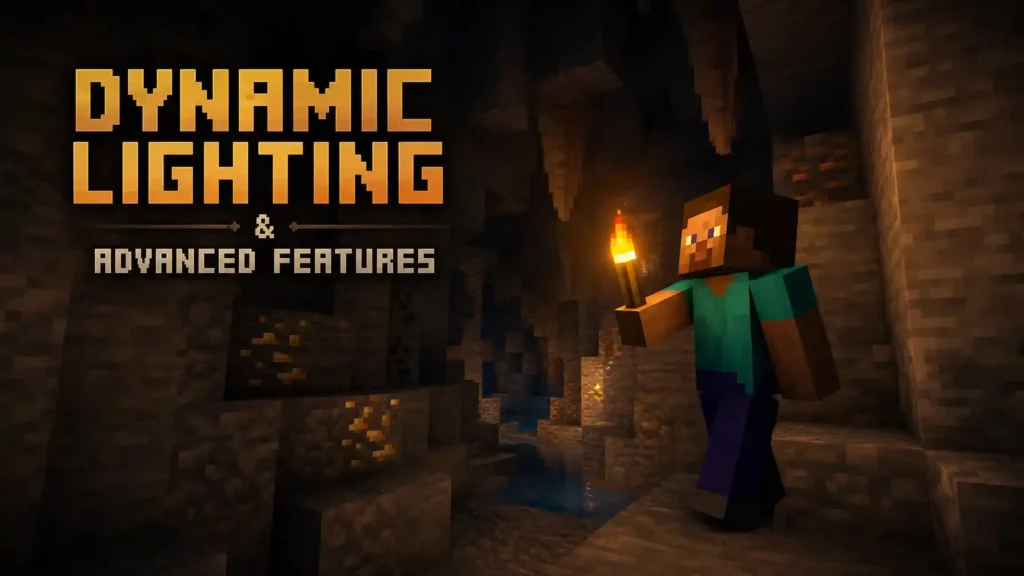
A torch, lantern, glowstone, or other light source can illuminate caves while you hold or drop it. This feature makes mining and exploration easier because you no longer need to place torches every few blocks.
Connected Textures
Connected Textures remove visible seams between matching blocks. Glass panes, bookshelves, sandstone, and many resource packs look smoother because adjacent textures merge into one continuous surface. This creates cleaner buildings and more realistic environments and OptiFine vs Iris Shaders Minecraft.
HD Texture Support
OptiFine unlocks support for high-resolution resource packs beyond Minecraft’s default textures. Players can use 64×, 128×, 256×, or even higher-resolution packs without losing compatibility. The result is sharper blocks, improved details, and richer environments.
Shader Support
Shader support transforms Minecraft’s graphics with realistic lighting and visual effects. Compatible shader packs add dynamic shadows, reflections, waving vegetation, volumetric clouds, and improved water effects. Popular options include BSL, Complementary, SEUS Renewed, and Sildur’s Vibrant Shaders.
Zoom Function
The built-in Zoom feature lets you inspect distant objects without installing another mod. It helps players spot villages, locate mobs, explore terrain, and build with greater precision.
Smart Animations
Smart Animations improve performance by reducing unnecessary animation processing. Minecraft only animates textures that appear on your screen. This lowers GPU workload and helps increase FPS during gameplay.
Better Grass
Better Grass improves how grass blocks connect with surrounding terrain. The feature hides exposed dirt edges and creates smoother landscapes. Natural environments look more polished without changing gameplay.
Better Snow
Better Snow places a thin snow layer over compatible blocks. This small improvement makes snowy biomes look more realistic and visually consistent.
Custom Colors
Custom Colors give resource packs greater control over Minecraft’s appearance. Sky colors, water, foliage, particles, fog, and lighting can all display unique color palettes. This allows creators to build distinctive visual styles.
Custom Fonts
OptiFine supports custom fonts included in resource packs. Players can personalize menus, user interfaces, and in-game text while maintaining compatibility with Minecraft Java Edition.
Custom Sky
Custom Sky replaces Minecraft’s default sky with detailed alternatives. Resource packs can add unique day and night skies, moving clouds, celestial objects, and atmospheric effects that match different themes.
Emissive Textures
Emissive Textures allow selected textures to glow in dark areas. Items, blocks, and mobs can appear illuminated without acting as real light sources. This creates impressive visual effects while preserving game balance.
Random Entities
Random Entities give mobs multiple texture variations. Instead of identical animals or villagers, Minecraft displays different appearances for supported entities. Worlds feel more natural and diverse.
Custom Entity Models
Custom Entity Models let resource packs replace Minecraft’s default mob models. Creators can redesign creatures with new shapes, animations, and details while keeping normal game mechanics intact.
Custom Item Textures
Custom Item Textures allow items to display different appearances based on specific conditions. Resource packs can assign unique textures using item names, enchantments, durability, or other properties. This feature expands visual customization without adding new items.
Fog Control
Fog Control gives players more flexibility over Minecraft’s rendering distance. You can adjust or reduce fog effects to improve visibility and create a clearer view of distant terrain.
Fast Render
Fast Render optimizes Minecraft’s rendering pipeline to improve performance. It reduces GPU workload in many situations and helps deliver smoother gameplay. However, some shader packs require this setting to remain disabled.
Fast Math
Fast Math speeds up mathematical calculations used during rendering. The feature improves performance with minimal visual differences. Most players can enable it safely for extra FPS.
Chunk Loading Optimization
OptiFine improves how Minecraft loads nearby chunks. The game generates terrain more efficiently, reducing pauses and stuttering while exploring large worlds or flying at high speeds.
Lazy Chunk Loading
Lazy Chunk Loading delays loading distant chunks until they become necessary. This reduces CPU usage during exploration and helps stabilize performance on lower-end systems.
Cape Support
OptiFine includes built-in cape support for eligible users. Players with an official OptiFine cape can display it automatically without installing additional mods.
Mipmap & Anisotropic Filtering
OptiFine provides advanced controls for texture quality. Mipmaps smooth textures viewed from a distance, while anisotropic filtering improves texture clarity at sharp viewing angles. Together, they produce cleaner visuals with less shimmering during movement.
Why Millions Still Use OptiFine 1.16
Years after its release, Minecraft OptiFine 1.16 remains one of the most downloaded optimization mods for Minecraft Java Edition. Its popularity comes from a simple reason—it improves how the game looks and performs without changing the core Minecraft experience. From casual builders to competitive PvP players, OptiFine delivers practical benefits that every player can notice.
Better FPS
Higher frame rates are the biggest reason players install OptiFine 1.16. The mod optimizes Minecraft’s rendering engine and gives you detailed performance settings. You can adjust render distance, animations, particles, lighting, and other options to match your hardware. Many players experience smoother gameplay, especially in large worlds, complex builds, and heavily populated servers.
Better Graphics
OptiFine lets you enjoy Minecraft with richer visuals while keeping full control over performance. You can enable advanced features like Dynamic Lighting, Connected Textures, Custom Skies, Better Grass, Better Snow, and HD textures. These improvements make every biome feel more detailed without changing Minecraft’s original style. If your computer has a powerful GPU, you can increase visual quality even further using advanced graphics settings.
Lower Lag
Lag can interrupt exploration, combat, and building. OptiFine reduces many common causes of in-game lag by improving how Minecraft processes graphics and world rendering. You can disable unnecessary visual effects, optimize chunk updates, and fine-tune performance settings. This creates a more responsive gameplay experience, even on older computers.
Faster Chunk Loading
Exploring new areas often forces Minecraft to generate thousands of blocks at once. This process can cause freezes or sudden FPS drops. OptiFine improves chunk rendering and loading efficiency. New terrain appears faster, allowing smoother travel by foot, boat, Elytra, or minecart. Players exploring large survival worlds benefit the most from this optimization.
Shader Compatibility
One of OptiFine’s most valuable features is native shader support. Popular shader packs such as BSL Shaders, Complementary Shaders, SEUS Renewed, and Sildur’s Vibrant Shaders rely on OptiFine to deliver advanced lighting, realistic shadows, reflections, and atmospheric effects. Without OptiFine, most classic shader packs cannot run on Minecraft 1.16.
HD Resource Packs
OptiFine expands Minecraft’s support for high-resolution resource packs. Players can use HD textures with improved block details, smoother models, and cleaner visual effects. It also supports advanced resource pack features like Connected Textures, Emissive Textures, Random Entities, and Custom Entity Models. This makes Minecraft look significantly more detailed while preserving its familiar gameplay.
PvP Benefits
Many competitive players continue using Minecraft 1.16 OptiFine because it provides tools that improve gameplay during combat. The built-in Zoom feature helps identify distant opponents. Higher FPS creates smoother mouse movement and more consistent combat. Stable performance also reduces visual stuttering during fast-paced fights. Many PvP players combine these advantages with lightweight resource packs for the best competitive experience.
Survival Performance
Long-term survival worlds become more demanding as players build farms, villages, storage systems, and large structures. OptiFine helps maintain smooth performance by reducing rendering overhead and improving world optimization. Large bases remain more responsive, making exploration and building more enjoyable over time. Players with lower-end hardware often notice the biggest improvement in mature survival worlds.
Multiplayer Performance
Busy multiplayer servers place extra demands on your computer. Large player counts, complex builds, and constant chunk updates can reduce performance. OptiFine helps stabilize FPS during multiplayer sessions by optimizing rendering and giving players precise control over graphics settings. Whether you play on private servers, public communities, or large minigame networks, OptiFine for Minecraft 1.16 delivers a smoother and more consistent experience.
Overall, OptiFine continues to be the preferred optimization mod because it balances performance, graphics, and customization in one lightweight package. Few Minecraft mods offer the same combination of stability, flexibility, and long-term compatibility.
System Requirements
Minecraft OptiFine 1.16 does not require powerful hardware. It works on most computers that can run Minecraft Java Edition. However, better hardware delivers smoother gameplay, especially when using shaders or high-resolution resource packs.
Minimum Requirements
These specifications are suitable for basic gameplay with default graphics settings.
| Component | Minimum Requirement |
|---|---|
| Operating System | Windows, macOS, or Linux |
| Processor | Dual-core CPU |
| Memory | 4 GB RAM |
| Graphics | OpenGL-compatible graphics card |
| Storage | At least 500 MB of free space |
| Minecraft Edition | Minecraft Java Edition 1.16–1.16.5 |
| Java | 64-bit Java installation |
You can expect improved FPS over vanilla Minecraft, but demanding shader packs may still reduce performance on entry-level systems.
Recommended Requirements
These specifications provide a smoother experience with higher render distances, HD resource packs, and most shader packs.
| Component | Recommended Requirement |
|---|---|
| Processor | Modern quad-core CPU or better |
| Memory | 8 GB RAM or more |
| Graphics | Dedicated GPU with updated drivers |
| Storage | SSD for faster world loading |
| Java | Latest supported 64-bit Java version |
A balanced system allows OptiFine 1.16 to deliver stable FPS while maintaining excellent visual quality.
Java Requirements
OptiFine depends on Java because Minecraft Java Edition runs on the Java platform.
For Minecraft 1.16:
- Install a 64-bit Java Runtime.
- Keep Java updated to the latest supported release for better security and stability.
- Older Java installations can cause installation errors or launcher issues.
- If the OptiFine installer does not open, verify that Java is installed correctly and associated with .jar files.
Using an updated Java installation also improves compatibility with Forge and many launchers.
Supported Operating Systems
OptiFine works on every major operating system supported by Minecraft Java Edition.
Windows
Windows remains the most common platform for Minecraft players. OptiFine supports Windows 10, Windows 11, and most earlier versions capable of running Minecraft Java Edition.
macOS
OptiFine runs smoothly on Intel and Apple Silicon Macs through Minecraft Java Edition. Keeping both Java and macOS updated helps avoid compatibility issues.
Linux
Linux users can install OptiFine using the standard Java installer. Most modern Linux distributions support OptiFine without additional configuration once Java is installed.
Download Minecraft OptiFine 1.16
Downloading the correct OptiFine version is the first step toward improving your Minecraft experience. Always match the OptiFine build with your installed Minecraft version to ensure the best compatibility and stability.
Official Download
Always download Minecraft OptiFine 1.16 from the official OptiFine website.
The official website provides:
- Stable releases
- Preview builds
- Version history
- Installation downloads
- Update information
Downloading from the official source reduces the risk of malware, modified files, or outdated installers.
Latest Stable Build
The final stable release for the Minecraft 1.16 series is:
Minecraft 1.16.5 → OptiFine HD U G8
This build includes years of compatibility improvements, rendering fixes, and performance optimizations. It remains the recommended version for most players using Minecraft 1.16.5.
If you use another Minecraft 1.16 release, download the OptiFine version specifically built for that version.
Preview Versions
Preview builds give players early access to upcoming OptiFine improvements.
These releases often include:
- Compatibility updates
- Bug fixes
- Performance improvements
- Support for newly released Minecraft versions
Because preview versions are still under development, they may contain minor bugs. Most players should install the latest stable release unless they need a specific preview feature.
How to Download Safely
Follow these simple steps before downloading:
- Confirm your Minecraft version.
- Visit the official OptiFine download page.
- Select the matching OptiFine build.
- Download the installer file.
- Save the file without renaming it.
Choosing the correct version prevents most installation problems.
Verify the Download
Before running the installer, verify a few details:
- The file has a .jar extension.
- The Minecraft version matches your installation.
- Java is installed on your computer.
- The file downloaded successfully without interruption.
If any of these checks fail, download the installer again from the official source.
Avoid Fake Download Websites
Fake download pages often appear in search results. Some contain modified installers, misleading advertisements, or bundled software.
To stay safe:
- Download only from the official OptiFine website.
- Avoid websites that promise “exclusive” or “faster” versions.
- Ignore download buttons that appear before the actual installer link.
- Never install extra software offered during the download process.
- Scan downloaded files if your security software recommends it.
Using the official OptiFine installer protects both your Minecraft installation and your computer while ensuring you receive the latest authentic release.
How to Install OptiFine 1.16
Installing Minecraft OptiFine 1.16 only takes a few minutes. Before you begin, make sure you have launched the matching Minecraft 1.16 version at least once. This creates the required game files and helps the installer detect your Minecraft installation.
If you have already downloaded the correct OptiFine 1.16 installer, follow the steps below.
Install Using Minecraft Launcher
This method works for most players and does not require Forge.
- Open the downloaded OptiFine 1.16 installer (.jar file).
- Click Install.
- Wait for the installation to finish.
- Launch the Minecraft Launcher.
- Select the new OptiFine profile from the version list.
- Click Play.
Minecraft will now start with OptiFine enabled.
Install on Windows
Installing OptiFine on Windows is straightforward.
- Install Minecraft Java Edition.
- Launch Minecraft 1.16 once.
- Install the latest 64-bit Java version if needed.
- Download the matching OptiFine installer.
- Double-click the .jar file.
- Click Install.
- Open the Minecraft Launcher and select the OptiFine profile.
If the installer does not open, Java is usually missing or the .jar file is not associated with Java.
Install on macOS
The installation process on macOS is almost identical.
- Install Minecraft Java Edition.
- Open Minecraft 1.16 once.
- Install Java if it is not already available.
- Download the correct OptiFine version.
- Open the installer using Java.
- Complete the installation.
- Launch Minecraft using the OptiFine profile.
If macOS blocks the installer, review your security settings and allow the application to run if you trust the source.
Install on Linux
Linux users can also install OptiFine using Java.
- Install Minecraft Java Edition.
- Launch Minecraft 1.16.
- Install a supported Java Runtime Environment.
- Download the OptiFine installer.
- Open the installer with Java.
- Click Install.
- Start Minecraft using the OptiFine profile.
Most modern Linux distributions support this process without additional configuration.
Verify Installation
After Minecraft loads, confirm that OptiFine installed correctly.
You can verify the installation by checking these items:
- The main menu displays the OptiFine version.
- The Video Settings menu contains additional graphics options.
- The Zoom feature works after assigning a key.
- Shader settings appear in the Video Settings menu.
- Dynamic Lighting and other OptiFine features are available.
If these options appear, your installation was successful.
Install OptiFine with Forge
Many players use OptiFine with Forge to combine performance improvements with Minecraft mods. When both versions are compatible, they work together without affecting gameplay.
Always install Forge before adding OptiFine.
Forge Compatibility
OptiFine supports many Forge releases for Minecraft 1.16, but compatibility depends on matching versions.
Before installing:
- Use the same Minecraft version for Forge and OptiFine.
- Install a recommended Forge build for Minecraft 1.16.x.
- Update Forge if compatibility problems occur.
- Avoid mixing preview builds unless necessary.
Checking compatibility before installation prevents most crashes and loading errors.
Installation Steps
Follow these steps to install OptiFine with Forge.
- Install the correct Forge version for Minecraft 1.16.
- Launch Forge once and close Minecraft.
- Locate your mods folder.
- Copy the OptiFine .jar file into the folder.
- Open the Minecraft Launcher.
- Select the Forge installation.
- Launch the game.
Forge will automatically load OptiFine along with your other compatible mods.
Common Forge Issues
Although Forge and OptiFine work well together, incorrect versions can create problems.
Common issues include:
- Minecraft crashes during startup.
- Black screen after launching.
- Mods fail to load.
- Missing OptiFine features.
- Shader packs do not appear.
- Game freezes while loading.
Most problems occur because Forge and OptiFine target different Minecraft versions. Removing incompatible mods and updating both components usually resolves these issues.
Best Forge Version
The best Forge version is the one officially recommended for your specific Minecraft 1.16 release.
For the best experience:
- Match the Forge version to your Minecraft version.
- Use the latest stable OptiFine release available for that version.
- Keep all installed mods updated.
- Test new mods one at a time before adding large mod collections.
Following these practices creates a stable modded Minecraft installation with excellent performance, broad compatibility, and reliable shader support.
Install OptiFine on Popular Launchers
Minecraft OptiFine 1.16 works with several Minecraft launchers. The installation process varies slightly, but the goal is the same—run Minecraft with OptiFine enabled for better performance, shader support, and advanced graphics settings.
Before installing, make sure you download the OptiFine version that matches your Minecraft 1.16 release.
Minecraft Launcher
The official Minecraft Launcher provides the easiest installation method.
- Download the matching OptiFine installer.
- Open the .jar file using Java.
- Click Install.
- Launch the Minecraft Launcher.
- Select the OptiFine profile.
- Click Play.
This method is best for players who do not use mods.
CurseForge
CurseForge is a popular launcher for modded Minecraft.
To install OptiFine:
- Open your Minecraft 1.16 profile in CurseForge.
- Locate the profile folder.
- Open the mods directory.
- Copy the OptiFine .jar file into the folder.
- Launch the profile.
If OptiFine does not load, verify that your Forge version is compatible with your OptiFine release.
Prism Launcher
Prism Launcher makes managing multiple Minecraft instances simple.
To install OptiFine:
- Create or open a Minecraft 1.16 instance.
- Right-click the instance and choose Edit.
- Open the Version tab.
- Select Install OptiFine if available, or add the downloaded OptiFine file manually.
- Save your changes.
- Launch the instance.
Prism Launcher handles separate game instances well, making it easy to test different configurations.
MultiMC
MultiMC lets you manage several Minecraft installations without affecting your main game.
To install OptiFine:
- Create a Minecraft 1.16 instance.
- Open Edit Instance.
- Choose Version.
- Add the OptiFine installer or patched version.
- Save the configuration.
- Launch Minecraft.
MultiMC is popular among advanced users because it keeps each instance isolated.
ATLauncher
ATLauncher supports both vanilla and modded Minecraft.
Follow these steps:
- Create a Minecraft 1.16 instance.
- Install Forge if your modpack requires it.
- Open the instance folder.
- Copy the OptiFine .jar file into the mods folder.
- Launch the game.
Always check that Forge and OptiFine target the same Minecraft version.
GDLauncher
GDLauncher offers an easy interface for managing Minecraft instances.
To install OptiFine:
- Open your Minecraft 1.16 instance.
- Navigate to the instance folder.
- Open the mods directory.
- Move the OptiFine .jar file into the folder.
- Restart the launcher.
- Launch the instance.
This method works well for both custom profiles and modpacks.
SKLauncher
SKLauncher supports Minecraft Java Edition with custom profiles and installations.
Install OptiFine by following these steps:
- Download the correct OptiFine build.
- Install it using the OptiFine installer.
- Create or edit a Minecraft 1.16 profile if necessary.
- Select the OptiFine profile inside SKLauncher.
- Launch the game.
If you use Forge, place the OptiFine .jar file inside the mods folder instead.
TLauncher
TLauncher also supports OptiFine for Minecraft 1.16.
You have two common installation options:
Option 1: Built-in OptiFine Version
- Open TLauncher.
- Select a Minecraft 1.16 version that includes OptiFine.
- Launch the game.
Option 2: Manual Installation
- Install Minecraft 1.16.
- Run the OptiFine installer.
- Choose the Minecraft directory used by TLauncher.
- Complete the installation.
- Select the OptiFine profile.
- Start Minecraft.
If OptiFine does not appear, verify that TLauncher uses the same Minecraft directory where OptiFine was installed.
Tips for a Smooth Installation
No matter which launcher you use, these best practices help prevent installation problems:
- Match the OptiFine version with your Minecraft version.
- Install the latest stable Java Runtime.
- Update your launcher before installing OptiFine.
- Keep Forge and OptiFine compatible if you use mods.
- Test OptiFine before adding additional mods or shader packs.
- Back up important worlds before changing your Minecraft installation.
Following these steps ensures OptiFine Minecraft 1.16 runs smoothly across most popular launchers while delivering higher FPS, better graphics, and full shader support.
Best OptiFine Settings for Maximum FPS
Installing Minecraft OptiFine 1.16 is only the first step. The right settings can significantly increase FPS, reduce lag, and improve gameplay stability. Whether you play on a low-end laptop or a powerful gaming PC, adjusting OptiFine correctly helps you get the best balance between performance and visual quality.
The recommendations below work well for most players using Minecraft 1.16 and OptiFine.
Graphics Settings
Graphics settings have the biggest impact on performance.
For maximum FPS, use these options:
| Setting | Recommended |
|---|---|
| Graphics | Fast |
| Smooth Lighting | Minimum or Off |
| Smooth Lighting Level | 0–25% |
| GUI Scale | Auto |
| Brightness | Bright |
| Dynamic Lights | Fast or Off |
| Entity Shadows | Off |
| Vignette | Fast |
| Fullscreen | On |
These settings reduce GPU workload while keeping the game clear and playable.
Video Settings
Video settings control how Minecraft renders the world.
Use these recommendations:
| Setting | Recommended |
|---|---|
| Render Distance | 8–12 Chunks |
| Simulation Distance | 6–8 Chunks |
| Max Framerate | Unlimited or Monitor Refresh Rate |
| View Bobbing | Off |
| Clouds | Off or Fast |
| Weather | Fast |
| Particles | Minimal |
| Entity Distance | 75–100% |
Lower render distances provide the largest FPS improvement on slower computers.
Animation Settings
Animations make Minecraft look lively, but they also consume system resources.
For the best performance:
- Turn off Terrain Animations.
- Disable Water Animation if FPS is low.
- Disable Lava Animation.
- Turn off Fire Animation.
- Disable Portal Animation.
- Disable Explosion Animation.
- Turn off Flame Animation.
- Keep only essential animations enabled.
Using Smart Animations further improves performance because Minecraft only animates visible textures.
Details Settings
The Details menu includes several visual effects that affect performance.
Recommended settings:
| Setting | Recommended |
|---|---|
| Clouds | Off |
| Trees | Fast |
| Sky | On |
| Sun & Moon | On |
| Fog | Off or Fast |
| Rain & Snow | Fast |
| Swamp Colors | Off (optional) |
| Stars | On |
| Held Item Tooltips | On |
Disabling unnecessary effects helps stabilize FPS during exploration.
Performance Settings
The Performance menu contains OptiFine’s most powerful optimization tools.
Enable these options whenever possible:
- Fast Render (disable when using shaders)
- Fast Math
- Smart Animations
- Smooth FPS
- Smooth World
- Chunk Updates: 1
- Dynamic Updates: Off
- Lazy Chunk Loading (if available for your version)
These settings reduce CPU and GPU usage while improving frame consistency.
Quality Settings
Quality settings improve visual appearance, but higher values reduce FPS.
For balanced performance:
| Setting | Recommended |
|---|---|
| Mipmap Levels | 2–4 |
| Mipmap Type | Nearest |
| Anisotropic Filtering | Off or 2x |
| Antialiasing | Off |
| Connected Textures | Fast |
| Custom Sky | On |
| Better Grass | Fast |
| Better Snow | On |
| Natural Textures | On |
| Custom Fonts | On |
Players using shader packs should lower these values if FPS drops.
Advanced Settings
Advanced options help fine-tune rendering performance.
Recommended values include:
- Dynamic FOV: Off
- Alternate Blocks: On
- Screenshot Size: Default
- Time: Default
- Autosave Indicator: On
Avoid changing advanced settings unless you understand their purpose. Incorrect values may reduce performance instead of improving it.
Settings for Low-End PCs
If your computer has integrated graphics or limited memory, prioritize FPS over visual quality.
Recommended configuration:
- Graphics: Fast
- Render Distance: 6–8 Chunks
- Smooth Lighting: Off
- Dynamic Lights: Off
- Particles: Minimal
- Clouds: Off
- Fog: Off
- Entity Shadows: Off
- Fast Render: On
- Fast Math: On
- Smart Animations: On
- Shader Packs: Disabled
- HD Resource Packs: Avoid high resolutions
These settings can provide a noticeable performance boost on older hardware.
Settings for Mid-Range PCs
Mid-range systems can balance performance and graphics.
Recommended configuration:
- Graphics: Fast or Fancy
- Render Distance: 10–14 Chunks
- Smooth Lighting: Minimum
- Dynamic Lights: Fast
- Connected Textures: Fast
- Better Grass: Fast
- Mipmap Levels: 4
- Fast Render: On
- Smart Animations: On
- Moderate shader packs if your GPU supports them
This setup delivers smooth gameplay while preserving attractive visuals.
Settings for High-End PCs
Modern gaming systems can enjoy advanced graphics without sacrificing performance.
Recommended configuration:
- Graphics: Fancy
- Render Distance: 16–24 Chunks
- Smooth Lighting: Maximum
- Dynamic Lights: Fancy
- Connected Textures: Fancy
- Better Grass: Fancy
- Mipmap Levels: 4
- Anisotropic Filtering: 8x–16x
- High-quality shader packs
- HD resource packs
- Custom Sky and advanced visual effects enabled
Even powerful computers benefit from OptiFine’s optimization tools. You can enjoy realistic shaders, detailed textures, and high render distances while maintaining smooth gameplay.
Performance Tips
For the best experience with OptiFine 1.16:
- Update your graphics drivers regularly.
- Use the latest stable Java version supported by Minecraft 1.16.
- Allocate only the RAM Minecraft needs.
- Close unnecessary background applications before launching the game.
- Keep OptiFine, Forge, and your launcher updated.
- Test one setting at a time to find the best balance for your hardware.
The ideal configuration depends on your system. Start with these recommendations, then adjust individual settings until you achieve the perfect balance between FPS, graphics quality, and gameplay smoothness.
Best Shader Packs for OptiFine 1.16
One of the biggest advantages of Minecraft OptiFine 1.16 is native shader support. Shader packs transform Minecraft’s lighting, shadows, water, clouds, and weather effects without changing the game’s mechanics.
The best shader depends on your hardware and visual preferences. Some focus on realistic graphics, while others balance performance and image quality.
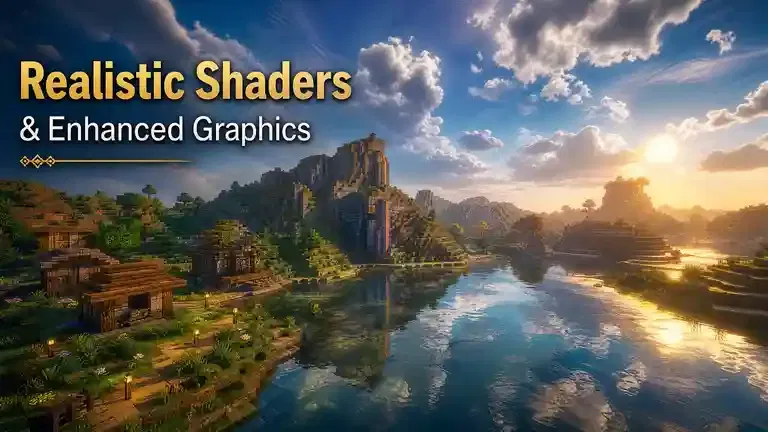
Below are the most popular shader packs for OptiFine 1.16.
BSL Shaders
BSL Shaders is one of the most popular shader packs for Minecraft 1.16. It offers an excellent balance between visual quality and performance.
Key features include:
- Realistic lighting
- Dynamic shadows
- Volumetric clouds
- Improved water reflections
- Bloom effects
- Beautiful sunsets and sunrises
BSL runs well on mid-range and high-end computers. It also includes many customization options, allowing players to adjust graphics without editing configuration files.
Best for: Players who want realistic visuals without sacrificing too much FPS.
Complementary Shaders
Complementary Shaders builds on BSL while focusing on gameplay and performance.
It improves Minecraft’s appearance with:
- Soft lighting
- High-quality shadows
- Better water rendering
- Dynamic weather effects
- Enhanced Nether and End visuals
- Excellent compatibility with resource packs
Many players choose Complementary because it performs better than many realistic shader packs while still producing impressive graphics.
Best for: Survival players and long gaming sessions.
SEUS Renewed
SEUS Renewed (Sonic Ether’s Unbelievable Shaders) is one of Minecraft’s most recognizable shader packs.
It delivers cinematic visuals through:
- Realistic sunlight
- Advanced global illumination
- Detailed water reflections
- Smooth shadow rendering
- Natural color grading
SEUS places a heavier load on your GPU than most other shaders. A dedicated graphics card is recommended for stable performance.
Best for: High-end gaming PCs.
Sildur’s Vibrant Shaders
Sildur’s Vibrant Shaders offers multiple performance profiles, making it suitable for many different computers.
Available presets include:
- Lite
- Medium
- High
- High with Volumetric Lighting
- Extreme
Each preset improves lighting, shadows, reflections, and atmospheric effects while letting players choose the performance level that matches their hardware.
Best for: Low-end, mid-range, and high-end systems.
Chocapic13
Chocapic13 Shaders focuses on smooth gameplay with attractive visuals.
Notable features include:
- Natural lighting
- Dynamic shadows
- Improved water
- Better fog effects
- Balanced color correction
Compared with many realistic shader packs, Chocapic13 usually delivers higher FPS while still providing a noticeable visual upgrade.
Best for: Players who want better graphics without a large performance loss.
ProjectLUMA
ProjectLUMA combines realistic lighting with strong optimization.
It includes:
- Physically inspired lighting
- Detailed cloud rendering
- Improved reflections
- Enhanced sky colors
- Smooth shadows
ProjectLUMA works particularly well with HD resource packs supported by OptiFine.
Best for: Builders and players who enjoy taking screenshots.
Continuum
Continuum Shaders aims to create one of the most realistic Minecraft experiences available.
Its features include:
- Ultra-realistic lighting
- Advanced reflections
- High-quality shadows
- Detailed water simulation
- Cinematic atmosphere
Continuum requires powerful hardware because of its demanding graphics effects.
Best for: Enthusiasts with high-performance gaming computers.
Which Shader Performs Best?
There is no single shader pack that fits every player. The best choice depends on your computer’s specifications and your priorities.
| Shader Pack | Performance | Graphics Quality | Recommended For |
|---|---|---|---|
| BSL Shaders | ★★★★☆ | ★★★★★ | Most players |
| Complementary Shaders | ★★★★★ | ★★★★★ | Best balance of FPS and visuals |
| SEUS Renewed | ★★★☆☆ | ★★★★★ | High-end gaming PCs |
| Sildur’s Vibrant Shaders | ★★★★★ | ★★★★☆ | All hardware levels |
| Chocapic13 | ★★★★★ | ★★★★☆ | Better FPS on older systems |
| ProjectLUMA | ★★★★☆ | ★★★★★ | Builders and content creators |
| Continuum | ★★☆☆☆ | ★★★★★ | Maximum realism on powerful PCs |
For most Minecraft OptiFine 1.16 players, Complementary Shaders provides the best overall experience. It combines excellent performance with beautiful lighting, realistic shadows, and broad compatibility.
If your priority is maximum FPS, Sildur’s Vibrant Shaders (Lite or Medium) or Chocapic13 are excellent choices. If you want the highest visual quality and have a powerful graphics card, SEUS Renewed or Continuum deliver some of the most impressive graphics available for Minecraft Java Edition.
Best Resource Packs
Resource packs change Minecraft’s textures without affecting gameplay. OptiFine 1.16 expands resource pack support by enabling HD textures, Connected Textures (CTM), Emissive Textures, Custom Entity Models (CEM), Random Entities, and Custom Item Textures (CIT). These features help resource packs deliver a richer and more immersive experience.
Below are some of the best resource packs for Minecraft 1.16 OptiFine.
Faithful
Faithful is one of the most trusted resource packs in the Minecraft community. It keeps Minecraft’s original style while increasing texture resolution.
Key features include:
- Higher-resolution textures
- Vanilla-friendly appearance
- Clearer blocks and items
- Excellent OptiFine compatibility
- Support for Connected Textures
Faithful is ideal for players who want sharper visuals without changing Minecraft’s familiar look.
Best for: Vanilla survival and multiplayer.
Stay True
Stay True improves Minecraft’s default textures with subtle visual enhancements.
It offers:
- Better block details
- Improved color consistency
- More natural environments
- Enhanced foliage
- Seamless integration with OptiFine features
The pack preserves Minecraft’s classic style while making the world feel more polished.
Best for: Players who enjoy an enhanced vanilla experience.
ModernArch
ModernArch delivers highly realistic textures designed for powerful computers.
Highlights include:
- Ultra-HD textures
- Physically based rendering (PBR) support
- Detailed building materials
- High-quality interiors
- Stunning visual realism
ModernArch performs best when paired with OptiFine and a compatible shader pack.
Best for: Builders, architects, and screenshot creators.
Bare Bones
Bare Bones recreates Minecraft’s official promotional artwork inside the game.
Its design features:
- Bright colors
- Clean textures
- Simple visuals
- Minimalist style
- Lightweight performance
Because the textures remain simple, Bare Bones performs well on low-end computers.
Best for: Players who prefer a clean and colorful world.
PvP Packs
PvP resource packs focus on competitive gameplay instead of realism.
Most PvP packs include:
- Shorter swords
- Cleaner textures
- Simplified particles
- Improved visibility
- Lightweight graphics
Many competitive players combine PvP packs with OptiFine settings to maximize FPS and reduce visual distractions.
Best for: PvP servers and competitive combat.
Realistic Packs
Realistic resource packs completely transform Minecraft’s appearance.
Common features include:
- Photorealistic textures
- Detailed terrain
- High-resolution blocks
- Improved lighting compatibility
- Enhanced environmental details
These packs usually require a dedicated graphics card and perform best with shader packs enabled.
Best for: Immersive gameplay and cinematic worlds.
HD Packs
HD resource packs increase texture resolution far beyond Minecraft’s default 16× textures.
Popular resolutions include:
- 32×
- 64×
- 128×
- 256×
- 512× and higher
OptiFine handles these textures efficiently, but higher resolutions require more graphics memory and processing power.
Best for: Players with modern hardware who want maximum visual detail.
Which Resource Pack Should You Choose?
Your ideal resource pack depends on your goals.
- Faithful — Best overall for everyday gameplay.
- Stay True — Best enhanced vanilla experience.
- ModernArch — Best realistic building textures.
- Bare Bones — Best lightweight option.
- PvP Packs — Best for competitive gameplay.
- Realistic Packs — Best immersive graphics.
- HD Packs — Best texture quality on powerful PCs.
Choose a pack that matches your hardware and playstyle. Pairing it with OptiFine 1.16 unlocks advanced features that standard Minecraft cannot provide.
How to Install Shaders
Shader packs require OptiFine for Minecraft 1.16 because vanilla Minecraft does not support advanced shader rendering. Once OptiFine is installed, adding shaders takes only a few minutes.
Download
Before installing a shader pack:
- Install the correct version of OptiFine.
- Download a shader pack compatible with Minecraft 1.16.
- Save the downloaded .zip file.
- Do not extract the archive.
Keeping the file in .zip format allows Minecraft to recognize it correctly.
Installation
Follow these steps to install shaders:
- Launch Minecraft using the OptiFine profile.
- Open Options.
- Select Video Settings.
- Click Shaders.
- Choose Shaders Folder.
- Copy the downloaded shader .zip file into this folder.
- Return to Minecraft.
The shader pack will now appear in the available shader list.
Enable Shader Packs
To activate a shader:
- Open the Shaders menu.
- Select your preferred shader pack.
- Wait while Minecraft loads the new graphics.
- Click Done.
Minecraft will apply the shader immediately. The first load may take a little longer because the game compiles shader files.
Optimize Shader Performance
Shader packs increase GPU usage, so proper settings help maintain smooth gameplay.
For better FPS:
- Lower the render distance if performance drops.
- Use Fast Dynamic Lights instead of Fancy.
- Disable unnecessary visual effects.
- Close background applications before launching Minecraft.
- Choose lightweight shaders for older hardware.
- Update your graphics drivers regularly.
- Use the latest stable version of OptiFine.
- Test one graphics setting at a time to find the best balance.
If your FPS remains low, try shader packs like Sildur’s Vibrant Lite, Chocapic13, or lower-quality presets. These provide attractive visuals while using fewer system resources than ultra-realistic shader packs.
How to Install Resource Packs
Resource packs let you customize Minecraft’s appearance with new textures, colors, fonts, and models. Minecraft OptiFine 1.16 enhances resource pack support by enabling advanced features such as Connected Textures (CTM), Custom Entity Models (CEM), Random Entities, Emissive Textures, and Custom Item Textures (CIT).
Follow these steps to install and use resource packs correctly.
Download
Before installing a resource pack:
- Download a resource pack that supports Minecraft 1.16.
- Save the file in .zip format.
- Do not extract the archive unless the creator specifically instructs you to.
- Choose a resolution your computer can handle.
Lower resolutions, such as 32× or 64×, work well on most systems. Higher resolutions require more RAM and GPU power.
Installation
Installing a resource pack only takes a few minutes.
- Launch Minecraft using the OptiFine profile.
- Open Options.
- Click Resource Packs.
- Select Open Pack Folder.
- Copy the downloaded .zip file into the folder.
- Return to Minecraft.
- Select the resource pack.
- Move it to the active list.
- Click Done.
Minecraft will reload the textures automatically.
Enable HD Packs
OptiFine makes high-resolution resource packs easier to use.
For the best experience:
- Enable the HD resource pack from the Resource Packs menu.
- Allocate enough memory if you use very high-resolution textures.
- Lower the render distance if FPS drops.
- Pair HD packs with a compatible shader pack for better visual quality.
- Keep your graphics drivers updated.
Players using 128×, 256×, or larger texture packs should have a dedicated graphics card for smooth gameplay.
Connected Texture Support
Connected Textures (CTM) is one of OptiFine’s most popular features.
When a compatible resource pack is installed, OptiFine automatically removes visible seams between matching blocks.
Common examples include:
- Glass
- Glass panes
- Bookshelves
- Sandstone
- Stone bricks
- Decorative blocks
To enable Connected Textures:
- Open Video Settings.
- Select Quality.
- Set Connected Textures to Fast or Fancy.
Most players choose Fast because it delivers excellent visuals while maintaining higher FPS.
OptiFine Compatibility Guide
OptiFine 1.16 works with many Minecraft tools and mods, but compatibility depends on matching versions. Understanding how OptiFine interacts with other optimization mods and mod loaders helps you avoid crashes, launch failures, and missing features.
Forge
Forge is fully compatible with OptiFine when both target the same Minecraft version.
Forge allows players to use OptiFine alongside many gameplay, utility, and content mods.
For the best results:
- Match the Minecraft version.
- Use a stable Forge release.
- Install the latest compatible OptiFine build.
- Test new mods before adding large mod collections.
Forge remains the preferred choice for most modded Minecraft 1.16 players.
Fabric
Fabric uses a different mod loader than Forge.
Standard OptiFine does not install directly as a native Fabric mod. Players who prefer Fabric usually rely on compatibility tools that allow OptiFine to run within the Fabric ecosystem.
If you primarily use Fabric mods, always verify compatibility before installing OptiFine.
Sodium
Sodium is another popular optimization mod for Minecraft.
Both Sodium and OptiFine improve performance, but they take different approaches.
| OptiFine | Sodium |
|---|---|
| Built-in shader support | Requires Iris for shaders |
| Extensive graphics customization | Focuses on rendering optimization |
| Supports many OptiFine resource pack features | Does not support all OptiFine-exclusive features |
| Excellent all-in-one solution | Excellent FPS-focused solution |
You should not install OptiFine and Sodium together in the same instance because they modify similar rendering systems.
Iris
Iris provides shader support for the Fabric ecosystem.
Many players combine Iris with Sodium to achieve high performance while using shader packs.
Compared with OptiFine:
- OptiFine includes built-in shader support.
- Iris focuses only on shader compatibility.
- Iris works with Sodium.
- OptiFine includes many additional graphics features beyond shaders.
Choose the option that matches your preferred mod loader.
Embeddium
Embeddium is an optimization mod designed for the Forge ecosystem.
It improves rendering performance while supporting many Forge modpacks.
Because Embeddium replaces parts of Minecraft’s rendering engine, it generally should not be used alongside OptiFine in the same installation.
Choose one optimization solution to avoid conflicts.
Rubidium
Rubidium brings Sodium-style rendering improvements to Forge.
Like Embeddium, it targets the rendering system and may conflict with OptiFine.
If maximum FPS is your priority, compare both options before building your modpack.
Popular Mods That Work Well
OptiFine works well with many Forge-compatible mods that do not replace Minecraft’s rendering engine.
Examples include:
- JourneyMap
- Just Enough Items (JEI)
- AppleSkin
- Mouse Tweaks
- Xaero’s Minimap
- Xaero’s World Map
- Waystones
- Nature’s Compass
- Inventory management mods
- Many gameplay and quality-of-life mods
Always confirm version compatibility before adding new mods.
Known Compatibility Issues
Most OptiFine problems result from version mismatches rather than software defects.
Common compatibility issues include:
- Using the wrong Minecraft version.
- Installing incompatible Forge builds.
- Combining OptiFine with other rendering optimization mods.
- Running outdated shader packs.
- Using unsupported resource packs.
- Installing obsolete mod versions.
- Using preview builds with older mods.
To avoid these problems:
- Match every component to the same Minecraft version.
- Keep OptiFine, Forge, and installed mods updated.
- Add new mods one at a time.
- Test your game after every installation.
- Back up important worlds before modifying your setup.
Following these practices creates a stable Minecraft installation with excellent performance, full OptiFine functionality, and broad compatibility across most popular Forge-based mods.
Common Errors and Fixes
Most Minecraft OptiFine 1.16 installation problems have simple solutions. They usually happen because of an incorrect Minecraft version, an outdated Java installation, incompatible mods, or wrong launcher settings.
Use the troubleshooting steps below to identify and fix the most common OptiFine issues.
Installer Won’t Open
If the OptiFine installer does not open, Java is usually the cause.
Possible causes:
- Java is not installed.
- The .jar file is not associated with Java.
- The download is incomplete.
- The installer file is corrupted.
How to fix it:
- Install the latest 64-bit Java Runtime.
- Right-click the .jar file and open it with Java.
- Download the installer again from the official OptiFine website.
- Restart your computer and try again.
Java Not Found
This error appears when Minecraft cannot locate a working Java installation.
Possible causes:
- Java is missing.
- Java installation is damaged.
- The system uses an outdated Java version.
- Java environment variables are incorrect.
How to fix it:
- Install the latest supported Java version.
- Remove older Java installations if they create conflicts.
- Restart the Minecraft Launcher after updating Java.
- Confirm Java installs correctly before running OptiFine.
Minecraft Crashes
Minecraft may crash immediately after launching or while loading a world.
Possible causes:
- Wrong OptiFine version.
- Incompatible mods.
- Unsupported shader pack.
- Outdated graphics drivers.
- Incorrect Forge version.
How to fix it:
- Match OptiFine to your Minecraft version.
- Remove recently installed mods.
- Disable shaders temporarily.
- Update your graphics drivers.
- Test the game without Forge to isolate the problem.
Black Screen
A black screen usually points to rendering or graphics conflicts.
Possible causes:
- Unsupported shader settings.
- Corrupted graphics cache.
- Outdated GPU drivers.
- Incompatible rendering options.
How to fix it:
- Disable shader packs.
- Reset OptiFine video settings.
- Update your graphics drivers.
- Restart Minecraft and reload the world.
Shader Errors
Shaders may fail to load or display visual glitches.
Possible causes:
- Unsupported shader pack.
- Wrong OptiFine version.
- Fast Render is enabled.
- Graphics drivers are outdated.
How to fix it:
- Download a shader pack designed for Minecraft 1.16.
- Disable Fast Render before using shaders.
- Update your graphics drivers.
- Test another shader pack to identify the issue.
Low FPS
OptiFine should improve performance, but incorrect settings can reduce FPS.
Possible causes:
- High render distance.
- Heavy shader packs.
- High-resolution resource packs.
- Background applications.
- Outdated drivers.
How to fix it:
- Lower the render distance.
- Enable Fast Math and Smart Animations.
- Reduce particle effects.
- Close unnecessary background programs.
- Use lighter shader packs or disable them completely.
Missing Profile
Sometimes the OptiFine profile does not appear in the Minecraft Launcher.
Possible causes:
- Installation did not finish.
- Wrong Minecraft directory.
- Minecraft 1.16 has never been launched.
- Launcher cache problem.
How to fix it:
- Launch Minecraft 1.16 once before installing OptiFine.
- Run the installer again.
- Verify the correct Minecraft folder.
- Restart the Minecraft Launcher.
Forge Crash
Minecraft may crash when Forge and OptiFine load together.
Possible causes:
- Version mismatch.
- Unsupported Forge release.
- Conflicting mods.
- Duplicate optimization mods.
How to fix it:
- Install matching Forge and OptiFine versions.
- Remove incompatible rendering mods.
- Update Forge to a compatible stable release.
- Add mods one at a time until you find the conflict.
Launch Failure
Minecraft may close before reaching the main menu.
Possible causes:
- Damaged installation.
- Incorrect launcher profile.
- Missing game files.
- Corrupted configuration files.
How to fix it:
- Select the correct OptiFine profile.
- Repair or reinstall Minecraft Java Edition.
- Delete the OptiFine profile and install it again.
- Restore default game settings.
Installation Failed
The installer may stop before completing the installation.
Possible causes:
- Incorrect Minecraft version.
- Missing Java.
- Damaged installer.
- Antivirus software blocking the installer.
How to fix it:
- Launch the correct Minecraft version first.
- Install or update Java.
- Download a fresh OptiFine installer.
- Temporarily allow the installer through your antivirus if it has been incorrectly flagged.
Resource Pack Problems
Resource packs may not load correctly or some textures may appear broken.
Possible causes:
- Unsupported resource pack version.
- Damaged .zip file.
- Incorrect installation.
- Missing OptiFine features.
- Conflicting resource packs.
How to fix it:
- Use a resource pack built for Minecraft 1.16.
- Keep the pack in .zip format.
- Enable Connected Textures in Quality Settings if the pack supports CTM.
- Disable other resource packs and test one at a time.
- Reload resource packs after changing graphics settings.
Quick Troubleshooting Checklist
Before trying advanced fixes, verify these essentials:
- ✓ Minecraft and OptiFine versions match exactly.
- ✓ Java is installed and up to date.
- ✓ The OptiFine installer comes from the official website.
- ✓ Graphics drivers are current.
- ✓ Forge matches your Minecraft version.
- ✓ Shader packs support Minecraft 1.16.
- ✓ Resource packs are compatible with OptiFine.
- ✓ Only one rendering optimization mod is installed.
Following this checklist resolves most OptiFine 1.16 problems without reinstalling Minecraft. If the issue continues, remove recently added mods, shaders, or resource packs and test the game after each change. This approach makes it easier to identify the source of the problem.
Performance Benchmarks
Minecraft OptiFine 1.16 is designed to improve performance without changing the game’s core mechanics. The exact results depend on your processor, graphics card, RAM, installed mods, render distance, and graphics settings.
The comparisons below show what players can generally expect after installing OptiFine and applying the recommended performance settings.
Vanilla Minecraft vs OptiFine
Vanilla Minecraft provides only basic graphics controls. OptiFine introduces advanced optimization features that improve rendering efficiency and give players much greater control over performance.
| Feature | Vanilla Minecraft | OptiFine 1.16 |
|---|---|---|
| FPS Optimization | Basic | Advanced |
| Shader Support | No | Yes |
| HD Resource Packs | Limited | Full Support |
| Connected Textures | No | Yes |
| Dynamic Lighting | No | Yes |
| Advanced Graphics Settings | Limited | Extensive |
| Performance Controls | Basic | Comprehensive |
For most players, OptiFine delivers smoother gameplay while adding features unavailable in the standard game.
FPS Comparison
Frame rate improvements vary from one computer to another, but OptiFine often produces noticeable gains after proper configuration.
| System Type | Vanilla Minecraft | OptiFine 1.16* |
|---|---|---|
| Low-End PC | 30–60 FPS | 50–90 FPS |
| Mid-Range PC | 60–120 FPS | 90–180 FPS |
| High-End PC | 120–250 FPS | 180–300+ FPS |
*These figures are approximate. Actual FPS depends on hardware, world complexity, render distance, mods, and graphics settings.
Players usually see the biggest improvements after enabling Fast Math, Smart Animations, and optimized render distances.
Shader Performance
Shader packs improve Minecraft’s visuals, but they also increase GPU usage.
Different shader packs have different performance requirements.
| Shader Pack | Performance Impact | Recommended Hardware |
|---|---|---|
| Sildur’s Vibrant Lite | Low | Low-End PCs |
| Chocapic13 | Low to Medium | Mid-Range PCs |
| BSL Shaders | Medium | Mid-Range to High-End PCs |
| Complementary Shaders | Medium | Mid-Range to High-End PCs |
| SEUS Renewed | High | High-End PCs |
| Continuum | Very High | Enthusiast Systems |
If your FPS drops after enabling shaders, lower the render distance or choose a lighter shader preset.
Render Distance Comparison
Render distance has a direct effect on performance.
Lower values reduce the number of chunks Minecraft renders at one time, improving FPS.
| Render Distance | Performance | Best For |
|---|---|---|
| 6–8 Chunks | Excellent | Low-End PCs |
| 10–12 Chunks | Very Good | Mid-Range PCs |
| 14–16 Chunks | Good | High-End PCs |
| 20+ Chunks | Lower FPS | Powerful Gaming PCs |
Choose the lowest render distance that still provides a comfortable view for your playstyle.
Memory Usage
OptiFine helps Minecraft use memory more efficiently by reducing unnecessary rendering work.
General recommendations include:
- Allocate 2–4 GB of RAM for vanilla gameplay.
- Increase RAM only when using large modpacks or high-resolution resource packs.
- Avoid allocating excessive memory because it can reduce performance.
Balanced memory allocation creates smoother gameplay and shorter loading times.
CPU Usage
Minecraft depends heavily on CPU performance.
OptiFine reduces processor workload by:
- Optimizing chunk rendering.
- Improving animation handling.
- Reducing unnecessary calculations.
- Offering advanced performance settings.
Players often notice fewer frame drops while exploring new terrain or visiting large builds.
GPU Usage
Graphics cards handle most of Minecraft’s visual rendering.
OptiFine helps GPUs work more efficiently by providing features such as:
- Fast Render
- Smart Animations
- Dynamic Lights control
- Adjustable particles
- Advanced texture filtering
Using appropriate graphics settings prevents unnecessary GPU load while maintaining excellent image quality.
Performance Summary
For most players, OptiFine 1.16 offers three major advantages:
- Higher and more stable FPS.
- Better graphics with adjustable performance.
- Greater control over how Minecraft uses your hardware.
When combined with the recommended settings from this guide, OptiFine delivers a smoother experience than vanilla Minecraft on almost every supported system.
Best Java Version
Java plays an important role in Minecraft’s stability and performance. Installing the correct version helps OptiFine run smoothly, improves compatibility, and reduces installation problems.
The best choice depends on your Minecraft version and launcher.
Java 8
Java 8 was the standard runtime for Minecraft 1.16 when the game originally launched.
Advantages include:
- Excellent compatibility.
- Stable performance.
- Broad launcher support.
- Reliable Forge compatibility.
- Works well with older modpacks.
Many long-time Minecraft players still use Java 8 because of its proven stability.
Java 11
Java 11 introduced long-term support and several improvements over Java 8.
Benefits include:
- Better security updates.
- Improved memory management.
- Long-term support.
- Stable performance for many launchers.
Some players choose Java 11 because it offers a good balance between compatibility and newer Java features.
Java 17
Java 17 is the current long-term support (LTS) release from Oracle and OpenJDK.
It provides:
- Modern security improvements.
- Better overall Java performance.
- Long-term support.
- Ongoing updates from the Java community.
Although newer Minecraft versions officially require Java 17, many launchers can also use it successfully with Minecraft 1.16. Compatibility may vary depending on your launcher, Forge version, and installed mods.
Which Version Is Best?
For Minecraft OptiFine 1.16, the best Java version depends on how you play.
- Java 8 — Best for maximum compatibility with Minecraft 1.16, Forge, and older modpacks.
- Java 11 — A solid alternative for players who prefer a newer LTS release while maintaining broad compatibility.
- Java 17 — Best for users who also play newer Minecraft versions or use launchers that fully support it. Verify compatibility before using it with older modpacks.
If your focus is Minecraft 1.16 with OptiFine and Forge, Java 8 remains the safest and most widely compatible choice. If you play across multiple Minecraft versions, Java 17 offers the advantage of long-term support and continued updates, provided your launcher and mods support it.
OptiFine vs Other Optimization Mods
Minecraft offers several optimization mods, but each one serves a different purpose. Some focus only on performance, while others add graphics features, shader support, or compatibility with specific mod loaders.
Understanding these differences helps you choose the right solution for your Minecraft 1.16 setup.
OptiFine vs Sodium
OptiFine and Sodium are the two most popular Minecraft optimization mods, but they target different audiences.
| Feature | OptiFine | Sodium |
|---|---|---|
| Performance Optimization | Excellent | Excellent |
| Shader Support | Built-in | Requires Iris |
| HD Resource Pack Features | Yes | Limited |
| Connected Textures (CTM) | Yes | No native support |
| Dynamic Lighting | Yes | No native support |
| Zoom Feature | Yes | No native support |
| Forge Support | Yes | No |
| Fabric Support | Through compatibility tools | Native |
Choose OptiFine if you:
- Want an all-in-one optimization mod.
- Use shader packs.
- Use HD resource packs.
- Need advanced graphics settings.
- Play on Forge.
- Want built-in visual enhancements.
Choose Sodium if you:
- Use the Fabric mod loader.
- Want maximum FPS.
- Prefer lightweight optimization.
- Do not need OptiFine-exclusive features.
OptiFine vs Iris
Iris is not a direct competitor to OptiFine. Its primary goal is shader support for Fabric.
| Feature | OptiFine | Iris |
|---|---|---|
| Built-in Shaders | Yes | Yes |
| Graphics Features | Extensive | Limited |
| Performance Settings | Extensive | Relies on Sodium |
| Resource Pack Features | Advanced | Limited |
| Fabric Support | Through compatibility tools | Native |
Iris works best alongside Sodium. Together, they provide excellent performance and shader compatibility for Fabric users.
OptiFine remains the stronger choice if you want advanced graphics controls and resource pack features in one package.
OptiFine vs Embeddium
Embeddium is a Forge optimization mod inspired by Sodium.
| Feature | OptiFine | Embeddium |
|---|---|---|
| Forge Support | Native | Native |
| Shader Support | Built-in | Requires additional mods |
| Graphics Features | Extensive | Performance-focused |
| Resource Pack Support | Full OptiFine features | Limited |
Embeddium is an excellent option for players who prioritize FPS in Forge-based modpacks. OptiFine offers a broader feature set with built-in shader and texture enhancements.
OptiFine vs Rubidium
Rubidium brings Sodium-style rendering improvements to Forge.
| Feature | OptiFine | Rubidium |
|---|---|---|
| FPS Improvement | Excellent | Excellent |
| Built-in Shader Support | Yes | No |
| Dynamic Lighting | Yes | No native support |
| Connected Textures | Yes | No native support |
| HD Resource Packs | Full support | Limited |
Rubidium focuses almost entirely on rendering performance. OptiFine balances optimization with visual customization and advanced graphics features.
Which One Should You Choose?
The best optimization mod depends on your Minecraft setup and priorities.
Choose OptiFine 1.16 if you want:
- Higher FPS.
- Native shader support.
- HD resource pack support.
- Connected Textures.
- Dynamic Lighting.
- Zoom functionality.
- Extensive graphics settings.
- A single all-in-one optimization solution.
Choose Sodium + Iris if you:
- Use the Fabric mod loader.
- Want maximum rendering performance.
- Prefer a modular setup.
Choose Embeddium or Rubidium if you:
- Play Forge-based modpacks.
- Focus primarily on FPS.
- Do not need OptiFine-exclusive graphics features.
For most Minecraft 1.16 players, OptiFine remains the most complete solution. It combines performance optimization, shader compatibility, HD texture support, and advanced graphics settings without requiring multiple optimization mods.
Is OptiFine Safe?
Many players wonder whether OptiFine 1.16 is safe to install. This concern is understandable because modified Minecraft files often come from third-party websites.
The good news is that OptiFine has been part of the Minecraft community for many years and is widely trusted when downloaded from its official source.
Official Source
Always download OptiFine from the official OptiFine website.
The official download provides:
- Authentic installer files.
- Latest stable releases.
- Preview builds.
- Version history.
- Official updates.
Downloading from the official source greatly reduces the risk of installing modified or outdated files.
Virus Concerns
The official OptiFine installer is not known to contain malware or viruses. Millions of Minecraft Java Edition players have used it for years.
However, some antivirus programs may temporarily flag the installer because it is a Java .jar application or because of how the installer is packaged. In many cases, these alerts are false positives rather than evidence of malicious software.
If your antivirus reports a problem:
- Confirm that you downloaded the file from the official OptiFine website.
- Update your antivirus definitions.
- Download the installer again if the file appears damaged or incomplete.
If you downloaded OptiFine from an unofficial website, do not run the installer. Delete the file and obtain a fresh copy from the official source.
Fake Downloads
Fake OptiFine downloads are one of the biggest security risks for Minecraft players.
These websites often:
- Copy the OptiFine name and branding.
- Display misleading download buttons.
- Bundle unwanted software.
- Offer outdated or modified installers.
- Redirect users through multiple advertising pages.
These files may not contain the official OptiFine software and can create security or stability problems.
Security Best Practices
Follow these recommendations whenever you download Minecraft OptiFine 1.16:
- Download only from the official OptiFine website.
- Verify that the OptiFine version matches your Minecraft version.
- Install the latest supported Java Runtime.
- Keep your operating system updated.
- Update your graphics drivers regularly.
- Scan downloaded files if your security software recommends it.
- Avoid websites that promise “premium,” “cracked,” or modified OptiFine installers.
- Back up important Minecraft worlds before installing new mods.
- Keep Forge, OptiFine, and other mods updated to compatible versions.
Following these best practices helps you install OptiFine safely while protecting both your Minecraft worlds and your computer.
Frequently Asked Questions (FAQs)
What is OptiFine 1.16?
OptiFine 1.16 is an optimization mod for Minecraft Java Edition. It improves FPS, adds advanced graphics settings, supports shaders, and enables HD resource packs for Minecraft 1.16 through 1.16.5.
Is OptiFine free?
Yes. OptiFine is completely free to download and use. Optional donations help support its development but are not required.
Is OptiFine safe?
Yes. OptiFine is safe when you download it from the official OptiFine website. Avoid unofficial download sites because they may distribute modified or unsafe files.
Which OptiFine version supports Minecraft 1.16.5?
OptiFine HD U G8 is the latest stable release for Minecraft 1.16.5 and the recommended choice for most players.
How do I install OptiFine 1.16?
Download the correct installer, open the .jar file with Java, click Install, then launch Minecraft using the OptiFine profile.
Does OptiFine work with Forge?
Yes. OptiFine works with Forge when both versions support the same Minecraft release.
Can I use OptiFine with Fabric?
Not directly. Fabric users typically rely on compatibility tools or choose Sodium and Iris instead.
Which Java version is best for OptiFine 1.16?
Java 8 offers the broadest compatibility with Minecraft 1.16. Java 11 is also suitable, while Java 17 works in many setups if your launcher and mods support it.
Why won’t the OptiFine installer open?
This usually happens because Java is missing, outdated, or not associated with .jar files.
Why is Minecraft crashing after installing OptiFine?
Crashes often result from incompatible mods, incorrect Forge versions, unsupported shader packs, or installing the wrong OptiFine version.
How do I install shader packs?
Place the downloaded shader .zip file into the shaderpacks folder, then enable it through Options → Video Settings → Shaders.
How do I enable Connected Textures?
Open Video Settings → Quality and set Connected Textures to Fast or Fancy.
Does OptiFine increase FPS?
Yes. Most players experience higher and more stable FPS after adjusting OptiFine’s performance settings.
Which shader packs work best with OptiFine 1.16?
Popular choices include Complementary Shaders, BSL Shaders, Sildur’s Vibrant Shaders, SEUS Renewed, Chocapic13, ProjectLUMA, and Continuum.
Which resource packs are compatible with OptiFine?
Most Minecraft 1.16 resource packs work with OptiFine. Popular options include Faithful, Stay True, Bare Bones, ModernArch, and many HD texture packs.
How do I uninstall OptiFine?
Select another Minecraft profile in the launcher or delete the OptiFine installation. If you use Forge, remove the OptiFine .jar file from the mods folder.
Is OptiFine better than Sodium?
It depends on your needs. OptiFine provides an all-in-one solution with shader support and graphics enhancements. Sodium focuses mainly on rendering performance for Fabric.
Can I use OptiFine on a low-end PC?
Yes. OptiFine is one of the best optimization mods for low-end computers. Lower graphics settings and render distance for the best results.
How do I update OptiFine?
Download the latest OptiFine version that matches your Minecraft version and install it over your existing installation.
Why are my shaders not working?
Common causes include incompatible shader packs, outdated graphics drivers, or enabling Fast Render, which should be disabled when using shaders.
Does OptiFine support HD resource packs?
Yes. OptiFine fully supports high-resolution resource packs and advanced texture features.
Does OptiFine include a Zoom feature?
Yes. OptiFine includes a built-in Zoom function that lets you view distant objects without additional mods.
Can I use OptiFine on multiplayer servers?
Yes. Most multiplayer servers allow OptiFine because it is a client-side optimization mod that does not change server gameplay.
Which Minecraft versions does OptiFine 1.16 support?
It supports Minecraft 1.16, 1.16.1, 1.16.2, 1.16.3, 1.16.4, and 1.16.5 with their corresponding OptiFine builds.
Does OptiFine improve chunk loading?
Yes. OptiFine optimizes chunk rendering and loading, helping reduce stuttering while exploring new areas.
How much RAM should I allocate to Minecraft with OptiFine?
For vanilla gameplay, 2–4 GB of RAM is usually enough. Larger modpacks or high-resolution resource packs may require more.
Can I use OptiFine with HD resource packs and shaders together?
Yes. OptiFine supports both simultaneously. However, you may need a dedicated graphics card for smooth performance with demanding shader packs.
Why is the OptiFine profile missing from my launcher?
This usually means the installation did not complete, Minecraft 1.16 was never launched, or the installer targeted the wrong game directory.
What are the best OptiFine settings for maximum FPS?
Use Fast Graphics, Fast Render (without shaders), Fast Math, Smart Animations, lower render distance, and minimal particles for the best performance.
Is OptiFine still worth using for Minecraft 1.16?
Yes. OptiFine remains one of the best optimization mods for Minecraft 1.16 because it combines higher FPS, advanced graphics features, shader support, and HD resource pack compatibility in one lightweight package.
Final Verdict
Minecraft OptiFine 1.16 remains one of the best upgrades you can install for Minecraft Java Edition. Even years after the Nether Update, millions of players continue using it because it delivers smoother gameplay, richer graphics, and powerful customization without changing the core Minecraft experience.
Who Should Install OptiFine 1.16?
OptiFine is an excellent choice if you:
- Want higher FPS and smoother gameplay.
- Play Minecraft 1.16 through 1.16.5.
- Use shader packs.
- Enjoy HD resource packs.
- Build large survival worlds.
- Play on multiplayer servers.
- Own a low-end, mid-range, or high-end PC.
Whether you are a beginner or an experienced player, OptiFine offers benefits for almost every playstyle.
Best Version Recommendation
If you play Minecraft 1.16.5, install OptiFine HD U G8. It is the latest stable release for the 1.16 series and includes important bug fixes, performance improvements, and compatibility updates.
For other Minecraft 1.16 releases, always download the OptiFine version built specifically for your game version.
Performance Summary
OptiFine improves Minecraft by:
- Increasing FPS.
- Reducing lag.
- Improving chunk loading.
- Optimizing CPU and GPU usage.
- Providing advanced performance settings.
- Supporting lower-end hardware.
The exact improvement depends on your system, but most players notice a smoother and more responsive experience.
Graphics Summary
OptiFine also transforms Minecraft’s visuals with features such as:
- Shader support.
- Dynamic Lighting.
- Connected Textures.
- HD resource packs.
- Custom Colors.
- Better Grass.
- Better Snow.
- Random Entities.
- Zoom.
- Emissive Textures.
These features let you customize Minecraft without sacrificing performance.
Compatibility Summary
OptiFine works well with:
- Minecraft Java Edition 1.16–1.16.5.
- Forge-compatible mod setups.
- Most popular shader packs.
- HD resource packs.
- Windows, macOS, and Linux.
- Official Minecraft Launcher and many third-party launchers.
Always match your Minecraft, Forge, Java, and OptiFine versions for the best stability.
Key Takeaways
- OptiFine is one of the most trusted Minecraft optimization mods.
- It delivers better performance and better graphics in one package.
- It supports shaders, HD textures, and advanced visual features.
- It works well on both low-end and high-end computers.
- The latest stable build offers the best overall experience for Minecraft 1.16.5.
- Download OptiFine only from the official website to stay safe.
Next Steps
Now that you understand everything about Minecraft OptiFine 1.16, you’re ready to get started.
- Download the OptiFine version that matches your Minecraft release.
- Install it using the official installer.
- Apply the recommended FPS settings from this guide.
- Add your favorite shader pack and resource pack.
- Enjoy smoother gameplay, improved graphics, and a better Minecraft experience.
With the right setup, OptiFine 1.16 can make the Nether Update feel faster, sharper, and more enjoyable than ever.