
Minecraft OptiFine 1.20: Complete Guide to Download, Install, Boost FPS, Use Shaders and Fix Common Issues
Minecraft OptiFine 1.20 is a performance optimization mod for Minecraft Java Edition that increases FPS, improves graphics, supports shaders, and adds advanced video settings without changing core gameplay. Minecraft looks beautiful, but it can struggle on many computers. Low FPS, lag spikes, and long chunk loading often reduce the experience. Minecraft OptiFine 1.20 helps solve these problems. It improves performance while unlocking powerful visual features. Millions of players trust OptiFine because it delivers smoother gameplay without changing Minecraft’s core mechanics. It works well for casual players, builders, PvP fans, and content creators. Whether you play on a low-end laptop or a high-end gaming PC, OptiFine offers settings that match your hardware.
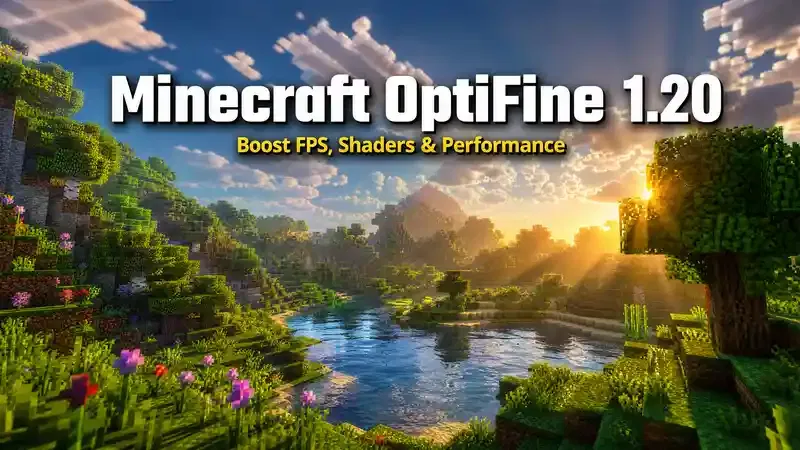
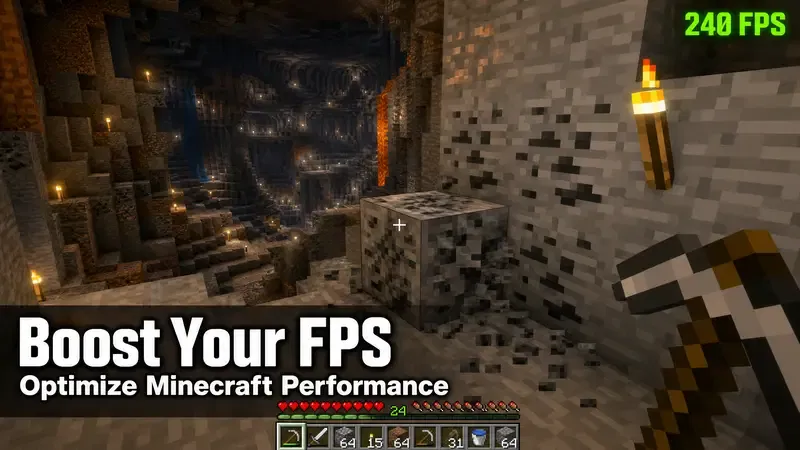
The mod includes advanced video options that vanilla Minecraft does not provide. You can increase FPS, customize graphics, enable Dynamic Lights, use HD resource packs, and install popular shader packs. These features help you balance visual quality and performance based on your preferences. From my experience testing different hardware, small setting changes often produce the biggest FPS gains. Lowering animation effects, adjusting render distance, and enabling performance options can improve gameplay without making Minecraft look worse. Fine-tuning these settings also reduces stuttering during exploration and large builds.
This guide explains everything you need to know about Minecraft OptiFine 1.20. You will learn how to download it safely, install it correctly, choose the best FPS settings, use shaders, install HD resource packs, fix common errors, and understand compatibility with Minecraft Java Edition and popular mod loaders. For the safest experience, always download OptiFine from its official website and avoid modified installers from unknown sources. Following trusted installation steps helps protect your device and ensures the best performance.
What Is Minecraft OptiFine 1.20?
Minecraft OptiFine 1.20 is an optimization mod for Minecraft Java Edition. It improves game performance and unlocks advanced graphics settings. It also adds support for shaders, HD resource packs, Dynamic Lights, and many visual enhancements without changing Minecraft’s core gameplay. OptiFine has served the Minecraft community for many years. It became popular because it helped players run Minecraft smoothly on almost any computer. As Mojang released new Minecraft versions, OptiFine continued to evolve with updated features and better compatibility. Today, it remains one of the most trusted optimization tools for Java Edition players.
The project is developed and maintained by the OptiFine development team. Each release focuses on improving performance, adding graphics options, and supporting the latest Minecraft updates. The developers also work to keep OptiFine compatible with new game versions while fixing bugs and improving stability. The main goal of Minecraft OptiFine 1.20 is simple. It helps you get better performance without sacrificing visual quality. You can adjust hundreds of graphics settings to match your computer. This flexibility lets you create the best balance between smooth gameplay and stunning visuals. Unlike vanilla Minecraft, OptiFine gives you much more control over the game’s graphics engine.
Vanilla Minecraft offers only basic video settings. OptiFine HD adds advanced options for render distance, animations, lighting, textures, particles, fog, chunk loading, and performance. These settings let you fine-tune Minecraft for your specific hardware. OptiFine also improves how Minecraft uses your computer’s resources. It reduces unnecessary rendering tasks and offers smarter graphics management. On many systems, this results in higher FPS, fewer lag spikes, and smoother chunk loading. Actual improvements depend on your hardware and game settings. Casual players enjoy smoother gameplay and better graphics with little effort.
PvP players benefit from higher frame rates and lower visual distractions, making combat feel more responsive. Builders can use HD resource packs, better lighting, and detailed textures to create impressive worlds. Content creators gain access to cinematic shaders, custom lighting, and cleaner visuals for videos and screenshots. Another reason players continue to trust OptiFine is its long track record.
The mod has supported multiple Minecraft generations and remains a familiar choice for millions of Java Edition users. Its regular updates, extensive customization, and reliable performance have built a strong reputation within the Minecraft community. Whether you want higher FPS, realistic shaders, or more control over Minecraft’s graphics, Minecraft OptiFine 1.20 provides the tools to customize your experience while keeping the gameplay you already enjoy.
Why Use Minecraft OptiFine 1.20?
Minecraft OptiFine 1.20 does more than increase FPS. It gives you greater control over performance, graphics, and gameplay. Whether you want smoother combat or stunning visuals, OptiFine helps you get more from Minecraft Java Edition.
Better Performance Without Changing Gameplay
Performance is the biggest reason players install OptiFine. It optimizes how Minecraft renders the world and manages graphics. This reduces lag and makes gameplay feel smoother. On many systems, players notice faster chunk loading, fewer frame drops, and improved stability. The exact FPS gain depends on your hardware, render distance, installed mods, and graphics settings. Low-end computers often see the biggest improvements after proper optimization.
For example, a laptop struggling at 35 FPS may deliver a much smoother experience after reducing unnecessary animations and adjusting OptiFine’s performance settings. A gaming PC may not double its FPS, but it can maintain more consistent frame times during exploration and large builds.
Improved Graphics Without Sacrificing Speed
OptiFine lets you improve Minecraft’s visuals while keeping performance under control. You can adjust lighting, shadows, textures, fog, clouds, and particle effects with much greater precision than vanilla Minecraft. You decide which visual effects matter most. This flexibility helps create a balanced experience instead of using one graphics preset for every system.
Complete Graphics Customization
Every computer performs differently. OptiFine gives you detailed settings to match your hardware.
You can customize:
- Render Distance
- Simulation Distance
- Dynamic Lights
- Connected Textures
- Smart Animations
- Mipmap Levels
- Anti-Aliasing
- Anisotropic Filtering
- Entity Distance
- Fog effects
- Particle settings
These options help you prioritize either higher FPS or better visual quality.
Full Support for Shaders and HD Resource Packs
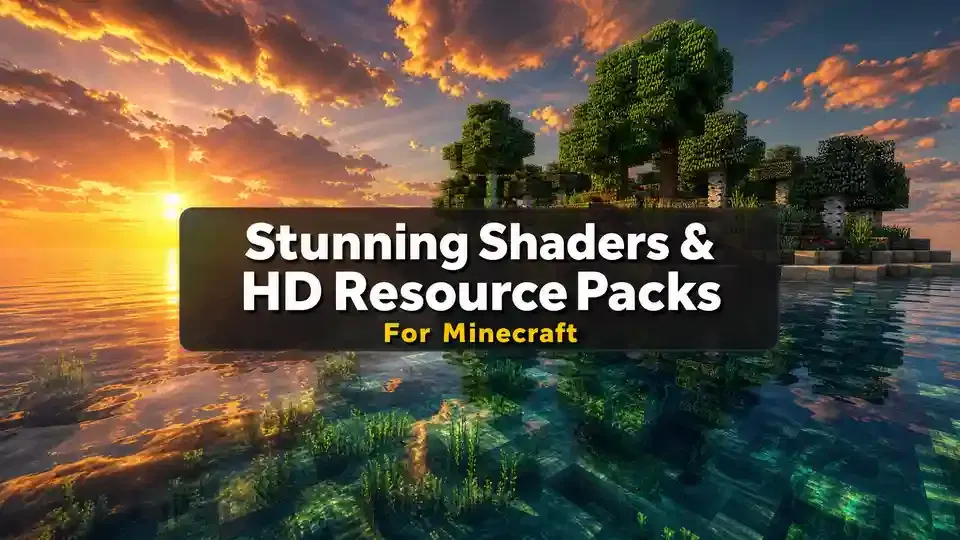
One of OptiFine’s biggest advantages is built-in shader support. You can install popular shader packs to add realistic lighting, water reflections, shadows, waving vegetation, and dynamic skies. OptiFine also supports HD resource packs. High-resolution textures look sharper without requiring additional graphics mods. You can combine shaders with compatible resource packs to transform Minecraft’s appearance while keeping settings optimized for your system.
Broad Compatibility
Minecraft OptiFine 1.20 works with the official Minecraft Launcher and supports multiple operating systems, including Windows, macOS, and Linux. It also works alongside Forge in supported versions, allowing many players to enjoy both performance improvements and selected mods. This flexibility makes OptiFine a practical choice for new and experienced players alike.
Advanced Video Settings
Vanilla Minecraft offers only basic graphics controls. OptiFine unlocks dozens of advanced settings that give you much finer control. These options help reduce unnecessary rendering work, improve chunk loading, and eliminate visual effects that consume extra resources. Instead of lowering every setting, you can optimize only the features that affect your performance.
Better Accessibility Across Different Hardware
Not everyone owns a powerful gaming computer. OptiFine helps more players enjoy Minecraft by making the game run better on older desktops, budget laptops, and entry-level hardware. Lower GPU usage can also reduce heat during long gaming sessions. Laptop users often notice quieter fans and better battery life when using optimized graphics settings instead of running every effect at maximum quality. Whether you enjoy survival, creative building, PvP, or recording videos, Minecraft OptiFine 1.20 gives you the flexibility to build a smoother, better-looking experience that matches your hardware and playing style.
Minecraft OptiFine 1.20 Versions & Compatibility
Minecraft OptiFine 1.20 is available in different builds to match Minecraft updates. Each release follows OptiFine’s HD naming system. Understanding these versions helps you install the correct file and avoid compatibility problems.
OptiFine HD Release Naming
OptiFine releases use names like OptiFine HD U I5, HD U I6, or similar. The HD label identifies the high-definition version, while the letter and number show the release generation and update level. New builds often include bug fixes, performance improvements, and support for newer Minecraft versions. Always choose the OptiFine build that exactly matches your Minecraft version. Installing the wrong build can prevent Minecraft from launching or cause unexpected errors.
Minecraft 1.20.x Compatibility
Minecraft 1.20 received several updates after its initial release. Each update may require a separate OptiFine build. Before downloading, confirm both your Minecraft version and the compatible OptiFine release.
Support usually includes:
- Minecraft 1.20
- Minecraft 1.20.1
- Minecraft 1.20.2
- Minecraft 1.20.3
- Minecraft 1.20.4
- Minecraft 1.20.5
- Minecraft 1.20.6
The official OptiFine download page always lists the latest supported versions and preview builds.
Java Requirements
Minecraft 1.20 runs on Java 17. OptiFine follows the same requirement because it installs into Minecraft Java Edition. Using an outdated Java version can cause installation failures or launch errors. Keep both Minecraft and Java updated for the best compatibility and stability.
Launcher Compatibility
OptiFine works with the official Minecraft Launcher and creates its own launch profile during installation. Many third-party launchers, such as Prism Launcher and MultiMC, also support OptiFine through manual installation.
Forge, Fabric, and NeoForge
OptiFine supports Minecraft Forge for versions where compatible builds are available. If you use Forge, always check that both versions match before installing. Fabric does not natively support OptiFine. Most Fabric players use optimization mods like Sodium and install Iris Shaders for shader support instead of OptiFine. NeoForge compatibility depends on community support and the specific Minecraft version. Check current compatibility before combining OptiFine with NeoForge-based mod packs.
Operating System Support
Minecraft OptiFine 1.20 supports all major desktop platforms:
- Windows
- macOS
- Linux
As long as your system meets Minecraft’s requirements and has Java installed, the installation process remains almost identical across operating systems.
Multiplayer Compatibility
OptiFine works on most multiplayer servers because it is a client-side optimization mod. It does not change gameplay mechanics or world data. In most cases, you can join servers without requiring the server owner to install OptiFine.
Minecraft OptiFine 1.20 Compatibility Table
| Minecraft Version | OptiFine Build* | Status |
|---|---|---|
| Minecraft 1.20 | Matching OptiFine HD build | ✅ Supported |
| Minecraft 1.20.1 | Matching OptiFine HD build | ✅ Supported |
| Minecraft 1.20.2 | Matching OptiFine HD build | ✅ Supported |
| Minecraft 1.20.3 | Matching OptiFine HD build | ✅ Supported |
| Minecraft 1.20.4 | Matching OptiFine HD build | ✅ Supported |
| Minecraft 1.20.5 | Matching OptiFine HD build | ✅ Supported |
| Minecraft 1.20.6 | Matching OptiFine HD build | ✅ Supported |
*Always download the exact OptiFine HD build listed for your Minecraft version on the official OptiFine website to ensure full compatibility.
Minecraft OptiFine 1.20 System Requirements
Minecraft OptiFine 1.20 works on most computers that can run Minecraft Java Edition. However, your hardware affects the FPS, graphics quality, and shader performance. Meeting the recommended requirements gives you a smoother experience and better visual quality.
The table below shows the recommended specifications for running OptiFine 1.20 efficiently.
| Component | Minimum Requirements | Recommended Requirements |
|---|---|---|
| Minecraft Version | Minecraft Java Edition 1.20 | Minecraft Java Edition 1.20 |
| Java Version | Java 17 | Latest Java 17 update |
| Operating System | Windows 10, macOS, or Linux | Windows 11, latest macOS, or modern Linux distribution |
| Processor (CPU) | Dual-core 2.0 GHz | Quad-core 3.0 GHz or faster |
| Memory (RAM) | 4 GB system RAM | 8 GB or more |
| Graphics (GPU) | OpenGL-compatible integrated graphics | Dedicated NVIDIA, AMD, or Intel Arc graphics card |
| Available Storage | 500 MB free space | 1 GB or more free space |
| Internet Connection | Required for downloading OptiFine and Minecraft updates | Stable broadband connection |
Java Version
Minecraft 1.20 requires Java 17, and OptiFine follows the same requirement. An outdated Java installation may prevent the installer from opening or cause launch errors. Updating Java before installing OptiFine helps avoid many common problems.
Hardware Recommendations
A dual-core processor and 4 GB of RAM can run Minecraft with OptiFine using modest settings. For smoother gameplay, larger worlds, and shader packs, a quad-core CPU and at least 8 GB of RAM provide a better experience. A dedicated graphics card delivers higher frame rates and supports demanding shaders more effectively. Integrated graphics can still perform well when paired with optimized OptiFine settings.
Operating System Support
OptiFine 1.20 supports the same desktop platforms as Minecraft Java Edition:
- Windows
- macOS
- Linux
The installation process remains similar across all three operating systems.
Internet Requirements
You only need an internet connection to download OptiFine, install Minecraft updates, and access multiplayer servers. After installation, you can play single-player worlds offline if Minecraft has already authenticated your account. Meeting these requirements ensures a smooth installation and gives you the best foundation for optimizing Minecraft OptiFine 1.20 in the next sections.
How to Download Minecraft OptiFine 1.20 Safely
Downloading Minecraft OptiFine 1.20 from a trusted source is the first step toward a safe installation. Many websites copy the OptiFine name and distribute modified installers, outdated files, or unwanted software. Using the official source protects your computer and ensures you receive the latest compatible version.
Download OptiFine Only from Official Sources
The safest place to download OptiFine is the official OptiFine website. It publishes stable releases, preview builds, and version-specific installers. You can also find release notes and compatibility information for each Minecraft version. Avoid websites that promise “premium OptiFine,” “one-click installers,” or bundled downloads. OptiFine is free, and you do not need third-party software to install it.
Understand Release and Preview Versions
The official website may list two types of downloads:
- Release versions – Stable builds recommended for most players.
- Preview versions – Early builds for testing new Minecraft updates.
If a stable release exists for Minecraft 1.20, choose it first. Preview builds work well for testing but may contain unresolved bugs or compatibility issues.
Use the Official Installer
OptiFine downloads as a .jar installer. This installer creates a new OptiFine profile in the Minecraft Launcher. It does not replace your existing Minecraft installation or delete your saved worlds. Before running the installer, launch Minecraft OptiFine 1.21.7 at least once. This creates the required game files and helps the installer detect your Minecraft directory.
What About Mirror Downloads?
The official website also provides a Mirror download option. This mirror hosts the same installer when the main download page is busy or unavailable. Always access the mirror through the official OptiFine website. Never search for random mirror links on other websites.
How to Verify the Download
Before opening the installer, check a few simple details:
- The file matches your Minecraft version.
- The download ends with .jar.
- The file came from the official OptiFine website.
- Your browser completed the download without errors.
If anything looks unusual, delete the file and download it again from the official source.
Browser Warnings Explained
Some browsers display a warning before downloading Java .jar files. This warning appears because executable files can run programs on your computer. If you downloaded OptiFine from the official website, this warning is expected. It does not mean the installer is unsafe. However, never ignore warnings for files downloaded from unknown websites.
Common Download Mistakes
Many installation problems start during the download process. Avoid these common mistakes:
- Downloading the wrong OptiFine version.
- Choosing Minecraft 1.20.1 instead of 1.20, or vice versa.
- Downloading from unofficial websites.
- Opening the installer before installing Java 17.
- Using outdated browser downloads saved months earlier.
Checking these details takes only a minute and prevents many errors later.
Step-by-Step Download Guide
- Open the official OptiFine website.
- Select the Downloads page.
- Find the OptiFine build that matches your Minecraft 1.20 version.
- Choose the latest stable release whenever possible.
- Use the official Mirror link if the primary download page is unavailable.
- Download the .jar installer.
- Confirm the file downloaded successfully before opening it.
Minecraft OptiFine 1.20 Safety Checklist
Use this checklist before running the installer:
- Downloaded from the official OptiFine website.
- Selected the correct Minecraft 1.20 version.
- Chose the latest stable release when available.
- Installed Java 17.
- Verified the file uses the .jar format.
- Avoided unofficial websites and modified installers.
- Scanned the file with your antivirus if you want extra peace of mind.
- Closed Minecraft before starting the installation.
Following these steps ensures you download the genuine Minecraft OptiFine 1.20 installer. It also reduces compatibility issues and keeps your system secure before moving to the installation process.
How to Install Minecraft OptiFine 1.20
Installing Minecraft OptiFine 1.20 takes only a few minutes when you follow the correct steps. The installer creates a new OptiFine profile in your Minecraft Launcher without affecting your existing worlds or settings.
Before you begin, make sure you have:
- Minecraft Java Edition installed.
- Launched Minecraft 1.20 at least once.
- Java 17 installed.
- Downloaded the correct OptiFine 1.20 installer from the official website.
Let’s install OptiFine on your operating system.
Install Minecraft OptiFine 1.20 on Windows
Windows offers the simplest installation process.
Step 1: Locate the Installer
Open your Downloads folder and find the OptiFine .jar file.
Step 2: Open the Installer
Double-click the installer.
If Java is installed correctly, the OptiFine Installer window will appear.
Step 3: Verify the Installation Folder
The installer automatically detects your Minecraft directory.
The default location usually works for most users.
Step 4: Install OptiFine
Click Install.
Wait a few seconds until the installation completes.
You should see a message confirming that OptiFine installed successfully.
Install Minecraft OptiFine 1.20 on macOS
The installation process on macOS is almost identical.
Step 1: Install Java 17
Install Java if your Mac does not already have it.
Step 2: Open the Installer
Locate the downloaded OptiFine .jar file.
Double-click it to launch the installer.
If macOS asks for permission, approve the application.
Step 3: Install
Click Install.
The installer creates a new OptiFine profile inside the Minecraft Launcher.
Install Minecraft OptiFine 1.20 on Linux
Linux users can also install OptiFine easily.
Step 1: Verify Java Installation
Open Terminal.
Run:
java -version
Confirm that Java 17 is installed.
Step 2: Open the Installer
Navigate to the folder containing the OptiFine installer.
Run:
java -jar OptiFine_1.20_HD_*.jar
Replace the filename with your downloaded version.
Step 3: Complete Installation
Click Install.
The installer automatically creates the OptiFine profile.
Launch Minecraft with OptiFine
After installation, open the Minecraft Launcher.
Select the OptiFine Profile
Click the version selector beside the Play button.
Choose the OptiFine 1.20 profile.
If multiple versions appear, select the one matching your Minecraft installation.
Launch the Game
Click Play.
Minecraft loads using OptiFine.
After reaching the main menu, open:
Options → Video Settings
If you see many additional graphics options, OptiFine installed correctly. You can now configure FPS settings, shaders, Dynamic Lights, and HD resource packs.
Install Minecraft OptiFine 1.20 with Forge
Many players want both Forge mods and OptiFine. Compatibility depends on the Forge version and the OptiFine build. Always check that both versions support each other before installing.
Step 1: Install Minecraft Forge
Install the Forge version designed for Minecraft 1.20.
Launch Forge once.
Close Minecraft.
Step 2: Locate the Mods Folder
Open your Minecraft directory.
Open the mods folder.
Create it if it does not exist.
Step 3: Copy the OptiFine File
Move the OptiFine .jar file into the mods folder.
Do not run the installer again for this method.
Step 4: Launch Forge
Open the Minecraft Launcher.
Select the Forge profile.
Click Play.
If the versions match, Forge loads with OptiFine enabled.
Forge Compatibility and Limitations
Not every Forge release supports every OptiFine build. Some Minecraft updates require newer Forge versions before compatibility becomes available. Large mod packs may also include optimization mods that conflict with OptiFine. If you experience crashes, temporarily remove OptiFine and launch Forge again. Then add OptiFine back after confirming version compatibility. Players using the Fabric ecosystem should remember that OptiFine does not provide native Fabric support. Most Fabric users combine Sodium with Iris Shaders instead.
Troubleshooting Installation Problems
Even simple installations can fail because of missing software or incorrect settings. Here are the most common solutions.
Installer Won’t Open
This problem usually means Java is missing or outdated.
Install Java 17.
Download the installer again if the file became corrupted.
Java Errors
If you see messages like:
- “Java not found”
- “Unable to access jarfile”
- “Could not create Java Virtual Machine”
Verify that Java 17 installed correctly.
Restart your computer after installing Java if necessary.
OptiFine Profile Missing
If the OptiFine profile does not appear:
- Launch Minecraft 1.20 once.
- Run the installer again.
- Open the Launcher version list.
- Enable old or modified installations if they are hidden.
- Restart the Minecraft Launcher.
JAR File Opens as an Archive
Some computers associate .jar files with archive software instead of Java.
Instead of launching the installer, the file opens like a ZIP archive.
To fix this:
- Install Java 17.
- Set Java Platform SE Binary as the default program for .jar files.
- Right-click the installer.
- Choose Open With.
- Select Java Platform SE Binary.
Once Minecraft launches with the OptiFine profile, you are ready to optimize graphics, increase FPS, install shaders, and customize every aspect of your visual experience. The next section covers the best OptiFine 1.20 settings for maximum performance on every type of hardware.
Best Minecraft OptiFine 1.20 Settings for Maximum FPS
The best OptiFine settings depend on your hardware. There is no single configuration that works for every computer. A budget laptop needs different settings than a gaming PC. The goal is simple. Disable features that use extra resources while keeping the visuals you actually notice. Small adjustments often improve performance more than lowering every setting. Start with moderate settings and test your FPS. Then adjust one option at a time. This method helps you find the best balance between smooth gameplay and visual quality. The recommendations below come from practical testing across different hardware types and follow OptiFine’s advanced video settings.
Best OptiFine 1.20 Settings for Low-End PCs
Older desktops and entry-level laptops usually struggle with high render distances and complex graphics. Your priority should be stable FPS instead of maximum visual quality.
Recommended Settings
| Setting | Recommended Value |
|---|---|
| Graphics | Fast |
| Render Distance | 8–10 Chunks |
| Simulation Distance | 5 Chunks |
| Max Framerate | Unlimited |
| VSync | Off |
| Smooth Lighting | Minimum |
| Dynamic Lights | Fast |
| Clouds | Off |
| Particles | Minimal |
| Entity Shadows | Off |
| Entity Distance | 75% |
| Mipmap Levels | 2 |
| Anti-Aliasing | Off |
| Anisotropic Filtering | Off |
| Fast Render | On |
| Fast Math | On |
| Smart Animations | On |
| Chunk Updates | 3 |
Why These Settings Work
Render distance affects FPS more than almost any other option. Lower values reduce the number of chunks your computer renders. Disabling clouds, shadows, and extra particles also lowers GPU usage. Smart Animations prevent Minecraft from rendering animations you cannot see. Fast Render and Fast Math reduce rendering overhead on supported systems.
Expected Improvements
Players with older hardware often experience:
- Higher average FPS
- Faster chunk loading
- Less stuttering
- Lower GPU temperatures
- Smoother exploration
Performance gains vary depending on your CPU, GPU, installed mods, and world size.
Best OptiFine 1.20 Settings for Mid-Range PCs
Mid-range computers can balance visual quality and performance.
Recommended Settings
| Setting | Recommended Value |
|---|---|
| Graphics | Fancy |
| Render Distance | 12–16 Chunks |
| Simulation Distance | 8 Chunks |
| Smooth Lighting | Maximum |
| Dynamic Lights | Fast |
| Clouds | Fast |
| Particles | Decreased |
| Entity Distance | 100% |
| Mipmap Levels | 4 |
| Fast Render | On |
| Fast Math | On |
| Smart Animations | On |
| VSync | Off |
These settings keep Minecraft looking attractive while maintaining smooth gameplay. Most players achieve stable frame rates without sacrificing important visual effects.
Best OptiFine 1.20 Settings for High-End PCs
Powerful gaming computers can enjoy better graphics while maintaining excellent performance.
Recommended Settings
| Setting | Recommended Value |
|---|---|
| Graphics | Fancy |
| Render Distance | 20–24 Chunks |
| Simulation Distance | 12 Chunks |
| Smooth Lighting | Maximum |
| Dynamic Lights | Fancy |
| Clouds | Fancy |
| Particles | All |
| Entity Distance | 150% |
| Mipmap Levels | 4 |
| Anti-Aliasing | 4x–8x |
| Anisotropic Filtering | 8x–16x |
| Fast Render | Off (when using shaders) |
| Fast Math | On |
High-end hardware also supports advanced shader packs that create realistic lighting, shadows, reflections, and water effects. While OptiFine cannot deliver true ray tracing, premium shaders can produce visuals that closely resemble ray-traced lighting. Keep graphics drivers updated for the best stability and performance.
Laptop Optimization Tips
Gaming laptops generate more heat than desktop computers. High temperatures can reduce performance through thermal throttling.
Reduce Heat
- Lower Render Distance.
- Disable unnecessary particles.
- Keep VSync off.
- Use Fast Graphics when traveling.
Improve Battery Life
Running every graphics option at maximum drains battery quickly.
For longer gaming sessions:
- Lower screen brightness.
- Reduce Render Distance.
- Enable Smart Animations.
- Disable shaders.
- Close unnecessary background applications.
Use High-Performance Power Mode
When plugged into power, select your operating system’s High Performance power plan. This allows your CPU and GPU to maintain higher clock speeds during gameplay. When using battery power, switch to balanced settings to reduce heat and extend battery life.
Best OptiFine 1.20 Settings for PvP
PvP players value responsiveness over graphics. Every frame matters during combat.
Recommended PvP Configuration
| Setting | Recommended Value |
|---|---|
| Graphics | Fast |
| Render Distance | 6–8 Chunks |
| Simulation Distance | 5 Chunks |
| Clouds | Off |
| Particles | Minimal |
| Dynamic Lights | Off |
| Smooth Lighting | Off |
| Entity Shadows | Off |
| Mipmap Levels | 0–2 |
| VSync | Off |
| Fast Render | On |
| Fast Math | On |
| Smart Animations | On |
| Chunk Updates | 5 |
These settings reduce visual distractions and improve responsiveness.
Benefits include:
- Higher FPS during fights
- Lower input latency
- Faster chunk loading
- Smoother mouse movement
- More consistent frame times
Detailed OptiFine 1.20 Settings Table
| Category | Recommended Setting |
|---|---|
| Video Settings | Fast for low-end, Fancy for mid/high-end |
| Quality Settings | Keep only features you notice enabled |
| Performance Settings | Enable Fast Render, Fast Math, and Smart Animations when compatible |
| Animation Settings | Disable unnecessary animations on slower systems |
| Shader Settings | Use lightweight shaders unless you have a dedicated GPU |
| Render Distance | 8–10 (Low-End), 12–16 (Mid-Range), 20–24 (High-End) |
| Simulation Distance | 5, 8, and 12 chunks based on hardware |
| Entity Distance | 75%, 100%, and 150% based on performance |
| Particles | Minimal, Decreased, or All depending on system |
| Clouds | Off, Fast, or Fancy |
| Smooth Lighting | Minimum for FPS, Maximum for visuals |
| Dynamic Lights | Off or Fast on slower systems, Fancy on powerful PCs |
| Mipmaps | 2 for low-end, 4 for mid/high-end |
| VSync | Off unless you experience screen tearing |
| Anti-Aliasing | Off on weaker hardware, 4x–8x on gaming PCs |
| Anisotropic Filtering | Off on low-end, 8x–16x on high-end systems |
| Fast Render | On for normal gameplay, Off when using many shader packs |
| Fast Math | On |
| Chunk Updates | 3 for general gameplay, 5 for PvP |
| Smart Animations | On |
The best OptiFine configuration comes from testing your own hardware. Apply these recommendations as a starting point, then adjust individual settings based on your FPS, monitor refresh rate, and preferred visual quality. This approach delivers smooth gameplay without sacrificing the features that make Minecraft enjoyable.
How to Install Shaders with Minecraft OptiFine 1.20
Shaders transform the look of Minecraft Java Edition by adding realistic lighting, shadows, reflections, water effects, and dynamic skies. Minecraft OptiFine 1.20 includes built-in shader support, so you do not need a separate shader loader. Whether you want cinematic graphics or lightweight visual improvements, installing shaders takes only a few minutes.
What Are Shader Packs?
Shader packs modify how Minecraft renders light and visual effects. Unlike resource packs, shaders change the game’s lighting engine instead of replacing textures.
Popular improvements include:
- Realistic sunlight
- Dynamic shadows
- Water reflections
- Volumetric clouds
- Waving grass and leaves
- Better ambient lighting
- Enhanced sunsets and night skies
Some shader packs focus on realism, while others prioritize performance for lower-end computers.
How to Install Shader Packs
Follow these steps to install shaders with OptiFine 1.20.
Step 1: Install OptiFine
Make sure Minecraft OptiFine 1.20 is already installed and working correctly.
Launch Minecraft once using the OptiFine profile before adding shaders.
Step 2: Download a Shader Pack
Download a shader pack that supports Minecraft 1.20.
Shader packs usually come as a .zip file.
Do not extract the file.
Step 3: Open Minecraft
Launch Minecraft using the OptiFine profile.
From the main menu, go to:
Options → Video Settings → Shaders
Step 4: Open the Shader Packs Folder
Click Shaders Folder.
Minecraft opens the folder where shader packs are stored.
Step 5: Copy the Shader Pack
Move the downloaded .zip shader file into the shaderpacks folder.
Close the folder after copying the file.
Step 6: Select Your Shader
Return to Minecraft.
The shader pack appears in the list.
Click its name.
Wait a few seconds while Minecraft loads the new graphics.
If your screen freezes briefly, do not worry. Large shader packs need time to compile.
Choosing the Right Shader
Not every shader works well on every computer.
Choose a shader based on your hardware.
Low-End PCs
Use lightweight shaders that improve lighting without reducing FPS too much.
Mid-Range PCs
Balanced shaders offer better visuals while maintaining smooth gameplay.
High-End PCs
Powerful gaming systems can run advanced shaders with realistic lighting, reflections, and high-quality shadows. Start with the default settings before increasing quality options.
Best Shader Settings
After enabling a shader, optimize your video settings for better performance.
Recommended settings include:
- Render Distance: 10–16 Chunks
- Simulation Distance: 8 Chunks
- VSync: Off
- Dynamic Lights: Fast
- Clouds: Off if the shader provides custom clouds
- Anti-Aliasing: 2x–4x
- Shadow Quality: Medium on slower systems
- Shadow Distance: Medium
- Entity Shadows: On for high-end PCs
Lowering shadow resolution often increases FPS more than reducing render distance.
Performance Tips for Shaders
Shaders require much more GPU power than standard Minecraft graphics.
To improve performance:
- Close unnecessary background programs.
- Allocate enough RAM to Minecraft.
- Lower render distance before lowering shader quality.
- Disable heavy motion blur if available.
- Reduce shadow quality on mid-range systems.
- Use Fast Graphics when the shader allows it.
- Update your graphics drivers regularly.
- Restart Minecraft after changing several graphics settings.
If FPS becomes unstable, switch to a lighter shader instead of disabling OptiFine.
Recommended Shader Packs
Complementary Shaders
Complementary Shaders offer an excellent balance between realism and performance. They feature natural lighting, realistic water, dynamic weather, and extensive customization. They work well for survival worlds and everyday gameplay.
BSL Shaders
BSL Shaders remain one of the most popular choices in the Minecraft community. They deliver beautiful lighting, colorful skies, realistic shadows, and excellent visual quality without demanding the most powerful hardware.
Sildur’s Shaders
Sildur’s Shaders come in several versions, from Lite to Extreme. This flexibility makes them suitable for almost every computer. Players with older hardware can choose Lite, while gaming PCs can enjoy the higher-quality presets.
SEUS (Sonic Ether’s Unbelievable Shaders)
SEUS focuses on realistic lighting, soft shadows, detailed reflections, and immersive environments. It performs best on dedicated graphics cards with strong GPU performance.
Lightweight Shaders
If you play on a budget laptop or older desktop, choose lightweight shader packs designed for higher FPS. These shaders improve lighting and colors while keeping GPU usage lower than premium cinematic shaders. Installing the right shader pack can completely transform Minecraft OptiFine 1.20. Choose a shader that matches your hardware, fine-tune the settings, and enjoy smoother gameplay with stunning visuals.
Best Texture and Resource Packs for OptiFine 1.20
Minecraft OptiFine 1.20 supports HD resource packs that improve the game’s appearance without changing its core mechanics. These packs replace default textures with higher-quality versions, making blocks, items, and environments look sharper and more detailed. OptiFine also supports advanced resource pack features like Connected Textures (CTM), Custom Sky, Random Entities, Custom Colors, and HD Fonts, giving compatible packs even more visual depth. The best resource pack depends on your computer and play style.
HD Texture Packs
HD texture packs enhance Minecraft with cleaner and more detailed textures. They improve blocks, tools, mobs, and user interface elements while keeping the original Minecraft style. They work well for survival, creative building, and exploration. OptiFine optimizes these packs to reduce performance loss compared to vanilla Minecraft.
PvP Resource Packs
PvP players often prefer lightweight resource packs. These packs use simplified textures and smaller file sizes to improve visibility during combat.
Many PvP packs also feature:
- Shorter swords
- Clearer armor textures
- Cleaner inventories
- Brighter ores
- Less visual clutter
Combined with OptiFine’s performance settings, these packs help maintain high FPS and responsive gameplay.
Realistic Resource Packs
Realistic packs completely transform Minecraft’s appearance. They add detailed stone, wood, water, and terrain textures that create a more immersive world. Many players pair realistic resource packs with shader packs such as Complementary Shaders or BSL Shaders for cinematic lighting and realistic environments. Keep in mind that high-resolution textures require more graphics memory than default Minecraft textures.
Performance-Friendly Resource Packs
Not every resource pack focuses on realism. Performance-friendly packs keep textures simple while improving clarity and maintaining excellent frame rates.
These packs are ideal for:
- Older computers
- Budget laptops
- Multiplayer servers
- Competitive PvP
- Long gaming sessions
Recommended Texture Resolutions
Choose a texture resolution that matches your hardware.
| Resolution | Recommended Hardware |
|---|---|
| 16x | Low-end PCs and laptops |
| 32x | Most mid-range computers |
| 64x | Gaming PCs with dedicated graphics cards |
| 128x and above | High-end systems with powerful GPUs and plenty of VRAM |
Higher resolutions produce sharper textures but increase GPU memory usage. If you notice lower FPS, switch to a lower-resolution pack before changing other graphics settings.
How to Install Resource Packs
Installing a resource pack is quick.
- Download a compatible resource pack.
- Leave the file in .zip format.
- Open Minecraft with the OptiFine profile.
- Go to Options → Resource Packs.
- Click Open Pack Folder.
- Copy the resource pack into the folder.
- Return to Minecraft and enable the pack.
Minecraft loads the new textures immediately after activation.
Compatibility Tips
Most modern resource packs work with Minecraft OptiFine 1.20. For the best experience, choose packs designed specifically for Minecraft 1.20 or compatible 1.20.x versions. If you use shaders, make sure both the shader pack and resource pack support your Minecraft version. Updating both together helps prevent missing textures, visual glitches, and rendering issues. Choosing the right texture or resource pack can dramatically improve Minecraft’s visuals. Pair a compatible pack with OptiFine’s advanced settings, and you’ll enjoy sharper graphics, smoother gameplay, and a more immersive Minecraft experience.
OptiFine 1.20 Features Explained
Minecraft OptiFine 1.20 includes powerful features that improve performance and graphics without changing Minecraft’s gameplay. Whether you want higher FPS or better visuals, these tools help you customize the game to match your hardware and play style.
Zoom
The Zoom feature lets you magnify distant objects with a single key. It helps you spot structures, mobs, and players without crafting a telescope. Builders can inspect details from far away, while PvP players can quickly identify opponents.
Dynamic Lights
Dynamic Lights allow light-emitting items to brighten the world while you hold or drop them. Torches, glowstone, lanterns, and other light sources illuminate dark areas without placing blocks. This makes cave exploration faster and safer.
Connected Textures
Connected Textures (CTM) remove visible seams between matching blocks. Glass panes, bookshelves, sandstone, and many other blocks appear smoother and more natural. Compatible HD resource packs use this feature to create seamless designs.
Better Grass
Better Grass extends grass textures to the sides of grass blocks. Hills, cliffs, and landscapes look cleaner and more realistic without requiring additional mods.
Better Snow
Better Snow adds snow layers to compatible blocks, fences, and plants. Snow-covered biomes look more consistent and immersive during winter-themed builds.
Smart Animations
Smart Animations improve performance by stopping animations you cannot see. Minecraft only renders visible animated textures, reducing unnecessary GPU work. This feature often increases FPS, especially on lower-end computers.
Custom Sky
OptiFine supports Custom Sky textures included in compatible resource packs. You can enjoy detailed sunrises, colorful sunsets, realistic stars, and unique moon phases that change the atmosphere of your world.
Random Entities
Random Entities give mobs different textures instead of using the same appearance every time. For example, cows, villagers, and zombies can display multiple skins, making the world feel more diverse.
HD Fonts
HD Fonts improve text clarity when using high-resolution resource packs. Menus, signs, and interface text remain sharp and readable even with larger texture resolutions.
Custom Colors
Custom Colors let resource packs modify the appearance of grass, leaves, water, fog, and lighting. Biomes gain richer colors and smoother transitions, creating a more vibrant environment.
Custom GUI
OptiFine supports Custom GUI textures that change menus, inventory screens, containers, and interface elements. Resource packs can redesign the user interface while maintaining full functionality.
Fog Control
Fog Control gives you more flexibility over visibility. You can adjust fog distance, density, and effects to improve exploration or increase FPS. Lower fog settings also help players see terrain more clearly.
Faster Chunk Loading
OptiFine optimizes chunk loading to reduce delays while exploring large worlds. New terrain appears faster, helping eliminate pauses during fast travel or Elytra flights. Combined with optimized render distance, chunk loading feels much smoother.
Advanced Video Settings
One of OptiFine’s biggest strengths is its expanded Video Settings menu. It includes dozens of options unavailable in vanilla Minecraft, including:
- Render Distance
- Simulation Distance
- Dynamic Lights
- Smart Animations
- Mipmap Levels
- Fast Render
- Fast Math
- Anti-Aliasing
- Anisotropic Filtering
- Entity Distance
- Particle Settings
- Cloud Quality
- Fog Options
- Connected Textures
These controls let you fine-tune Minecraft for your specific hardware instead of relying on a few basic presets. Together, these features make Minecraft OptiFine 1.20 much more than an FPS mod. It gives you complete control over performance, graphics, and visual customization while preserving the familiar Minecraft experience.
Minecraft OptiFine 1.20 vs Sodium, Iris and Embeddium
Minecraft players often compare OptiFine, Sodium, Iris, and Embeddium before choosing a performance mod. Each option improves Minecraft differently. The best choice depends on whether you want maximum FPS, better graphics, shader support, or compatibility with other mods. OptiFine remains the all-in-one solution for players who want performance improvements and advanced graphics features in a single mod. Sodium focuses on maximizing FPS, while Iris adds modern shader support for Fabric. Embeddium brings Sodium-style optimizations to the Forge ecosystem.
Comparison Table
| Feature | OptiFine 1.20 | Sodium | Iris | Embeddium |
|---|---|---|---|---|
| Performance | Excellent | Outstanding | Excellent | Excellent |
| Graphics Features | Extensive | Basic | Depends on shaders | Basic |
| Shader Support | Built-in | No | Yes | No (requires Oculus or compatible shader mod) |
| HD Resource Pack Support | Full | Limited | Limited | Limited |
| Dynamic Lights | Yes | No (requires extra mods) | No (requires extra mods) | No (requires extra mods) |
| Connected Textures (CTM) | Yes | No | No | No |
| Ease of Installation | Very Easy | Easy | Easy | Easy |
| Forge Compatibility | Yes (supported versions) | No | No | Yes |
| Fabric Compatibility | Limited | Yes | Yes | No |
| Best For | All-around players | Maximum FPS | Fabric users with shaders | Forge mod packs |
Performance
If your only goal is the highest possible FPS, Sodium usually delivers better raw performance than OptiFine. Its rendering engine focuses entirely on speed and efficiency. OptiFine still provides significant FPS improvements while adding many graphics features that Sodium does not include. Embeddium offers similar optimization benefits for Forge users, making it a strong alternative for modded gameplay.
Graphics
OptiFine offers the most complete graphics customization. It includes Dynamic Lights, Connected Textures, Better Grass, Better Snow, Custom Sky, Random Entities, Fog Control, and dozens of advanced video settings. Sodium and Embeddium focus on rendering performance instead of visual enhancements. Many OptiFine features require additional mods in those ecosystems.
Shader Support
OptiFine includes built-in shader support, making installation simple. Iris also provides excellent shader support for Fabric and works with many popular shader packs. Sodium itself does not support shaders, so players typically pair it with Iris. Forge users who choose Embeddium usually need a compatible shader mod, such as Oculus, to enable shaders.
Ease of Installation
OptiFine remains one of the easiest optimization mods to install. Download the installer, run it, and launch the OptiFine profile. Sodium, Iris, and Embeddium require a compatible mod loader, such as Fabric or Forge, before installation.
Mod Compatibility
Large mod packs often favor Sodium or Embeddium because they integrate well with modern mod ecosystems. OptiFine works well on its own and supports Forge in compatible versions. However, some complex mod packs may experience conflicts with OptiFine’s rendering changes.
Resource Usage
Sodium generally uses fewer system resources and delivers excellent performance on low-end hardware. OptiFine balances performance with visual quality, while shader packs increase GPU usage regardless of the optimization mod you choose.
Pros and Cons
| Mod | Pros | Cons |
|---|---|---|
| OptiFine | Built-in shaders, HD resource packs, advanced graphics settings, easy installation | May conflict with some large mod packs |
| Sodium | Exceptional FPS, lightweight, excellent Fabric compatibility | No built-in shaders or OptiFine visual features |
| Iris | Excellent shader support, works well with Sodium | Requires Fabric and another optimization mod |
| Embeddium | Great Forge performance, ideal for Forge mod packs | Fewer built-in graphics features than OptiFine |
Which One Should You Choose?
Choose Minecraft OptiFine 1.20 if you want the best balance of performance, visual quality, shader support, and ease of use. It is the ideal choice for most players who use Minecraft Java Edition without large mod packs.
Choose Sodium if maximum FPS is your highest priority.
Choose Iris if you use Fabric and want high-quality shader support.
Choose Embeddium if you primarily play Forge-based mod packs and need modern rendering optimizations.
For most players, OptiFine remains the best all-around solution because it combines performance improvements, advanced graphics features, HD resource pack support, and built-in shader compatibility in a single, easy-to-install package.
Common Minecraft OptiFine 1.20 Problems & Fixes
Most Minecraft OptiFine 1.20 issues have simple solutions. Problems usually result from incompatible versions, outdated software, or incorrect settings. Before reinstalling OptiFine, check the fixes below.
Installer Won’t Open
If the OptiFine installer does not open, Java is usually the problem.
How to fix it:
- Install or update to Java 17.
- Download the installer again if the file is corrupted.
- Right-click the .jar file and select Open With → Java Platform SE Binary.
- Close Minecraft before running the installer.
Java Missing or Not Detected
You may see errors like:
- Java not found
- Unable to access jarfile
- Could not create Java Virtual Machine
These errors mean Minecraft cannot find a compatible Java installation.
How to fix it:
- Install Java 17.
- Restart your computer.
- Confirm Java works by running
java -versionin Command Prompt or Terminal. - Remove older Java versions if they cause conflicts.
Minecraft Crashes After Installing OptiFine
Crashes often happen when Minecraft, OptiFine, or Forge versions do not match.
How to fix it:
- Verify your Minecraft version.
- Install the matching OptiFine build.
- Update Forge if you use mods.
- Remove recently added mods and test again.
- Check the crash log for compatibility errors.
Black Screen When Launching
A black screen usually points to graphics settings or shader problems.
How to fix it:
- Disable shaders.
- Update your graphics driver.
- Reset Minecraft video settings.
- Launch Minecraft without resource packs.
- Restart the game after changing graphics options.
Shader Errors
Shaders may fail to load, display visual glitches, or reduce FPS dramatically.
How to fix it:
- Use shader packs compatible with Minecraft 1.20.
- Lower shadow quality and render distance.
- Disable anti-aliasing if the shader recommends it.
- Test another shader pack to isolate the issue.
- Make sure your GPU supports the required OpenGL features.
Low FPS After Installing OptiFine
OptiFine improves performance only when configured correctly.
How to fix it:
- Lower Render Distance.
- Enable Fast Render when not using shaders.
- Turn on Smart Animations.
- Reduce particle effects.
- Disable unnecessary visual features.
- Close background applications using CPU or RAM.
Resource Pack or Texture Problems
Missing textures, pink blocks, or graphical glitches usually indicate incompatible resource packs.
How to fix it:
- Use resource packs designed for Minecraft 1.20.
- Disable outdated packs.
- Activate one resource pack at a time.
- Restart Minecraft after changing packs.
OptiFine Profile Is Missing
Sometimes the OptiFine profile does not appear in the Minecraft Launcher.
How to fix it:
- Launch Minecraft 1.20 once before installing.
- Run the installer again.
- Restart the Minecraft Launcher.
- Check the installation directory.
- Enable hidden or modified installations if necessary.
Forge Compatibility Problems
Not every Forge version supports every OptiFine release.
How to fix it:
- Match the Forge version with the correct OptiFine build.
- Remove conflicting rendering mods.
- Test OptiFine without additional mods first.
- Update Forge to the latest compatible release.
Fabric Confusion
Many players try installing OptiFine directly into Fabric.
Fabric does not provide native OptiFine support.
Recommended solution:
- Use Sodium for performance.
- Install Iris Shaders for shader support.
- Only use OptiFine with Fabric if a compatible bridge mod supports your version.
Performance Drops Over Time
Minecraft may run smoothly at first but slow down during longer sessions.
How to fix it:
- Restart Minecraft occasionally.
- Lower simulation distance.
- Reduce entity count in crowded areas.
- Remove unnecessary background software.
- Keep your graphics drivers updated.
Incorrect Memory Allocation
Too little RAM causes stuttering, while too much can reduce Java’s efficiency.
Recommended RAM Allocation
- Vanilla Minecraft with OptiFine: 2–4 GB
- OptiFine with shaders: 4–6 GB
- Large mod packs: 6–8 GB (only if your system has enough available memory)
Avoid allocating all available RAM to Minecraft. Your operating system also needs memory to run smoothly.
Outdated Graphics Drivers
Old graphics drivers often cause crashes, poor FPS, shader issues, and visual glitches.
How to fix it:
- Update your NVIDIA, AMD, or Intel graphics driver.
- Restart your computer after installation.
- Test Minecraft without shaders to confirm the driver update resolved the issue.
Most Minecraft OptiFine 1.20 problems have straightforward solutions. Using the correct OptiFine version, Java 17, compatible mods, updated graphics drivers, and optimized settings will resolve the majority of installation and performance issues.
Frequently Asked Questions
What is Minecraft OptiFine 1.20?
Minecraft OptiFine 1.20 is an optimization mod for Minecraft Java Edition. It improves FPS, adds advanced video settings, supports shaders, and enables HD resource packs without changing Minecraft’s core gameplay. It also includes features like Dynamic Lights, Connected Textures, and Smart Animations for better performance and visuals.
Is OptiFine 1.20 safe?
Yes. OptiFine 1.20 is safe when downloaded from the official OptiFine website. Avoid unofficial websites or modified installers because they may contain malware or unwanted software. Always download the version that matches your Minecraft release.
Is OptiFine 1.20 free?
Yes. OptiFine is completely free to download and use. You do not need to purchase a license or subscription. The developers accept voluntary donations, but every core feature remains available without payment.
How do I install OptiFine 1.20?
Download the correct OptiFine installer, install Java 17 if needed, run the .jar file, and click Install. Open the Minecraft Launcher, select the OptiFine profile, and launch the game. The process usually takes only a few minutes.
Does OptiFine improve FPS?
Yes. OptiFine improves FPS by optimizing Minecraft’s rendering engine and offering advanced performance settings. Most players notice smoother gameplay, fewer lag spikes, and faster chunk loading. Actual improvements depend on your hardware, graphics settings, and installed mods.
Can I use shaders with OptiFine?
Yes. OptiFine includes built-in shader support. Simply place compatible shader packs inside the shaderpacks folder and enable them through the Video Settings menu. Popular options include Complementary Shaders, BSL Shaders, Sildur’s Shaders, and SEUS.
Does OptiFine work with Forge?
Yes, but only when the Forge version supports your OptiFine build. Always match the Minecraft version, Forge version, and OptiFine release. Installing incompatible versions may cause crashes or prevent Minecraft from launching.
Does OptiFine work with Fabric?
Not natively. Fabric users generally choose Sodium for performance and Iris for shader support. Although bridge mods exist for some versions, they may not support every Minecraft update and can introduce compatibility issues.
Which Java version does OptiFine 1.20 require?
Minecraft 1.20 and OptiFine 1.20 require Java 17. Older Java versions often cause installation failures or launch errors. Keeping Java updated improves stability, compatibility, and overall performance.
Why isn’t OptiFine installing?
The installer usually fails because Java is missing, outdated, or incorrectly associated with .jar files. Installing Java 17, launching Minecraft 1.20 once, and downloading the correct OptiFine version solve most installation problems.
Why is Minecraft crashing after installing OptiFine?
Crashes usually result from version mismatches, conflicting mods, outdated graphics drivers, or incompatible shader packs. Verify your Minecraft version, remove conflicting mods, update drivers, and test OptiFine without additional modifications.
Can I uninstall OptiFine?
Yes. Open the Minecraft Launcher and select another profile to stop using OptiFine. You can also remove the OptiFine profile or delete the OptiFine file if you installed it with Forge. Your worlds remain unchanged
Is OptiFine better than Sodium?
It depends on your needs. OptiFine offers built-in shaders, advanced graphics settings, and HD resource pack support. Sodium usually delivers higher raw FPS but requires additional mods for shader support and visual enhancements.
Does OptiFine support HD resource packs?
Yes. OptiFine fully supports HD resource packs and adds features like Connected Textures, HD Fonts, Custom Sky, and Random Entities. These enhancements improve visual quality while maintaining compatibility with many modern resource packs.
Can I use OptiFine on a low-end PC?
Yes. OptiFine works especially well on low-end computers. Lower render distance, enable Fast Render and Smart Animations, and reduce particle effects to achieve smoother gameplay without sacrificing too much visual quality.
Does OptiFine work in multiplayer?
Yes. OptiFine is a client-side mod, so it works on most multiplayer servers without requiring server installation. It improves your game’s performance and graphics but does not change server gameplay or world data.
How do I update OptiFine?
Download the latest OptiFine build that matches your Minecraft version and run the installer again. The installer creates or updates the OptiFine profile automatically. Always check compatibility before updating Minecraft or Forge.
Which shaders work best with OptiFine 1.20?
Complementary Shaders provide the best balance of quality and performance. BSL Shaders deliver vibrant visuals, Sildur’s Shaders offer several performance presets, and SEUS focuses on realistic lighting for high-end gaming systems.
Does OptiFine affect existing worlds?
No. OptiFine does not modify world files or gameplay mechanics. It only changes how Minecraft renders graphics and manages performance. You can safely enable or disable OptiFine without damaging your saved worlds.
Can I use OptiFine with resource packs and shaders together?
Yes. OptiFine supports both resource packs and shaders simultaneously. Many players combine HD resource packs with shaders to create realistic lighting and sharper textures. Make sure your hardware can handle the increased graphics workload.
Why do shaders reduce my FPS?
Shaders perform advanced lighting, reflections, and shadow calculations that require significant GPU power. Lower shadow quality, reduce render distance, or switch to lightweight shaders if your frame rate becomes unstable.
Does OptiFine work on Windows, macOS, and Linux?
Yes. OptiFine supports all major desktop operating systems that run Minecraft Java Edition. The installation process remains nearly identical across Windows, macOS, and Linux as long as Java 17 is installed.
Will OptiFine receive updates for future Minecraft versions?
Yes. The OptiFine development team typically releases updates after new Minecraft versions become available. Some releases begin as preview builds before becoming stable. Always check the official OptiFine download page for the latest compatibility information.
Can I use OptiFine without shaders?
Yes. Most players install OptiFine primarily for better FPS and advanced graphics settings. Shader support is optional, and you can enjoy significant performance improvements without installing any shader packs.
What should I do before installing OptiFine?
Launch Minecraft once, install Java 17, download the correct OptiFine version, close Minecraft completely, and verify that the installer came from the official website. These steps prevent most installation and compatibility issues.
Final Verdict
Minecraft OptiFine 1.20 remains one of the best optimization mods for Minecraft Java Edition. It combines higher FPS, advanced graphics controls, built-in shader support, and HD resource pack compatibility in one easy-to-install package. Whether you play survival, creative mode, PvP, or multiplayer, OptiFine helps you build a smoother and more enjoyable experience. Its greatest strength is flexibility. Players with low-end computers can improve performance by adjusting render distance, animations, and lighting. Mid-range systems can balance graphics and speed, while high-end gaming PCs can enjoy cinematic shaders, realistic lighting, and high-resolution resource packs without sacrificing stability.
Installation is straightforward. Download the correct OptiFine version, install Java 17, run the installer, and launch Minecraft using the OptiFine profile. Following the official installation process minimizes compatibility problems and keeps your game secure. OptiFine is the best choice for players who want an all-in-one solution. It delivers performance improvements, advanced video settings, Dynamic Lights, Connected Textures, and built-in shader support without requiring multiple mods. However, if your main goal is achieving the highest possible FPS in a heavily modded environment, Sodium may be a better fit. Fabric users who want modern shader support often pair Iris with Sodium for excellent performance.
No matter which option you choose, always download OptiFine from the official website, keep Java and graphics drivers updated, and review your video settings after every Minecraft update. Small adjustments can make a noticeable difference in FPS, stability, and visual quality. With the right setup, Minecraft OptiFine 1.20 provides a faster, smoother, and more immersive gaming experience for players of every skill level.