
Minecraft Skin: How to Find, Change, Create, and Download Skins
A Minecraft skin changes how your character looks in the game. You can use a free skin, download one, or create your own design. Minecraft supports different skin options across Java and Bedrock Edition. Java lets you upload custom PNG skins through the Launcher or Minecraft profile. Bedrock offers character customization and skin options through the Dressing Room and Marketplace.
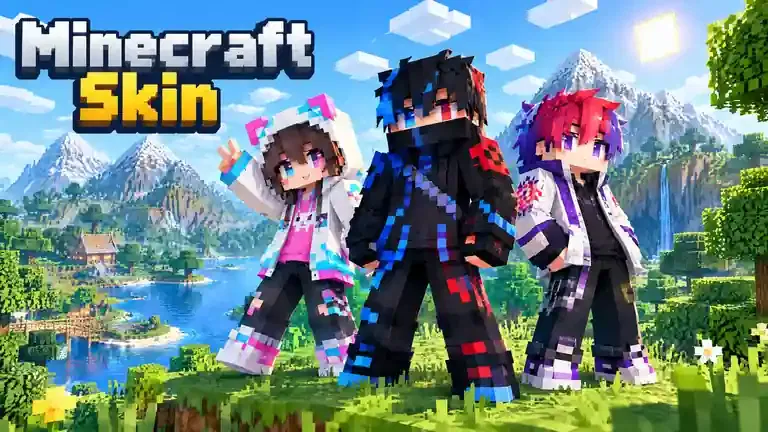
You can also choose between the Classic/Wide and Slim models. Steve uses the Classic model, while Alex uses the Slim model. This guide explains how to find, download, create, upload, and change a Minecraft skin. It also covers skin formats, models, and common problems.
What Is a Minecraft Skin?
A Minecraft skin controls your character’s visual appearance in the game. It changes how your player looks without changing gameplay mechanics. You can choose different clothing, colors, faces, hairstyles, and other visual details. Your skin can also help friends recognize you during multiplayer sessions.
What Does a Minecraft Skin Do?
A skin gives your character a personal style. You might choose a simple outfit or a detailed character design. Some players use skins that match their favorite themes or communities. Others create unique designs to stand out on multiplayer servers.
Steve vs Alex Skin Models
Minecraft supports two main player models: Classic/Wide and Slim. The Classic model has wider arms. The Slim model uses thinner arms. Steve represents the Classic model, while Alex represents the Slim model. Minecraft confirms these model differences in its official skin guide.
Can You Make a Custom Minecraft Skin?
Yes, you can create a custom Minecraft skin. You can also download existing designs or modify a skin template. Skin editors let you design characters using individual pixels. You can then save the finished design as a skin file. We’ll cover the complete creation process later.
Where Can You Get Minecraft Skins?
You can find Minecraft skins through official Minecraft services and community-created skin websites. Each source offers different options, so choose one that fits your edition and needs.
Official Minecraft Marketplace
The Minecraft Marketplace provides skins and other character customization options for Bedrock Edition. You can find both free and paid content there. Skin packs can bundle multiple designs around a specific theme. The Character Creator also provides additional ways to customize your character.
Community-Created Skins
Many players create and share their own Minecraft skins online. Skin websites often organize these designs into searchable galleries. You can browse themes, characters, colors, and styles. Many community skins come as downloadable PNG files for compatible Minecraft versions and Minecraft Games.
What to Check Before Downloading
Check the skin model before downloading it. Make sure the file uses a supported format, such as PNG. Choose a trustworthy source with clear download options. Avoid suspicious files or programs that claim to install a skin. Never enter your Microsoft account password on an unknown skin website. A simple skin download should not require unusual software or account credentials.
How to Download a Minecraft Skin
Downloading a Minecraft skin takes only a few simple steps. First, find a design that matches your style and Minecraft edition.
Find a Skin
Search for skins by style, character, theme, username, or popularity. You can look for anime, PvP, funny, cute, or gaming-themed designs. Skin galleries often provide filters that make searching easier. Check the skin preview before downloading it. Make sure the design matches what you want.
Download the Skin File
Most custom Minecraft skins use a PNG image file. Select the download option and save the file to your device. Keep the original file extension unchanged. For example, don’t rename a .png file to .jpg or another format. Minecraft may not recognize an incorrectly formatted file.
Choose the Correct Model
Check whether the skin uses the Classic/Wide or Slim model. The Classic model has wider arms. The Slim model has thinner arms. Choosing the correct model helps the skin display properly.
Download Skins Safely
Always check the website before downloading anything. Avoid fake download buttons and suspicious pop-ups. A normal skin download should not require an executable program. Prefer a direct PNG download from a trustworthy source. Never install unknown software just to obtain a Minecraft skin.
How to Download a Minecraft Skin
Downloading a Minecraft skin takes only a few simple steps. Start by finding a design that fits your style and Minecraft edition.
Find a Skin
Search for skins by style, character, theme, username, or popularity. You can find anime, PvP, funny, cute, and gaming-themed designs. Many skin galleries also offer filters to speed up your search. Preview the skin before downloading it. Check its design, model, and compatibility with your edition.
Download the Skin File
Custom Minecraft skins commonly use PNG image files. Select the download option and save the skin to your device. Keep the original file extension unchanged. For example, don’t rename a .png file as .jpg. Changing the extension does not convert the image format.
Choose the Correct Model
Check whether the skin uses the Classic/Wide or Slim model. Classic skins have wider arms. Slim skins have thinner arms. Choosing the correct model helps your skin display as intended.
Download Skins Safely
Check the website before downloading any file. Avoid fake download buttons, suspicious pop-ups, and unknown programs. A skin file should not require an executable installer. Prefer a direct PNG download from a trustworthy source. Never install unknown software just to get a Minecraft skin.
How to Create Your Own Minecraft Skin
Creating your own Minecraft skin lets you design a character that feels truly yours. You can control its colors, clothing, face, and overall style.
Use a Minecraft Skin Editor
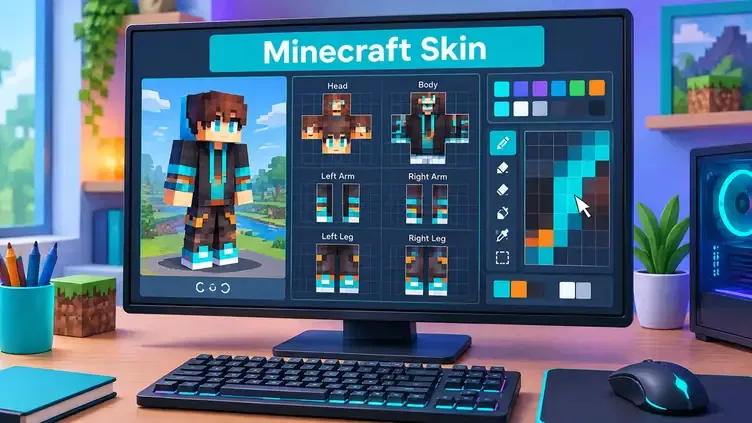
A Minecraft skin editor gives you tools for designing each part of your character. Many editors provide a 3D preview while you work. You can paint individual pixels and see changes immediately. Start with the face, hair, clothing, and colors. Then add details such as shoes, patterns, or accessories. Keep small details clear because Minecraft characters use pixel-based designs.
Start With a Skin Template
A skin template shows where each body part belongs. It includes areas for the head, arms, legs, body, and outer layer. The outer layer adds extra details over the main skin. You can use it for jackets, hats, sleeves, hair, and similar features.
Choose the Correct Model
Select your model before designing the skin.
Classic/Wide: This model uses wider arms.
Slim: This model uses thinner arms.
Using the correct template prevents alignment problems later.
Export the Skin
When your design looks finished, export it as a PNG file. Check its dimensions before using it in Minecraft. Keep transparent areas where the skin format requires them. Microsoft documents PNG graphics as part of custom Bedrock skin packs. Finally, test the skin in Minecraft. Check the face, arms, legs, clothing, and outer layer. Fix any misplaced pixels before sharing or publishing it.
Minecraft Skin Size and Format
Minecraft skins use specific image formats and layouts. Choosing the right format helps your character display correctly.
What Format Are Minecraft Skins?
A Minecraft skin commonly uses a PNG image file. PNG supports the transparency needed for skin layers and details. Microsoft also uses PNG graphics when documenting custom Bedrock skin packs.
What Size Is a Minecraft Skin?
The standard modern Minecraft skin uses a 64×64 pixel layout. Older skins can use a 64×32 pixel layout. Some tools also support larger skin textures. However, compatibility can depend on the Minecraft edition and feature being used. The template layout matters as much as the image size. Each section maps to a specific body part. A misplaced pixel can create unwanted colors or patterns in-game.
Why Does My Minecraft Skin Look Wrong?
Several issues can cause display problems:
- You selected the wrong skin model.
- You used an incorrect template.
- The PNG file became damaged.
- The image has unsupported dimensions.
- Pixels sit in the wrong template areas.
Always check the model, dimensions, and template before uploading your skin.
Minecraft Java vs Bedrock Skins
Java Edition and Bedrock Edition both support character skins. However, their skin systems and customization options differ.
Java Edition Skins
Minecraft Java Edition supports custom PNG skins. You can select either the Classic/Wide or Slim model. The Minecraft Launcher provides a dedicated Skins tab for managing custom skins. You can upload a compatible skin file, select its model, and use it with your Java profile. This makes custom PNG skins a common choice for Java players.
Bedrock Edition Skins
Minecraft Bedrock Edition uses the Dressing Room for character customization. Players can customize characters and manage available appearance options there. Bedrock also connects skins with the Minecraft Marketplace. Players can find skin packs and other character customization content through the Marketplace.
Are Java and Bedrock Skins the Same?
Not exactly. Both editions use skins to change your character’s appearance. However, their customization systems work differently. Java focuses heavily on custom PNG skin uploads. Bedrock combines custom skin options with the Dressing Room, Character Creator, and Marketplace. A skin file can also require the correct model and format. Therefore, always check the target edition before downloading or creating a skin. This helps prevent compatibility problems.
Best Minecraft Skin Ideas
The best Minecraft skin depends on your style and how you play. You can choose simple designs or detailed character themes.
Popular Minecraft Skin Categories
Popular choices include cute Minecraft skins, girl skins, boy skins, and anime skins. PvP players often prefer bold designs that look clear during gameplay. Funny and scary skins can add personality to multiplayer sessions. You can also explore aesthetic, medieval, superhero, and YouTuber-inspired skins. These themes offer many options without limiting your character to one style.
Matching Minecraft Skins
Matching skins work well when you play with friends. Couple skins, friend skins, and duo skins can create a shared theme. Multiplayer groups can also use related colors or designs. For example, two players might use matching outfits with different colors. A larger group could choose skins based on the same theme.
How to Choose a Good Skin
Start with a design that matches your personal style. Then check whether its model fits your Minecraft edition. Look for clear pixels and good image quality. Avoid designs with messy details that become hard to recognize in-game. Also check server rules before using themed skins. Some servers may restrict certain designs or visual content. Finally, preview the skin before using it. A good Minecraft skin should look clear, fit your model, and feel right for your gameplay.
Why Is My Minecraft Skin Not Working?
A Minecraft skin can fail because of the file, model, template, or connection. Check these common problems before trying another skin.
Skin Won’t Upload
First, check the skin file and format. Make sure you selected a supported PNG file. Also confirm that you chose the correct Classic/Wide or Slim model. A damaged image can also prevent a successful upload.
Skin Looks Different
A wrong model or template can change how the skin appears. Check the template before uploading it. Also make sure the skin’s outer layer contains the details you expect.
Skin Doesn’t Appear In-Game
Your skin may take time to sync across Minecraft services. Check your Microsoft account and make sure you use the correct edition. A temporary connection problem can also affect synchronization.
Skin Looks Invisible or Broken
Check the PNG structure, dimensions, and transparent areas. Incorrect template alignment can place pixels on the wrong body parts. If the problem continues, test another known-working skin. This helps determine whether the issue comes from your skin file or Minecraft.
Are Free Minecraft Skins Safe?
Free Minecraft skins are not automatically unsafe. However, the website and download method matter. Prefer established skin resources with clear skin previews and straightforward downloads. A normal custom skin usually comes as a PNG image file. You should not need an unknown program to install a basic skin. Be careful with fake download buttons, aggressive pop-ups, and unexpected redirects. Avoid files that ask you to run an executable installer just to get a skin.
Also check the skin before uploading it. Make sure the file matches your Minecraft edition and chosen model. Most importantly, never give your Microsoft account password to a skin website. Minecraft skin downloads should not require your account credentials. When possible, use official Minecraft services or reputable community resources. These choices reduce unnecessary security risks while helping you find skins safely Minecraft Online.
Minecraft Skin FAQs
What is a Minecraft skin?
A Minecraft skin changes your character’s visual appearance. It can change clothing, colors, hair, face, and other details without changing your gameplay mechanics.
Are Minecraft skins free?
Many Minecraft skins are free. You can also find paid skins and character customization content, especially through the Bedrock Marketplace.
How do I download a Minecraft skin?
Find a skin from a trusted source and download its compatible PNG file. Check the skin model before using it in Minecraft.
How do I change my Minecraft skin?
The process depends on your edition. Java uses the Launcher skin settings, while Bedrock uses the Dressing Room and its available customization options.
Can I make my own Minecraft skin?
Yes. You can create a custom skin with a skin editor or template. Design the pixels, choose a model, export the finished skin, and then upload it.
What format does a Minecraft skin use?
Custom Minecraft skins commonly use the PNG image format. The file must also follow the correct skin layout for Minecraft to display it properly.
What size is a Minecraft skin?
The standard modern Minecraft skin uses a 64×64 pixel layout. Older skins can use a 64×32 layout. Always check your editor or target edition for compatibility.
Can I use custom skins in Minecraft Java?
Yes. Java Edition supports custom PNG skins. You can upload a skin through the Minecraft Launcher and select the Classic/Wide or Slim model.
Can I use custom skins in Minecraft Bedrock?
Bedrock supports custom skin options through its Dressing Room. It also provides character customization, skin packs, and Marketplace content. Available options can differ from Java Edition.
What is the difference between Steve and Alex skins?
Steve uses the Classic/Wide model with wider arms. Alex uses the Slim model with thinner arms. The main difference is their player model shape.
Can I use Minecraft skins on multiplayer servers?
Yes. Your skin can appear during multiplayer gameplay when the server and Minecraft edition support the relevant skin features. Server settings or restrictions can affect what players see.
Final Verdict
Minecraft skins let you change your character’s appearance without changing gameplay. You can use an existing skin or create a custom design from scratch. Java and Bedrock Edition offer different skin workflows and customization options.
Always choose the correct Classic/Wide or Slim model for your skin. Download custom skins from trustworthy sources and avoid suspicious files or software. When appropriate, use official Minecraft options such as the Bedrock Marketplace and Dressing Room. Ready to choose your next look? Choose a skin, download the correct PNG, select the right model, and apply it to your Minecraft character and Minecraft OptiFines.