
Minecraft Mod Menu: How to Install, Use, and Configure Mods
Minecraft Mod Menu helps Java Edition players view their installed mods in one place. It also provides configuration screens for supported mods. Mod Menu works with Fabric and Quilt on compatible Minecraft versions. It makes modded Minecraft easier to manage. You can check installed mods, view mod details, and open available settings. You can also troubleshoot missing mods more easily.
This guide explains how Minecraft Mod Menu works. You will learn how to install it, use its main features, and configure supported mods. We will also cover compatibility and common problems. Always download mods from trusted sources. Also, match each mod with your Minecraft version and mod loader.
What Is Minecraft Mod Menu?
Minecraft Mod Menu is a utility mod for Minecraft: Java Edition. It adds an in-game screen that lists your installed mods. You can select a mod to view its details and available options.
What does Mod Menu do?
Mod Menu helps you manage a growing collection of Minecraft mods. It shows mod names, descriptions, authors, and other available details. Supported mods can also provide a Settings button for their configuration screens. Fabric does not include a mod menu by default. Its FAQ recommends Mod Menu for viewing installed mods and accessing supported settings.
Is Mod Menu a Minecraft mod?
Yes. Mod Menu is a separate client-side utility mod. It is not part of vanilla Minecraft. It runs with compatible Fabric or Quilt setups on Java Edition. It does not automatically add settings to every mod. A mod must support Mod Menu’s configuration system first.
Who should use it?
Mod Menu suits Fabric and Quilt players who install several mods. It helps players find installed mods without checking the mods folder manually. It also gives quick access to supported mod settings.
Minecraft Mod Menu Features
Minecraft Mod Menu makes mod management easier from inside the game. Its features help players find installed mods and access supported options.
View Installed Mods
The Mods screen displays your installed mods in an organized list. You can quickly check which mods your current Minecraft setup contains. This saves time compared with opening the mods folder manually.
Search and Browse Mods
Mod Menu helps you browse your installed mods from one screen. You can find a specific mod without searching through multiple files. This becomes especially useful with larger mod collections.
View Mod Information
Selecting a mod can show useful details about it. Available information can include the mod name, description, version, and developer. Some mods also provide links to project pages or other resources.
Open Mod Configuration
Supported mods can provide a configuration button inside Mod Menu. This lets you change available settings without leaving Minecraft. However, not every mod provides a configuration screen.
Mod Menu Customization
Mod Menu also includes features that improve how you manage your mod list. Current releases provide options such as filtering and library handling. Some releases also include update-checking features. These features can make large mod collections easier to manage.
Minecraft Mod Menu Requirements
Before installing Mod Menu, check your Minecraft setup carefully. Compatibility depends on your game version, loader, and required dependencies.
Minecraft Java Edition
Mod Menu targets Minecraft: Java Edition. The current Mod Menu project supports many Java Edition versions. It supports both Fabric and Quilt loaders.
Fabric Loader
Fabric Loader loads Fabric mods when Minecraft starts. It also checks each mod’s dependencies and compatibility rules. Missing requirements can prevent Minecraft from launching.
Fabric API
Many Fabric mods require Fabric API. It provides common hooks and tools that Fabric mods use. Fabric’s installation guide says most Fabric mods require it. However, dependencies can vary between Mod Menu releases. Always check the requirements listed for your chosen version.
Quilt
Mod Menu also supports Quilt on compatible releases. Quilt provides its own modding ecosystem for Minecraft Java Edition. Some Fabric mods can also work through Quilt compatibility layers.
Match Your Minecraft Version
Your Mod Menu version must match your Minecraft version.
A mod that works on one Minecraft release may fail on another. Fabric also recommends checking the game version, loader, and Java Edition before installing mods.
How to Install Minecraft Mod Menu
Installing Minecraft Mod Menu takes only a few steps. First, make sure your Minecraft version and mod loader match.
Step 1: Check Your Minecraft Version
Open the Minecraft Launcher and select Java Edition. Check the version shown on your selected installation. Write it down before downloading any mods. Your Mod Menu release must support that exact Minecraft version.
Step 2: Install Fabric Loader
Install Fabric Loader for your Minecraft version. The Fabric Installer creates a Fabric profile in your Minecraft Launcher. Select that profile when you want to run Fabric mods. For detailed instructions, see our future guide: How to Install Fabric Loader for Minecraft.
Step 3: Install Fabric API
Many Fabric mods need Fabric API to work correctly. Download a Fabric API version that matches your Minecraft version. Then place its .jar file in your mods folder. Check Mod Menu’s requirements before installing it. Different releases can require different dependencies.
Step 4: Download the Correct Mod Menu Version
Download Mod Menu from a trusted project platform. Modrinth and CurseForge are common choices for Minecraft mods. Choose a release that supports your Minecraft version and Fabric or Quilt loader. Avoid random download sites that rename or modify mod files.
Step 5: Put the .jar File in the Mods Folder
Find your Minecraft mods folder. On Windows, it usually sits inside your .minecraft folder. Place the downloaded Mod Menu .jar file inside that folder. Keep required dependencies there too and Minecraft Skin.
Step 6: Launch Minecraft With Fabric
Return to the Minecraft Launcher. Select your Fabric installation and start the game. Fabric Loader should load Mod Menu along with your other compatible mods.
Step 7: Open the Mods Menu
Enter Minecraft and look for the Mods button. Open it to view your installed mods. Select Mod Menu or another supported mod to view available information and settings. If the button does not appear, check your version, loader, dependencies, and mods folder.
How to Use Minecraft Mod Menu
Once Mod Menu works, you can manage your installed mods from inside Minecraft. The interface keeps important mod details in one place.
How to Open Mod Menu
Start Minecraft through your compatible Fabric or Quilt profile. From the main menu, look for the Mods button. Select it to open the Mod Menu screen. The button may appear in a different location with certain modpacks or interface changes.
How to Find an Installed Mod
The Mods screen displays your installed mods. Browse the list until you find the mod you need. Some Mod Menu versions provide filtering or search features. These tools help when you have many installed mods.
How to View Mod Information
Select a mod from the list to view its available information. Depending on the mod, you may see its name, description, version, developer, or project links. This information helps you identify the correct mod and check its installed version.
How to Open Mod Settings
Look for a Configure or settings button when selecting a supported mod. Choose it to open that mod’s configuration screen. Not every Minecraft mod provides configuration controls. The mod itself must support a compatible configuration screen. Fabric’s documentation confirms this behavior.
How to Return to Minecraft
After changing settings, use the available Done or back button. Minecraft returns you to the previous screen. Some settings may apply immediately. Others may require restarting Minecraft.
Minecraft Mod Menu Version Compatibility
Minecraft Mod Menu support depends on your Minecraft version and mod loader. Always check the current Mod Menu release before downloading. Current Mod Menu listings cover modern Minecraft versions. They include 26.2, 26.1, and multiple 1.21 releases.
| Minecraft version | Mod Menu support |
| 26.2 | Check current release |
| 26.1 | Check current release |
| 1.21.x | Check matching release |
| 1.20.x | Check matching release |
| Older versions | Check version archive |
Mod Menu 1.21
Minecraft 1.21 has multiple Mod Menu releases. Choose a release that matches your exact Minecraft version. Also check its Fabric or Quilt requirements before installation.
Mod Menu 1.20.1
Minecraft 1.20.1 also has compatible Mod Menu releases. Use the release marked specifically for 1.20.1. Do not assume a newer version works with it.
Mod Menu 26.2
Mod Menu has releases for Minecraft 26.2. Check the latest project page before installing. Confirm the loader, dependencies, and exact Minecraft version.
Tip: Version numbers matter with Minecraft mods. A small version mismatch can prevent Mod Menu from loading correctly.
Minecraft Mod Menu vs Other Mod Configuration Tools
Minecraft has several tools for managing or configuring mods. They do not all serve the same purpose.
Mod Menu vs Mod Settings
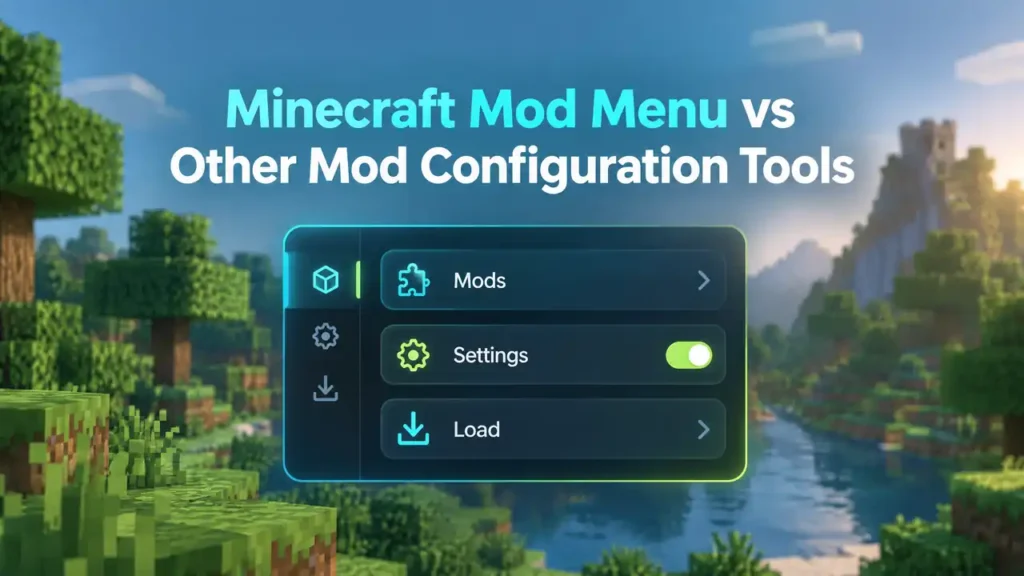
Mod Menu provides a central screen for viewing installed mods. It can also open configuration screens for supported mods.
Mod Settings focuses more directly on providing configuration screens for installed mods. Some players use it alongside Mod Menu.
Mod Menu vs Forge Mod Options
Mod Menu mainly belongs to the Fabric and Quilt ecosystem. Forge uses its own modding ecosystem and configuration approach. Forge mods may expose their settings through Forge’s own Mod Options system. Therefore, Fabric and Forge players often use different configuration tools.
Mod Menu vs Cloth Config
Mod Menu provides the interface where players can access supported mod settings. Cloth Config is a configuration library that helps individual mods create settings screens. Think of Mod Menu as the place you access settings. Cloth Config can help a mod build those settings.
Does Every Minecraft Mod Work With Mod Menu?
No. Not every Minecraft mod provides Mod Menu configuration support. A mod needs the appropriate integration before configuration controls appear. Some mods only display information in Mod Menu. Others provide a Configure button with adjustable settings. This distinction helps you choose the right tool for your mod setup.
How to Fix Minecraft Mod Menu Not Showing
If Minecraft Mod Menu does not appear, check your setup step by step. Most problems come from version or loader mismatches.
Mod Menu Button Is Missing
First, confirm that you installed Mod Menu. Then check your Minecraft version and mod loader. Make sure you placed the Mod Menu .jar file inside the correct mods folder. Also launch Minecraft through your Fabric or Quilt profile. A wrong version can prevent Mod Menu from loading.
Mod Menu Is Installed but Minecraft Crashes
Check your Minecraft version first. Then verify your Fabric Loader and Fabric API versions. Temporarily check your other installed mods for conflicts. One incompatible mod can cause Minecraft to crash. If the problem continues, review the Minecraft crash report. It can identify the mod or dependency causing the problem.
Mods Do Not Appear in Mod Menu
Check that your mods use the correct .jar files. Confirm that you placed them in the correct mods folder. Also verify each mod matches your Minecraft version and loader. A Forge mod will not normally load in a Fabric setup.
Configuration Button Is Missing
The missing Configure button does not always mean Mod Menu has a problem. The mod may simply not provide a Mod Menu configuration screen. Only mods with suitable configuration integration can show configurable settings through Mod Menu.
Is Minecraft Mod Menu Safe?
Minecraft Mod Menu can be safe when you download the correct file from a trusted project source. Your installation choices still matter.
Download From Trusted Sources
Use established mod platforms such as Modrinth or CurseForge. Check the project name, author, version, and dependencies before downloading. Avoid random websites that repackage Minecraft mods or provide unknown files.
Check the Minecraft Version
Always match Mod Menu with your Minecraft version and mod loader. Fabric documentation recommends checking these details before installing mods. A mismatched file can cause loading errors or crashes. Do not trust random files that claim compatibility without verification.
Avoid Suspicious “Mod Menu APK” Downloads
Mod Menu primarily serves Minecraft Java Edition with Fabric or Quilt. It is not an Android Minecraft APK. Be careful with downloads labeled “Mod Menu APK,” “Minecraft hack menu,” or “cheat menu.” These can refer to unrelated modified clients or unofficial software.
Check Dependencies
Some Mod Menu releases require additional dependencies. Check the project page before launching Minecraft. Matching the required Fabric Loader, Fabric API, and other dependencies helps prevent installation problems.
Frequently Asked Questions About Minecraft Mod Menu
What Is Minecraft Mod Menu?
Minecraft Mod Menu is a utility mod for viewing installed mods. It can also open configuration screens for supported mods.
Is Mod Menu Free?
Yes. Mod Menu uses the MIT license and is distributed as a free mod.
Is Mod Menu Available for Java Edition?
Yes. Mod Menu supports Minecraft Java Edition on compatible versions.
Does Mod Menu Work With Fabric?
Yes. Mod Menu supports Fabric on compatible Minecraft versions. You need a matching Mod Menu release for your version.
Does Mod Menu Work With Quilt?
Yes. Supported Mod Menu releases work with Quilt. Always check the specific release before installing.
Does Minecraft Bedrock Have Mod Menu?
Mod Menu targets the Java Edition modding ecosystem. It does not provide the same menu for standard Minecraft Bedrock Edition.
Can I Use Mod Menu Without Fabric?
Mod Menu primarily supports Fabric and Quilt. You cannot normally use it as a standalone vanilla Minecraft feature.
Why Is My Mods Button Missing?
Check whether Mod Menu is installed correctly. Then verify your Minecraft version, loader, mods folder, and launched profile.
Why Can’t I Configure a Mod?
Not every mod provides a compatible configuration screen. If no Configure option appears, the mod may not support Mod Menu configuration.
Where Should I Download Mod Menu?
Download Mod Menu from trusted project pages such as Modrinth or CurseForge. Avoid random mirrors and suspicious download sites.
Final Verdict
Minecraft Mod Menu is worth installing if you use multiple Minecraft mods. It gives you one place to view installed mods and their details. It also provides quick access to configuration screens for supported mods. This makes modded Minecraft easier to manage. Mod Menu mainly supports Minecraft Java Edition with Fabric and Quilt. It does not add the same functionality to standard Bedrock Edition.
Always choose a Mod Menu release that matches your Minecraft version. Check the required loader and dependencies before launching the game. For safety, download Mod Menu from trusted project platforms. Avoid random mirrors, suspicious APKs, and unofficial modified clients.
Next step: If you’re building a Fabric setup, install the correct Mod Menu version with its required dependencies. Then verify that the Mods button appears in Minecraft and Minecraft OptiFine.