
What Is OptiFine Minecraft? Complete Guide to Features, FPS Boost, Shaders and Installation
OptiFine is a community-developed Minecraft optimization mod that improves performance and unlocks advanced graphics features for Minecraft Java Edition. Created by sp614x, it helps players increase FPS, reduce lag, and customize visual settings without changing the core gameplay. Millions of Java Edition players also use OptiFine to enable shaders, support HD resource packs, and enjoy features like Dynamic Lights, Zoom, and Connected Textures.
In this guide, you’ll learn what OptiFine is, how it works, its best features, installation methods, compatibility with Forge and Fabric, and whether it remains the right choice for your Minecraft experience.
Quick Answer
OptiFine is a community-developed optimization mod for Minecraft Java Edition. It was created by sp614x to improve game performance and graphics. OptiFine is not an official Mojang product, but the Minecraft community widely trusts it. It increases FPS, reduces lag, supports shaders and HD resource packs, and adds features like Dynamic Lights, Zoom, and Connected Textures for a smoother and better-looking gameplay experience.
What Is Optifine Minecraft
OptiFine is a community-developed optimization mod for Minecraft Java Edition. It improves game performance and gives players more control over graphics settings. Unlike regular mods that add new content, OptiFine focuses on making Minecraft run smoother and look better. The developer sp614x created OptiFine to help players enjoy a better Minecraft experience. Over the years, it has become one of the most trusted mods in the Minecraft community because of its reliable performance and regular updates. OptiFine is a client-side mod. It runs only on your computer and does not change the game on a multiplayer server. Other players do not need to install OptiFine for you to use its features.
The mod works only with Minecraft Java Edition. It does not support Minecraft Bedrock Edition because both editions use different game engines and modding systems. The main purpose of OptiFine is to improve performance and enhance graphics. It increases FPS, reduces lag, and makes gameplay smoother on many computers. It also unlocks advanced features like shader support, HD resource packs, Dynamic Lights, Connected Textures, and a built-in Zoom function. These features let players customize Minecraft without changing its core gameplay. In short, OptiFine helps Minecraft Java Edition run faster, look better, and provide a more enjoyable gaming experience.
What Does OptiFine Do?
OptiFine improves both the performance and visual quality of Minecraft Java Edition. It adds advanced graphics options, boosts FPS, and gives players more control over how the game looks and runs. These improvements help beginners and experienced players enjoy a smoother gameplay experience.
Improves FPS and Performance
OptiFine optimizes how Minecraft renders the game world. This reduces unnecessary resource usage and helps your computer work more efficiently. As a result, many players see higher FPS and fewer lag spikes. The mod also improves chunk rendering. Chunks load faster and appear more smoothly while you explore the world. This creates a more stable experience, especially in large maps or busy multiplayer servers.
Improves Graphics
OptiFine makes Minecraft look cleaner and more detailed. It gives you access to many graphics settings that the default game does not offer. You can adjust visual effects, improve rendering quality, and customize details to match your computer’s performance. This flexibility helps players balance graphics and FPS.
Supports HD Resource Packs
Minecraft normally limits the quality of textures. OptiFine removes many of those limitations by supporting HD resource packs. You can use high-resolution textures to make blocks, items, and environments look sharper. OptiFine also improves compatibility with many popular resource packs, making installation simple and reliable.
Adds Shader Support
One of OptiFine’s most popular features is shader support. Shaders transform Minecraft’s appearance with advanced lighting and visual effects. Shader packs can add realistic sunlight, moving shadows, water reflections, waving plants, glowing skies, and atmospheric effects. They make the game world feel more immersive while giving players complete control over graphics quality.
Adds Dynamic Lights
Dynamic Lights allow certain items to produce light while you hold or drop them. For example, torches, lanterns, glowstone, and other light-emitting items can brighten nearby areas without placing them on the ground. This feature makes exploring caves and dark environments much easier.
Adds Zoom
OptiFine includes a built-in Zoom feature. You can zoom in with a dedicated key to view distant objects more clearly. This feature helps players spot structures, mobs, or landmarks without installing another mod.
Connected Textures
Connected Textures improve how adjacent blocks appear. Glass blocks and glass panes connect seamlessly instead of showing visible borders. Some resource packs also use this feature to improve bookshelves and decorative blocks. The result looks cleaner and more natural.
Custom Video Settings
OptiFine unlocks dozens of advanced video settings that give you complete control over Minecraft’s graphics.
You can customize options such as:
- Render Distance
- Smooth Lighting
- Clouds
- Trees
- Water
- Animations
- Fog
- Better Grass
These settings help you increase FPS on older computers or improve visual quality on powerful gaming systems. You can fine-tune Minecraft to match your hardware and personal preferences.
How Does OptiFine Improve Minecraft Performance?
OptiFine improves Minecraft performance by optimizing how the game renders graphics and uses your computer’s hardware. Instead of changing the gameplay, it makes Minecraft run more efficiently. This results in higher FPS, fewer lag spikes, and a smoother experience.
Rendering Optimization
Minecraft renders thousands of blocks every second. OptiFine reduces unnecessary rendering and focuses on visible objects. This lowers the workload on your system and helps the game run faster.
Faster Chunk Loading
The game world loads in small sections called chunks. OptiFine optimizes this process to load chunks more efficiently. New areas appear faster, and movement feels smoother while exploring large worlds.
Memory Optimization
Minecraft can use a lot of system memory during gameplay. OptiFine manages memory more efficiently by reducing unnecessary resource usage. This helps improve game stability and can reduce stuttering during long play sessions.
Graphics Optimization
OptiFine gives you detailed control over graphics settings. You can adjust effects such as animations, particles, clouds, and render distance. Lowering demanding settings reduces the load on your hardware while keeping the game enjoyable.
Better CPU Usage
The CPU handles many Minecraft tasks, including world updates and game logic. OptiFine reduces unnecessary processing in several areas, allowing the processor to work more efficiently. This can improve performance, especially on older computers.
Better GPU Usage
The GPU renders Minecraft’s graphics. OptiFine improves how the game communicates with your graphics card and removes unnecessary rendering work. A more efficient GPU workload often leads to smoother frame rates and better visual performance.
Higher FPS and Smoother Gameplay
All these optimizations work together to improve overall performance. Many players notice higher FPS, quicker world loading, and fewer lag spikes after installing OptiFine. The exact improvement depends on your computer’s hardware, Minecraft version, graphics settings, and installed resource packs or shaders.
Why Do Players Use OptiFine?
OptiFine serves different types of Minecraft players. Some want higher FPS, while others want better graphics or smoother gameplay. Its flexible settings make it useful for almost every Minecraft Java Edition player.
Low-End PC Users
Players with older or budget computers often install OptiFine to improve performance. The mod increases FPS, reduces lag, and lets them lower demanding graphics settings. This helps Minecraft run more smoothly on limited hardware.
Mid-Range PC Users
Mid-range systems can balance performance and visual quality. OptiFine allows these players to increase render distance, improve graphics, and maintain stable frame rates. They can enjoy better visuals without sacrificing smooth gameplay.
High-End PC Users
Powerful gaming PCs benefit from OptiFine’s advanced graphics features. Players can enable shaders, use HD resource packs, and increase visual settings while maintaining excellent performance. This creates a more immersive Minecraft experience.
Builders
Builders spend hours creating detailed worlds. OptiFine helps them view large builds more smoothly with better chunk rendering and higher render distances. Features like Connected Textures and Better Grass also make structures look cleaner and more realistic.
Shader Users
Many players install OptiFine for its built-in shader support. Shader packs add realistic lighting, dynamic shadows, water reflections, and atmospheric effects. These improvements transform Minecraft into a visually stunning game.
PvP Players
PvP players need smooth and responsive gameplay. Higher FPS reduces screen stuttering and helps movements feel more consistent. The built-in Zoom feature also makes it easier to spot distant players and landmarks during matches.
Survival Players
Survival players benefit from both performance and convenience. Dynamic Lights brighten dark areas while holding torches or lanterns. Better FPS and smoother chunk loading make exploring caves, villages, and large biomes more enjoyable. No matter your playstyle, OptiFine gives you the tools to improve performance, enhance graphics, and customize Minecraft to match your hardware and preferences.
Is OptiFine Safe?
Yes, OptiFine is generally safe when you download it from the official OptiFine website. The mod has been part of the Minecraft community for many years, and millions of Java Edition players use it to improve performance and graphics. However, your safety depends on where you download it. Fake websites may offer modified files that contain unwanted software or malware. Always verify that you are using the official download page before installing OptiFine.
Download Only from the Official Source
Download OptiFine only from the official website. The official installer contains the files needed to install the mod for the correct Minecraft version. Avoid third-party download sites unless you fully trust the source. Many unofficial websites copy OptiFine downloads and may bundle extra software or misleading advertisements.
Is OptiFine a Virus?
No. The official OptiFine installer is not a virus. Some antivirus programs may warn you because the installer is a Java executable (.jar) file. This type of file can run programs on your computer, so security software may scan it more carefully. A warning does not automatically mean the file is malicious. If you downloaded the installer from the official OptiFine website, it is generally safe to use.
Beware of Fake Websites
Cybercriminals sometimes create websites that look similar to the official OptiFine site. These fake pages may ask you to download different files or install unnecessary software. Before downloading, check the website address carefully. If something looks suspicious, leave the site and use the official download page instead.
Why Does OptiFine Use a Java Installer?
OptiFine uses a Java Archive (.jar) installer because Minecraft Java Edition also runs on Java. The installer creates an OptiFine profile in the Minecraft Launcher or prepares the mod for use with supported mod loaders. To open the installer, you need a compatible version of Java installed on your computer.
Security Tips Before Installing
Follow these simple steps to stay safe:
- Download OptiFine only from the official website.
- Check that the Minecraft version matches the OptiFine version.
- Keep Java and Minecraft updated.
- Scan downloaded files if you have any doubts.
- Avoid modified or unofficial OptiFine builds.
- Ignore websites that ask you to install extra programs before downloading.
Following these best practices helps you install OptiFine safely and enjoy its performance and graphics features with confidence.
Is OptiFine an Official Minecraft Mod?
No, OptiFine is not an official Minecraft mod. It is a third-party, community-developed mod created by the independent developer sp614x. Neither Mojang Studios nor Microsoft develops, owns, or officially maintains OptiFine. Even though OptiFine is unofficial, it has earned the trust of the Minecraft community over many years. Millions of Java Edition players use it to improve performance, enable shaders, and unlock advanced graphics settings. Many content creators, server owners, and modding enthusiasts also recommend it because of its reliability and long history.
OptiFine works by enhancing the Minecraft Java Edition client without changing the game’s core mechanics. Since it is a client-side mod, you can use most of its features without requiring other players or multiplayer servers to install it. Being a third-party mod also means OptiFine follows its own development schedule. New releases usually arrive after Mojang launches a new Minecraft Java Edition update. This allows the developer to test compatibility and ensure the mod works correctly with each supported version.
Does OptiFine Work With Minecraft Java Edition?
Yes, OptiFine works only with Minecraft Java Edition. It was built specifically for the Java version of the game and uses Java’s modding system. If you play Minecraft on Windows, macOS, or Linux using Java Edition, you can install and use OptiFine.
Java Edition Only
OptiFine supports Minecraft Java Edition exclusively. It improves performance, unlocks advanced graphics settings, and adds features like shader support, HD resource packs, Dynamic Lights, and Zoom.
OptiFine Does Not Support Bedrock Edition
OptiFine does not work with Minecraft Bedrock Edition. Bedrock uses a different game engine and does not support Java mods. If you play on consoles, mobile devices, or the Microsoft Store version of Minecraft, you cannot install OptiFine.
Supported Minecraft Versions
OptiFine releases separate versions for specific Minecraft Java Edition updates. Each release matches a particular game version to ensure stability and compatibility. For example, OptiFine versions are available for many popular Minecraft releases, including older versions and the latest supported Java Edition updates.
Why Version Matching Matters
Always install the OptiFine version that matches your Minecraft Java Edition version. A version mismatch can prevent the game from launching or cause crashes and missing features. Before downloading, check your Minecraft version in the Minecraft Launcher. Then choose the matching OptiFine release. Using compatible versions ensures the best performance, graphics enhancements, and overall stability.
OptiFine Features Explained
OptiFine includes many features that improve Minecraft’s performance and graphics. Each feature solves a specific problem or adds a visual enhancement. Together, they create a smoother and more enjoyable Minecraft Java Edition experience.
FPS Boost
The FPS Boost feature improves how Minecraft uses your computer’s hardware. It reduces unnecessary rendering and optimizes game performance. Many players notice higher frame rates, fewer lag spikes, and smoother gameplay, especially on low-end and mid-range PCs.
Shader Support
OptiFine adds built-in support for shader packs. Shaders improve lighting, shadows, water, skies, and weather effects. They make Minecraft look more realistic while allowing you to adjust graphics settings to match your hardware.
HD Textures
OptiFine supports high-resolution resource packs that exceed Minecraft’s default texture limits. HD textures make blocks, items, and environments appear sharper and more detailed without changing the game’s mechanics.
Dynamic Lights
Dynamic Lights let light-emitting items brighten nearby areas while you hold or drop them. Torches, lanterns, glowstone, and similar items produce light without placing them on the ground. This feature makes cave exploration safer and more convenient.
Connected Textures
Connected Textures remove visible borders between matching blocks. Glass panes connect seamlessly, creating cleaner windows and modern builds. Many resource packs also use this feature to improve decorative blocks.
Better Grass
Better Grass extends grass textures to the sides of grass blocks. Hills and landscapes look more natural because exposed dirt becomes less visible. This small improvement makes outdoor environments feel more polished.
Clear Water
Clear Water improves water transparency and visibility. Rivers, lakes, and oceans become easier to explore because you can see underwater blocks and creatures more clearly. It also gives water a cleaner appearance.
Fog Control
Fog Control lets you adjust or reduce fog effects in the game. You can increase visibility across long distances or keep fog for a more immersive atmosphere. The choice depends on your personal preference.
Zoom
OptiFine includes a built-in Zoom feature. A dedicated key lets you view distant objects without installing another mod. Players often use Zoom to spot structures, mobs, or landmarks while exploring.
Smart Animations
Smart Animations improve performance by animating only textures that appear on your screen. Hidden animations stop running in the background. This reduces unnecessary resource usage and can increase FPS.
Natural Textures
Natural Textures rotate selected block textures automatically. Repeating patterns become less noticeable, making forests, stone walls, and other landscapes look more varied and realistic.
Antialiasing
Antialiasing smooths rough edges on blocks and objects. This reduces jagged lines and creates cleaner visuals. The feature improves image quality but may lower FPS on older computers.
Anisotropic Filtering
Anisotropic Filtering keeps distant textures sharp when viewed at an angle. Roads, floors, and large surfaces remain clearer as you move through the world. It improves texture quality with only a small performance impact on most modern systems.
OptiFine vs Vanilla Minecraft
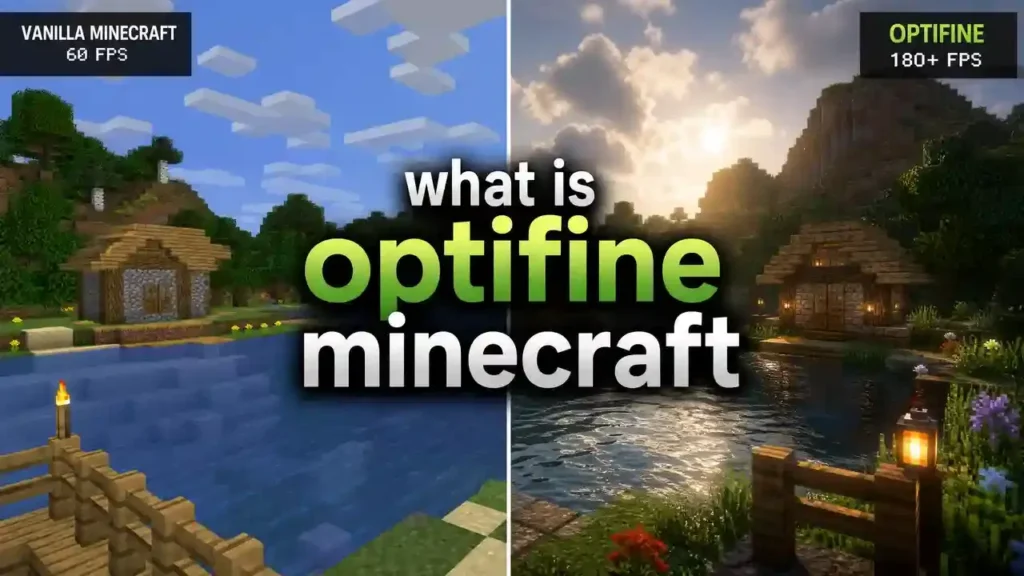
Minecraft works well without mods, but the default game offers limited graphics settings and performance controls. OptiFine expands those options by improving FPS, adding advanced visual features, and giving players greater control over the game’s appearance.
The table below highlights the main differences between OptiFine and Vanilla Minecraft.
| Feature | Vanilla Minecraft | OptiFine |
| Performance | Standard performance with limited optimization | Optimized rendering for smoother gameplay and better system efficiency |
| Graphics | Basic graphics options | Advanced graphics enhancements and visual effects |
| Customization | Limited video customization | Extensive control over graphics, animations, lighting, and visual details |
| Shader Support | Not supported by default | Built-in support for compatible shader packs |
| FPS | Depends on default game optimization | Often delivers higher FPS and fewer lag spikes on many systems |
| Video Settings | Basic settings only | Dozens of advanced video settings, including Fog Control, Better Grass, and Smart Animations |
| HD Resource Packs | Limited support for high-resolution textures | Full support for HD resource packs and custom textures |
| Zoom | Not available | Built-in Zoom feature with a dedicated key |
Which One Should You Choose?
Vanilla Minecraft works well for players who want the original game without modifications. It offers a simple setup and receives updates directly from Mojang. OptiFine is a better choice if you want higher FPS, smoother gameplay, better graphics, and more customization. It also supports shaders, HD resource packs, and advanced video settings that are not available in the default game. If your goal is to improve performance or create a more immersive Minecraft Java Edition experience, OptiFine offers clear advantages over Vanilla Minecraft.
OptiFine vs Sodium
OptiFine and Sodium both improve Minecraft Java Edition, but they take different approaches. OptiFine combines performance optimization with graphics enhancements in one mod. Sodium focuses on maximizing FPS through rendering improvements and works best within the Fabric ecosystem.
The right choice depends on your priorities, hardware, and preferred mod loader.
| Feature | OptiFine | Sodium |
| Performance | Improves FPS while adding graphics features | Delivers excellent FPS through advanced rendering optimization |
| Shader Support | Built-in shader support | Requires Iris Shaders for shader support |
| Compatibility | Works as a standalone mod and with many Forge setups | Designed for the Fabric mod loader and works well with Fabric performance mods |
| Ease of Use | Simple installation with one installer | Requires Fabric Loader and additional mods for some features |
| Resource Usage | Balances performance and graphics features | Uses fewer system resources by focusing mainly on rendering performance |
Which Is Better?
Neither mod is better for everyone. The best choice depends on how you play Minecraft. Choose OptiFine if you want an all-in-one solution. It offers FPS improvements, shader support, HD resource packs, Dynamic Lights, Connected Textures, Zoom, and many advanced graphics settings in a single mod. Choose Sodium if your main goal is the highest possible performance. It focuses on rendering optimization and often works well with other Fabric performance mods.
Who Should Choose OptiFine?
OptiFine is a great choice for:
- Players who want one mod for performance and graphics.
- Players who use shader packs without installing extra shader mods.
- Builders who use HD resource packs and Connected Textures.
- Players who prefer simple installation and built-in features.
Who Should Choose Sodium?
Sodium is a better fit for:
- Players who want the highest possible FPS.
- Fabric users building a modern performance-focused modpack.
- Players who do not need OptiFine-exclusive features.
- Advanced users who do not mind installing additional mods like Iris for shaders.
Both mods improve Minecraft significantly. If you value convenience and visual features, OptiFine remains an excellent choice. If maximum performance is your priority and you already use Fabric, Sodium may better suit your needs.
OptiFine vs Iris
OptiFine and Iris improve Minecraft in different ways. OptiFine is an all-in-one optimization mod that boosts performance and adds many graphics features. Iris focuses mainly on shader support and works alongside other performance mods, such as Sodium. Understanding their different purposes helps you choose the right option for your Minecraft Java Edition setup.
Different Purpose
OptiFine combines performance improvements, graphics enhancements, and advanced video settings into a single mod. It includes features like Dynamic Lights, Connected Textures, HD resource pack support, Zoom, and many customization options. Iris has a narrower focus. It provides high-quality shader support while relying on other mods for most performance improvements and graphics features.
Shader Support
Both OptiFine and Iris support modern shader packs. OptiFine includes built-in shader support, so you can install compatible shader packs without adding another shader mod. Iris also supports many popular shader packs. It is designed to work with Sodium, giving players strong performance while using shaders.
Performance
OptiFine balances performance optimization with visual enhancements. It increases FPS on many systems while offering a wide range of graphics features. Iris does not aim to boost performance by itself. When paired with Sodium, it can deliver excellent FPS while running shaders, especially on modern hardware.
Compatibility
OptiFine works as a standalone mod and is compatible with many Minecraft Java Edition versions. It also works with many Forge setups and can be used with Fabric through OptiFabric, where supported. Iris is built for the Fabric ecosystem and works best with Sodium and other Fabric performance mods. If you already use Fabric, Iris fits naturally into that setup.
Which Should You Choose?
Choose OptiFine if you want one mod that improves FPS, enhances graphics, and supports shaders without installing several additional mods. Choose Iris if you already use Fabric and want excellent shader support alongside Sodium for maximum rendering performance.
OptiFine vs Forge
Many players compare OptiFine and Forge, but they serve different purposes. OptiFine is an optimization mod that improves performance and graphics. Forge is a mod loader that allows Minecraft Java Edition to run thousands of other mods. You do not have to choose one over the other. In many cases, you can use them together.
| Feature | OptiFine | Forge |
| Primary Purpose | Improves performance and graphics | Loads and manages Minecraft mods |
| Software Type | Client-side optimization mod | Mod loader and modding platform |
| Performance | Increases FPS and reduces lag | Does not improve FPS by itself |
| Graphics Features | Includes shaders, HD textures, Zoom, and Dynamic Lights | Does not add graphics enhancements |
| Standalone Use | Yes | Yes |
| Works Together | Yes, with compatible Forge versions | Yes, with compatible OptiFine versions |
Different Software, Different Jobs
OptiFine focuses on making Minecraft run faster and look better. It adds advanced graphics settings, shader support, HD resource pack support, and many visual improvements. Forge has a different role. It provides the framework that allows other mods to run in Minecraft Java Edition. Most large content mods require Forge to work correctly.
Compatibility
OptiFine works as a standalone mod, but many versions also support Forge. Compatibility depends on the Minecraft version and the OptiFine release. Before installing both, make sure they support the same Minecraft version. If the versions do not match, Minecraft may fail to launch or some features may not work correctly.
Can You Use OptiFine and Forge Together?
Yes. Many players use OptiFine and Forge together to enjoy better performance while running other mods. This setup combines OptiFine’s graphics and FPS improvements with Forge’s extensive mod support. For the best experience, always download versions that match your Minecraft installation and check compatibility before updating either mod.
OptiFine vs Fabric
OptiFine and Fabric are not direct competitors because they have different purposes. OptiFine is an optimization mod that improves performance and graphics. Fabric is a lightweight mod loader that allows Minecraft Java Edition to run Fabric-compatible mods. Many players compare them because both are popular in the Minecraft modding community.
| Feature | OptiFine | Fabric |
| Primary Purpose | Improves performance and graphics | Loads Fabric-compatible mods |
| Software Type | Client-side optimization mod | Lightweight mod loader |
| Performance | Improves FPS and graphics | Depends on the installed Fabric mods |
| Graphics Features | Built-in shaders, HD textures, Dynamic Lights, and Zoom | Requires additional mods for similar features |
| Standalone Use | Yes | Yes |
| Works with Other Mods | Limited compared to a mod loader | Supports a large ecosystem of Fabric mods |
The Fabric Ecosystem
Fabric has a large and active modding community. Many developers build performance, gameplay, and quality-of-life mods for the Fabric platform. Players often combine several Fabric mods to create a customized Minecraft experience. Popular Fabric performance mods include Sodium, while Iris provides shader support. Together, they offer an alternative to OptiFine for many players.
What Is OptiFabric?
OptiFabric is a compatibility mod that allows supported versions of OptiFine to work with the Fabric mod loader. It acts as a bridge between OptiFine and Fabric. Keep in mind that OptiFabric does not support every Minecraft version immediately. Always check whether your versions of Minecraft, Fabric, OptiFine, and OptiFabric are compatible before installing them together.
Fabric Alternatives to OptiFine
Many Fabric users prefer separate mods instead of OptiFine’s all-in-one approach. Common alternatives include:
- Sodium for higher FPS and rendering performance.
- Iris Shaders for shader support.
- Lithium for game logic optimization.
- EntityCulling to reduce unnecessary rendering.
These mods work together to improve performance while giving players flexibility to choose only the features they need.
Which Should You Choose?
Choose OptiFine if you want a single mod that improves FPS, enhances graphics, and supports shaders with minimal setup. Choose Fabric if you plan to build a custom modpack or want access to its growing ecosystem of performance and gameplay mods.
How to Install OptiFine
Installing OptiFine is simple if you use the correct Minecraft Java Edition version. Follow the steps below to install it safely and start enjoying better performance and graphics.
Step 1: Download OptiFine
Visit the official OptiFine website and download the version that matches your Minecraft Java Edition version. For example, if you play Minecraft 1.21.x, download the OptiFine release made for 1.21.x. Using the correct version helps prevent installation errors and game crashes.
Step 2: Install OptiFine
Locate the downloaded .jar file on your computer. Double-click the file to open the OptiFine installer. If the installer does not open, make sure you have Java installed.
When the installer appears:
- Click Install.
- Wait a few seconds for the installation to finish.
- Click OK after the confirmation message appears.
The installer automatically creates a new OptiFine profile in the Minecraft Launcher.
Step 3: Launch the OptiFine Profile
Open the Minecraft Launcher. Click the version selector next to the Play button and choose the OptiFine profile. Then click Play to launch the game. Minecraft may take a little longer to load the first time because it creates the required files.
Step 4: Verify the Installation
After Minecraft opens, go to Options → Video Settings. If you see many additional graphics options, such as Shaders, Quality, Performance, and Details, OptiFine installed successfully.
You can also check the version displayed on the Minecraft title screen. It should include the word OptiFine.Installation Tips
- Match the OptiFine version with your Minecraft version.
- Install the latest compatible version of Java if the installer does not open.
- Close the Minecraft Launcher before running the installer.
- Download OptiFine only from the official website to avoid fake or modified files.
Once the installation is complete, you can enable shaders, use HD resource packs, customize video settings, and enjoy smoother Minecraft gameplay.
How to Install OptiFine with Forge
Many Minecraft Java Edition players use OptiFine with Minecraft Forge to enjoy better performance while running other mods. This setup works only when the versions of Minecraft, Forge, and OptiFine are compatible.
Step 1: Install Minecraft Forge
Download and install the Forge version that matches your Minecraft Java Edition version. Launch the Forge profile once. This creates the required mods folder in your Minecraft directory.
Step 2: Download the Matching OptiFine Version
Download the OptiFine release that supports your Minecraft version. Do not run the OptiFine installer if you plan to use it as a Forge mod. Instead, keep the downloaded .jar file.
Step 3: Move OptiFine to the Mods Folder
Open your Minecraft installation folder and locate the mods folder. Copy or move the OptiFine .jar file into this folder. Forge loads the file automatically when the game starts.
Step 4: Launch Minecraft with Forge
Open the Minecraft Launcher and select the Forge profile. Click Play. If all versions match, Forge loads OptiFine during startup.
Step 5: Verify the Installation
After the game launches, open Options → Video Settings. If you see additional menus such as Shaders, Quality, Performance, and Details, OptiFine loaded successfully with Forge.
Compatibility Tips
- Use the same Minecraft version for Forge and OptiFine.
- Check that your Forge release supports the OptiFine version you installed.
- Remove outdated OptiFine files before adding a newer version.
- Update mods carefully after major Minecraft releases because compatibility may change.
Using compatible versions helps prevent crashes, startup errors, and missing features while giving you the benefits of both Forge and OptiFine.
How to Install OptiFine with Fabric
Fabric users can run OptiFine by installing OptiFabric, a compatibility mod that connects OptiFine with the Fabric mod loader. You also need Fabric API, which many Fabric mods require to function correctly. Before you begin, make sure all components support the same Minecraft Java Edition version.
Step 1: Install Fabric Loader
Download and install the Fabric Loader version that matches your Minecraft version. After installation, launch the Fabric profile once. This creates the required mods folder.
Step 2: Download the Required Files
Download the following files:
- The correct OptiFine version for your Minecraft release.
- The latest compatible OptiFabric version.
- The matching Fabric API version.
Each file must support the same Minecraft version to avoid compatibility issues.
Step 3: Add the Files to the Mods Folder
Open your Minecraft installation folder and locate the mods folder.
Copy the following .jar files into it:
- OptiFine
- OptiFabric
- Fabric API
Fabric will load these files automatically when the game starts.
Step 4: Launch Minecraft with Fabric
Open the Minecraft Launcher and choose the Fabric profile.
Click Play to start the game.
Step 5: Verify the Installation
After Minecraft loads, open Options → Video Settings. If you see OptiFine features such as Shaders, Quality, Performance, and Details, the installation completed successfully.
Compatibility Tips
- Match the Minecraft, Fabric Loader, OptiFine, OptiFabric, and Fabric API versions.
- Check whether OptiFabric supports your Minecraft version before updating.
- Remove older OptiFine or OptiFabric files before installing newer releases.
- If compatibility is unavailable for your version, consider Fabric alternatives such as Sodium for performance and Iris Shaders for shader support until OptiFabric receives an update.
Using compatible versions helps ensure a stable Minecraft experience with both Fabric and OptiFine.
Common OptiFine Problems and Fixes
Most OptiFine issues happen because of incorrect versions, missing software, or mod conflicts. The good news is that you can solve many of these problems with a few simple checks.
OptiFine Won’t Install
If the installer does not open or complete the installation:
- Make sure you downloaded the correct OptiFine version.
- Install the latest compatible version of Java.
- Close the Minecraft Launcher before running the installer.
- Download the installer only from the official OptiFine website.
Java Errors
Java errors usually appear when Java is missing or outdated.
Try these fixes:
- Install or update Java.
- Open the OptiFine .jar file with Java.
- Restart your computer after updating Java.
- Check that Java matches your operating system.
Minecraft Crashes After Installing OptiFine
Crashes often happen because of incompatible mods or version mismatches.
To fix the issue:
- Match the OptiFine version with your Minecraft version.
- Remove recently installed mods and test again.
- Update Forge or Fabric if you use a mod loader.
- Check that every installed mod supports the same Minecraft version.
Low FPS After Installing OptiFine
OptiFine usually improves FPS, but incorrect settings can reduce performance.
Try these steps:
- Lower your render distance.
- Disable heavy shader packs.
- Reduce particle effects and animations.
- Turn off antialiasing if your computer struggles.
- Close unnecessary programs running in the background.
Shaders Not Working
Shaders require compatible versions and proper settings.
If shaders fail to load:
- Install a shader pack that supports your OptiFine version.
- Enable shaders through Video Settings → Shaders.
- Update your graphics driver.
- Remove incompatible shader packs and try another one.
Black Screen After Launching Minecraft
A black screen often points to graphics or shader problems.
You can try these fixes:
- Disable shaders temporarily.
- Update your graphics driver.
- Reset OptiFine video settings.
- Remove incompatible resource packs.
Missing OptiFine Profile
If the OptiFine profile does not appear in the Minecraft Launcher:
- Run the OptiFine installer again.
- Restart the Minecraft Launcher.
- Confirm that the installer finished successfully.
- Check that you installed the correct Minecraft version first.
Forge Conflicts
Some Forge mods may conflict with OptiFine.
To solve this problem:
- Update Forge and OptiFine to compatible versions.
- Remove mods that change rendering or graphics.
- Test OptiFine with Forge before adding more mods.
Version Mismatch
A version mismatch is one of the most common installation problems.
Always check that these components match:
- Minecraft Java Edition
- OptiFine
- Forge or Fabric
- OptiFabric (if using Fabric)
- Fabric API (if required)
Using compatible versions greatly reduces crashes, startup errors, and missing features while giving you the best OptiFine experience.
Advantages of OptiFine
OptiFine has remained one of the most popular Minecraft mods because it improves both performance and graphics without changing the game’s core mechanics. It also gives players more control over their Minecraft experience.
Better Performance
OptiFine improves how Minecraft renders the game world. Many players experience higher FPS, fewer lag spikes, and smoother gameplay. These improvements benefit both older computers and modern gaming systems.
Enhanced Graphics
OptiFine adds advanced visual features that are not available in Vanilla Minecraft. You can enable shader support, use HD resource packs, improve lighting, and enjoy features like Dynamic Lights, Connected Textures, Better Grass, and Clear Water.
Extensive Customization
OptiFine unlocks dozens of advanced video settings. You can adjust render distance, animations, fog, lighting, particles, and many other options. This flexibility helps you balance graphics quality and performance based on your hardware.
Broad Compatibility
OptiFine supports many Minecraft Java Edition versions and works as a standalone mod. Many releases also work with Minecraft Forge, while supported versions can run with Fabric through OptiFabric. This flexibility makes OptiFine suitable for many different setups.
Easy Installation
Installing OptiFine takes only a few minutes. The standalone installer creates an OptiFine profile automatically in the Minecraft Launcher. Players who use Forge or Fabric can also install it by placing the required files in the mods folder.
Why Players Choose OptiFine
Many Minecraft Java Edition players choose OptiFine because it combines several powerful features in one mod. Instead of installing multiple graphics and performance mods, they get FPS improvements, shader support, HD textures, and advanced customization in a single package. This convenience has helped OptiFine remain a trusted choice in the Minecraft community for many years.
Disadvantages of OptiFine
OptiFine offers many benefits, but it also has a few limitations. Understanding these drawbacks helps you decide whether it is the right choice for your Minecraft Java Edition setup.
Version Delays
Mojang releases new Minecraft updates several times each year. OptiFine developers need time to update the mod for every new version. Because of this, the latest OptiFine release may not be available immediately after a major Minecraft update. Players sometimes need to wait until compatibility testing is complete.
Mod Compatibility
OptiFine changes Minecraft’s rendering system to improve performance and graphics. Some mods also modify rendering, which can create conflicts. These conflicts may cause crashes, visual glitches, or missing features. If you use many mods, always check whether they are compatible with your OptiFine version.
Forge and Fabric Issues
OptiFine works with many Forge versions, but compatibility is not guaranteed for every release. Fabric users also depend on OptiFabric, which may take time to support new Minecraft versions. If Forge, Fabric, OptiFine, or OptiFabric versions do not match, Minecraft may fail to start or certain features may stop working.
Not Open Source
OptiFine is closed-source software. The source code is not publicly available for developers to inspect or modify. This approach differs from many modern Minecraft optimization mods, including several Fabric-based projects that publish their source code. As a result, developers have fewer opportunities to integrate or extend OptiFine with other mods.
Should These Limitations Matter?
For most players, these drawbacks have little impact on everyday gameplay. OptiFine remains a reliable choice for improving FPS, graphics, and customization. However, if you build large modpacks or prefer open-source software, you may want to compare OptiFine with alternatives such as Sodium and Iris before making your decision.
Best OptiFine Settings for Maximum FPS
The best OptiFine settings depend on your computer. If your goal is the highest possible FPS, lower demanding graphics options and keep only the features you need. The settings below provide a good balance between performance and gameplay.
| Setting | Recommended Value | Why It Helps |
| Graphics | Fast | Reduces rendering workload. |
| Render Distance | 8–12 Chunks | Lowers CPU and GPU usage. |
| Simulation Distance | 6–8 Chunks | Reduces world processing. |
| Smooth Lighting | Off or Minimum | Improves FPS on slower systems. |
| Clouds | Off | Reduces graphics processing. |
| Particles | Minimal | Improves performance during combat and exploration. |
| Entity Shadows | Off | Reduces GPU workload. |
| Fog | Off | Improves visibility and performance. |
| Mipmap Levels | 2–4 | Keeps textures clear with minimal performance impact. |
| V-Sync | Off | Removes frame rate limits and reduces input delay. |
| Dynamic Lights | Fast or Off | Saves resources in large worlds. |
Performance Settings
Open Options → Video Settings → Performance and enable these options:
- Fast Render (disable if using shaders)
- Fast Math
- Smart Animations
- Render Regions
- Lazy Chunk Loading (if available for your version)
These settings reduce unnecessary rendering and improve frame rates on most systems.
Quality Settings
For the best FPS, reduce visual effects that consume extra resources.
Recommended settings:
- Connected Textures: Fast or Off
- Custom Sky: Off
- Better Grass: Fast or Off
- Custom Fonts: Off
- Clear Water: Off (for maximum performance)
- Natural Textures: Off
- Random Entities: Off
Details Settings
Lowering decorative effects can provide additional performance gains.
Recommended settings:
- Clouds: Off
- Trees: Fast
- Sky: On
- Sun & Moon: On
- Rain & Snow: Fast
- Fog: Off
- Held Item Tooltips: On
Animation Settings
Animations increase the rendering workload. Turning off unnecessary effects can improve FPS, especially on older computers.
You can disable or reduce:
- Water animations
- Lava animations
- Fire animations
- Portal animations
- Explosion animations
- Flame animations
- Smoke animations
- Terrain animations
- Void particles
- Potion particles
Keep only the animations that matter to your gameplay.
Best Settings by PC Type
| PC Type | Recommended Render Distance | Graphics | Particles |
| Low-End PC | 6–8 Chunks | Fast | Minimal |
| Mid-Range PC | 10–12 Chunks | Fast | Decreased |
| High-End PC | 16–24 Chunks | Fancy | All |
Extra Tips for More FPS
- Close unnecessary programs before launching Minecraft.
- Use lightweight resource packs instead of high-resolution packs.
- Disable shaders when you need maximum performance.
- Keep your graphics driver up to date.
- Match your OptiFine version with your Minecraft version.
- Restart Minecraft after changing several video settings.
These recommendations help most Minecraft Java Edition players achieve smoother gameplay, faster chunk loading, and higher FPS with OptiFine and New Version Minecraft OptiFine 1.16.
Best OptiFine Settings for Beautiful Graphics
If your computer has a powerful CPU and GPU, you can configure OptiFine for the best visual quality. These settings improve lighting, textures, shadows, and world detail while creating a more immersive Minecraft Java Edition experience. Keep in mind that higher graphics settings require more system resources. Test different options until you find the right balance between image quality and FPS.
Recommended Graphics Settings
| Setting | Recommended Value | Benefit |
| Graphics | Fancy | Improves overall visual quality. |
| Render Distance | 20–32 Chunks | Displays more of the world at once. |
| Simulation Distance | 10–12 Chunks | Keeps more nearby areas active. |
| Smooth Lighting | Maximum | Creates softer and more realistic lighting. |
| Clouds | Fancy | Adds detailed cloud rendering. |
| Dynamic Lights | Fancy | Makes handheld light sources look more natural. |
| Entity Shadows | On | Improves depth and realism. |
| Fog | Default or Custom | Creates atmospheric landscapes. |
Enable Shader Packs
Shaders create the biggest visual improvement in Minecraft.
A good shader pack can add:
- Realistic sunlight and shadows.
- Water reflections and waves.
- Better clouds and skies.
- Dynamic weather effects.
- Bloom and ambient lighting.
Choose a shader pack that matches your hardware. High-end shaders look amazing but can reduce FPS, even on powerful gaming PCs.
Use HD Resource Packs
OptiFine supports HD resource packs with high-resolution textures.
These packs improve:
- Block textures.
- Item details.
- Mob appearances.
- User interface elements.
A 64x, 128x, or 256x resource pack can make Minecraft look much sharper than the default textures. Higher resolutions require more video memory (VRAM).
Optimize Lighting
Lighting plays a major role in Minecraft’s appearance.
For the best results:
- Set Smooth Lighting to Maximum.
- Enable Dynamic Lights.
- Use shaders that support global illumination and soft shadows.
- Keep brightness at a comfortable level for your display.
These settings make caves, forests, and buildings feel more realistic.
Increase Render Distance
A higher render distance lets you see mountains, forests, villages, and other landmarks from farther away.
Recommended values:
- 20–24 Chunks for most high-end PCs.
- 24–32 Chunks for very powerful systems with plenty of RAM and a modern graphics card.
If FPS drops too much, reduce the render distance before lowering other visual settings.
Recommended Quality Settings
Enable these options for the best visuals:
- Connected Textures: Fancy
- Better Grass: Fancy
- Clear Water: On
- Natural Textures: On
- Custom Sky: On
- Custom Colors: On
- Custom Fonts: On
- Random Entities: On
Create the Best Visual Experience
For stunning graphics, combine OptiFine, a high-quality shader pack, and an HD resource pack. This combination transforms Minecraft with realistic lighting, detailed textures, improved water, and beautiful landscapes while keeping the game highly customizable.
Who Should Use OptiFine?
OptiFine benefits almost every Minecraft Java Edition player. Whether you want higher FPS, better graphics, or more customization, it offers features that fit different playstyles and hardware.
Low-End Laptop Users
OptiFine is an excellent choice for players with older or entry-level laptops.
It can:
- Increase FPS.
- Reduce lag spikes.
- Speed up chunk loading.
- Let you lower demanding graphics settings.
These improvements help Minecraft run more smoothly on limited hardware.
Gaming PC Users
Players with powerful gaming PCs can use OptiFine to unlock advanced graphics features instead of focusing only on performance.
You can:
- Enable shader packs.
- Use HD resource packs.
- Increase render distance.
- Customize advanced video settings.
- Improve visual quality without changing gameplay.
Builders
Builders often work on large projects that contain thousands of blocks.
OptiFine helps by:
- Rendering large builds more smoothly.
- Supporting higher render distances.
- Improving glass with Connected Textures.
- Enhancing landscapes with Better Grass and Clear Water.
These features make detailed creations easier to build and showcase.
Content Creators
YouTubers, streamers, and screenshot creators often choose OptiFine because it makes Minecraft look more cinematic.
It supports:
- High-quality shader packs.
- HD textures.
- Better lighting.
- Advanced graphics settings.
- Smooth camera views with the built-in Zoom feature.
These enhancements help create more professional-looking videos and screenshots.
PvP Players
PvP players value smooth gameplay and quick reactions.
OptiFine can help by:
- Increasing FPS.
- Reducing frame drops.
- Improving visual clarity.
- Providing a built-in Zoom feature for spotting distant players.
Many competitive players also disable unnecessary effects to maximize performance.
Casual Players
You do not need a powerful computer or competitive goals to enjoy OptiFine.
Casual players can simply install the mod and enjoy:
- Smoother gameplay.
- Better graphics.
- Easier customization.
- More comfortable exploration with Dynamic Lights.
- Improved visuals without changing Minecraft’s core experience.
Is OptiFine Right for You?
If you play Minecraft Java Edition and want better performance, improved graphics, or greater control over video settings, OptiFine is worth considering. It works well for beginners, experienced players, builders, creators, and gamers with both low-end and high-end computers.
Frequently Asked Questions
What is OptiFine?
OptiFine is a community-developed optimization mod for Minecraft Java Edition. It improves performance, adds advanced graphics settings, and supports shaders and HD resource packs.
Is OptiFine free?
Yes. You can download and use OptiFine for free. Optional donations unlock a cosmetic OptiFine Cape but do not affect gameplay.
Is OptiFine safe?
Yes, OptiFine is generally safe when you download it from the official OptiFine website. Avoid unofficial download sites because they may distribute modified or unsafe files.
Does OptiFine work on Minecraft Bedrock Edition?
No. OptiFine only works with Minecraft Java Edition. It does not support Minecraft Bedrock Edition.
Does OptiFine increase FPS?
Yes. OptiFine optimizes rendering and graphics settings, which can increase FPS and reduce lag on many computers. The exact improvement depends on your hardware and game settings.
Can OptiFine use shaders?
Yes. OptiFine includes built-in shader support. You can install compatible shader packs to add realistic lighting, shadows, reflections, and other visual effects.
Does OptiFine work with Forge?
Yes. Many OptiFine versions work with Minecraft Forge. Always use compatible versions of Minecraft, Forge, and OptiFine.
Does OptiFine work with Fabric?
Yes, but you usually need OptiFabric and Fabric API. Compatibility depends on the Minecraft version and the latest OptiFabric release.
Who created OptiFine?
OptiFine was created by the independent developer sp614x and has been maintained by the same developer for many years.
Is OptiFine a virus?
No. The official OptiFine installer is not a virus. Some antivirus programs may scan the .jar file because it is a Java application, but that does not mean it is malicious.
Can I uninstall OptiFine?
Yes. You can remove the OptiFine profile or delete the OptiFine .jar file from your mods folder if you installed it with Forge or Fabric.
Why isn’t OptiFine updating?
New Minecraft releases require development and testing before OptiFine becomes compatible. Updates may take time after major Minecraft versions launch.
Does OptiFine support resource packs?
Yes. OptiFine supports HD resource packs and improves compatibility with high-resolution textures.
Is OptiFine legal?
Yes. OptiFine is a legal third-party mod for Minecraft Java Edition. It does not modify Mojang’s ownership of the game and follows its own licensing terms.
Is OptiFine allowed on multiplayer servers?
Yes. Because OptiFine is a client-side mod, most multiplayer servers allow it. However, some servers may restrict specific features or require players to follow their own rules.
Does OptiFine work on macOS and Linux?
Yes. OptiFine supports Minecraft Java Edition on Windows, macOS, and Linux, provided you have a compatible version of Java installed.
Can I use OptiFine with HD resource packs?
Yes. OptiFine removes many of the default texture limitations and allows you to use high-resolution resource packs for sharper visuals.
Does OptiFine change Minecraft gameplay?
No. OptiFine focuses on performance and graphics. It does not add new blocks, items, mobs, or gameplay mechanics.
Can I use OptiFine without installing other mods?
Yes. OptiFine works as a standalone mod. You can install it directly through its installer without using Forge or Fabric.
Is OptiFine still worth using?
Yes. OptiFine remains a popular choice for players who want better FPS, advanced graphics settings, shader support, and HD resource pack compatibility in one easy-to-install mod.
Conclusion
OptiFine is a community-developed optimization mod for Minecraft Java Edition that improves both performance and graphics. It helps the game run smoother, adds advanced video settings, supports shader packs and HD resource packs, and gives players more control over their Minecraft experience. Players choose OptiFine because it can increase FPS, reduce lag, improve chunk rendering, and unlock visual features like Dynamic Lights, Connected Textures, Better Grass, Clear Water, and the built-in Zoom function. These improvements make Minecraft more enjoyable on both low-end and high-end computers. OptiFine works only with Minecraft Java Edition. It runs as a standalone mod and supports many versions of Minecraft Forge. It can also work with Fabric through OptiFabric when compatible versions are available.
Whether you play on an older laptop, a powerful gaming PC, or enjoy building, PvP, survival, or content creation, OptiFine offers tools to match your playstyle. You can optimize the game for maximum FPS, stunning graphics, or a balance of both. If you want a single mod that combines performance improvements, graphics enhancements, shader support, and advanced customization, OptiFine remains one of the best choices for Minecraft Java Edition. Download it from the official OptiFine website, install the version that matches your Minecraft OptiFine release, and enjoy a smoother, better-looking Minecraft experience.