
Minecraft Dynamic Lighting OptiFine (2026 Guide): Enable Dynamic Lights, Settings, Performance and Troubleshooting
Minecraft Dynamic Lighting in OptiFine lets light-emitting items brighten your surroundings while you hold them. You can explore dark caves without placing a torch every few blocks. Millions of Minecraft Java Edition players use this feature because it makes exploration faster and more immersive. It also improves visibility during mining, caving, and nighttime adventures. Dynamic Lights works on the client side. It changes what you see without changing the world’s actual light levels. Other players only see the effect if they use a compatible dynamic lighting feature.
The feature supports many popular light-emitting items. Torches, lanterns, blaze rods, glowstone, and several glowing entities can produce real-time light. OptiFine also offers Off, Fast, and Fancy modes, so you can balance visuals with performance. Most modern OptiFine releases support Dynamic Lights for compatible Minecraft Java Edition versions. Always install the correct OptiFine version for your Minecraft release to avoid compatibility issues.
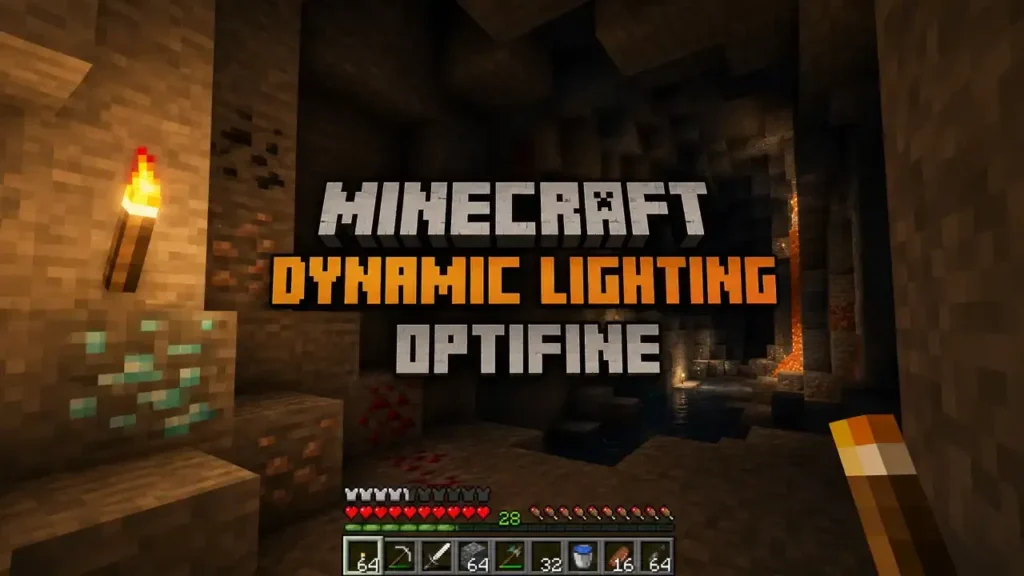
This feature suits almost every Java Edition player. Beginners enjoy safer cave exploration. Builders work in dark areas with better visibility. Survival players save time while mining. Content creators capture brighter gameplay without placing temporary light sources. In this guide, you’ll learn how to enable Dynamic Lights, choose the best settings, improve FPS, understand light-emitting items and entities, solve common problems, compare alternatives, and customize advanced configurations. You’ll also discover practical tips to get the best experience from OptiFine Dynamic Lighting.
Quick Answer
What is Dynamic Lighting?
Dynamic Lighting is an OptiFine feature that lets light-emitting items and entities produce real-time light. You can see your surroundings without placing a light source.
Does it work without placing torches?
Yes. Hold a torch, lantern, blaze rod, or another supported item to light nearby areas instantly. You don’t need to place the item.
Does Dynamic Lighting reduce FPS?
It can reduce FPS slightly. The impact depends on your hardware and selected mode. Fast offers better performance. Fancy provides smoother lighting effects.
Is Dynamic Lighting client-side?
Yes. Dynamic Lighting works on the client side. It changes only your view and does not update the world’s actual light levels for other players.
Is Dynamic Lighting available in OptiFine?
Yes. Dynamic Lights is a built-in OptiFine feature for Minecraft Java Edition. Enable it from Options → Video Settings → Quality → Dynamic Lights.
What is Minecraft Dynamic Lighting?
Minecraft Dynamic Lighting is an OptiFine feature that creates real-time light around supported items and entities. It improves visibility without changing the world’s permanent light levels. OptiFine calls this feature Dynamic Lights. Many players also use the term Dynamic Lighting. Both describe the same feature. Unlike normal Minecraft lighting, you do not need to place a torch or lantern. Simply hold a supported light-emitting item to brighten nearby blocks as you move. Dynamic Lights works through client-side lighting. The effect appears only on your game client. It does not update the server’s actual light levels or change gameplay for other players.
How Dynamic Lighting Works
OptiFine renders light in real time as you move through the world. It tracks nearby light-emitting items and entities, then updates the surrounding brightness instantly. The game performs these calculations on your device instead of the server. This approach keeps the feature fast and responsive during exploration. Dynamic lighting updates continuously while you walk, mine, or fight mobs. The light follows your movement and disappears when you switch items or move away. You never need to place a light source to see dark areas. Hold a supported item like a torch or lantern, and OptiFine lights your path automatically. This system makes cave exploration, nighttime travel, and underground mining faster, safer, and more immersive.
What Does OptiFine Dynamic Lights Do?
OptiFine Dynamic Lights makes dark areas easier to explore. It creates real-time light around supported items and glowing entities. You can travel with better visibility without placing light sources.
Explore Caves Safely
Dark caves hide deep drops and hostile mobs. Dynamic Lights helps you spot dangers before they reach you. You can explore with more confidence and fewer interruptions.
Hold a Torch While Mining
Keep a torch in your main hand or off-hand to light nearby blocks instantly. You no longer need to stop and place torches after every few steps. This saves time during long mining sessions.
Better Nighttime Visibility
Traveling after sunset becomes much easier. Hold a supported light-emitting item to brighten your surroundings. You can navigate forests, mountains, and villages with greater confidence.
Underwater Behavior
Dynamic Lights respects Minecraft’s lighting rules. Regular torches stop producing light when submerged. Other supported light sources may continue to work, depending on their properties and OptiFine’s configuration.
Improves Exploration
You can move through caves, mineshafts, ancient structures, and tunnels without breaking your pace. The light follows your movement and keeps nearby areas visible.
Better Gameplay Immersion
Real-time illumination makes Minecraft feel more alive. Moving light creates a natural exploring experience during mining, building, combat, and adventure. The result looks smooth without changing the world’s permanent lighting.
Supported Minecraft Versions
OptiFine Dynamic Lights is available in most OptiFine releases for Minecraft Java Edition. Always download the OptiFine build that matches your OptiFine Download version. Using the correct version helps prevent crashes and missing features.
| Minecraft Version | OptiFine Support | Dynamic Lights |
| Latest Release | ✅ Supported (when an OptiFine release is available) | ✅ Yes |
| Latest Preview/Snapshot | ⚠️ Preview builds may be available | ✅ Yes (preview support varies) |
| 1.21.x | ✅ Supported | ✅ Yes |
| 1.20.6 | ✅ Supported | ✅ Yes |
| 1.20.4 | ✅ Supported | ✅ Yes |
| 1.20.1 | ✅ Supported | ✅ Yes |
| 1.19.4 | ✅ Supported | ✅ Yes |
| 1.19.2 | ✅ Supported | ✅ Yes |
| 1.18.2 | ✅ Supported | ✅ Yes |
| 1.17.1 | ✅ Supported | ✅ Yes |
| 1.16.5 | ✅ Supported | ✅ Yes |
| Legacy Versions (1.15.x–1.7.10) | ✅ Supported | ✅ Yes |
Latest Release
The latest stable OptiFine release offers the best compatibility and bug fixes. Choose it whenever it matches your Minecraft version.
Preview Versions
Preview builds support newer Minecraft updates before the stable release. They may contain bugs or unfinished features. Test them before using them in long-term worlds.
Legacy Versions
Older OptiFine builds still include Dynamic Lights for many legacy Minecraft versions. Download the exact version that matches your game to ensure full compatibility.
Requirements
Before you enable OptiFine Dynamic Lights, make sure your system meets these basic requirements. Using the correct setup ensures better performance and fewer compatibility issues.
Minecraft Java Edition
Dynamic Lights works only with Minecraft Java Edition. It is not available in Minecraft Bedrock Edition.
OptiFine Installed
Install a compatible OptiFine version for your Minecraft release. Dynamic Lights is a built-in OptiFine feature, so you do not need an extra mod.
Java Version
Install the latest supported Java version for your Minecraft release. Keeping Java updated improves compatibility, stability, and security.
System Requirements
OptiFine Dynamic Lights runs on most computers that support Minecraft Java Edition. Better hardware delivers smoother lighting and higher FPS.
| Component | Minimum | Recommended |
| Operating System | Windows 10/11, macOS, or Linux | Latest Windows, macOS, or Linux |
| Processor | Dual-Core CPU | Quad-Core or better |
| Memory (RAM) | 4 GB | 8 GB or more |
| Graphics | OpenGL-compatible GPU | Dedicated GPU with updated drivers |
| Java | Version required by your Minecraft release | Latest supported Java version |
| Storage | 500 MB free space | 1 GB free space |
Tip: Update OptiFine, Java, and your graphics driver before troubleshooting Dynamic Lights. Most lighting and performance issues disappear after updating.
Suggested authority references:
- OptiFine Official Website (installation and compatibility)
- Minecraft Java Edition System Requirements
- Oracle Java Downloads / Eclipse Adoptium (supported Java versions)
How to Enable Dynamic Lights in OptiFine
You can enable Dynamic Lights in less than a minute. Follow these simple steps.
Step 1: Open Minecraft
Launch Minecraft Java Edition using the Minecraft Launcher. Select the OptiFine installation profile and start the game.
Step 2: Open Options
From the main menu, click Options.
📷 Screenshot Placeholder: Minecraft Main Menu → Options
Step 3: Open Video Settings
Click Video Settings to access OptiFine’s graphics options.
📷 Screenshot Placeholder: Options → Video Settings
Step 4: Open Quality Settings
Select Quality. This menu contains Dynamic Lights and other visual settings.
📷 Screenshot Placeholder: Video Settings → Quality
Step 5: Find Dynamic Lights
Locate the Dynamic Lights option. Click it to view the available modes.
📷 Screenshot Placeholder: Quality → Dynamic Lights
Step 6: Choose a Mode
Select the mode that matches your computer and gameplay style.
| Mode | Best For | Performance |
| OFF | Maximum FPS | ⭐⭐⭐⭐⭐ |
| Fast | Balanced performance and lighting | ⭐⭐⭐⭐☆ |
| Fancy | Smooth, real-time lighting | ⭐⭐⭐☆☆ |
OFF disables Dynamic Lights completely.- Fast updates lighting less often to improve FPS.
- Fancy updates lighting continuously for the smoothest visual experience.
Click Done to save your changes. Hold a torch, lantern, or another supported light-emitting item to test the feature immediately.
📷 Screenshot Placeholder: Dynamic Lights Mode: OFF / Fast / Fancy
Tip: Choose Fast if you play on a low-end or mid-range PC. Choose Fancy if you want the best visual quality and your hardware can handle it.
Suggested authority references:
- OptiFine Documentation – Dynamic Lights
- OptiFine Official Documentation – Quality Settings
Dynamic Lights Settings Explained
OptiFine offers three Dynamic Lights modes. Each mode balances lighting quality and game performance differently. Choose the one that matches your hardware and play style.
OFF
The OFF mode disables Dynamic Lights completely. Light-emitting items and entities no longer create real-time illumination.
When to Use
- You want the highest possible FPS.
- You play on very low-end hardware.
- You do not need handheld lighting.
Performance
This mode gives the best performance because OptiFine skips all dynamic lighting calculations.
FPS
OFF delivers the highest and most stable frame rate.
Fast
The Fast mode updates dynamic lighting at short intervals instead of every frame. This reduces the workload while keeping the feature useful.
How Often Lighting Updates
Lighting refreshes periodically instead of continuously. You may notice slight delays while moving.
Pros
- Better FPS than Fancy.
- Smooth gameplay on most computers.
- Lower GPU workload.
Cons
- Lighting updates feel less fluid.
- Fast movement may show small lighting delays.
Best For
Choose Fast for low-end and mid-range PCs. It provides the best balance between visuals and performance.
Fancy
The Fancy mode updates lighting continuously. It creates the smoothest and most realistic lighting effect.
Real-Time Lighting
The light follows your movement instantly. Brightness changes appear smooth while you explore.
Highest Quality
Fancy delivers the best visual experience for caves, mining, and nighttime exploration.
Performance Impact
This mode uses more GPU resources than Fast. Older computers may lose FPS in demanding areas.
Best For
Choose Fancy if you have a modern gaming PC and want the highest visual quality.
Dynamic Lights Mode Comparison
| Mode | Lighting Quality | Performance | FPS Impact | Best For |
| OFF | None | Excellent | None | Maximum FPS |
| Fast | Good | Very Good | Low | Low-end and mid-range PCs |
| Fancy | Excellent | Good | Moderate | High-end PCs and visual quality |
Recommendation: Most players should choose Fast. It offers excellent visibility with only a small performance impact. Switch to Fancy if your system maintains smooth FPS.
Suggested authority references:
- OptiFine Documentation – Dynamic Lights
- OptiFine Official Documentation – Quality Settings
Dynamic Lights Performance Benchmark
OptiFine Dynamic Lights uses different amounts of system resources based on the selected mode. The right setting depends on your hardware and the visual quality you want. The values below are general expectations. Your actual FPS depends on your CPU, GPU, render distance, shaders, and installed mods.
| Setting | Expected FPS | CPU Usage | GPU Usage | Battery Consumption | Best For |
| OFF | Highest | Very Low | Very Low | Lowest | Competitive play and maximum performance |
| Fast | High | Low | Low to Moderate | Low | Everyday gameplay and balanced performance |
| Fancy | Moderate to High | Moderate | Moderate to High | Highest | Visual quality and immersive gameplay |
OFF Performance
Choose OFF if performance is your highest priority.
Advantages
- Delivers the highest FPS.
- Uses the fewest system resources.
- Extends battery life on laptops.
- Eliminates dynamic lighting calculations.
Recommended For
- Older computers
- Entry-level laptops
- Large modpacks
- PvP players
Fast Performance
Fast offers the best balance between visuals and speed.
Advantages
- Maintains smooth gameplay.
- Uses fewer GPU resources than Fancy.
- Produces only a small FPS reduction on most systems.
Recommended For
- Most Minecraft players
- Low-end gaming PCs
- Mid-range desktops
- Standard survival worlds
Fancy Performance
Fancy provides the smoothest lighting updates and the best visual experience.
Advantages
- Instant real-time illumination.
- Smooth lighting while moving.
- Better visual immersion.
Considerations
- Uses more GPU power.
- May reduce FPS during heavy gameplay.
- Drains laptop batteries faster.
Recommended For
- High-end gaming PCs
- Modern graphics cards
- Players using high refresh rate monitors
- Cinematic gameplay and screenshots
Best Setting by Hardware
| Hardware | Recommended Setting | Why |
| Low-end PC | Fast | Keeps FPS stable while providing dynamic lighting. |
| Mid-range PC | Fast | Delivers the best balance of visuals and performance. |
| High-end PC | Fancy | Maximizes visual quality with minimal performance loss. |
Expert Tip: If you also use shader packs like BSL, Complementary, or SEUS, start with Fast. Switch to Fancy only if your FPS remains stable.
Suggested authority references:
- OptiFine Documentation – Dynamic Lights
- OptiFine Documentation – Performance Settings
- Minecraft Wiki (Graphics settings and performance considerations)
Light-Emitting Items
OptiFine Dynamic Lights supports many light-emitting items. These items create real-time illumination while you hold or drop them. The brightness depends on each item’s vanilla light level. The table below lists the most common supported items and their behavior.
| Item | Light Level | Dynamic Lighting Behavior | Water-Sensitive |
| Torch | 14 | Produces bright handheld light while held or dropped. | ✅ Yes |
| Lantern | 15 | Emits maximum brightness with smooth lighting. | ❌ No |
| Soul Torch | 10 | Creates a dim blue light while held. | ❌ No |
| Glowstone | 15 | Produces maximum brightness. Great for exploration. | ❌ No |
| Glowstone Dust | 8 | Emits a soft light while carried. | ❌ No |
| Sea Lantern | 15 | Provides bright underwater-friendly lighting. | ❌ No |
| Blaze Rod | 10 | Creates moderate light during exploration. | ❌ No |
| Magma Cream | 8 | Emits a small amount of dynamic light. | ❌ No |
| Shroomlight | 15 | Produces maximum brightness with warm lighting. | ❌ No |
| Jack o’Lantern | 15 | Creates bright handheld illumination. | ❌ No |
| Froglight | 15 | Emits strong dynamic light in all environments. | ❌ No |
| Glow Ink Sac | 8 | Produces a soft glowing effect while carried. | ❌ No |
| Redstone Torch | 7 | Creates a low-intensity red light. | ❌ No |
Light Level Explained
Dynamic Lights follows Minecraft’s standard light level system. Brightness ranges from 0 to 15.
- 15 = Maximum brightness.
- 10–14 = Strong illumination.
- 7–9 = Moderate light.
- 1–6 = Dim light.
- 0 = No light.
Items with higher light levels illuminate a larger area around your player.
Item Behavior
Supported items begin emitting light as soon as you hold them. Many items also glow after you drop them on the ground. The light follows the item until you switch items, pick it up, or move away.
Water-Sensitive Lighting
Some items react differently underwater. Regular Torches stop producing Dynamic Lights when fully submerged. This behavior matches vanilla Minecraft mechanics. Most glowing items, including Sea Lanterns, Glowstone, Lanterns, and Froglights, continue to emit light underwater because they are not affected by water.
Tip: Carry a Lantern, Sea Lantern, or Froglight when exploring oceans or underwater structures. They provide reliable illumination where regular torches cannot.
Suggested authority references:
- OptiFine Documentation – Dynamic Lights
- Minecraft Wiki – Light
- Minecraft Wiki – Light-emitting Blocks and Items
Light-Emitting Entities
OptiFine Dynamic Lights also works with several light-emitting entities. These entities produce real-time illumination while they move through the world. The light updates automatically based on each entity’s state.
Supported Light-Emitting Entities
| Entity | Typical Light Level (Luminance) | Dynamic Lighting Behavior |
| Blaze | 15 | Emits maximum light while active. |
| Magma Cube | 13 | Produces bright light while moving. |
| Burning Zombie | 15 | Glows while on fire. |
| Burning Skeleton | 15 | Emits bright light while burning. |
| Burning Player | 15 | Produces light while affected by fire. |
| Fireball | 15 | Creates moving light during flight. |
| Spectral Arrow | 14 | Emits light while traveling through the air. |
| Custom Entities | Configurable (0–15) | Light level depends on the mod or configuration. |
Entity Lighting
Dynamic entity lighting makes Minecraft feel more realistic. The light moves with the entity instead of staying in one place. This helps you track glowing mobs and projectiles in dark environments. For example, a flying Blaze lights nearby blocks as it moves through a Nether Fortress. A burning zombie also illuminates the area until the fire goes out.
Luminance
Luminance defines how bright an entity appears. The value ranges from 0 to 15.
- 15 = Maximum brightness
- 10–14 = Strong light
- 5–9 = Moderate light
- 1–4 = Dim light
- 0 = No light
OptiFine uses Minecraft’s standard light values for supported entities. Advanced mods like LambDynamicLights also expose luminance through APIs for custom entities and items.
Dynamic Updates
Dynamic Lights updates entity lighting continuously while entities move or change state.
Examples include:
- A Blaze lights nearby blocks while flying.
- A Fireball carries light until it disappears.
- A Burning Player glows only while on fire.
- A Spectral Arrow illuminates its flight path.
- A custom entity can gain or lose light based on its current behavior.
These real-time updates improve visibility during combat, exploration, and nighttime gameplay without changing Minecraft’s permanent light levels.
Developer Note: Mod developers can assign custom luminance values through dynamic_lights.properties or API interfaces such as DynamicLightHandler and DynamicLightsInitializer when supported by compatible dynamic lighting mods.
Suggested authority references:
- OptiFine Documentation – Dynamic Lights
- LambDynamicLights Documentation (API, DynamicLightHandler, DynamicLightsInitializer, and luminance)
- Minecraft Wiki – Light Level and Entity Behavior
Water-Sensitive Lighting
Water can affect how some light-emitting items behave with OptiFine Dynamic Lights. The feature follows Minecraft’s lighting rules whenever possible, so not every item continues to glow underwater. Understanding water-sensitive lighting helps you choose the right light source for caves, oceans, and underwater structures.
Regular Torch
A regular torch stops producing Dynamic Lights when it becomes fully submerged in water. This behavior matches vanilla Minecraft, where torches cannot stay lit underwater. Use a regular torch for caves, mines, and nighttime exploration on land.
Soul Torch
A Soul Torch can provide Dynamic Lighting while you hold it. However, like a regular torch, it should not be expected to emit light when fully submerged. Its lower luminance also creates a dimmer blue glow than a standard torch.
Items Affected by Water
The following items lose their Dynamic Lighting effect when fully underwater:
| Item | Water-Sensitive | Underwater Lighting |
| Torch | ✅ Yes | Stops emitting light |
| Soul Torch | ✅ Yes | Stops emitting light |
Items Not Affected by Water
These items continue to produce Dynamic Lighting underwater because they naturally function in wet environments or are not flame-based.
| Item | Water-Sensitive | Underwater Lighting |
| Lantern | ❌ No | Continues emitting light |
| Sea Lantern | ❌ No | Continues emitting light |
| Glowstone | ❌ No | Continues emitting light |
| Glowstone Dust | ❌ No | Continues emitting light |
| Shroomlight | ❌ No | Continues emitting light |
| Froglight | ❌ No | Continues emitting light |
| Jack o’Lantern | ❌ No | Continues emitting light |
| Blaze Rod | ❌ No | Continues emitting light |
Underwater Behavior
Choose water-resistant light sources before exploring oceans, shipwrecks, ocean monuments, or flooded caves. They provide reliable visibility without placing blocks. Regular torches work well on land but lose their lighting effect underwater. For underwater exploration, Sea Lanterns, Lanterns, Glowstone, and Froglights provide the most dependable Dynamic Lighting experience.
Tip: Carry a Sea Lantern or Lantern when exploring underwater. They deliver bright, consistent illumination without interruption.
Suggested authority references:
- OptiFine Documentation – Dynamic Lights
- Minecraft Wiki – Torch
- Minecraft Wiki – Sea Lantern
- Minecraft Wiki – Light
Client-side Lighting Explained
OptiFine Dynamic Lights uses client-side lighting. The lighting effect appears only on your computer. It does not change Minecraft’s actual world lighting or game mechanics.
What Client-Side Means
Client-side means your game creates the lighting effect locally. The server never receives or stores these visual changes. When you hold a torch or another supported item, your game renders real-time illumination around your character. The world’s permanent light levels stay the same.
Does It Affect Servers?
No. Dynamic Lights does not affect servers. The feature changes only your view of the game. It does not modify blocks, update server lighting, or provide extra light for other players. This design keeps Dynamic Lights compatible with most multiplayer servers because it works as a visual enhancement instead of a gameplay change.
Does Everyone See It?
No. Other players see Dynamic Lights only if they also use a compatible client-side dynamic lighting feature.
For example:
- You hold a torch.
- Your game shows the surrounding area lit.
- Another player without Dynamic Lights still sees normal Minecraft lighting.
Multiplayer Behavior
Dynamic Lights works on most multiplayer servers because it does not require server installation.
You can use the feature while:
- Mining with friends.
- Exploring caves.
- Fighting hostile mobs.
- Traveling at night.
The server continues using Minecraft’s normal lighting system. Only your client displays the dynamic lighting effect.
LAN Worlds
Dynamic Lights works normally in LAN worlds. Each player sees lighting based on their own client settings. If another player disables Dynamic Lights, they will not see your handheld light source.
Minecraft Realms
OptiFine Dynamic Lights also works in Minecraft Realms. Since the feature runs on your client, it does not require Realm configuration or server-side plugins. Your visual experience remains the same as in single-player worlds.
Key Takeaway: Dynamic Lights improves visibility only for the player using it. It never changes server lighting, block light levels, mob spawning rules, or gameplay mechanics.
Suggested authority references:
- OptiFine Documentation – Dynamic Lights
- Minecraft Wiki – Client–Server Architecture
- Minecraft Java Edition Documentation (client-side rendering)
Dynamic Lights vs Vanilla Minecraft
Minecraft’s default lighting system and OptiFine Dynamic Lights handle illumination differently. Vanilla Minecraft requires placed light sources, while Dynamic Lights creates moving light around supported items and entities.
The table below shows the main differences.
| Feature | Vanilla Minecraft Lighting | OptiFine Dynamic Lights |
| Lighting | Requires placed blocks like torches, lanterns, or glowstone. | Creates real-time light from held items, dropped items, and entities. |
| Performance | Uses the standard Minecraft lighting engine. | Uses extra client-side calculations for dynamic illumination. |
| Exploration | Players must place torches to see dark areas. | Players can explore caves while holding light-emitting items. |
| Immersion | Lighting stays fixed until blocks change. | Moving light follows the player and creates a more realistic experience. |
| Compatibility | Works on every Minecraft Java Edition installation. | Requires OptiFine or a compatible dynamic lighting mod. |
Lighting
Vanilla Minecraft uses fixed light sources. A torch only lights an area after you place it on a block. OptiFine Dynamic Lights creates temporary illumination around supported items. You can hold a torch and move through dark areas without placing blocks.
Performance
Vanilla lighting uses Minecraft’s built-in rendering system. It usually provides the best performance. Dynamic Lights adds extra client-side rendering work. The impact depends on your hardware and selected mode. OFF provides maximum FPS. Fast balances quality and performance. Fancy provides smoother lighting effects.
Exploration
Vanilla Minecraft requires preparation. Players need enough torches before entering caves or dark structures. Dynamic Lights makes exploration easier. You can carry a light source and keep your hands free from constant torch placement.
Immersion
Dynamic Lights improves the feeling of adventure. A torch moving with your character creates a more natural cave exploration experience. Vanilla lighting remains static unless you place or remove blocks.
Compatibility
Vanilla Minecraft works without additional software. Every player can access its lighting system. OptiFine Dynamic Lights requires a compatible OptiFine installation. Players using different clients may see different lighting effects.
Bottom Line: Vanilla lighting focuses on simplicity and performance. OptiFine Dynamic Lights adds convenience and immersion for players who want a better exploration experience.
Suggested authority references:
- OptiFine Documentation – Dynamic Lights
- Minecraft Wiki – Light
- Minecraft Java Edition Rendering Documentation
Dynamic Lights vs LambDynamicLights
OptiFine Dynamic Lights and LambDynamicLights provide a similar goal. Both add real-time lighting from held items, dropped items, and entities. The main difference comes from their mod loader support, customization options, and technical design. OptiFine focuses on an all-in-one graphics experience. LambDynamicLights focuses on lightweight dynamic lighting for Fabric-based modpacks.
| Feature | OptiFine Dynamic Lights | LambDynamicLights |
| Installation | Install OptiFine and select the matching Minecraft version. | Install Fabric Loader, Fabric API, and LambDynamicLights. |
| Performance | Good performance with Fast and Fancy modes. | Lightweight design with strong performance on Fabric. |
| Customization | Uses OptiFine settings and dynamic_lights.properties. | Provides advanced API support and custom handlers. |
| API | Limited public API options. | Offers developer APIs for custom lighting logic. |
| Fabric | Not the primary platform. | Built specifically for Fabric. |
| Forge | Works through OptiFine compatibility. | Forge support depends on available ports and alternatives. |
| OptiFine | Built directly into OptiFine. | Designed as an alternative to OptiFine Dynamic Lights. |
| Best Use Case | Players who already use OptiFine features. | Players who use Fabric performance mods. |
Installation Comparison
OptiFine Dynamic Lights
OptiFine includes Dynamic Lights as a built-in feature. You only need to install the correct OptiFine version for your Minecraft release.
Enable it through:
Options → Video Settings → Quality → Dynamic Lights
No extra lighting mod is required.
LambDynamicLights
LambDynamicLights requires the Fabric mod loader. You also need Fabric API for proper functionality. This setup works well with Fabric performance mods like Sodium.
Performance Comparison
Both options provide smooth dynamic lighting, but they target different setups. OptiFine combines graphics improvements, shaders, animations, and Dynamic Lights in one package. LambDynamicLights focuses only on lighting. This lightweight approach can work better in Fabric modpacks with performance-focused mods.
Your results depend on:
- Hardware
- Minecraft version
- Installed mods
- Render distance
- Shader usage
Customization Comparison
OptiFine supports customization through:
dynamic_lights.properties
This file allows advanced users to define light levels for items and entities. LambDynamicLights provides deeper developer control through APIs.
Developers can create custom lighting behavior using:
- DynamicLightHandler
- DynamicLightsInitializer
- LambDynLights#getLuminanceFromItemStack
API Support
LambDynamicLights provides tools for mod developers who want custom dynamic lighting.
DynamicLightHandler
This interface allows developers to define custom light behavior for entities or items.
DynamicLightsInitializer
This entry point helps mods register custom dynamic light handlers.
Luminance
Luminance represents the brightness value of a light source.
The value usually ranges from 0 to 15:
- 15 = Maximum brightness
- 0 = No light
LambDynLights#getLuminanceFromItemStack
This utility method reads the luminance value from an item stack.It helps mods determine how much light a custom item should produce.
Which One Should You Choose?
Choose OptiFine Dynamic Lights If:
- You already use OptiFine.
- You want shaders and graphics settings together.
- You prefer simple installation.
- You play with Forge-based setups.
Choose LambDynamicLights If:
- You use Fabric.
- You want lightweight performance.
- You build custom modpacks.
- You need advanced API customization.
Final Recommendation: OptiFine Dynamic Lights remains the easiest choice for OptiFine users. LambDynamicLights provides a better developer experience and Fabric compatibility for modern lightweight modpacks.
Suggested authority references:
- OptiFine Documentation – Dynamic Lights
- LambDynamicLights Documentation
- Fabric Documentation – Mod Development and API Integration
Dynamic Lights Configuration
OptiFine Dynamic Lights provides advanced customization through the dynamic_lights.properties file. This configuration file allows users and mod developers to control which items and entities create light. Advanced users can adjust light levels, add custom sources, and create unique lighting experiences.
dynamic_lights.properties
Purpose
The dynamic_lights.properties file defines custom Dynamic Lights behavior.
It controls:
- Light levels for items.
- Light levels for entities.
- Custom light sources.
- Modded object lighting.
The file gives more control than the default OptiFine settings.
Location
The configuration file is located inside the OptiFine configuration folder:
.minecraft/config/dynamic_lights.properties
The exact location may vary depending on your Minecraft setup and installed mods. If the file does not exist, OptiFine may create it after using Dynamic Lights settings.
Syntax
The file uses simple property-based settings.
The general format looks like this:
category.object=light_level
Example:
items.torch=14
items.lantern=15
entities.Blaze=15
The value represents the light level intensity from 0 to 15.
entities Property
The entities property controls lighting for moving objects and creatures. It allows you to define how much light an entity produces.
How It Works
OptiFine checks the entity name and assigns the selected light level. When the entity appears, moves, or changes state, Dynamic Lights updates the surrounding illumination.
Examples
entities.Blaze=15
entities.MagmaCube=13
entities.Fireball=15
These settings create custom lighting behavior for specific entities.
Supported Values
Light levels range from:
| Value | Brightness |
| 0 | No light |
| 1–6 | Dim light |
| 7–9 | Medium light |
| 10–14 | Bright light |
| 15 | Maximum brightness |
items Property
The items property controls light levels for inventory items. It determines how much light an item produces while held or dropped.
Examples
items.torch=14
items.lantern=15
items.glowstone=15
These values change the brightness produced by each item.
Light Levels
A higher value creates stronger illumination.
Examples:
| Item | Light Level |
| Torch | 14 |
| Lantern | 15 |
| Glowstone | 15 |
| Glowstone Dust | 8 |
Configuration Tips
Use lower values for subtle lighting effects. Use higher values for stronger illumination. Always test custom settings after editing the file. Incorrect entries may prevent the feature from working correctly. Keep backups before changing configuration files.
Light Level Intensity Explained
Dynamic Lights uses Minecraft’s standard light level system.
The range goes from 0 to 15.
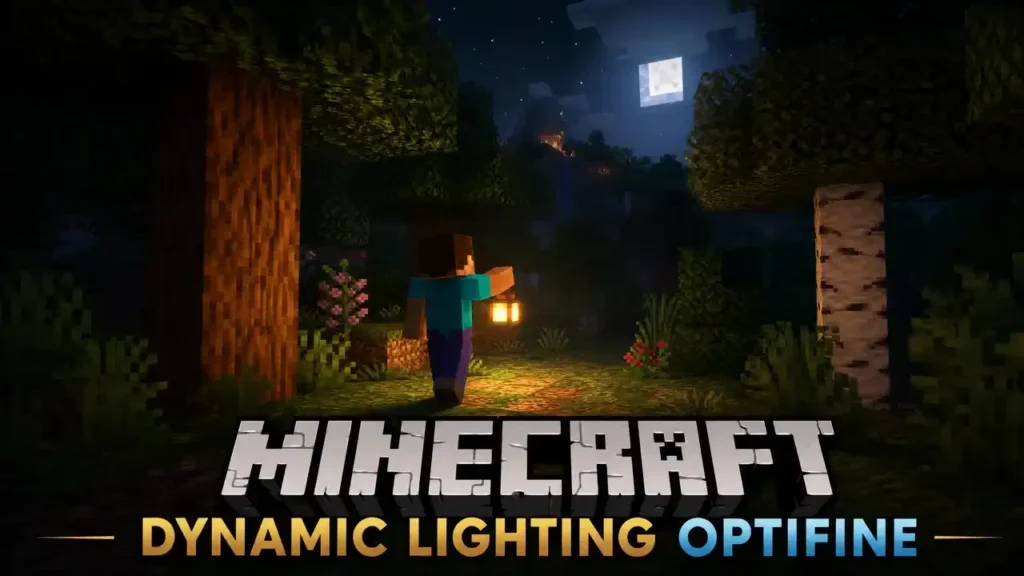
0–5: Low Brightness
Creates a small glow.
Best for:
- Decorative items.
- Small effects.
- Ambient lighting.
6–10: Medium Brightness
Provides useful visibility.
Best for:
- Small caves.
- Exploration items.
- Custom objects.
11–14: High Brightness
Creates strong illumination.
Best for:
- Torches.
- Lanterns.
- Adventure lighting.
15: Maximum Brightness
Provides the brightest possible light.
Common examples:
- Glowstone.
- Sea Lantern.
- Froglight.
- Lantern.
Brightness and Performance
Higher light values do not usually create a major performance difference by themselves.
Performance depends more on:
- Number of active light sources.
- Dynamic Lights mode.
- Entity count.
- Hardware capability.
Many glowing entities and items can increase rendering work. On weaker computers, use Fast mode instead of Fancy.
Visual Examples
| Light Level | Visual Effect |
| 0 | No visible glow |
| 5 | Soft nearby glow |
| 10 | Clear exploration lighting |
| 14 | Torch-like brightness |
| 15 | Maximum illumination |
Tip: Most players should keep natural values between 10 and 15. Extremely high lighting values can make custom items look unnatural.
Suggested authority references:
- OptiFine Documentation – Dynamic Lights
- OptiFine Configuration Documentation
- LambDynamicLights API Documentation (custom lighting concepts and luminance handling)
Custom Lightmaps
Custom Lightmaps are an OptiFine feature that changes the color and appearance of Minecraft’s lighting system. They allow players to create unique lighting styles without changing the actual light sources. While Dynamic Lights adds moving light around items and entities, Custom Lightmaps change how existing light appears throughout the world.
What Are Custom Lightmaps?
A lightmap is a texture that controls Minecraft’s lighting colors and brightness levels. OptiFine allows custom lightmaps through resource packs. These packs can modify the game’s default lighting appearance.
Custom Lightmaps can change:
- Daylight colors.
- Torchlight colors.
- Nether lighting.
- Underwater lighting.
- Overall atmosphere.
For example, a resource pack can make torchlight warmer or create a darker fantasy-style environment.
How Custom Lightmaps Differ From Dynamic Lights
Dynamic Lights and Custom Lightmaps improve visuals in different ways.
| Feature | Dynamic Lights | Custom Lightmaps |
| Main Purpose | Adds moving light sources | Changes lighting colors and appearance |
| Light Source | Items and entities | Existing Minecraft lighting system |
| Real-Time Effect | Yes | No |
| Requires Resource Pack | No | Usually yes |
| Changes Light Levels | No | No |
| Client-Side | Yes | Yes |
Dynamic Lights makes a held torch glow while you move. Custom Lightmaps change the color and mood of that torchlight and other existing lights.
Benefits of Custom Lightmaps
Better Visual Atmosphere
Custom lighting creates unique environments. You can make Minecraft feel warmer, darker, brighter, or more cinematic.
Improved Shader-Like Effects
Lightmaps can enhance visuals even without shader packs. They add color adjustments and lighting changes through resource packs.
More Building Options
Builders can create worlds with specific moods:
- Fantasy castles.
- Horror maps.
- Medieval villages.
- Adventure environments.
Better Resource Pack Experience
Many high-quality resource packs include custom lightmaps to match their textures and art style.
Compatibility
Custom Lightmaps work with OptiFine-compatible resource packs.
They generally work alongside:
- OptiFine Dynamic Lights.
- HD textures.
- Custom textures.
- Connected textures.
- Custom entity models.
Compatibility depends on the Minecraft version, OptiFine release, and resource pack design.
Resource Packs
Custom Lightmaps are usually included inside resource packs.
Common locations include:
assets/minecraft/mcpatcher/lightmap/
or other OptiFine-supported resource pack directories.
The resource pack controls the lighting texture. Players can switch packs to change their game’s visual style.
Tip: Use Custom Lightmaps with Dynamic Lights for the best visual experience. Dynamic Lights adds moving illumination, while Custom Lightmaps improve the overall lighting atmosphere.
Suggested authority references:
- OptiFine Documentation – Custom Colors and Lightmaps
- OptiFine Documentation – Dynamic Lights
- Minecraft Resource Pack Documentation
Advanced Customization
OptiFine Dynamic Lights offers basic customization through Minecraft OptiFine Settings and configuration files. Mod developers can take customization further by creating custom light sources, items, and entities. Advanced Dynamic Lights systems allow mods to control how objects produce light and how brightness changes during gameplay.
For Mod Developers
Mod developers can create custom lighting behavior for new items, creatures, and projectiles.
A custom light source can improve gameplay by adding:
- Glowing weapons.
- Magic items.
- Special creatures.
- Custom projectiles.
- Unique environmental effects.
Developers usually control lighting through configuration files or dynamic lighting APIs from compatible mods.
Custom Entities
Custom entities can produce light based on their behavior.
Examples:
- A glowing boss mob.
- A magical creature.
- A flying light source.
- A custom projectile.
The light level depends on the entity’s luminance value.
Luminance uses a range from 0 to 15:
- 0 = No light.
- 15 = Maximum brightness.
A developer can assign different values depending on the entity state.
Example:
entities.CustomMob=12
entities.MagicBoss=15
A moving entity with a luminance value creates real-time illumination as it travels.
Custom Items
Developers can also add Dynamic Lights to custom items.
Examples:
- Glowing swords.
- Magic crystals.
- Energy tools.
- Special crafting items.
Configuration example:
items.MagicCrystal=15
items.GlowSword=10
The item produces light when held or dropped, depending on the lighting system implementation.
API Overview
Modern dynamic lighting mods provide APIs for deeper customization.
DynamicLightHandler
DynamicLightHandler allows developers to define custom lighting logic.
It can control:
- Which objects emit light.
- When light activates.
- How luminance changes.
DynamicLightsInitializer
DynamicLightsInitializer provides an entry point for registering custom dynamic light handlers. Mods can use it to connect custom objects with the lighting system.
Luminance
Luminance represents the brightness value returned by a light source.
The value determines the strength of the emitted light.
Example:
Luminance: 15
Brightness: Maximum
LambDynLights#getLuminanceFromItemStack
This utility method reads the luminance value from an item stack. It helps developers check whether an item should produce dynamic light.
Configuration Examples
Custom Entity Light
entities.MyEntity=14
This gives the custom entity a bright light level.
Custom Item Light
items.MyItem=15
This creates maximum brightness for the item.
Lower Intensity Lighting
items.MagicDust=6
This creates a softer glow.
Best Practices
Use Appropriate Light Levels
Avoid giving every object maximum brightness. Natural lighting creates a better experience.
Test Performance
Many active light sources can increase rendering workload. Test large battles, crowded areas, and modded environments.
Keep Values Balanced
Use higher values for important light sources. Use lower values for decorative effects.
Support Multiple Versions
Check Minecraft and mod loader compatibility before releasing custom lighting features.
Document Custom Behavior
Explain which items and entities produce light. This helps players understand your mod.
Developer Tip: Dynamic lighting works best when brightness matches the object’s purpose. A small magical item does not need the same intensity as a powerful boss creature.
Suggested authority references:
- OptiFine Documentation – Dynamic Lights
- LambDynamicLights API Documentation
- Fabric Mod Development Documentation
Dynamic Lights With Mods
OptiFine Dynamic Lights can work alongside many Minecraft Optifine mods, but compatibility depends on your Minecraft version, mod loader, and installed features. Before adding Dynamic Lights to a modded setup, check whether your mods change rendering, lighting, or performance systems.
Forge
Forge is one of the most popular mod loaders for Minecraft Java Edition. OptiFine users often combine Dynamic Lights with Forge-based modpacks.
Compatibility
OptiFine Dynamic Lights can work with many Forge mods, especially mods that add:
- New items.
- Custom entities.
- New dimensions.
- Adventure content.
Some Forge mods may change rendering systems and cause conflicts.
Common Conflicts
Problems may appear with:
- Other graphics optimization mods.
- Alternative lighting mods.
- Custom rendering engines.
- Shader-related modifications.
Running multiple mods that control the same lighting feature can create visual issues.
Recommendation
Use OptiFine Dynamic Lights alone when possible. If you install a large Forge modpack, test lighting after adding each major graphics mod.
Fabric
Fabric focuses on lightweight and performance-friendly modding. Many modern players use Fabric with optimization mods instead of OptiFine.
Compatibility
OptiFine is not designed as a Fabric-first solution. Fabric users often choose dedicated alternatives like LambDynamicLights.
Fabric setups commonly include:
- Sodium.
- Iris Shaders.
- Fabric API.
- LambDynamicLights.
Recommendation
If you use a Fabric performance setup, choose a Fabric-compatible dynamic lighting mod instead of forcing OptiFine compatibility.
NeoForge
NeoForge is a newer mod loader based on the Forge ecosystem.
Compatibility
Support depends on the Minecraft version and available mod ports. OptiFine compatibility with NeoForge setups may vary. Always check the exact versions before combining mods.
Recommendation
Use native NeoForge alternatives when available. They usually provide better long-term compatibility.
Compatibility Tips
Follow these steps for a stable setup:
- Match Minecraft versions across all mods.
- Install the correct OptiFine version.
- Update Java and graphics drivers.
- Test Dynamic Lights before adding many visual mods.
- Keep backups of important worlds.
Common Mod Conflicts
Dynamic Lights may conflict with:
Other Lighting Mods
Two mods controlling the same lighting system can cause:
- Flickering.
- Missing lights.
- Incorrect brightness.
Performance Mods
Some optimization mods replace Minecraft’s rendering engine. These changes may affect Dynamic Lights behavior.
Shader Mods
Shaders can change how lighting appears. Some combinations may require extra settings adjustments.
Recommendations
For OptiFine Players
Use:
- OptiFine Dynamic Lights.
- Compatible shader packs.
- OptiFine-supported resource packs.
This provides a simple all-in-one graphics setup.
For Fabric Players
Use:
- Fabric Loader.
- Fabric API.
- Sodium.
- Iris.
- LambDynamicLights.
This setup offers lightweight performance with modern mod support.
For Large Modpacks
Test your lighting setup first. Add graphics and performance mods one at a time to identify conflicts.
Final Tip: Choose one main Dynamic Lights solution. Running multiple lighting systems together often creates unnecessary compatibility problems.
Suggested authority references:
- OptiFine Official Documentation – Dynamic Lights
- Minecraft Forge Documentation
- Fabric Documentation
- NeoForge Documentation
- LambDynamicLights Documentation
Dynamic Lights With Shaders
OptiFine Dynamic Lights works well with many Minecraft shader packs. Combining both features creates a more realistic lighting experience with moving light sources and enhanced visual effects. Shaders improve global graphics, shadows, water, and atmosphere. Dynamic Lights adds local illumination from items and entities. Using both features together can increase GPU usage. The right settings help maintain smooth gameplay.
SEUS
SEUS is one of the most popular Minecraft shader packs. SEUS focuses on realistic lighting, shadows, and cinematic visuals.
Dynamic Lights With SEUS
Dynamic Lights can improve cave exploration and nighttime scenes. Handheld light sources blend with SEUS lighting effects for a more immersive experience.
Recommended Settings
- Use Dynamic Lights: Fast for better FPS.
- Reduce shadow quality if performance drops.
- Lower render distance for large worlds.
- Enable Fancy mode only on powerful systems.
BSL Shaders
BSL Shaders offers a balanced combination of visuals and performance. Many players choose BSL because it provides high-quality lighting without extreme hardware requirements.
Dynamic Lights With BSL
BSL works well with Dynamic Lights for:
- Brighter caves.
- Better nighttime exploration.
- Improved atmosphere.
Recommended Settings
- Dynamic Lights: Fast
- Shadow Distance: Medium
- Render Distance: 8–12 chunks for balanced performance
- Reduce volumetric effects on weaker GPUs
Complementary Shaders
Complementary Shaders focuses on beautiful visuals while keeping good performance.
Dynamic Lights With Complementary
The combination creates strong lighting effects for:
- Adventure maps.
- Survival worlds.
- Building screenshots.
Recommended Settings
- Dynamic Lights: Fast or Fancy
- Use Fancy mode with modern GPUs.
- Lower shader quality before disabling Dynamic Lights.
Sildur’s Shaders
Sildur’s Shaders provides multiple performance levels. It works well on a wide range of computers.
Dynamic Lights With Sildur’s
Players can adjust shader intensity based on their hardware.
Recommended options:
- Low-end PCs: Lite or Basic versions.
- Mid-range PCs: Medium versions.
- High-end PCs: Vibrant versions.
Common Issues
Dynamic Lights Not Appearing
Possible causes:
- Dynamic Lights is disabled.
- Wrong OptiFine version.
- Shader settings override lighting.
- Mod conflicts.
Fix:
- Enable Dynamic Lights in Quality Settings.
- Restart Minecraft.
- Test without shaders.
Flickering Lights
Flickering may happen when multiple lighting systems interact.
Fix:
- Update OptiFine.
- Disable conflicting lighting mods.
- Try Fast mode instead of Fancy.
Black or Incorrect Lighting
Some shader settings may change how Dynamic Lights appear.
Fix:
- Update your shader pack.
- Reset shader settings.
- Test different shadow options.
Performance With Shaders
Shaders already use significant GPU resources. Adding Dynamic Lights increases rendering work.
Performance depends on:
- GPU power.
- Shader quality.
- Render distance.
- Dynamic Lights mode.
- Minecraft version.
For most players, Fast Dynamic Lights provides the best balance.
Recommended Settings
Low-End PC
Recommended:
- Dynamic Lights: Fast
- Shader: Lightweight preset
- Render Distance: 6–8 chunks
- Shadows: Low
- Particles: Reduced
Mid-Range PC
Recommended:
- Dynamic Lights: Fast
- Shader: BSL, Sildur’s Medium, or Complementary Balanced
- Render Distance: 10–16 chunks
- Shadows: Medium
High-End PC
Recommended:
- Dynamic Lights: Fancy
- Shader: SEUS, Complementary, or BSL High
- Render Distance: 16+ chunks
- High-quality shadows
Best Practice: Enable shaders first and check your FPS. Then enable Dynamic Lights. This makes it easier to identify performance changes.
Suggested authority references:
- OptiFine Documentation – Dynamic Lights
- SEUS Official Shader Information
- BSL Shaders Documentation
- Complementary Shaders Documentation
- Sildur’s Shaders Documentation
Common Problems With Minecraft Dynamic Lighting OptiFine
OptiFine Dynamic Lights usually works without issues when you use the correct setup. However, version mismatches, mod conflicts, and graphics settings can sometimes prevent it from working properly. This section covers the most common Dynamic Lights problems and their solutions.
Dynamic Lights Missing
Sometimes the Dynamic Lights option does not appear in Minecraft settings.
Possible Causes
- OptiFine is not installed correctly.
- You launched Minecraft with the vanilla profile.
- You installed an incompatible OptiFine version.
- Another mod changed the video settings menu.
Fix
- Confirm that you launched the OptiFine profile.
- Check your Minecraft and OptiFine versions.
- Reinstall OptiFine if the option remains missing.
- Remove conflicting graphics mods temporarily.
Option Not Showing
The Dynamic Lights option appears under:
Options → Video Settings → Quality
If you cannot find it, your installation may not include OptiFine features.
Fix
- Verify that the OptiFine version matches your Minecraft version.
- Avoid unofficial modified installers.
- Test with a clean Minecraft profile.
Torch Doesn’t Emit Light
A torch should create Dynamic Lighting when held or dropped.
Possible Causes
- Dynamic Lights is disabled.
- The mode is set to OFF.
- A resource pack or shader changes the appearance.
- The item is not supported.
Fix
- Open Video Settings → Quality.
- Set Dynamic Lights to Fast or Fancy.
- Test without shaders and resource packs.
No Light Underwater
Some items stop producing Dynamic Lights underwater.
Cause
Minecraft follows water behavior for certain light sources. Regular torches lose their lighting effect when submerged.
Fix
Use water-friendly light sources:
- Sea Lantern.
- Lantern.
- Glowstone.
- Froglight.
FPS Drops
Dynamic Lights adds extra rendering calculations. Some computers may experience lower FPS.
Causes
- Using Fancy mode on weak hardware.
- Many glowing entities nearby.
- High render distance.
- Shader packs combined with Dynamic Lights.
Fix
- Change Dynamic Lights to Fast.
- Reduce render distance.
- Disable unnecessary visual effects.
- Update graphics drivers.
Flickering Lights
Light flickering usually happens when multiple visual systems interact.
Possible Causes
- Shader conflicts.
- Multiple lighting mods.
- Outdated OptiFine versions.
Fix
- Update OptiFine.
- Disable other lighting mods.
- Test with shaders disabled.
- Switch from Fancy to Fast mode.
Mod Conflict
Some mods replace Minecraft’s rendering or lighting systems. These changes can interfere with Dynamic Lights.
Common Conflict Types
- Other dynamic lighting mods.
- Performance mods.
- Custom rendering engines.
- Shader-related mods.
Fix
- Disable similar lighting mods.
- Test mods one at a time.
- Use versions designed for the same Minecraft release.
Avoid running multiple Dynamic Lights systems together.
Shader Conflict
Shaders can change how Minecraft handles lighting and shadows.
Symptoms
- Incorrect brightness.
- Missing handheld light.
- Flickering effects.
- Strange shadows.
Fix
- Update your shader pack.
- Update OptiFine.
- Reset shader settings.
- Test Dynamic Lights without shaders.
Some shader packs require specific settings for proper compatibility.
Incorrect OptiFine Version
Using the wrong OptiFine version can remove features or cause crashes.
Common Mistakes
- Installing OptiFine for another Minecraft version.
- Using preview builds with incompatible mods.
- Mixing different Minecraft versions.
Fix
- Match OptiFine with your Minecraft version.
- Download releases from the official OptiFine source.
- Create a clean profile for testing.
Java Problems
Java issues can prevent OptiFine from launching or working correctly.
Common Symptoms
- OptiFine installer does not open.
- Minecraft crashes during startup.
- Missing graphics features.
Fix
- Install the correct Java version.
- Update Java when required.
- Restart your computer after installation.
- Check that Minecraft uses the correct Java runtime.
Quick Troubleshooting Checklist
Before searching for advanced fixes:
✅ Confirm OptiFine is installed correctly.
✅ Use the correct Minecraft version.
✅ Enable Dynamic Lights in Quality Settings.
✅ Test without shaders and extra mods.
✅ Update Java and graphics drivers.
Tip: Most Dynamic Lights problems come from version mismatches or conflicting visual mods. A clean OptiFine installation solves many issues quickly.
Suggested authority references:
- OptiFine Official Documentation
- OptiFine Official Downloads
- Minecraft Java Edition Troubleshooting Resources
- Java Runtime Documentation
Performance Optimization for Minecraft Dynamic Lighting OptiFine
OptiFine Dynamic Lights improves Minecraft visuals, but the right settings help maintain smooth gameplay. Performance depends on your hardware, Minecraft version, render distance, shaders, and installed mods. Use these optimization tips to get better FPS without losing the lighting experience.
Best Settings for Dynamic Lights Performance
The best Dynamic Lights setting depends on your computer.
Low-End PC
Recommended settings:
- Dynamic Lights: Fast
- Graphics: Fast
- Render Distance: 6–8 chunks
- Entity Distance: 50–75%
- Particles: Minimal
- Smooth Lighting: Low or Off
These settings reduce rendering work and keep FPS stable.
Mid-Range PC
Recommended settings:
- Dynamic Lights: Fast
- Graphics: Fancy
- Render Distance: 10–16 chunks
- Entity Distance: 75–100%
- Smooth Lighting: Maximum
This setup provides good visuals with balanced performance.
High-End PC
Recommended settings:
- Dynamic Lights: Fancy
- Graphics: Fancy
- Render Distance: 16–32 chunks
- Entity Distance: 100%
- High-quality resource packs and shaders
Powerful systems can handle advanced lighting without major FPS drops.
Chunk Updates
Chunk updates control how quickly Minecraft refreshes world changes. High chunk update rates can increase CPU usage.
Recommended Settings
- Low-end PC: Reduce chunk updates.
- Mid-range PC: Use default settings.
- High-end PC: Keep higher update values.
Lowering chunk updates can help when exploring areas with many moving light sources.
Render Distance
Render distance controls how many chunks Minecraft loads around you. Higher distances improve visibility but require more CPU and GPU power.
| Hardware | Recommended Render Distance |
| Low-end PC | 6–8 chunks |
| Mid-range PC | 10–16 chunks |
| High-end PC | 16–32 chunks |
Dynamic Lights works best with moderate render distances. Extremely high values increase overall rendering load.
Graphics Settings
OptiFine provides several graphics options that affect performance.
Recommended changes:
Graphics
- Fast: Better FPS.
- Fancy: Better visuals.
Smooth Lighting
Smooth lighting improves shadows and brightness transitions.
- Off: Maximum performance.
- Low: Balanced option.
- Maximum: Best visuals.
Clouds
Disable clouds for extra FPS.
Particles
Reduce particles if you experience drops during combat or explosions.
Entity Distance
Entity Distance controls how far away Minecraft renders mobs and moving objects. High entity distance increases CPU workload.
Recommended:
- Low-end PC: 50–75%
- Mid-range PC: 75–100%
- High-end PC: 100%
Lower settings help in areas with many mobs, such as farms or villages.
Memory Allocation
Minecraft uses RAM to load worlds, textures, mods, and resource packs.
Recommended allocation:
| Setup | Recommended RAM |
| Vanilla + OptiFine | 2–4 GB |
| OptiFine + Resource Packs | 4–6 GB |
| OptiFine + Mods + Shaders | 6–8 GB |
Avoid allocating too much RAM. Excess memory can cause Java garbage collection issues.
GPU Recommendations
Dynamic Lights and shaders rely heavily on your graphics card.
Low-End GPUs
Recommended:
- Use Fast Dynamic Lights.
- Avoid heavy shaders.
- Lower render distance.
- Update GPU drivers.
Mid-Range GPUs
Recommended:
- Use Fast or Fancy Dynamic Lights.
- Run balanced shaders.
- Use medium render distance.
High-End GPUs
Recommended:
- Use Fancy Dynamic Lights.
- Enable high-quality shaders.
- Increase render distance.
Extra Performance Tips
- Update your graphics drivers.
- Close unnecessary background applications.
- Use the latest compatible Java version.
- Keep Minecraft and OptiFine updated.
- Test one setting at a time.
Best Overall Setting: For most players, Dynamic Lights: Fast provides the ideal balance. It keeps caves bright while maintaining smooth FPS.
Suggested authority references:
- OptiFine Official Documentation – Performance Settings
- OptiFine Documentation – Dynamic Lights
- Minecraft Java Edition Performance Guide
- Graphics driver documentation from GPU manufacturers
Is Minecraft Dynamic Lighting OptiFine Safe?
OptiFine Dynamic Lights is considered safe when you download OptiFine from trusted sources and install the correct version for Minecraft Java Edition. Like any popular Minecraft mod, fake download pages and modified installers exist. Always verify your source before installing files on your computer.
Is OptiFine Safe?
Yes, OptiFine is widely used by the Minecraft Java Edition community. It has been available for many years and is developed by sp614x, the original creator of OptiFine. OptiFine changes Minecraft’s client-side graphics features. It does not modify server files or require access to your Minecraft account.
Safe installation practices include:
- Download OptiFine from official sources.
- Use the correct Minecraft version.
- Scan files if you want extra verification.
- Avoid unknown third-party installers.
Official Downloads
The safest way to get OptiFine is through the official OptiFine website.
The official source provides:
- Latest releases.
- Preview versions.
- Older Minecraft versions.
- Installation files.
Always check that the downloaded file is the official .jar installer before opening it.
Mirror Downloads
OptiFine provides mirror download options for some releases. A mirror is another download location that provides the same official file. It helps users download faster when the main server experiences high traffic.
Before using a mirror:
- Confirm it links to the official OptiFine download page.
- Check that the file name matches the expected OptiFine release.
- Avoid sites that add extra download managers or installers.
Avoid Fake Websites
Many unofficial websites use names similar to OptiFine. These sites may bundle unwanted software with downloads.
Avoid websites that:
- Offer .exe OptiFine installers.
- Ask you to install unknown programs.
- Display excessive pop-ups.
- Require suspicious browser extensions.
- Provide modified files.
The official OptiFine installer normally uses a Java .jar file.
Developer Information
OptiFine was created by sp614x, a well-known developer in the Minecraft community. The project became popular because it introduced major graphics improvements, including:
- FPS optimization.
- HD textures.
- Shader support.
- Dynamic Lights.
- Advanced video settings.
OptiFine has a long history within Minecraft Java Edition. Millions of players use it to customize graphics and improve gameplay performance.
Safe Installation Checklist
Before installing OptiFine Dynamic Lights:
✅ Download from the official OptiFine source.
✅ Match the OptiFine version with Minecraft.
✅ Use the official Java installer method.
✅ Avoid suspicious third-party downloads.
✅ Keep backups of important worlds.
Security Tip: The biggest risk usually comes from fake download websites, not the official OptiFine project. Always verify the source before installing any Minecraft mod.
Suggested authority references:
- OptiFine Official Website
- OptiFine Official Downloads Page
- Minecraft Java Edition Security Recommendations
Best Alternatives to Minecraft Dynamic Lighting OptiFine
OptiFine Dynamic Lights is not the only way to add real-time lighting to Minecraft. Several mods and plugins provide similar features with different goals. Some alternatives focus on Minecraft OptiFine Fabric compatibility, better performance, server support, or advanced customization. Choose the option that matches your Minecraft version, mod loader, and gameplay style.
LambDynamicLights
LambDynamicLights is one of the most popular alternatives for Fabric users. It provides lightweight dynamic lighting without requiring OptiFine.
Features
- Fabric support.
- Works well with Sodium and Iris.
- Custom lighting support.
- API for developers.
- Good performance.
Best For
- Fabric modpacks.
- Performance-focused players.
- Players using modern optimization mods.
RyoamicLights
RyoamicLights is another Fabric-based Dynamic Lights solution. It focuses on modern Minecraft versions and provides a simple alternative to OptiFine lighting.
Features
- Fabric compatibility.
- Lightweight design.
- Modern modding support.
- Real-time item lighting.
Best For
- Players who use Fabric.
- Users who want a simple Dynamic Lights replacement.
Mini Dynamic Lights
Mini Dynamic Lights is a lightweight option for players who want basic handheld lighting.
Features
- Small performance footprint.
- Simple setup.
- Focuses on core Dynamic Lights functionality.
Best For
- Low-resource modpacks.
- Players who need basic lighting only.
LightSource
LightSource focuses on server-side dynamic lighting through plugins. Unlike OptiFine, it can provide lighting effects for server environments.
Features
- Server plugin support.
- Multiplayer-focused lighting.
- Custom server experiences.
Best For
- Server owners.
- Multiplayer communities.
- Custom gameplay modes.
Flashlight – Dynamic Lighting
Flashlight – Dynamic Lighting adds flashlight-style lighting mechanics. It provides a different experience from traditional torch-based Dynamic Lights.
Features
- Flashlight gameplay.
- Dynamic illumination.
- Adventure-focused lighting.
Best For
- Horror maps.
- Adventure servers.
- Custom experiences.
Smooth Dynamic Light
Smooth Dynamic Light focuses on smoother lighting behavior. It provides an alternative approach for players who want fluid light transitions.
Features
- Smooth lighting effects.
- Lightweight design.
- Dynamic illumination.
Best For
- Players who prefer visual improvements.
- Custom mod setups.
Dynamic Lights Alternatives Comparison
| Feature | OptiFine Dynamic Lights | LambDynamicLights | RyoamicLights | Mini Dynamic Lights | LightSource | Flashlight – Dynamic Lighting | Smooth Dynamic Light |
| Main Platform | OptiFine | Fabric | Fabric | Fabric | Server Plugin | Server/Mod setups | Mod setups |
| Installation | Install OptiFine | Fabric Loader + API | Fabric Loader | Fabric setup | Server installation | Mod/plugin installation | Mod installation |
| Performance | Good | Excellent | Good | Very Good | Server-focused | Depends on setup | Good |
| Fabric Support | Limited | ✅ Yes | ✅ Yes | ✅ Yes | ❌ No | Depends | Depends |
| Forge Support | ✅ Yes | ❌ No | ❌ No | ❌ No | Plugin-based | Depends | Depends |
| Customization | Configuration files | Advanced API | Basic customization | Limited | Server configuration | Gameplay settings | Basic settings |
| API Support | Limited | ✅ Yes | Varies | Limited | Plugin API | Varies | Varies |
| Best For | OptiFine users | Fabric players | Modern Fabric setups | Lightweight lighting | Servers | Adventure gameplay | Smooth visuals |
Which Dynamic Lights Alternative Should You Choose?
Choose OptiFine Dynamic Lights If:
- You already use OptiFine.
- You want shaders and graphics features together.
- You prefer simple installation.
Choose LambDynamicLights If:
- You use Fabric.
- You use Sodium and Iris.
- You want better mod compatibility.
Choose Server Plugins If:
- You manage a multiplayer server.
- You want everyone to experience custom lighting.
Choose Lightweight Mods If:
- Your PC has limited resources.
- You only need basic handheld lighting.
Final Recommendation: OptiFine remains the easiest choice for OptiFine users. Fabric players usually get better results with LambDynamicLights or similar modern alternatives.
Suggested authority references:
- OptiFine Official Documentation
- LambDynamicLights Documentation
- Fabric Mod Documentation
- Modrinth Project Pages for Dynamic Lighting Alternatives
FAQs About Minecraft Dynamic Lighting OptiFine
This FAQ section answers the most common questions about Minecraft Dynamic Lighting, OptiFine settings, compatibility, performance, and troubleshooting.
What is Dynamic Lighting in Minecraft?
Dynamic Lighting is an OptiFine feature that creates real-time light around supported items and entities. A held torch, dropped glowstone, or glowing entity can illuminate nearby areas without placing a block.
How Do I Enable Dynamic Lights in OptiFine?
Open Minecraft and go to:
Options → Video Settings → Quality → Dynamic Lights
Choose Fast or Fancy to enable the feature.
Where Is the Dynamic Lights Setting?
The Dynamic Lights option appears inside the OptiFine Quality settings menu.
Path:
Options → Video Settings → Quality → Dynamic Lights
If the option is missing, check your OptiFine installation and Minecraft version.
What Is Fast Mode in Dynamic Lights?
Fast mode provides a balance between lighting quality and performance. It updates lighting less frequently than Fancy mode. This reduces resource usage while keeping the feature active.
What Is Fancy Mode in Dynamic Lights?
Fancy mode provides smoother real-time lighting updates. It creates the highest-quality Dynamic Lights experience but may use more GPU power.
Does Dynamic Lights Reduce FPS?
Yes, Dynamic Lights can reduce FPS slightly because it adds extra client-side rendering work.
The performance impact depends on:
- Hardware.
- Dynamic Lights mode.
- Shader usage.
- Render distance.
Use Fast mode for better performance.
Is Dynamic Lighting Client-Side?
Yes. OptiFine Dynamic Lights works on the client side. It changes only your visual experience. It does not change server lighting, block light levels, or gameplay mechanics.
Can Other Players See Dynamic Lights?
No, not unless they also use a compatible Dynamic Lights system. Each player’s client creates its own lighting effect.
Does Dynamic Lights Work on Servers?
Yes. Dynamic Lights works on many multiplayer servers because it does not require server installation. The server continues using normal Minecraft lighting.
Which Items Emit Light?
Common Dynamic Lights items include:
- Torch.
- Lantern.
- Soul Torch.
- Glowstone.
- Sea Lantern.
- Blaze Rod.
- Froglight.
- Jack o’Lantern.
OptiFine can define item light levels through Dynamic Lights configuration.
Which Mobs Emit Light?
Common light-emitting entities include:
- Blaze.
- Magma Cube.
- Burning mobs.
- Fireballs.
- Spectral arrows.
The brightness depends on the entity’s assigned light level.
Why Doesn’t My Torch Glow?
Common reasons include:
- Dynamic Lights is disabled.
- The setting is set to OFF.
- You are not running OptiFine.
- Another mod or shader conflicts with lighting.
Check:
Options → Video Settings → Quality → Dynamic Lights
Does Dynamic Lights Work Underwater?
Some items stop producing light underwater. Regular torches lose their lighting effect when submerged. Other sources may continue working depending on their properties.
Is Dynamic Lights Available in Minecraft Bedrock?
OptiFine Dynamic Lights is a Java Edition feature. OptiFine does not support Minecraft Bedrock Edition.
Does Dynamic Lights Work With Shaders?
Yes. Dynamic Lights can work with OptiFine shader packs. However, some shader packs may require adjustments because shaders also modify Minecraft lighting behavior.
Does Dynamic Lights Work With Forge?
Yes. OptiFine Dynamic Lights can work with many Forge setups. Compatibility depends on Minecraft version and other installed mods.
Does Dynamic Lights Work With Fabric?
OptiFine is not designed as a Fabric mod. Fabric users usually choose alternatives such as LambDynamicLights for Dynamic Lights support.
What Is dynamic_lights.properties?
dynamic_lights.properties is a configuration file used to define custom Dynamic Lights behavior. It can control light levels for items and entities. The light value ranges from 0 to 15.
What Is the Maximum Light Level?
The maximum Dynamic Lights value is 15.
Minecraft uses a light level range from 0 to 15:
- 0 = No light.
- 15 = Maximum brightness.
Is OptiFine Dynamic Lights Free?
Yes. OptiFine is available as a free download for Minecraft Java Edition. Always download OptiFine from trusted sources to avoid fake installers or modified files.
Quick Summary
| Question | Short Answer |
| Dynamic Lights meaning | Real-time item and entity lighting |
| Works without placing torches | Yes |
| Client-side | Yes |
| Server installation needed | No |
| Maximum light level | 15 |
| Best performance mode | Fast |
| Best quality mode | Fancy |
| Minecraft Edition | Java Edition |
Suggested authority references:
- OptiFine Dynamic Lights Documentation
- OptiDocs OptiFine Documentation
- OptiFine Official FAQ
Related Guides
OptiFine Dynamic Lights is part of a larger Minecraft graphics ecosystem. These related guides help you improve performance, install visual enhancements, and choose the best lighting setup for your game.
Minecraft OptiFine Download
Learn how to download the correct OptiFine version for Minecraft Java Edition.
This guide covers:
- Latest OptiFine releases.
- Official download sources.
- Version compatibility.
- Safe installation steps.
- Common download problems.
Always match OptiFine with your Minecraft version for the best compatibility.
How to Install OptiFine
A proper installation ensures all OptiFine features work correctly, including Dynamic Lights, shaders, and advanced video settings.
Learn:
- How to install the .jar installer.
- How to create an OptiFine launcher profile.
- How to fix installation errors.
- How to use OptiFine with supported setups.
Best OptiFine Settings
Optimize Minecraft visuals and performance with the right OptiFine configuration.
This guide covers:
- FPS improvement settings.
- Render distance adjustments.
- Smooth lighting options.
- Dynamic Lights settings.
- Shader performance tuning.
OptiFine includes many performance and customization options designed to improve Minecraft graphics.
Minecraft Shaders Installation
Shaders transform Minecraft’s lighting, shadows, water, and atmosphere.
Learn:
- How shader packs work.
- Where to install shader files.
- How to enable shaders in OptiFine.
- How to fix shader compatibility problems.
OptiFine supports shader packs through the shader menu, and shader files are typically placed inside the shaderpacks folder.
Best Shader Packs
Explore popular shader packs that work with Minecraft Java Edition.
Popular choices include:
- SEUS.
- BSL Shaders.
- Complementary Shaders.
- Sildur’s Shaders.
Each shader pack offers a different balance between realism, performance, and visual style.
OptiFine vs Iris
Compare two popular shader solutions for Minecraft Java Edition.
This comparison covers:
- Performance.
- Shader compatibility.
- Mod loader support.
- Installation process.
- Fabric compatibility.
Iris is a modern shader solution designed for compatibility with newer modding setups, including Fabric environments.
Dynamic Lights Alternatives
OptiFine Dynamic Lights is not the only way to add real-time lighting.
Explore alternatives such as:
- LambDynamicLights.
- RyoamicLights.
- Mini Dynamic Lights.
- Other lighting solutions.
Compare:
- Performance.
- Compatibility.
- Customization.
- Mod loader support.
Continue Learning
Mastering Dynamic Lights becomes easier when you understand OptiFine Mod settings, shaders, performance optimization, and alternative lighting systems. These related guides help you build a complete Minecraft visual setup.
Conclusion
OptiFine Dynamic Lights is one of the most useful visual features available for Minecraft Java Edition players. It creates real-time lighting from supported items and entities without requiring players to place blocks. This feature makes caves, nighttime travel, and underground exploration easier. Holding a torch or another light-emitting item creates a moving light source that improves visibility and immersion. For most players, Dynamic Lights: Fast provides the best balance. It delivers smooth lighting while keeping FPS stable on a wide range of computers. Players with powerful hardware can use Fancy mode for the highest visual quality. Low-end systems should use Fast mode or disable Dynamic Lights when maximum performance matters.
For the best experience:
- Use the correct OptiFine version for your Minecraft release.
- Keep Java and graphics drivers updated.
- Match Dynamic Lights settings with your hardware.
- Test shader packs before combining them with Dynamic Lights.
- Avoid using multiple lighting mods together.
Players who use Fabric-based setups may prefer alternatives like LambDynamicLights. It offers lightweight performance and better integration with modern Fabric mods. OptiFine Dynamic Lights remains a simple and effective choice for players who want better lighting without complicated setup. With the right settings, it improves exploration, builds, combat, and overall Minecraft immersion. A balanced setup gives you the best results: smooth performance, beautiful lighting, and a more enjoyable Minecraft experience.