
How to Install OptiFine with Forge (Complete Installation Guide)
Installing OptiFine with Forge requires the correct versions of both mods. First, install Minecraft Forge, launch it once, download the compatible OptiFine .jar file, and place it inside your Minecraft mods folder. Then, start Minecraft OptiFine using the Forge profile. OptiFine will add better performance options, advanced video settings, and shader support. This guide helps Minecraft Java Edition players install OptiFine as a Forge mod. It covers the complete setup process, version compatibility, Forge modpacks, and common installation problems.
You can follow these steps for popular Minecraft versions, including 1.20.1, 1.19.2, and other supported Forge releases. However, OptiFine does not work with every Forge version. Always check the OptiFine release details and match it with your Minecraft and Forge versions before installing.
After completing this guide, you will know how to:
- Add OptiFine to Forge correctly.
- Install OptiFine inside the Forge mods folder.
- Enable OptiFine features in Minecraft.
- Fix common Forge and OptiFine crashes.
- Use shaders with your Forge setup.
OptiFine and Forge work together to improve the Minecraft experience. Forge manages your mods, while OptiFine enhances graphics, performance, and customization options. A correct installation gives you access to smoother gameplay and more video settings without unnecessary errors.
What Is OptiFine and Forge?
Before installing OptiFine with Forge, it helps to understand what each tool does. Both tools improve Minecraft, but they serve different purposes. OptiFine focuses on graphics and performance. Forge manages mods and creates a modding environment.
What Is OptiFine?
OptiFine is a Minecraft optimization mod for Minecraft Java Edition. It improves game performance and adds advanced visual features. OptiFine can help increase FPS on many systems. It also adds detailed Video Settings that give players more control over Minecraft graphics.
Key OptiFine features include:
- Better FPS performance
- Advanced graphics settings
- Shader Pack support
- Improved texture pack options
- Dynamic lighting
- Performance customization
With OptiFine, players can adjust settings like render distance, animations, smooth lighting, and visual effects. These options help create a smoother and more customized Minecraft experience. OptiFine also supports Shader Packs, which improve lighting, shadows, water effects, and overall visuals. Players often use shaders to create a more realistic Minecraft world.
What Is Minecraft Forge?
Minecraft Forge is a mod loader that allows Minecraft players to install and run mods together. Forge creates a separate Forge Profile inside the Minecraft Launcher. This profile loads Forge-compatible mods when you start the game. During installation, Forge also creates the Minecraft mods folder. Players use this folder to add mod files, including compatible OptiFine versions.
Forge helps manage:
- Multiple Minecraft mods
- Mod compatibility
- Custom modded profiles
- Minecraft mod installations
Without Forge, most Forge-based mods cannot run properly. It provides the foundation that allows different mods to work together in Minecraft Java Edition.
Can You Use OptiFine and Forge Together?
Yes, you can use OptiFine and Forge together. However, compatibility depends on your Minecraft version, Forge version, and OptiFine build. Not every OptiFine release works with every Forge version. Some versions may work as standalone installations only.
Before installing, check these three details:
- Minecraft version
- Forge version
- OptiFine version
For example, an OptiFine build made for Minecraft 1.20.1 may not work correctly with a different Minecraft version or Forge release. Always check the OptiFine compatibility information before adding it to your Forge setup. This simple step helps prevent crashes and installation errors. A correct OptiFine and Forge combination lets you enjoy better performance, advanced graphics settings, shaders, and a smoother modded Minecraft experience.
Requirements Before Installing OptiFine with Forge
Before you install OptiFine with Forge, prepare the required files and software. A correct setup prevents most installation errors. You need the right Minecraft version, Forge release, Java installation, and OptiFine file. Check everything before you start the installation process.
Required Software
Use this checklist to prepare your Minecraft setup:
| Requirement | Purpose |
| Minecraft Java Edition | Base game for running mods |
| Minecraft Launcher | Launches Minecraft profiles |
| Java | Runs .jar installers |
| Minecraft Forge | Loads Minecraft mods |
| OptiFine .jar file | Adds optimization features |
Minecraft Java Edition
OptiFine and Forge work with Minecraft Java Edition. They do not support Minecraft Bedrock Edition. Make sure you have a working Minecraft Java Edition installation before continuing.
Minecraft Launcher
The Minecraft Launcher manages your game profiles. It lets you select the Forge profile after installation. You will use the launcher to start Minecraft with Forge and OptiFine.
Java
Java allows your computer to run .jar files. Both the Forge installer and some Minecraft tools use Java. If a .jar file does not open, check your Java installation first.
Minecraft Forge
Forge works as the mod loader for Minecraft. It creates the Forge profile and loads compatible mods. You need Forge installed before adding OptiFine.
OptiFine .jar File
The OptiFine .jar file contains the OptiFine mod. You will place this file inside your Minecraft mods folder after installing Forge. Do not extract the file. Keep it in the original .jar format.
Check Your Minecraft Version
Minecraft versions change often, and mod compatibility depends on the exact version you use.
Common examples include:
- Minecraft 1.20.1
- Minecraft 1.19.2
- Minecraft 1.20.4
Before downloading anything, check your current Minecraft version.
Your three main versions must match:
- Minecraft version
- Forge version
- OptiFine version
For example, Minecraft 1.20.1 requires a Forge release and OptiFine build that support Minecraft 1.20.1.
Using mismatched versions can cause:
- Game crashes
- Missing OptiFine features
- Forge startup errors
- Mods not loading correctly
Always check the OptiFine release information and Forge version details before installation. This small step creates a smoother and safer setup.
Download the Correct Forge Version
Minecraft Forge is the foundation of your OptiFine setup. You must install the correct Forge version before adding OptiFine. A wrong Forge version can cause crashes or prevent OptiFine from loading. Always match Forge with your Minecraft version first.
Find Your Minecraft Forge Version
Follow these steps to find the correct Forge release:
Identify Your Minecraft Version
First, check the Minecraft version you want to mod.
Common versions include:
- Minecraft 1.20.1
- Minecraft 1.19.2
- Minecraft 1.20.4
Your Forge version must support your chosen Minecraft version.
Download the Matching Forge Installer
Download the Forge installer that matches your Minecraft version. The download file comes as a Forge installer .jar file.
For example:
- Minecraft 1.20.1 → Forge 1.20.1 release
- Minecraft 1.19.2 → Forge 1.19.2 release
Avoid using random Forge builds from unofficial sources. Use trusted sources to reduce security risks.
Choose the Recommended Forge Build
Forge usually provides multiple builds for each Minecraft version. Choose the recommended Forge build when available. Recommended builds usually provide better stability for most players.
Before installing, confirm:
- Minecraft version matches
- Forge version matches
- Your Java version supports the installer
Install Minecraft Forge
After downloading the correct Forge installer, follow these steps:
Open the Forge Installer
Find the downloaded Forge .jar file. Open the installer using Java. If the file does not open, check your Java installation first.
Select “Install Client”
The Forge installer will show installation options.
Choose:
Install Client
This option installs Forge for your Minecraft Launcher.
Confirm Minecraft Directory
Forge automatically detects your Minecraft folder. Check that the directory points to your main Minecraft installation. The default folder is usually:
.minecraft Continue after confirming the location.
Complete the Installation
Click the install button and wait for Forge to finish. After installation, Minecraft Launcher will show a new Forge profile. You can now launch Forge before adding OptiFine.
Forge Installer Not Opening? Try These Fixes
Sometimes the Forge installer .jar file does not open correctly. Try these solutions:
Check Java Installation
The Forge installer needs Java to run. Make sure Java is installed and updated on your computer.
Use JarFix
JarFix can repair broken .jar file associations. Use it when your computer does not recognize Java files correctly. After fixing the file association, open the Forge installer again. Installing the correct Forge version creates the base environment for OptiFine. Once Forge works correctly, you can continue with adding the OptiFine .jar file to your mods folder and How to Zoom in Minecraft OptiFine.
Launch Forge Before Adding OptiFine
Before adding OptiFine, you should launch Minecraft with Forge once. This step prepares your Minecraft installation for mods. Launching Forge first helps create the required files and confirms that Forge installed correctly. It also creates the Forge Profile in the Minecraft Launcher. Forge then generates important folders, including the mods folder where you will add the OptiFine .jar file later. Skipping this step can cause missing folders or installation problems.
How to Launch Forge for the First Time
Follow these steps:
Open Minecraft Launcher
Open the official Minecraft Launcher on your computer. Make sure you use the same Minecraft account and installation where you installed Forge.
Select the Forge Profile
Open the installation list in the Minecraft Launcher. Select the Forge profile you created during installation.
The profile name usually includes:
- Forge
- Minecraft version
- Forge build number
Launch Minecraft Once
Click Play and wait for Minecraft to load. The first Forge launch may take longer because it creates required files and prepares the mod environment.
Exit Minecraft
After Minecraft reaches the main menu, close the game. You do not need to create a world or change settings. Now Forge has completed its first setup. Your Minecraft folder is ready for OptiFine installation. Next, you can add the compatible OptiFine .jar file to the Forge mods folder.
Download OptiFine for Forge
After installing Forge, the next step is downloading the correct OptiFine version. OptiFine must match your Minecraft version to work properly with Forge. A wrong OptiFine file can cause crashes, missing features, or failed launches. Always check the version details before downloading.
Choose the Compatible OptiFine Version
OptiFine releases use specific version names, such as OptiFine HD U builds. Each release supports certain Minecraft versions.
Before downloading, check:
- Your Minecraft version
- Your Forge version
- Your OptiFine version
For example:
- OptiFine HD U I7
- OptiFine HD U J3
These builds may support different Minecraft versions. Always choose the OptiFine release that matches your Minecraft setup. The correct OptiFine file will download as a .jar file. You will add this file to the Forge mods folder later.
Avoid Incorrect OptiFine Downloads
Many installation problems happen because players download the wrong file.
Avoid:
- Fake OptiFine download websites
- Modified OptiFine files
- Repacked .jar files
- OptiFine versions made for another Minecraft version
Unofficial files can contain unwanted software or broken modifications. For safety, always use trusted sources when downloading OptiFine. Check the official OptiFine download page for the latest supported versions and release information. A correct OptiFine .jar file gives you a clean installation and better compatibility with Forge.
How to Install OptiFine with Forge
Now your Forge setup is ready. The next step is adding the OptiFine .jar file to the correct location. Follow each step carefully. A small mistake, such as using the wrong folder or extracting the file, can prevent OptiFine from loading.
Open Your Minecraft Installation Directory
First, open your Minecraft installation folder. This folder stores your game files, settings, and installed mods. The default location depends on your operating system.
Windows
.minecraft
Mac
~/Library/Application Support/minecraft
If you use a custom Minecraft launcher or installation directory, open that folder instead. Once you find the Minecraft folder, continue to the mods folder.
Locate the Mods Folder
Inside your Minecraft directory, look for the mods folder. The default path is:
.minecraft/mods
This folder stores all Forge-compatible mods, including OptiFine. If you cannot find the mods folder, do not worry. Create a new folder and name it exactly:
mods
Make sure the folder name uses lowercase letters and contains no extra spaces.
Add OptiFine to the Forge Mods Folder
Find the OptiFine .jar file that you downloaded earlier. Drag and drop the file into the mods folder. Keep the file in its original format. Do not extract the .jar file. The file should look similar to this:
OptiFine_xxxxx.jar
If you extract the file or rename it, Forge may not detect OptiFine during startup. After placing the file in the mods folder, your installation is almost complete.
Launch Minecraft Using Forge
Open the Minecraft Launcher. Select the Forge profile from the installation list. Click Play to start Minecraft. Forge will load first, then detect the OptiFine .jar file inside the mods folder. When Minecraft reaches the main menu, open Options → Video Settings. If you see additional graphics options and the Shaders button, OptiFine loaded successfully. Your Forge setup now supports OptiFine, improved graphics, higher FPS, and shader packs, provided your installed versions are compatible.
How to Verify OptiFine Is Working with Forge
After launching Minecraft with the Forge profile, verify that OptiFine loaded correctly. This quick check confirms that your installation works as expected. The easiest way is to check the Video Settings and the Mods menu.
Check the Video Settings
From the Minecraft main menu, go to: Options → Video Settings If OptiFine is installed correctly, you will see several extra graphics options that are not available in vanilla Minecraft.
Look for these features:
- Shaders button
- Dynamic Lighting settings
- Performance options
- Quality settings
- Details settings
- Animations settings
- Advanced graphics controls
The Shaders button is one of the easiest signs that OptiFine loaded successfully. It lets you install and manage compatible shader packs. You should also notice more options to customize graphics, improve FPS, and balance performance with visual quality.
Check the Mods Menu
You can also confirm the installation through Forge.
From the Minecraft main menu:
- Click Mods.
- Browse the installed mods list.
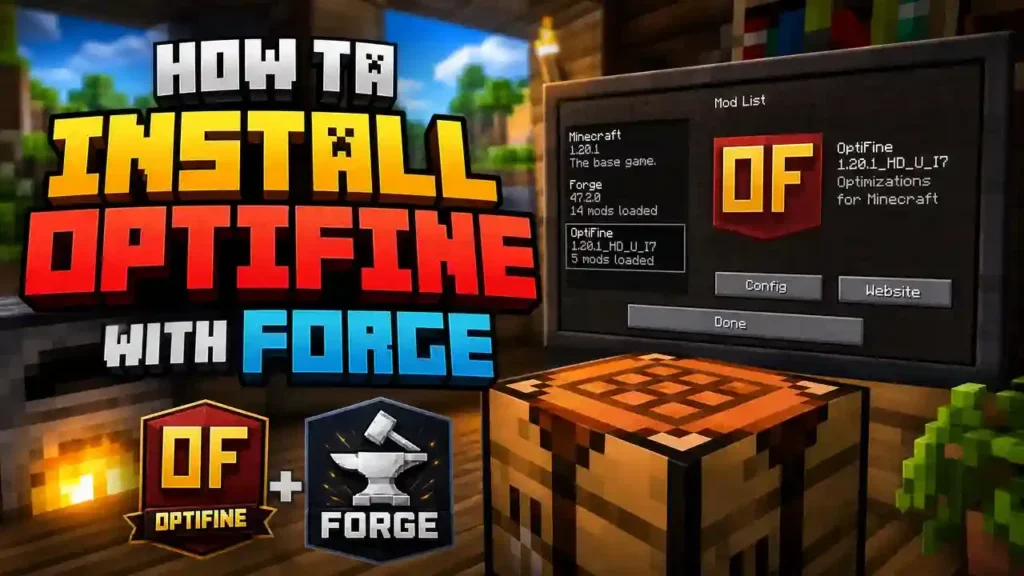
- Look for OptiFine.
If OptiFine appears in the list, Forge has detected and loaded the mod successfully.
If you do not see OptiFine or the extra Video Settings, check these common issues:
- The OptiFine version does not match your Minecraft version.
- The Forge version is incompatible with your OptiFine build.
- The OptiFine .jar file is missing from the mods folder.
- You launched the default Minecraft profile instead of the Forge profile.
Once both the Video Settings and Mods menu show OptiFine, your installation is complete. You can now enjoy smoother gameplay, advanced graphics settings, and shader support with your Forge mods.
How to Use OptiFine Shaders with Forge
After installing OptiFine with Forge, you can use Shader Packs to improve Minecraft’s graphics. Shaders add realistic lighting, shadows, reflections, and water effects without changing your worlds. Before installing a shader, make sure OptiFine loads correctly. You should see the Shaders button in the Video Settings menu.
Install Shader Packs
Follow these steps to add a shader pack to Minecraft.
Download a Shader Pack
Choose a shader pack that supports your Minecraft version and OptiFine build. Save the downloaded shader pack to an easy-to-find location. Keep the file in its original .zip format. Do not extract the archive.
Open Video Settings
Launch Minecraft using the Forge profile. From the main menu, go to: Options → Video Settings These are the OptiFine Settings, where you can customize graphics and manage shaders.
Select Shaders
Click the Shaders button. Minecraft will open the Shader Packs screen. This menu shows every shader pack available for your installation.
Add the Shader Pack
Click Shaders Folder to open the shader directory. Copy or move your downloaded shader pack into this folder. Return to Minecraft and select the shader pack from the list. The game may take a few seconds to apply the new graphics. If everything works correctly, you will notice improved lighting, better shadows, realistic water, and enhanced visual effects. If a shader pack does not load, check that it supports your Minecraft version and OptiFine release. You can also lower shader quality in the OptiFine Settings if your computer struggles with performance.
OptiFine Forge Compatibility Guide
Using compatible versions is the most important step when installing OptiFine with Forge. Even a small version mismatch can cause startup crashes, missing features, or mods that fail to load. Before downloading any files, confirm that your Minecraft version, Forge version, and OptiFine build are compatible.
Note: Forge and OptiFine compatibility changes with new releases. Always verify the latest supported versions on the official OptiFine download page before installing.
| Minecraft Version | Recommended Forge Version* | Compatible OptiFine Version | Status |
| 1.21.x | Match the latest Forge release for your Minecraft version | Latest OptiFine HD U preview or stable build (if available) | Check compatibility |
| 1.20.6 | Match the Forge release for 1.20.6 | Compatible OptiFine HD U build | Check compatibility |
| 1.20.4 | Forge 49.x | OptiFine HD U I7 or newer compatible build | Compatible |
| 1.20.2 | Forge 48.x | Compatible OptiFine HD U build | Compatible |
| 1.20.1 | Forge 47.x | OptiFine HD U I5, I6, I7 or later compatible build | Compatible |
| 1.19.4 | Forge 45.x | Compatible OptiFine HD U build | Compatible |
| 1.19.3 | Forge 44.x | Compatible OptiFine HD U build | Compatible |
| 1.19.2 | Forge 43.x | OptiFine HD U H9 or later compatible build | Compatible |
*Use the latest recommended or stable Forge build for your Minecraft version whenever possible.
Compatibility Tips
Follow these best practices before installing OptiFine with Forge:
- Match all three versions: Minecraft, Forge, and OptiFine.
- Download OptiFine only for your exact Minecraft version.
- Install Forge before adding the OptiFine .jar file.
- Launch Forge once to create the mods folder.
- Keep OptiFine in its original .jar format.
- Test Forge without OptiFine if Minecraft crashes after installation.
If your versions do not match, update or replace the incompatible file before launching Minecraft. A compatible setup gives you better performance, stable gameplay, and full access to OptiFine features, including shaders and advanced video settings.
Common OptiFine Forge Problems and Fixes
Most OptiFine and Forge issues happen because of version mismatches or incorrect installation. The good news is that you can fix most problems in a few minutes. Use the solutions below to identify the issue and get Minecraft running again.
OptiFine Forge Crash on Startup
If Minecraft crashes during startup, check your installed versions first.
Common Causes
- Minecraft and OptiFine versions do not match.
- Forge does not support your OptiFine build.
- Another mod conflicts with OptiFine.
- You installed an unsupported Forge build.
How to Fix It
Try these solutions in order:
- Remove the OptiFine .jar file from the mods folder.
- Launch Minecraft with Forge only.
- If Forge works, OptiFine is the likely cause.
- Download an OptiFine version that matches your Minecraft version.
- Use the recommended Forge build for your Minecraft release.
- Add OptiFine back to the mods folder and test again.
If the game still crashes, remove recently installed mods one at a time to find the conflict.
OptiFine Not Showing in the Forge Mods Menu
If OptiFine does not appear in the Mods menu, Forge has not loaded it correctly.
Check These Items
- Confirm the OptiFine .jar file is inside the mods folder.
- Make sure you did not extract the .jar file.
- Verify that you launched the Forge profile instead of the default Minecraft profile.
- Check that OptiFine supports your Minecraft and Forge versions.
After making changes, restart Minecraft and check the Mods menu again.
OptiFine Not Working with Other Mods
Some mods change the same graphics or rendering features as OptiFine. These mods can conflict with each other.
Common Mod Conflicts
- Rendering mods
- Performance optimization mods
- Shader-related mods
- Graphics enhancement mods
If you notice crashes, missing textures, or visual glitches, disable one mod at a time until you find the conflict. Always read the compatibility notes for your mods before installing them together.
Forge Profile Missing
If you cannot find the Forge profile in the Minecraft Launcher, Forge may not have installed correctly.
How to Fix It
- Reinstall Minecraft Forge using the correct installer.
- Confirm that the installer uses your Minecraft directory.
- Open the Minecraft Launcher and check the Installations tab.
- Enable the Forge installation if it is hidden.
- Launch Forge once to complete the setup.
After the Forge profile appears, start Minecraft with Forge before adding OptiFine again. Most OptiFine and Forge problems come from incompatible versions or incorrect installation steps. Always match your Minecraft version, Forge version, and OptiFine build before troubleshooting anything else. This simple check solves the majority of installation issues.
Installing OptiFine with Forge on Mac
Installing OptiFine with Forge on a Mac follows the same process as Windows. The main difference is the Minecraft folder location and how macOS handles .jar files. Before you begin, make sure you have Minecraft Java Edition, Java, Minecraft Forge, and a compatible OptiFine version and How to Install OptiFine in Minecraft .
Find the Minecraft Directory
Minecraft stores its files inside the Application Support folder on macOS. Open Finder, click Go in the menu bar, then select Go to Folder. Enter the following path:
~/Library/Application Support/minecraft
This folder contains your Minecraft files, including the mods folder.
Open the Mods Folder
Inside the Minecraft directory, locate the mods folder. The default path is:
~/Library/Application Support/minecraft/mods
If you do not see a mods folder, launch Forge once and close Minecraft. If the folder is still missing, create a new folder named:
mods
Place the OptiFine .jar file inside this folder. Keep the file in its original .jar format. Do not extract it.
Check Your Java Installation
Minecraft Forge uses Java to run the installer. If the Forge installer does not open, verify that Java is installed on your Mac. You can also update Java to the latest supported version if the installer fails to launch. A working Java installation is required before installing Forge.
Launch Minecraft with the Forge Profile
Open the Minecraft Launcher after installing Forge. Select the Forge profile from the installation list. Click Play to launch Minecraft. If the Forge profile does not appear, open the Installations tab and check that Forge is enabled. After Minecraft loads, open Options → Video Settings. If you see the Shaders button and additional graphics settings, OptiFine installed successfully on your Mac.
Tip: Always use OptiFine, Forge, and Minecraft versions that support each other. Matching versions help prevent crashes and ensure a smooth modding experience on macOS.
Installing OptiFine with CurseForge Modpacks
Many players use the CurseForge Launcher to manage Minecraft modpacks. You can also use OptiFine with many CurseForge profiles, but you usually need to add it manually. Before installing OptiFine, make sure your modpack uses a compatible Minecraft and Forge version.
Find Your CurseForge Profile
Open the CurseForge Launcher and select the Minecraft modpack you want to use. Each modpack has its own custom profile with a separate game directory. This keeps your mods organized and prevents conflicts with other installations. Open your modpack profile and click the menu to access its folder.
Add OptiFine Manually
Most CurseForge modpacks do not include OptiFine by default.
To install it:
- Download the OptiFine version that matches your Minecraft version.
- Open your CurseForge profile folder.
- Open the mods folder.
- Copy the OptiFine .jar file into the folder.
- Keep the file in its original .jar format.
- Launch the modpack from the CurseForge Launcher.
Do not extract or rename the OptiFine file. Forge only detects the original .jar file.
Check Mod Compatibility
Not every modpack supports OptiFine. Some mods change Minecraft’s rendering engine or graphics system. These mods can conflict with OptiFine.
Common conflicts include:
- Rendering mods
- Performance optimization mods
- Shader-related mods
- Graphics enhancement mods
If your modpack crashes after adding OptiFine:
- Remove the OptiFine .jar file and test the modpack.
- Confirm that your Minecraft, Forge, and OptiFine versions match.
- Check the modpack documentation for known OptiFine compatibility issues.
- Add OptiFine back only if the modpack supports it.
Many modern Forge modpacks work well with OptiFine, while others recommend alternative rendering mods for better compatibility. Always review the modpack’s compatibility notes before making changes. Once OptiFine loads successfully, you can enjoy higher FPS, advanced video settings, and shader support without affecting your existing CurseForge profile.
OptiFine Alternatives for Forge
OptiFine works well for many players, but it is not always the best choice. Some Forge modpacks and newer Minecraft versions have compatibility issues with OptiFine. If OptiFine causes crashes or conflicts, consider one of the alternatives below.
| Alternative | Best For | Shader Support | Forge Compatible |
| Sodium* | Maximum FPS and smooth gameplay | No (Fabric version) | No |
| Embeddium | Better performance on Forge | No | Yes |
| Oculus | Running shaders on Forge | Yes | Yes |
*Sodium is designed for the Fabric mod loader, not Forge.
Embeddium
Embeddium is one of the best performance mods for Minecraft Forge. It improves FPS, reduces lag, and works with many modern Forge modpacks.
Choose Embeddium if you:
- Want better performance on Forge.
- Experience OptiFine compatibility issues.
- Play large modpacks.
- Need a stable rendering solution.
Many players prefer Embeddium because it offers excellent compatibility with other Forge mods.
Oculus
Oculus adds shader support to Forge when paired with Embeddium. If your goal is to use shaders without OptiFine, this combination is a popular choice.
Choose Oculus if you:
- Want realistic lighting and shadows.
- Use Forge instead of Fabric.
- Need shader support with better mod compatibility.
Many modern Forge modpacks recommend Embeddium + Oculus instead of OptiFine.
Sodium
Sodium is another popular performance mod, but it works with the Fabric mod loader. It delivers significant FPS improvements and faster chunk rendering.
Choose Sodium if you:
- Play Minecraft with Fabric.
- Focus on maximum performance.
- Do not need Forge-exclusive mods.
Sodium is not compatible with Forge, so it is not a direct replacement for Forge users.
Which Alternative Should You Choose?
The best option depends on your Minecraft setup.
- Use OptiFine if it supports your Minecraft and Forge versions and you want an all-in-one solution for performance, graphics, and shaders.
- Use Embeddium if OptiFine causes crashes or conflicts with Forge mods.
- Add Oculus if you want shader support with Embeddium.
- Choose Sodium only if you use the Fabric mod loader instead of Forge.
If you use large Forge modpacks, Embeddium with Oculus often provides better compatibility than OptiFine while still delivering excellent performance and shader support.
FAQs About How to Install OptiFine with Forge
Can I use OptiFine with Forge?
Yes. You can use OptiFine with Minecraft Forge if you install compatible versions. First, install Forge, launch it once, place the OptiFine .jar file in the mods folder, and start Minecraft using the Forge profile.
Where do I put the OptiFine .jar file for Forge?
Place the OptiFine .jar file inside your Minecraft mods folder.
Default Windows path:
.minecraft/mods
Default macOS path:
~/Library/Application Support/minecraft/mods
Do not extract the .jar file. Forge loads it directly from the mods folder.
Is OptiFine installed as a Forge mod?
Yes. When you use Forge, OptiFine works as a mod. Simply copy the OptiFine .jar file into the mods folder after installing Forge.
Why does OptiFine crash with Forge?
Most crashes happen because of incompatible versions or mod conflicts.
Common causes include:
- Wrong Minecraft version
- Unsupported Forge build
- Incompatible OptiFine release
- Conflicting rendering or performance mods
Always match your Minecraft, Forge, and OptiFine versions before troubleshooting.
Can I use shaders with Forge?
Yes. OptiFine adds shader support when it works with your Forge installation.
After installation, open:
Options → Video Settings → Shaders
You can then install and enable compatible shader packs.
Does OptiFine work with every Forge version?
No. OptiFine does not support every Forge release. Each OptiFine build works with specific Minecraft and Forge versions. Always check compatibility before downloading and installing.
How do I install OptiFine with Forge on Mac?
The process is almost the same as on Windows.
- Install Minecraft Forge.
- Launch Forge once.
- Open the Minecraft folder:
~/Library/Application Support/minecraft - Place the OptiFine .jar file inside the mods folder.
- Launch Minecraft using the Forge profile.
Make sure Java is installed and all versions are compatible.
Can CurseForge install OptiFine?
Not usually. Most CurseForge modpacks do not include OptiFine by default. You need to download the correct OptiFine version and add the .jar file manually to your modpack’s mods folder. Always check the modpack documentation because some packs recommend alternatives such as Embeddium and Oculus instead of OptiFine.
Conclusion
Installing OptiFine with Forge is simple when you follow the correct order. Start by installing Minecraft Forge and launch it once to create the required files. Next, download a compatible OptiFine version and place the .jar file inside your Minecraft mods folder. Finally, launch Minecraft using the Forge profile and verify that OptiFine loads successfully.
Before every installation, make sure these versions match:
- Minecraft version
- Forge version
- OptiFine version
Using compatible versions helps prevent crashes, loading errors, and mod conflicts. It also gives you access to better FPS, advanced video settings, and shader support. Always download the correct OptiFine version for your Minecraft and Forge setup to avoid crashes and compatibility issues. Once everything is configured correctly, you can enjoy a smoother, more stable, and visually enhanced Minecraft experience with Forge and OptiFine.