
How to Zoom in Minecraft OptiFine: Complete Setup and Troubleshooting Guide (2026)
Many players install OptiFine just to zoom in Minecraft. They spot something far away but cannot see details clearly. The default controls offer no simple zoom option. This creates frustration during exploration or building. OptiFine adds a fast zoom feature to Minecraft Java Edition. Players hold one key to zoom in and see distant objects. This helps with spotting mobs, planning builds, and improving visibility. The tool works smoothly with other performance settings and shader packs.
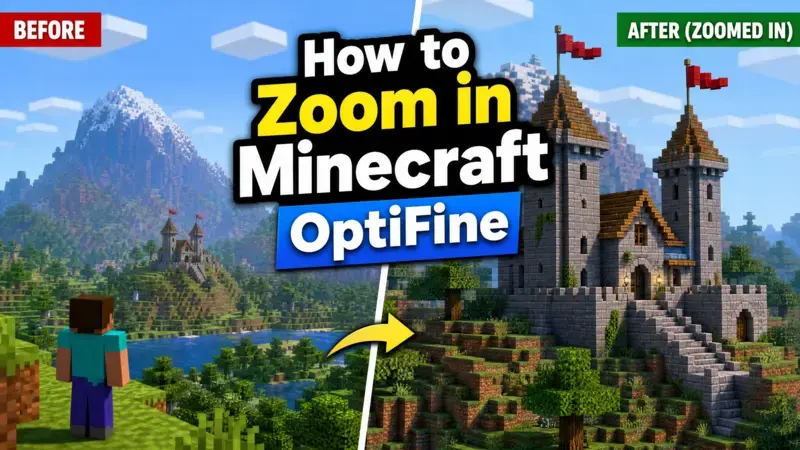
This guide explains exactly how to zoom in Minecraft Optifine. It covers installation steps, keybind setup, and customization options. Readers learn how to fix common zoom problems quickly. The article also compares modern alternatives for better performance. Players discover the right controls menu location and solve key conflicts. The guide includes clear steps for changing the zoom key and adjusting sensitivity. It addresses both new users and experienced players who want reliable zoom functionality. Follow these instructions to activate and optimize the zoom feature in your game.
Why Players Want Zoom in Minecraft
Players need better visibility in large worlds. They search for distant resources or structures during exploration. Zoom helps them spot details without moving closer. Builders use zoom to align blocks accurately from far away. This improves precision in large projects. In PvP matches, players zoom to aim at targets quickly. Snipers benefit from clear long-range views. Content creators record smoother footage with zoom. They capture clear details of far objects. These use cases make zoom a popular feature.
Vanilla Minecraft limits visibility options. Players adjust the field of view slider, but this affects the entire screen. The spyglass tool zooms in, yet it requires crafting and slows movement. Many players turn to OptiFine for a better solution. Learning **how to zoom in Minecraft Optifine** gives instant access through a simple key press. This method beats vanilla limitations for most gameplay situations. The zoom feature supports multiple play styles while keeping controls simple.
How OptiFine Zoom Works
OptiFine adds a dedicated zoom feature to Minecraft Java Edition. Players press and hold a key to zoom in. The view narrows and magnifies the center of the screen. This lets users see far objects with clear detail. The zoom level stays fixed while players hold the key. They move the mouse normally to look around. Releasing the key returns the view to normal. This creates fast and responsive control during gameplay. Vanilla FOV changes affect the entire screen at once. Players lower the slider to zoom in, but this reduces peripheral vision permanently. The change impacts all gameplay until they reset it.
The spyglass item offers temporary zoom in newer versions. Players must craft it first and hold it in their hand. Movement slows while they use the spyglass. The zoom amount also depends on current FOV settings. OptiFine zoom works differently. It activates instantly with a keybind and does not slow movement. Players keep full control and normal speed.
Step-by-Step: Installing OptiFine for Zoom
First check your Minecraft version. Open the launcher and look at the current installation. Write down the exact number, such as 1.21. You need the matching OptiFine file for zoom to work. Visit the official OptiFine downloads page. Select the version that matches your game exactly. Choose the latest stable release for your Minecraft version. Save the jar file to an easy location on your computer. Use the official launcher for simple installation. Click Installations at the top. Select your current profile and click Edit. Choose the version dropdown and look for the OptiFine option. If it does not appear, click New and select the OptiFine version from the list. Save the profile and launch the game.
The launcher handles most of the work.You see OptiFine text in the bottom left corner after the game loads. This confirms successful installation. Forge or Fabric users need extra steps. Install the correct mod loader first for your version. Place the OptiFine jar file in the mods folder. Common pitfalls include version mismatches. Always use OptiFine made for your exact loader and game version. Check the file names carefully before you add them. Launch the game with the Forge or Fabric profile. Go to the main menu. Click Options, then Video Settings. Look for OptiFine settings at the top or bottom. Their presence means the mod loaded correctly.
Test the zoom feature in a world. Press the default key to check if it works. If the controls menu shows a zoom option under miscellaneous, the installation succeeded. This process enables how to zoom in Minecraft Optifine. Players gain access to the zoom feature plus performance improvements. Repeat the steps if you update Minecraft to a new version. Always match OptiFine to your current game version for stable results. The controls menu lists the zoom keybind after successful setup. You can adjust it there anytime. Proper installation prevents most zoom problems before they start.
How to Zoom in Minecraft with OptiFine
Launch Minecraft with OptiFine installed. Enter a single player world or join a server. Look at any distant object like a mountain or structure. Press and hold the C key. This is the default zoom key in most versions. The view zooms in smoothly toward the center of your screen. Release the C key to return to normal view.
How to zoom in Minecraft Optifine works through this simple hold action. The feature magnifies your sight without slowing movement. You keep full mouse control while zoomed. Some players prefer toggle mode. Open Options from the main menu. Select Controls and scroll to the miscellaneous section. Find the zoom entry and change it to toggle. Press the key once to zoom in and press again to zoom out. Holding gives quick control during movement. Toggling works better for long periods of observation. Test both methods in game to find your preference.
In-game demonstration steps are straightforward. Face a far target. Hold C and look around. Notice how details become clearer. Move forward or backward while you hold the key. The zoom stays active until you release it. Check the controls menu if C does not work. Look under miscellaneous for the zoom keybind. Click the current key and press a new one to rebind it. Avoid conflicts with other actions like sprint. This method delivers fast access compared to other options. Players use it often for better visibility across different game activities. The controls stay simple once set up correctly.
Customizing Your Zoom Experience
Open the game menu and select Options. Click Controls and scroll down to the miscellaneous area. Find the zoom entry in the list. Click the current key and press your preferred button to change the zoom keybind. Choose an easy key like R or a mouse button for fast access. How to zoom in Minecraft Optifine improves when you set a comfortable keybind. Avoid keys already used for sprint or other actions. The menu shows red text when conflicts exist. Fix conflicts by reassigning the other action first. Next adjust zoom sensitivity and smoothness.
Return to Options and open Video Settings. Look for OptiFine specific options. Lower the zoom sensitivity value for slower and more precise mouse movement while zoomed. Increase it for faster turns. Enable cinematic camera in the controls menu. Assign it to a key near your zoom keybind. Activate cinematic camera together with zoom. This removes shaky movement and creates smooth panning during long zooms. Many players combine these settings for comfortable gameplay. Test changes in a world and adjust values gradually. Small tweaks often produce the best results. Advanced OptiFine video settings further improve the zoom experience.
Go to Video Settings and explore the extra OptiFine tabs. Enable better dynamic lighting or higher render distances. These options make distant objects clearer when you zoom in. Reduce chunk loading distance if you notice lag while zoomed. Turn on entity culling to improve performance. These settings help maintain smooth frame rates during zoom use. Players often pair zoom with shader packs for enhanced visuals. Test different combinations to match your computer power. The customization options give full control over how zoom feels and looks in game. Save your settings after each change. Create separate profiles if you switch between play styles. These adjustments make the zoom feature more effective for exploration, building, and combat.
Troubleshooting: OptiFine Zoom Not Working
Many players install OptiFine but cannot find the zoom feature. Open the controls menu and scroll to the miscellaneous section. The zoom option should appear there. If you do not see it, the mod may not have loaded correctly. Check your installation profile in the launcher. Make sure you selected the OptiFine version. Restart the launcher and load the correct profile again. This step fixes many missing keybind problems. Red highlights in the controls menu mean key conflicts. The zoom action shares a key with another feature. Click the red entry and assign a new key.
Common conflicts happen with sprint or sneak. Reassign those actions to free up the zoom key. Version mismatches cause most zoom failures. Confirm your OptiFine file matches your exact Minecraft version. Delete old files and install the correct one. Launcher issues often appear after game updates. Create a fresh installation and add OptiFine again. Reset controls to fix stubborn problems. Go to Options then Controls. Click the reset button at the bottom. This restores default keybinds including zoom. Rebind the zoom key afterward to your preference. Reinstall OptiFine as a reliable fix. Remove the current OptiFine file from your mods folder or launcher. Download the matching version again. Install it fresh through the launcher.
Test in a new world after each reinstall. Performance-related problems affect zoom too. Low frame rates make zoom feel unresponsive. Lower your render distance in video settings. Disable unnecessary shader effects or resource packs. Close background programs to free up computer resources. Clear the OptiFine cache if zoom stutters. Go to video settings and find the OptiFine options. Look for a button to clear cache or reset settings. Restart the game after you clear it. Update your graphics drivers if zoom causes crashes. Check for Minecraft launcher updates as well. These steps solve many technical zoom issues.
How to zoom in Minecraft Optifine works reliably after you fix these common problems. Test the C key or your chosen keybind in game. The feature activates instantly once everything loads correctly. Follow these steps in order for fastest results. Most players solve zoom problems within a few minutes. Proper setup leads to smooth performance in exploration and gameplay.
Optimal Modern Zoom Setup Without Heavy OptiFine
Many players now prefer lighter options than full OptiFine. These setups deliver zoom with better performance in 2026. Sodium and Iris provide fast graphics while Zoomify adds clean zoom controls. Install Sodium and Iris first for core performance. Add Zoomify for the zoom feature. This combination runs smoother than OptiFine on most computers. The mods use less memory and support higher frame rates. How to zoom in Minecraft Optifine works well, but modern stacks often feel faster. Zoomify uses the C key by default. Players customize it the same way as OptiFine. Scroll wheel adjusts zoom levels in some mods for extra control.
Here is a comparison of popular choices:
OptiFine gives many graphics options and reliable zoom. It uses more resources and sometimes reduces frame rates. Standalone zoom mods like Zoomify focus only on zoom. They work with Sodium and Iris for top performance. They need fewer files and update quickly. Client launchers install everything in one package. They offer easy zoom plus built-in optimizations. They suit players who want simple setup. Choose based on your needs. Pick Sodium plus Zoomify for low-end PCs. This stack keeps high frame rates during gameplay. Use it with Iris when you want shaders. Select full OptiFine for heavy modpacks that require its specific features. It handles many mods without extra configuration.
Client launchers work best for quick sessions and beginners. They need almost no manual setup. Recommended settings for 2026 gameplay stay simple. Set zoom key to C or mouse button 4. Enable smooth camera in Zoomify options. Keep render distance at 12 to 16 chunks. Turn on entity culling for better speed. Test frame rates in a busy area. Lower graphics settings if zoom causes drops. These modern combinations give strong zoom results with excellent performance. Many players switch to them for daily use. This approach keeps Minecraft responsive while delivering clear long-distance views.
Zoom Alternatives if You Skip OptiFine
Players can zoom without OptiFine through several methods. These options work in vanilla Minecraft or with minimal mods. The FOV slider offers a basic solution. Open Options and select Video Settings. Drag the FOV slider left to zoom in. Lower numbers create a narrower and more zoomed view. Drag it right to zoom out. This method affects your entire screen at all times. The spyglass provides temporary zoom in version 1.17 and newer. Craft it with copper ingots and an amethyst shard. Hold the spyglass in your hand and right-click to use it. The view zooms to about one tenth of your current FOV. Release the button to return to normal sight.
Bedrock Edition offers different choices. Players lower the FOV slider the same way as Java. Some add-ons give zoom similar to OptiFine. Double-tap the sneak button to activate zoom in certain Bedrock add-ons. These work on consoles and mobile devices. Lightweight mods give zoom without full OptiFine. Zoomify works well with Sodium and Iris. It adds a clean zoom keybind with extra settings. Other small mods offer scroll wheel zoom or toggle options. They keep high performance while adding the feature.
How to zoom in Minecraft Optifine remains popular, but these alternatives suit different needs. Vanilla methods need no extra files. Lightweight mods work for players who want zoom plus speed. Bedrock options help players on non-Java platforms. Choose the method that matches your version and setup. Test them in a world to see which feels best. These choices provide good visibility without heavy modifications.
Pro Tips and Best Practices
Combine zoom with shaders for sharper distant views. Enable compatible shaders after you set up OptiFine. Lower render distance slightly to maintain smooth performance. This pairing improves visibility without heavy lag. Use resource packs that match your zoom style. High resolution packs show clear details when you zoom in. Test packs in a creative world first. Switch packs easily through the resource pack menu.
How to zoom in Minecraft Optifine becomes more useful with proper customization. Assign zoom to a side mouse button for quick access. Set cinematic camera near your zoom key for smooth movement. These changes reduce hand strain during long sessions. Adjust sensitivity while zoomed for better control. Fine-tune the value in OptiFine video settings. Start with medium values and test in game. Small adjustments create precise aiming and building.
Consider server rules in multiplayer worlds. Some servers disable mods or zoom features. Ask administrators before you join with OptiFine. Use zoom only when allowed to avoid issues. Test all settings in single player first. Note your favorite keybinds and video options. Create backup profiles in the launcher for different situations. These practices help players get reliable results from the zoom feature. They support better gameplay across exploration, building, and combat activities. Consistent testing leads to the most comfortable setup for each player.
FAQ
What is the default zoom key for OptiFine in Minecraft?
The default zoom key is C in most versions. Hold C to zoom in. Check the controls menu if it does not work.
Why isn’t my OptiFine zoom working and how do I fix it?
The mod may not have loaded correctly. Verify OptiFine in your launcher profile. Reset controls and reinstall the matching version.
How do I change the zoom key in OptiFine?
Open Options and select Controls. Scroll to miscellaneous and click the zoom entry. Press your new key to rebind it.
Can you zoom in Minecraft without OptiFine or mods?
Yes. Lower the FOV slider in video settings. Use the spyglass item in version 1.17 and newer.
Is OptiFine safe to download and use in 2026?
OptiFine is safe when downloaded from its official source. Millions of players use it daily with standard antivirus software.
How do I zoom in closer or adjust zoom levels in OptiFine?
Hold the zoom key and adjust sensitivity in video settings. Some versions allow scroll wheel control for variable levels.
What’s the best way to get OptiFine-like zoom with Sodium and Fabric?
Install Sodium, Iris, and Zoomify. This stack gives smooth zoom with high performance. Use the default C key or rebind it.
Does OptiFine zoom work on Minecraft servers?
It works on most servers. Some servers disable mods. Check the server rules before you join.
Conclusion
This guide covered how to zoom in Minecraft Optifine step by step. You learned installation, keybinds, customization, and fixes for common issues. OptiFine provides reliable zoom for Java Edition. Lightweight options like Sodium with Zoomify deliver strong performance for many players. Pick the method that fits your setup. Apply these settings in your game today. Adjust the keybind and sensitivity for best results. Proper zoom improves exploration, building, and combat. Use this guide when you update Minecraft or switch mods. Clear zoom controls enhance every gameplay session.