
Minecraft OptiFine Cape (2026 Guide): How to Get, Customize, Transfer and Fix It
Quick Answer
A Minecraft OptiFine Cape is a cosmetic cape for Minecraft Java Edition players who support OptiFine through a donation. It does not improve gameplay or provide special abilities. You must install OptiFine to use and manage the cape. You can get an OptiFine Cape by donating on the official OptiFine website and linking it to your Minecraft username. After activation, you can customize its appearance, create a banner cape, or transfer it to another eligible Minecraft account. The cape is not free. It serves as a donation reward that helps support OptiFine’s development. Unlike official Mojang capes, an OptiFine Cape offers design customization and account transfer features.
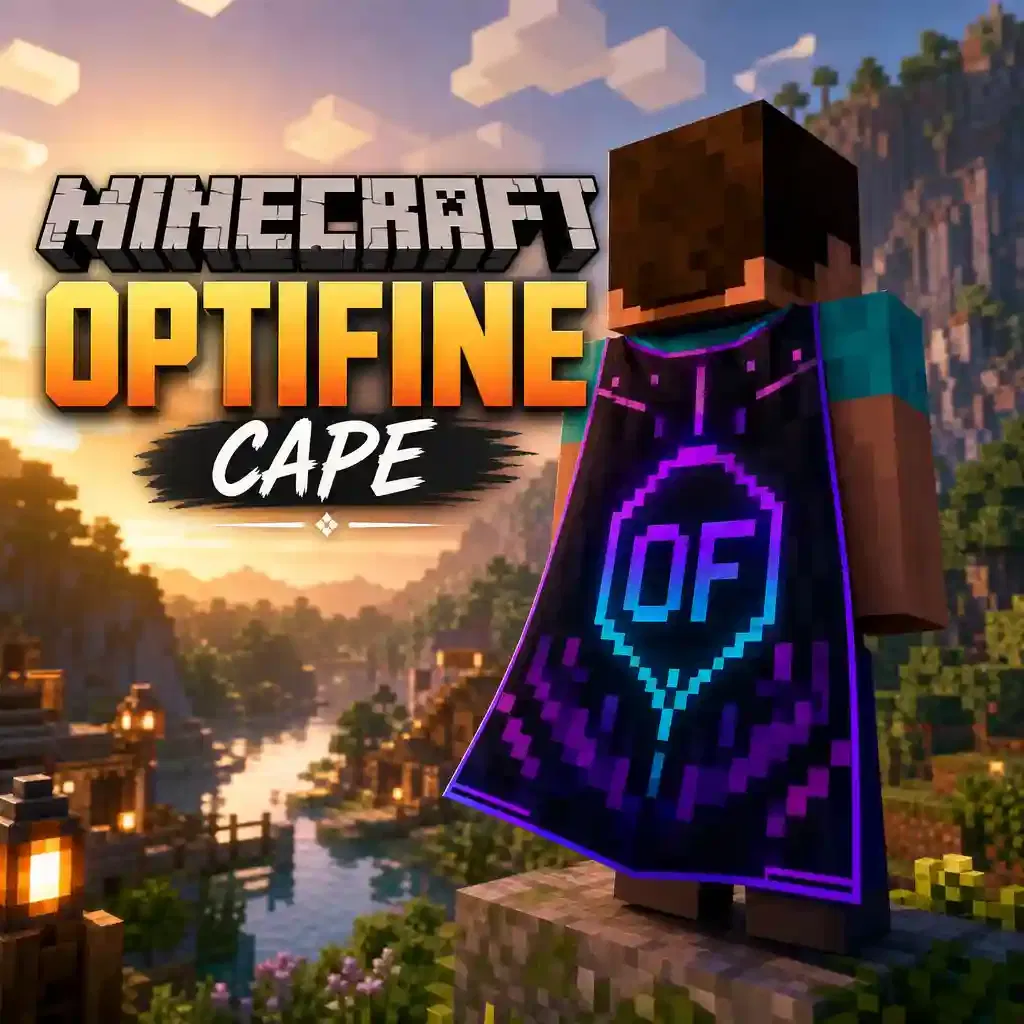
Only players using OptiFine or compatible cape-supporting software can see your OptiFine Cape. Players using the standard Minecraft client will not see it.
Table of Contents
- What Is a Minecraft OptiFine Cape?
- How to Get an OptiFine Cape
- How Much Does an OptiFine Cape Cost?
- Requirements Before Using an OptiFine Cape
- How to Customize an OptiFine Cape
- Best OptiFine Cape Designs
- OptiFine Banner Cape Explained
- OptiFine Cape vs Official Minecraft Capes
- Can Other Players See My OptiFine Cape?
- How to Transfer an OptiFine Cape
- How to Change Your OptiFine Cape Design
- OptiFine Cape Settings in Minecraft
- OptiFine Cape with Elytra
- OptiFine Cape Not Showing? Troubleshooting Guide
- Common Problems and Solutions
- OptiFabric Compatibility
- OptiFine Anniversary Capes
- Special OptiFine Capes
- Frequently Asked Questions
- Final Thoughts
Primary References
- Official OptiFine Donate Page
- Official OptiFine FAQ
- Official OptiFine Home Page
What Is a Minecraft OptiFine Cape?
An OptiFine Cape is a cosmetic cape for Minecraft Java Edition players. You receive it after donating to support OptiFine. The cape changes your character’s appearance but does not improve gameplay. Unlike official Minecraft capes, an OptiFine Cape depends on the OptiFine mod. It works as a client-side cosmetic. Players without OptiFine usually cannot see it.
Definition
An OptiFine Cape is a visual accessory that appears on your player’s back. It adds style without changing game mechanics. You cannot use it to gain speed, strength, or any other advantage. The cape also shows your support for the OptiFine project. Your donation helps fund updates, bug fixes, and new features. After activation, you can customize the cape or transfer it to another eligible Minecraft account.
Why Players Want One
Many players use an OptiFine Cape to make their character stand out. A unique cape creates a more personal Minecraft experience. Others enjoy designing custom banner capes. They can match their cape with a favorite skin, server theme, or personal style. Many players also donate to support OptiFine. The cape serves as a thank-you reward for helping maintain one of Minecraft’s most popular optimization mods.
How It Works
OptiFine does not store cape files inside the mod. Instead, it downloads your cape texture from OptiFine’s servers when you join the game. The game then renders the cape on your player model. Built-in animation makes the cape move naturally as you walk, run, jump, or fly with an Elytra. You can edit your cape through the official OptiFine cape editor. Changes usually appear after the updated texture loads from the server.
Key Point: An OptiFine Cape is a customizable cosmetic reward. It requires OptiFine to display and offers no gameplay benefits.
How to Get an OptiFine Cape
Getting an OptiFine Cape takes only a few minutes. You need OptiFine, a valid Minecraft Java Edition account, and a donation. Follow these steps to activate your cape successfully.
Step 1 — Install OptiFine
Download the latest version of OptiFine from the official website. Choose the version that matches your Minecraft installation. Run the installer and launch Minecraft using the OptiFine profile. This step lets the game load and display your cape correctly.
Tip: Always install OptiFine from the official website. Avoid unofficial downloads that may contain outdated or modified files.
Step 2 — Visit the Donation Page
Open the official OptiFine donation page. This page lets you support the project and request your cape. Read the donation details before you continue. The page explains the available customization features and account options.
Step 3 — Enter Your Minecraft Username
Type your current Minecraft Java Edition username carefully. The system links the cape to this username during activation. Double-check the spelling before moving forward. A typo can delay the activation process.
Step 4 — Complete the Donation
Choose your preferred payment method and complete the donation. After payment, OptiFine begins processing your cape request. Keep your payment confirmation for future reference. You may need it if you contact OptiFine support.
Step 5 — Activate the Cape
After the donation completes, your OptiFine Cape becomes available for your account. Sign in to the OptiFine cape editor to manage your cape. From the editor, you can keep the default design or create a custom banner cape. You can also update the cape later without making another donation.
Verify Your Cape
Launch Minecraft with the OptiFine profile. Join a world or multiplayer server and check your character. If the cape does not appear immediately, wait a few minutes and restart the game. Make sure cape rendering remains enabled in your Minecraft Skin Customization settings. If the problem continues, confirm that you installed the correct OptiFine version and entered the correct Minecraft username during activation.
Official Reference: Use the official OptiFine website for downloads, donations, cape management, and troubleshooting. Official documentation provides the most accurate and up-to-date information.
How Much Does an OptiFine Cape Cost?
An OptiFine Cape is not free. You receive it after making a donation to support the OptiFine project.
Donation Amount
The standard donation is about $10 USD. The exact amount appears on the official OptiFine donation page before you complete your payment. OptiFine accepts several payment methods, depending on your region and the available payment providers.
Why Is a Donation Required?
OptiFine is developed and maintained by a small team. Donations help cover development, testing, hosting, and ongoing updates. Your contribution also supports compatibility with new Minecraft releases and improvements to OptiFine’s performance features. The cape serves as a thank-you reward for supporting the project. It is not a subscription, and you do not pay recurring fees.
What Do You Receive?
After your donation, you receive access to an OptiFine Cape linked to your Minecraft Java Edition account.
Your donation includes several features:
- A customizable OptiFine Cape.
- Access to the official OptiFine Cape Editor.
- Support for custom banner cape designs.
- The ability to transfer the cape to another eligible Minecraft account.
- Permanent access to manage your cape through your OptiFine account.
Remember that an OptiFine Cape is a cosmetic item only. It does not unlock gameplay features, improve performance, or provide competitive advantages.
Good to Know: Donate only through the official OptiFine website. This ensures you receive a genuine cape and access to all official management features and Minecraft OptiFine Emissive Textures.
Requirements Before Using an OptiFine Cape
Before your Minecraft OptiFine Cape appears in-game, make sure everything is set up correctly. Missing one requirement can prevent the cape from displaying.
Minecraft Java Edition
OptiFine works only with Minecraft Java Edition. You cannot use an OptiFine Cape in Minecraft Bedrock Edition. Verify that you own a valid Java Edition account before requesting a cape.
OptiFine Installed
Install the correct OptiFine version for your Minecraft release. Then launch the game using the OptiFine profile. If you start Minecraft with another profile, your cape may not appear.
Stable Internet Connection
OptiFine downloads your cape texture from its servers when you join the game. A stable internet connection allows the game to load the latest cape design. If your connection drops, the cape may take longer to appear.
Correct Minecraft Username
Enter your exact Minecraft Java Edition username during the donation process. Even a small spelling mistake can link the cape to the wrong account. If you recently changed your username, update your cape information through the official OptiFine cape management page.
Cape Enabled
Open Options → Skin Customization and make sure Cape is turned ON. If this setting is disabled, Minecraft will hide your cape even after successful activation.
Checklist Before Playing
- ✓ Minecraft Java Edition account
- ✓ Latest compatible OptiFine installed
- ✓ Stable internet connection
- ✓ Correct Minecraft username
- ✓ Cape enabled in Skin Customization
Meeting these requirements helps your OptiFine Cape load correctly and reduces common display issues.
How to Customize an OptiFine Cape
One of the biggest benefits of an OptiFine Cape is its customization. After activating your cape, you can change its appearance anytime through the official OptiFine Cape Editor. Most updates appear after the game downloads the new cape texture.
Using the Cape Editor
Sign in to the official OptiFine Cape Editor using your cape credentials. The editor lets you manage your current design from any supported web browser. You can switch between available cape styles, create a banner cape, or transfer your cape to another eligible Minecraft account. The editor also lets you update your cape whenever you want.
Standard Cape
The Standard Cape features the classic OptiFine logo. It offers a clean look and requires no extra setup. Many players keep this design because it is simple, recognizable, and ready to use immediately after activation.
Banner Cape
A Banner Cape lets you display a Minecraft banner pattern on your cape. This option gives you far more creative freedom than the standard design. You can build unique patterns with banner colors and symbols. Many players match their cape with their Minecraft skin, faction, or favorite server theme.
Uploading Banner Designs
Create your banner design in Minecraft or with a trusted banner pattern generator. Copy the banner code or pattern into the OptiFine Cape Editor. Preview the design before applying it. This step helps you confirm that every color and pattern appears correctly. If the design looks different in-game, wait a few minutes. OptiFine may need time to refresh the updated cape texture.
Saving Changes
After finishing your design, save the changes in the Cape Editor. The updated cape will replace your previous design once the new texture loads. Launch Minecraft with the OptiFine profile to view the update. If you do not see the new design, restart the game or reconnect to the server.
Best Practice: Keep your cape design simple and easy to recognize. Clean designs often look better from a distance and match more Minecraft skins.
Best OptiFine Cape Designs
A well-designed Minecraft OptiFine Cape makes your character more memorable. The best designs stay clean, balanced, and easy to recognize in-game. Since players often see your cape from a distance, simple patterns usually look better than complex ones. Below are some of the most popular OptiFine cape styles.
Popular Banner Styles
Banner capes remain the favorite choice for many players. They offer hundreds of pattern combinations using Minecraft’s banner system.
Popular banner styles include:
- Creeper face
- Dragon-inspired patterns
- Flame designs
- Lightning symbols
- Shield-style emblems
- Kingdom banners
- Tribal patterns
Choose colors that match your Minecraft skin for a consistent appearance.
Minimal Designs
Minimal capes use only a few colors and simple shapes. They create a clean look without unnecessary details.
Popular minimal designs include:
- Solid colors
- Thin borders
- Single symbols
- Split-color layouts
- Small geometric patterns
These capes work well on both survival and multiplayer servers.
PvP Style
PvP players often prefer bold and high-contrast designs. These capes stand out during fast movement and competitive gameplay.
Common PvP themes include:
- Black and red
- Black and white
- Fire effects
- Skull symbols
- Lightning graphics
- Sharp geometric patterns
Avoid overcrowding the design with too many colors.
Fantasy Theme
Fantasy capes take inspiration from magical worlds and adventure games. They pair well with medieval or RPG-style Minecraft skins.
Popular ideas include:
- Dragons
- Phoenix wings
- Royal crests
- Ancient runes
- Magic symbols
- Knight emblems
These designs give your character a heroic appearance.
Anime Inspired
Many Minecraft players create capes based on their favorite anime series. They often use simple icons instead of detailed artwork because banner patterns have design limits.
Popular ideas include:
- Clan symbols
- Element icons
- Ninja themes
- Sword emblems
- Mystic eyes
- Minimal character logos
Simple symbols usually produce the best results.
Gradient Designs
Gradient capes blend two or more colors to create a smooth transition. They look modern and match many custom skins.
Popular color combinations include:
- Blue to cyan
- Purple to black
- Red to orange
- Green to lime
- White to gray
- Gold to yellow
Use two or three colors for the cleanest appearance.
Design Tip: Choose a cape that matches your skin, Elytra, and favorite Minecraft theme. A consistent style looks more professional and makes your character easier to recognize.
OptiFine Banner Cape Explained
A Banner Cape is the most popular way to customize a Minecraft OptiFine Cape. It lets you apply Minecraft banner patterns instead of using the default OptiFine logo. This feature gives every player a unique look without changing gameplay.
What Is a Banner Cape?
A Banner Cape uses Minecraft’s banner patterns as its design. You create a banner pattern and apply it through the official OptiFine Cape Editor. Unlike the Standard Cape, a Banner Cape offers many design possibilities. You can create simple emblems, colorful gradients, or themed patterns that match your Minecraft skin. Banner Capes remain cosmetic only. They do not provide special abilities or gameplay advantages.
Supported Banner Patterns
OptiFine supports many banner patterns available in Minecraft. You can combine colors and symbols to create a unique cape.
Popular banner patterns include:
- Creeper Face
- Skull
- Flower
- Globe
- Mojang Logo
- Cross
- Stripe
- Border
- Diamond
- Circle
- Triangle
- Gradient
- Half and Quarter patterns
You can also layer multiple patterns to create more detailed designs.
Design Limitations
Banner Capes follow Minecraft’s banner system. Because of this, they have a few limitations.
Keep these points in mind:
- You can only use supported banner patterns.
- Small details may not appear clearly.
- Very complex designs can look blurry.
- Bright color combinations usually stand out better.
- Simple layouts remain easier to recognize during gameplay.
Design your cape with visibility in mind. Players often see it while you move or fly with an Elytra.
Best Banner Combinations
Some color combinations look cleaner than others. They also match a wide range of Minecraft skins.
Popular Banner Cape combinations include:
| Theme | Recommended Colors |
| Classic | Black and White |
| Fire | Red, Orange, Yellow |
| Ice | Blue, Cyan, White |
| Nature | Green, Lime, Brown |
| Royal | Purple and Gold |
| Dark PvP | Black and Red |
| Ocean | Navy and Aqua |
| Nether | Crimson, Black, Gray |
Choose one main color and one or two accent colors. A balanced design looks cleaner than a crowded one.
Pro Tip: Preview your Banner Cape before saving it. Test it with your Minecraft skin to make sure the colors and patterns work well together.
OptiFine Cape vs Official Minecraft Capes
At first glance, OptiFine Capes and official Minecraft Capes look similar. However, they serve different purposes. They also differ in how players obtain, customize, and use them. An OptiFine Cape rewards players who support the OptiFine project. Official Minecraft Capes come directly from Mojang for special events, achievements, or promotions.
The table below highlights the key differences.
| Feature | OptiFine Cape | Official Minecraft Cape |
| Source | Donation to support the OptiFine project | Awarded by Mojang through official events, promotions, or special eligibility |
| Visibility | Visible to players using OptiFine or compatible cape-supporting software | Visible to all Minecraft players because the cape belongs to the official account |
| Transferable | Yes. You can transfer it to another eligible Minecraft account through the OptiFine Cape Editor. | No. Mojang capes stay linked to the original eligible account. |
| Customization | Yes. Switch between the Standard Cape and custom Banner Cape designs. | No. Players cannot edit official cape designs. |
| Cost | Requires a donation to receive the cape. | No purchase required. Players must meet Mojang’s eligibility requirements. |
| Availability | Available whenever the OptiFine donation program accepts new donations. | Limited. Most capes come from specific events or account milestones. |
| Rare Status | Common among OptiFine supporters. | Often considered rare because many official capes have limited distribution. |
| Primary Use | Show support for OptiFine and personalize your character. | Recognize official achievements, events, or special community participation. |
Which Cape Should You Choose?
If you want a cape with custom designs, the Minecraft OptiFine Cape offers more flexibility. You can change its appearance, create a Banner Cape, and transfer it to another eligible account. If you already own an official Minecraft Cape, you receive universal visibility across Minecraft Java Edition. However, you cannot customize or transfer it. Many players value both cape types for different reasons. An OptiFine Cape highlights creativity and support for the OptiFine project. An official Minecraft Cape often represents a unique achievement or event.
Key Difference: OptiFine Capes focus on customization and flexibility. Official Minecraft Capes focus on recognition and account history.
Can Other Players See My OptiFine Cape?
The answer depends on the software other players use. An OptiFine Cape is a client-side cosmetic. It does not become part of your official Minecraft account like a Mojang cape. If another player’s game supports OptiFine capes, they can usually see your cape. Otherwise, it will not appear.
Players Using OptiFine
Players running the same or a compatible version of OptiFine can see your cape after it loads from OptiFine’s servers. Both players need a stable internet connection. The cape may take a few moments to appear after joining a world or server.
Vanilla Players
Players using the standard Minecraft Java Edition client cannot see your OptiFine Cape. Vanilla Minecraft does not download or render OptiFine cape textures. Your character will appear without the cape.
Fabric Users
Fabric itself does not display OptiFine Capes.
However, players using OptiFabric or another compatible cape-supporting solution may see your cape if their setup supports OptiFine cape rendering. Compatibility depends on the installed mods and their versions.
Forge Users
Forge does not include OptiFine cape support by default. If a Forge player installs OptiFine correctly, the game can display OptiFine Capes. Without OptiFine or compatible support, the cape remains invisible. Always use compatible versions of Forge and OptiFine to avoid display issues.
Multiplayer Servers
Most multiplayer servers do not control OptiFine Capes. The cape displays on your computer and on the computers of players whose clients support it. The server does not need to install OptiFine for your cape to work.
If your friends cannot see your cape, ask them to check these items:
- They use OptiFine or compatible cape-supporting software.
- Their internet connection is stable.
- Cape rendering is enabled.
- They use compatible game and mod versions.
Key Takeaway: Your OptiFine Cape is not visible to every Minecraft player. Only clients that support OptiFine cape rendering can display it.
How to Transfer an OptiFine Cape
One useful feature of a Minecraft OptiFine Cape is account transfer. If you change your Minecraft Java Edition account, you can move your cape to another eligible account. You can complete the transfer through the official OptiFine Cape Editor.
Follow the steps below to avoid errors.
Step-by-Step Guide
- Open the official OptiFine Cape Editor.
- Sign in with your cape credentials.
- Select the Transfer Cape option.
- Enter the username of the new Minecraft Java Edition account.
- Check the username carefully before confirming.
- Complete the transfer request.
- Launch Minecraft with OptiFine on the new account.
- Verify that the cape appears in-game.
The new account should display the cape after the OptiFine servers update the account information. If the cape does not appear immediately, restart the game and allow a few minutes for the changes to sync.
Requirements
Make sure you meet these requirements before transferring your cape:
- You own a valid Minecraft Java Edition account.
- The destination username is correct.
- The new account can use OptiFine.
- You have access to your OptiFine cape credentials.
- You use the official OptiFine Cape Editor.
Meeting these requirements helps prevent transfer errors.
Common Mistakes
Many transfer problems result from simple errors.
Avoid these common mistakes:
- Entering the wrong Minecraft username.
- Transferring to an ineligible account.
- Using an outdated username.
- Launching Minecraft without OptiFine.
- Expecting the cape to update instantly.
- Using unofficial websites or tools.
Always verify the destination username before confirming the transfer.
Limitations
OptiFine Capes offer more flexibility than official Minecraft capes, but they still have limits.
Keep these points in mind:
- You can transfer only through the official OptiFine system.
- The cape remains an OptiFine cosmetic.
- Vanilla Minecraft does not display the cape.
- Transfer completion may take a short time to appear in-game.
- Future policy changes may affect transfer options.
Best Practice: Transfer your cape only when necessary. Double-check the destination username before submitting the request to avoid unnecessary delays.
How to Change Your OptiFine Cape Design
You can change your Minecraft OptiFine Cape anytime after activation. The official OptiFine Cape Editor lets you switch between the Standard Cape and custom Banner Cape designs in just a few steps.
Login
Visit the official OptiFine Cape Editor and sign in using your cape credentials. After logging in, you’ll see the management page for your OptiFine Cape. From there, you can edit your current design or choose a new one.
Cape Editor
The Cape Editor gives you full control over your cape’s appearance.
You can:
- View your current cape.
- Switch between available designs.
- Open the Banner Editor.
- Transfer your cape to another eligible account.
- Manage your cape settings.
Use only the official Cape Editor to keep your account secure.
Banner Editor
Select the Banner Cape option if you want a custom design. The Banner Editor lets you apply Minecraft banner patterns to your cape. You can combine colors and symbols to create a unique look. Preview your design before saving it. A quick preview helps you spot color or pattern issues.
Standard Designs
If you prefer a simple look, choose the Standard Cape. The Standard Cape displays the classic OptiFine logo. Many players use it because it is clean, recognizable, and ready to use immediately. You can switch between the Standard Cape and a Banner Cape whenever you want.
Save Changes
After finishing your design, click Save to apply the changes. OptiFine for Fabric uploads the new cape texture to its servers. Launch Minecraft with OptiFine to view the updated design. If the new cape does not appear immediately, wait a few minutes and restart the game. The updated texture may need time to load.
Pro Tip: Test your cape with your Minecraft skin before keeping the design. Matching colors and simple patterns usually create the best in-game appearance.
OptiFine Cape Settings in Minecraft
Your Minecraft OptiFine Cape needs the correct settings to display properly. If your cape does not appear, check these options before trying advanced troubleshooting.
Cape Toggle
Minecraft includes a built-in option to show or hide your cape. Open Options → Skin Customization and make sure Cape is set to ON. If this option stays off, your cape will remain hidden even if it is active on your OptiFine account.
Skin Customization
The Skin Customization menu controls several cosmetic features.
Check these settings before joining a world:
- Cape: ON
- Jacket: Optional
- Sleeves: Optional
- Pants Legs: Optional
- Hat: Optional
Only the Cape option affects your OptiFine Cape. If you recently changed your cape design, restart Minecraft after enabling the setting.
Video Settings
Most video settings do not affect your cape. However, using the correct OptiFine profile is essential. Launch Minecraft with the OptiFine installation instead of the default profile. Otherwise, the game cannot download and render your cape. Also, keep your OptiFine version updated. Older versions may cause display issues with newer Minecraft releases.
Performance Settings
Performance settings can improve gameplay without hiding your cape. However, extreme optimization or incompatible mods may cause rendering problems.
For the best experience:
- Use the latest compatible OptiFine version.
- Keep your graphics drivers updated.
- Avoid conflicting cosmetic mods.
- Restart Minecraft after changing cape settings.
- Maintain a stable internet connection so OptiFine can load your cape texture.
If your cape still does not appear, verify that it is active in the official OptiFine Cape Editor before moving to the troubleshooting section.
Quick Checklist
- ✓ Cape enabled in Skin Customization
- ✓ Minecraft launched with OptiFine
- ✓ Latest compatible OptiFine version installed
- ✓ Stable internet connection
- ✓ Cape active in the OptiFine Cape Editor
These simple checks solve most OptiFine Cape display issues.
OptiFine Cape with Elytra
Your Minecraft OptiFine Cape changes its appearance when you equip an Elytra. Instead of disappearing, the cape transforms to match the Elytra model during flight. This creates a smooth visual effect while keeping your custom design visible.
Appearance
When you wear an Elytra, your OptiFine Cape wraps around the Elytra wings. The cape’s colors and patterns remain visible, but they adjust to fit the Elytra’s shape. A clean banner design usually looks better than a complex one. Large symbols and simple color schemes stay clear during flight.
Animation
OptiFine adds realistic movement to your cape. The animation responds to your character’s actions in real time.
You can notice different movements while:
- Walking
- Running
- Jumping
- Swimming
- Flying with an Elytra
The cape moves naturally with your character instead of staying still. Wind-like motion makes flying feel more immersive.
Differences
Although the same design appears on both items, a cape and an Elytra do not look identical.
Here are the main differences:
| Feature | OptiFine Cape | Elytra with OptiFine Cape |
| Shape | Long cape behind the player | Folded across the Elytra wings |
| Movement | Flows behind the character | Moves with the Elytra during flight |
| Visibility | Easy to see while walking or standing | Most visible while gliding |
| Design Display | Full cape texture | Texture adapts to the Elytra model |
Your custom banner pattern stays linked to your OptiFine Cape. When you equip an Elytra, the game automatically applies the same design to the Elytra model.
Tip: Use bold colors and simple patterns if you fly often. They remain easier to recognize while gliding at high speed.
OptiFine Cape Not Showing? (Troubleshooting)
If your Minecraft OptiFine Cape is not showing, do not worry. Most cape problems have simple solutions. Check each issue below before contacting OptiFine support.
OptiFine Not Installed
Your cape only works with OptiFine. If you launch the default Minecraft profile, your cape will not load. Install the latest compatible OptiFine version and start the game using the OptiFine profile.
Wrong Version
An outdated or incompatible OptiFine version can prevent your cape from loading. Download the OptiFine release that matches your Minecraft Optifine version. Then restart the game and check your cape again.
Internet Connection
OptiFine downloads your cape texture from its servers every time you join the game. A slow or unstable connection may delay the download. Check your internet connection and reconnect if needed.
Cape Disabled
Minecraft lets you hide cosmetic capes. Open Options → Skin Customization and confirm that Cape is turned ON. If the setting stays off, your cape will remain hidden.
Incorrect Username
Your cape links to your Minecraft Java Edition username. If you entered the wrong username during the donation process, the cape may appear on another account or fail to load. Verify your username through the official OptiFine Cape Editor.
Cache Problems
Minecraft may display an older cape texture stored in memory. Restart the game after changing your cape design. If the old design remains, wait a few minutes for the updated texture to load from OptiFine’s servers.
OptiFine Server Delay
Cape activation and design updates are not always instant. The OptiFine servers may need a few minutes to process new changes. Wait briefly before trying again. If the problem continues after a reasonable delay, verify that your cape is active in the Cape Editor.
Mod Conflicts
Some cosmetic or rendering mods can interfere with OptiFine. Disable recently installed mods and launch Minecraft with only OptiFine. If the cape appears, another mod likely caused the conflict. Add your mods back one at a time to identify the problem.
Fabric Compatibility
Fabric does not support OptiFine Capes by itself. If you use Fabric, make sure your setup includes OptiFabric or another compatible solution that supports OptiFine cape rendering. Also check that every mod matches your Minecraft version.
Forge Compatibility
Forge users must install a compatible version of OptiFine. An outdated Forge version or an incompatible mod combination can stop the cape from rendering correctly. Update Forge and OptiFine to compatible releases before testing again.
Quick Troubleshooting Checklist
Before moving on, confirm these points:
- ✓ Minecraft Java Edition is installed.
- ✓ You launched the OptiFine profile.
- ✓ Your OptiFine version matches Minecraft.
- ✓ Your internet connection is stable.
- ✓ Cape is enabled in Skin Customization.
- ✓ Your Minecraft username is correct.
- ✓ Your cape is active in the official Cape Editor.
- ✓ No conflicting mods are installed.
- ✓ You waited for OptiFine to update the cape texture.
Expert Tip: Most OptiFine Cape issues result from using the wrong game profile, disabling the cape setting, entering an incorrect username, or waiting for the cape texture to sync. Checking these items first solves the majority of display problems.
OptiFabric Compatibility
OptiFabric lets you use OptiFine with the Fabric mod loader. It acts as a compatibility layer between Fabric and OptiFine. This setup allows many OptiFine features, including OptiFine Capes, to work in supported Minecraft versions. Before installing OptiFabric, always check that your versions of Minecraft, Fabric Loader, Fabric API, OptiFabric, and OptiFine are compatible.
How It Works
OptiFabric connects OptiFine to the Fabric mod loader. It helps Fabric recognize OptiFine without replacing your existing Fabric installation. When everything matches, OptiFine can load your cape texture from its servers and display it in-game. If another player also uses a compatible setup, they can usually see your OptiFine Cape.
Limitations
OptiFabric improves compatibility, but it cannot guarantee that every OptiFine feature will work perfectly.
Keep these limitations in mind:
- Some Fabric mods may conflict with OptiFine.
- Compatibility varies between Minecraft versions.
- New Minecraft updates may require new OptiFabric releases.
- Some rendering features can behave differently than a standard OptiFine installation.
- Unsupported mod combinations may cause visual glitches or crashes.
Always test your mod pack after adding OptiFine or updating Fabric.
Supported Versions
OptiFabric supports only specific combinations of:
- Minecraft Java Edition
- Fabric Loader
- Fabric API
- OptiFine
- OptiFabric
Before updating your game, verify that all five components support the same Minecraft version. Using compatible versions reduces crashes and cape rendering problems.
Common Issues
Most OptiFabric problems come from version mismatches or conflicting mods.
Common issues include:
- OptiFine Cape not showing.
- Game crashes during startup.
- Black or missing textures.
- Rendering glitches.
- Low frame rates after installing new mods.
- Fabric mods failing to load.
- Version incompatibility errors.
If you experience these problems:
- Update Fabric Loader.
- Install the latest compatible Fabric API.
- Download the correct OptiFine version.
- Install the matching OptiFabric release.
- Remove incompatible rendering mods.
- Restart Minecraft and test again.
If the cape still does not appear, launch Minecraft with only Fabric, Fabric API, OptiFabric, and OptiFine installed. Then add your other mods one at a time to identify the conflict.
Best Practice: Update your entire Fabric setup together instead of updating one mod at a time. Matching versions provide the most stable experience and help your OptiFine Cape load correctly.
OptiFine Anniversary Capes
Over the years, OptiFine has released a few Anniversary Capes to celebrate important milestones. These capes feature special designs that differ from the standard OptiFine logo and custom Banner Capes. Because they mark specific events, many players consider them collectible designs.
Anniversary Designs
Anniversary Capes use unique artwork created for major OptiFine milestones. One well-known example is the “10” Anniversary Cape, released to celebrate OptiFine’s 10th anniversary. It replaces the standard logo with a commemorative design while keeping the same cosmetic function. Like every OptiFine Cape, an Anniversary Cape offers no gameplay advantage. It simply gives your character a distinctive appearance.
Limited Editions
Anniversary Capes are limited-edition designs. They are available only during selected celebrations or official events. Once an anniversary event ends, OptiFine may stop offering that design. Players who did not activate it during the event may not receive another opportunity. For this reason, anniversary designs often become popular within the OptiFine community.
Availability
Anniversary Cape availability depends on official OptiFine announcements. Not every year includes a new commemorative cape. The OptiFine team decides whether to release a special design for a milestone. If an anniversary cape becomes available, you can usually select it through the official OptiFine Cape Editor while the event remains active. Always check the official OptiFine website for current availability instead of relying on third-party sources.
Historical Releases
OptiFine has introduced only a small number of anniversary-themed cape designs.
Known historical releases include:
| Anniversary | Special Design | Availability |
| 10th Anniversary | “10” Anniversary Cape | Limited-time official release |
Future anniversary designs may celebrate new OptiFine milestones, but the OptiFine team has not guaranteed future releases. Good to Know: Anniversary Capes are special design options for eligible OptiFine Cape owners. They are different from official Mojang Capes, which Mojang awards through its own events and programs.
Special OptiFine Capes
Besides the Standard Cape and Banner Cape, OptiFine has also recognized a small number of community members with special capes. These capes are uncommon and are not part of the regular donation program. Most players will never receive these designs because OptiFine awards them only in specific situations.
Contributor Capes
OptiFine has given special capes to selected contributors who helped improve the project.
Contributions may include:
- Finding important bugs.
- Helping with development.
- Supporting major project improvements.
- Providing long-term community assistance.
These capes recognize meaningful contributions rather than financial support.
Developer Capes
OptiFine developers and core team members may use exclusive cape designs that identify their role in the project. These capes are not available through the public Cape Editor. Players cannot unlock or purchase them. Developer capes help distinguish official team members within the Minecraft community.
Exclusive Rewards
Some cape designs become available only during special OptiFine events or project milestones. Others remain reserved for contributors or developers. These exclusive rewards differ from the standard donation cape in several ways:
| Cape Type | Who Can Get It? | Publicly Available? |
| Standard Cape | Anyone who donates | Yes |
| Banner Cape | Eligible cape owners | Yes |
| Anniversary Cape | Eligible owners during selected events | Limited-time |
| Contributor Cape | Selected contributors | No |
| Developer Cape | OptiFine development team | No |
Receiving a special OptiFine Cape does not provide extra gameplay features. These capes remain cosmetic and follow the same rendering rules as other OptiFine capes.
Important: OptiFine does not sell Contributor or Developer Capes. Be cautious of websites or sellers claiming to offer these exclusive designs. Obtain cape information only from official OptiFine sources.
Frequently Asked Questions
Is an OptiFine Cape permanent?
Yes. Your OptiFine Cape stays linked to your account after a successful donation. You do not need to pay a recurring fee. You can also manage or transfer the cape through the official OptiFine Cape Editor, subject to OptiFine’s current policies.
Can I get an OptiFine Cape for free?
No. OptiFine provides the cape as a donation reward. You must complete the required donation through the official OptiFine website to receive one.
How long does activation take?
Activation usually takes only a few minutes after your donation completes. In some cases, server processing or internet issues may cause a short delay. Restart Minecraft if your cape does not appear immediately.
Can Bedrock players use OptiFine Capes?
No. OptiFine works only with Minecraft Java Edition. Minecraft Bedrock Edition does not support OptiFine or OptiFine Capes.
Can I transfer my cape?
Yes. OptiFine lets eligible users transfer their cape to another Minecraft Java Edition account through the official Cape Editor. Always verify the destination username before confirming the transfer.
How do I remove my cape?
Open Options → Skin Customization and turn Cape off to hide it in-game. You can also change your cape settings through the OptiFine Cape Editor if needed.
Can I edit my cape anytime?
Yes. You can change your cape design whenever you want. Switch between the Standard Cape and a custom Banner Cape by using the official OptiFine Cape Editor.
Why can’t my friends see my cape?
Your friends must use OptiFine or compatible cape-supporting software. Players using the standard Minecraft client usually cannot see OptiFine Capes. Also, make sure your cape is active and enabled in Skin Customization.
Does Lunar Client show OptiFine Capes?
Lunar Client’s cape support depends on its current implementation and version. Compatibility may change over time. Check Lunar Client’s official documentation for the latest support details.
Does Badlion support OptiFine Capes?
Badlion Client may not display OptiFine Capes in every version or configuration. Support depends on the client’s current features. Refer to Badlion’s official documentation for the latest compatibility information.
Is the cape worth buying?
If you already use OptiFine, many players find the donation worthwhile. You support ongoing development and receive a customizable cosmetic cape. However, the cape provides no gameplay advantages.
Can I use multiple capes?
No. One OptiFine account can display only one OptiFine Cape at a time. You can change its design whenever you like, but you cannot wear multiple OptiFine Capes simultaneously.
Conclusion
A Minecraft OptiFine Cape is one of the easiest ways to personalize your Minecraft Java Edition character. It also lets you support the OptiFine project through a one-time donation. After activation, you can choose the classic Standard Cape or create a unique Banner Cape. The official Cape Editor makes it easy to update your design whenever you want. If your cape does not appear, start with the basics. Check that you installed the correct OptiFine version, enabled Cape in Skin Customization, entered the correct Minecraft username, and launched the OptiFine profile.
These steps solve most display issues.OptiFine also gives you the flexibility to transfer your cape to another eligible Minecraft Java Edition account. Always use the official Cape Editor and verify the destination username before confirming the transfer.
To enjoy the best experience, follow these best practices:
- Download OptiFine only from the official website.
- Keep OptiFine updated to match your Minecraft version.
- Use simple, high-contrast cape designs for better visibility.
- Check compatibility before installing Fabric or Forge mods.
- Avoid unofficial websites that claim to sell or unlock special capes.
- Manage your cape only through the official OptiFine Cape Editor.
Whether you prefer a clean Standard Cape or a creative Banner Cape, the Minecraft OptiFine Cape adds a personal touch without changing gameplay. With proper setup and regular updates, you can enjoy a smooth and reliable cape experience across your Minecraft adventures.